Deactivating and removing users from Ramp
Note: This article primarily applies to Ramp Administrators and managers.
Overview
There are times when an administrator or manager needs to remove a user from Ramp. Ramp offers two ways to do so: deactivation and termination. To learn more about the different user states in Ramp, see Understanding user states in Ramp.
- Deactivate — Temporary. Blocks access but preserves all data, cards, and approvals. Can be reversed at any time. Use this when an employee is on leave or you need to temporarily restrict access.
- Terminate — Permanent. Removes the user, terminates cards, deletes pending reimbursements, and requires reassigning approvals and vendor ownership. Cannot be undone. Use this when an employee has permanently left the company.
Deactivation vs. termination: what happens to your data
| What happens to... | Deactivation | Termination |
|---|---|---|
| Ramp access | Blocked — user cannot sign in | Permanently removed |
| Physical cards | Suspended (reactivated if user is reactivated) | Terminated permanently for security |
| Virtual cards | Suspended | Terminated or transferred to a replacement user |
| Spend allocations and funds | Preserved — remain intact | Must be terminated or transferred during termination flow |
| Approval chains | Preserved — user stays in approval chains | Must assign a replacement approver during termination |
| Pending reimbursements | Preserved | Unapproved reimbursements are permanently deleted. Approved reimbursements are still processed |
| Transactions | Preserved | Preserved — visible on dashboard and in CSV exports |
| Pending spend requests and invites | Preserved | Deleted upon termination |
| Vendor ownership | Preserved | Must assign new vendor owner during termination |
| Reversible? | Yes — reactivate anytime | No — cannot be undone |
Deactivate a user
- Go to Company > People .
- Locate and click on the employee you want to deactivate.
- Click Edit Profile .
- Scroll down to the bottom of the page.
- Toggle the Deactivate account switch on.
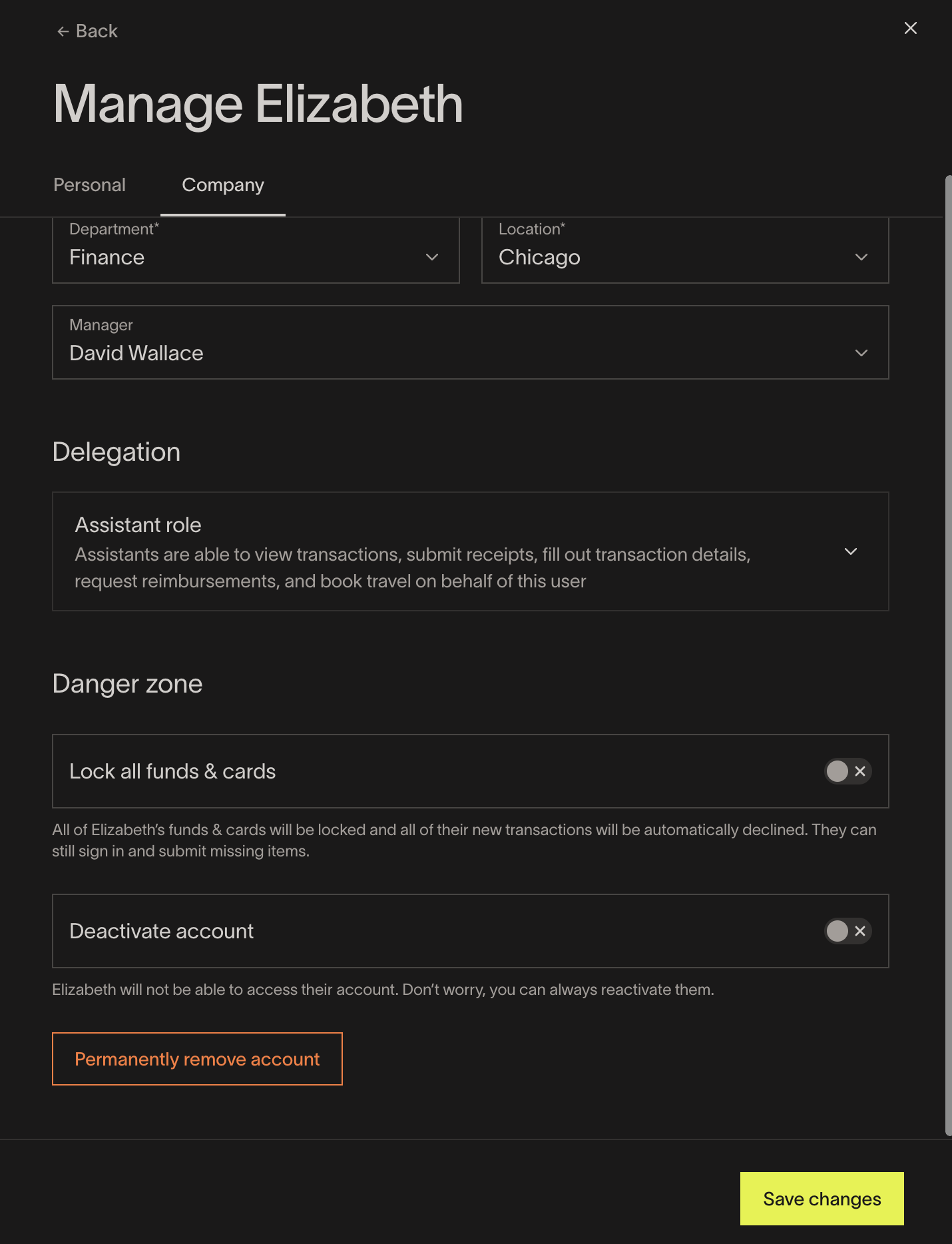
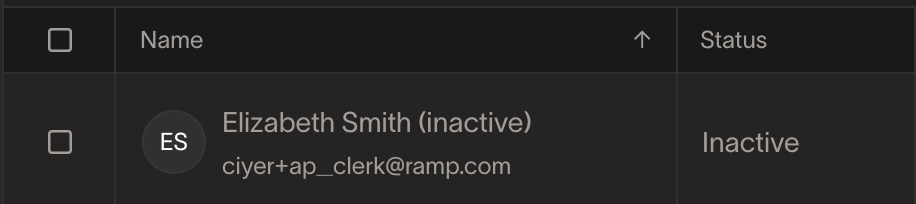
The user will no longer be able to sign in or use their Ramp cards. Their profile will appear with an "(Inactive)" label in the People table.
Reactivate a deactivated user
If you previously deactivated a user and need to restore their access, you can reactivate them at any time.
- Go to Company > People and use the status filter to show Inactive users.
- Click on the deactivated user to open their profile.
- Click Edit Profile .
- In the account management section, toggle the Deactivate account switch off, or click the Reactivate account link in the deactivation banner.
What gets restored on reactivation:
- The user regains access to Ramp
- All cards are unsuspended and reactivated
- Spend allocations are unlocked
- Any scheduled termination is canceled
What does NOT get restored:
- Changes made to approval chains while the user was deactivated are not reverted
- If spend allocations were manually edited during deactivation, those changes persist
Note: Terminated users cannot be reactivated. Termination is permanent.
Terminate a user
Draft and pending (unapproved) reimbursements — and any receipts attached to them — are permanently removed when you terminate a user. This cannot be undone: Ramp cannot restore these reimbursements or retrieve their attached receipts after termination. Confirm you no longer need them before terminating the user. Approved reimbursements that are already being paid out are not affected.
- Go to Company > People .
- Locate and click on the employee you want to terminate.
- Click Edit Profile .
- Scroll down to the bottom of the page.
- Click Permanently terminate account . The user will not be able to access their account or account details moving forward, however their transaction data will still be available for admins and owners to review.
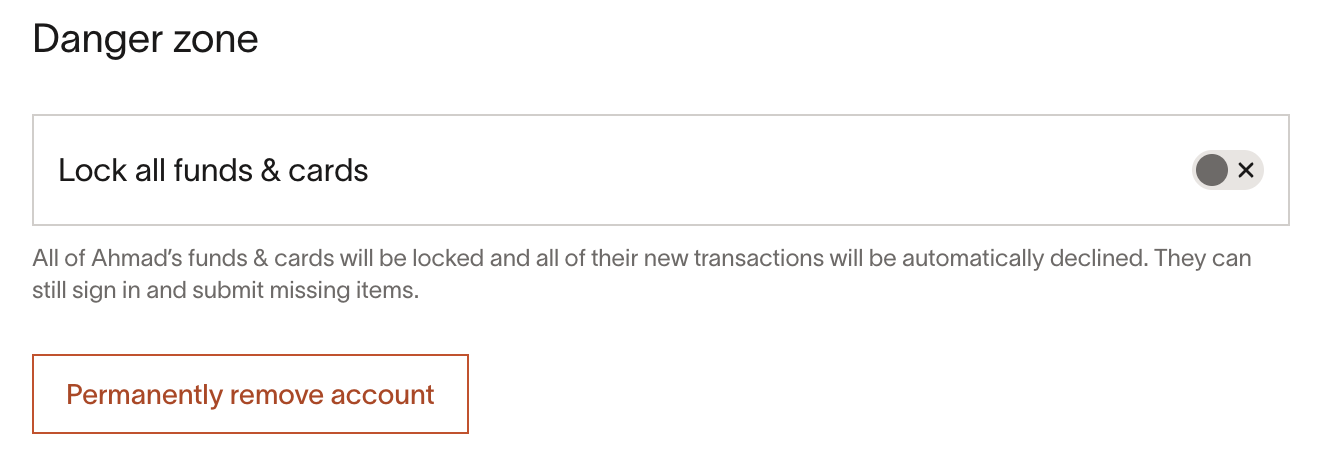
Note: Users will not be notified regarding the termination of their account.
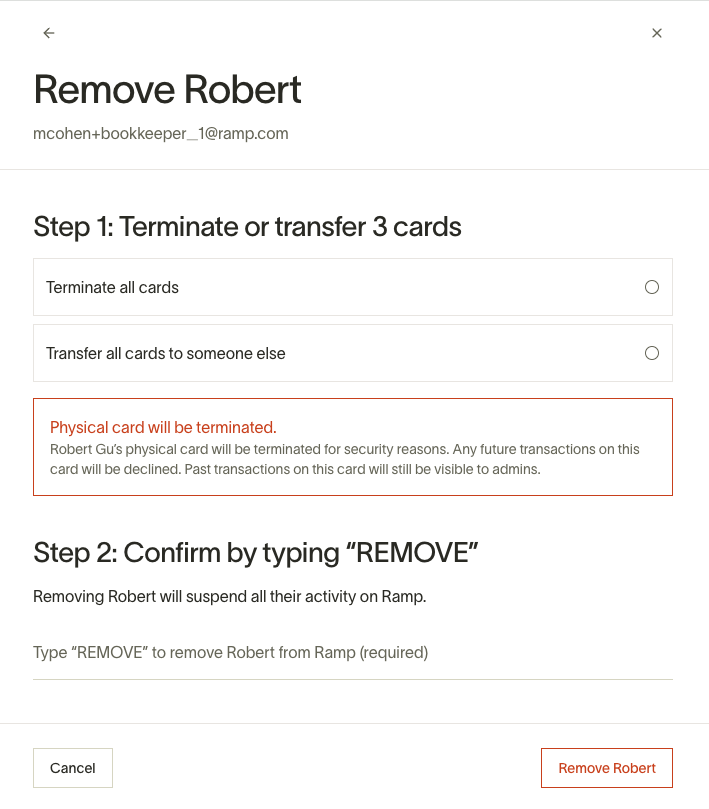
If a user is present in an approval chain, you will need to reassign their approval seat before you can terminate them. You will also be able to reassign or terminate the user's active cards and funds during the termination flow.
If the user owns vendors, the termination flow includes a Reassign vendor ownership step. You can assign all owned vendors to one person or assign them individually. Individual assignment can suggest the vendor's top spender, department head, or the departing owner's manager, and you can override the suggestion for each vendor. Newly added owners from the individual assignment flow receive a Ramp digest notification.
For a full breakdown of what happens to cards, reimbursements, transactions, and other data, see the comparison table above.
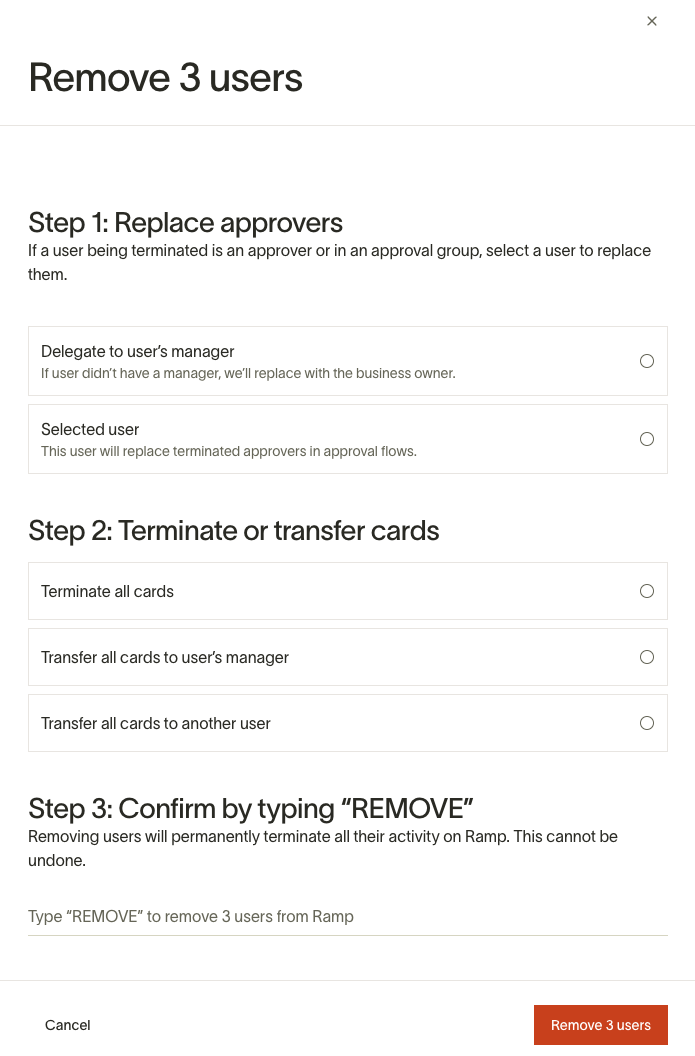
Terminate multiple users
If you have multiple users to remove from your Ramp account, you can terminate many at once.
- Go to Company > People .
- Select the users you want to terminate by clicking the checkbox next to their names.
- Click the Remove users button on the bottom right.
- Choose how to handle approvers who are being terminated. You can reassign approval seats to the terminated users' managers or select a single user to take their place.
- Decide what to do with these users' virtual cards and funds. You can terminate them, reassign them to their managers, or reassign them to a single user.
For bulk termination, vendor and spend request ownership is automatically assigned to each user's manager. If no manager is available, ownership is assigned to the business owner.
SCIM and auto-termination
If your company uses SCIM, Ramp deactivates users deactivated in your identity provider; draft users are deleted instead. If auto-termination is enabled, eligible users will be scheduled for permanent termination after a configurable waiting period (default: 45 days). Users who do not meet the eligibility criteria remain deactivated and excluded from upcoming auto-terminations.
For more details, see Auto-termination with SCIM. To set up SCIM provisioning, see Setting up SCIM and managing user provisioning.
Close an entire Ramp account
If your organization needs to close its Ramp account entirely, this process is separate from deactivating or terminating individual users.
To request account closure:
- Contact Ramp Support by submitting a support request .
- The request must come from the account Owner .
- Ramp will require confirmation from at least one additional Admin user to proceed with the closure. If the business only has an Owner (and no Admin is listed), Owner confirmation alone is sufficient.
- Once confirmed, Ramp will begin the account deactivation and fund settlement process.
Frequently asked questions
Why is a terminated user still showing up?
Deactivated users are not removed from the People table. They appear with an "(Inactive)" label. This is expected behavior. To fully remove a user from the People table, you must terminate them.
After termination, cleanup tasks run in the background. The user may briefly appear while cleanup completes.
To see only active users, use the status filter on the People table and filter by Active.
Why can't I deactivate or terminate this user?
There are several reasons the deactivation or termination option may be unavailable:
- Business owner: The business owner cannot be terminated. You must transfer business ownership to another admin first.
- You can't deactivate yourself: You cannot deactivate or terminate your own account.
- Permission restrictions: You may only have permission to manage users you directly manage (subtree permissions). Ask a higher-level admin to perform the action.
- Already terminated: The user has already been terminated and cannot be terminated again.