Custom User Fields
Overview
Available on Ramp Plus. See Ramp Plus overview for plan details.
Custom user fields gives you control over how data flows through Ramp, so you can design workflows, approvals, and reporting around the way your business actually runs.
This Ramp Plus feature is built for businesses with layered org charts, nuanced policies, and complex spend approval needs.
This feature is available to business admins and owners on Ramp Plus.
How it works
Custom user fields functions as a flexible data management system that allows you to create, import, and utilize custom user data throughout the Ramp platform. These fields can be integrated with workflows, policies, and accounting rules.
Step 1: Initial setup
-
Navigate Company>People>Custom fields (in the three-dot menu on the top right).

-
Click "New custom field"
-
Name your custom field, define the type, and add a description (optional)
- Select - examples are Job Title or Employment Title where you can specify a defined set of options
- Yes / No - examples are Remote worker or Is on Leave where the field will be a binary Yes or No
- Number - examples are Office Floor or Years at company
- Text - examples are Notes or other unstructured data. This field type cannot be used in workflows
- User - examples are Project Managers or Alternative Approvers and you will choose from existing Users in Ramp to assign to each Employee
- Accounting - examples are Cost Center or Project Codes where you can assign each Employee to a cost center that can then be used in accounting rules to automatically assign their expenses to their cost center
Step 2: Adding custom fields to user profiles
Once your structure is established, you can either add data to your custom fields in three ways:
-
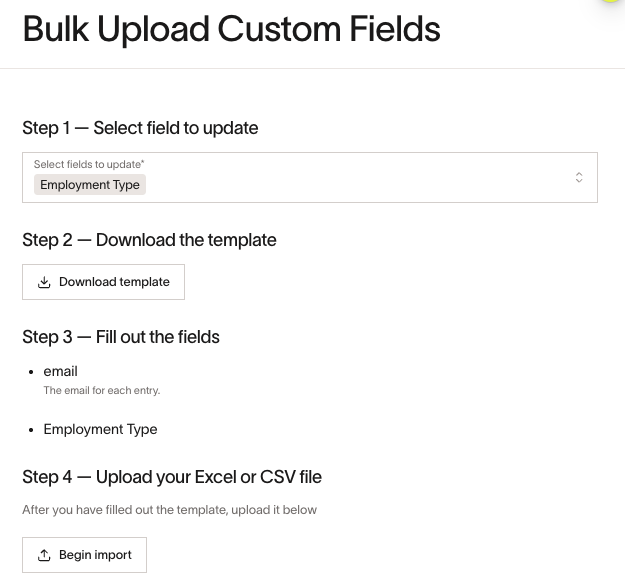
By CSV: from the People page, select Custom fields (under the three-dot menu on the top right). Select 'Bulk assign field values' at the bottom of the drawer and follow the template guidelines to ensure proper formatting. You can also find the csv option on each individual field page using 'Bulk upload' at the bottom left of the drawer.
-
By SCIM connection: If your SCIM provider is connected, open the three-dot menu in the top-right corner of the People page and select Configure Okta settings or Configure Entra settings. Under Custom field mappings, map SCIM attributes to your custom fields.
-
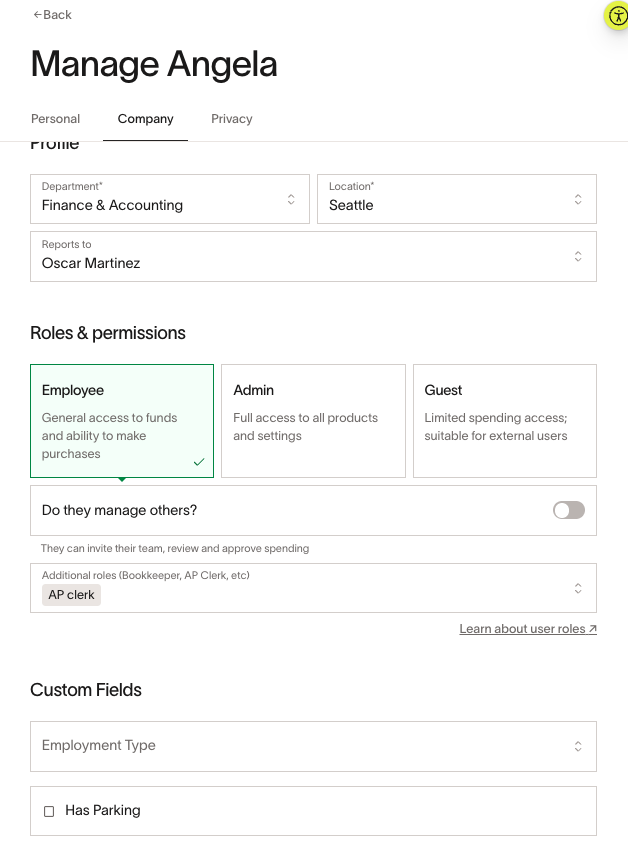
By individual user: Click on any user from the People page, click edit profile and scroll to the Custom Fields section under the Company tab.
Step 3: Setting up workflows
With your data in place, you can configure workflows to use custom field conditions.
- Navigate to Policy > Travel & expenses > Additional controls > Expense reviews.
- Create a new workflow or edit an existing one
- Add conditions based on your custom fields data
- Configure approvers using custom fields information
- Test your workflow to ensure it functions as expected
You can also use custom fields in accounting rules and in the travel policy.
See resources on expense approval policies, travel policies, and accounting rules.
Additionally, you can reference custom fields in your Expense Policy. For example, if you want to allow First class flights for Executives, you can create a custom field for Executive and map the users. You would then include that statement in your written Expense Policy to be used with the Policy Agent. More on the Policy Agent.
Step 4: Viewing and managing custom fields information
Access and manage your custom field data through the Ramp interface.
- Company>People> Custom fields (in the three-dot menu on the top right)
- Select the field you want to view
- Edit the Title or Description
- View the places the field is being used under 'Usages'
Common use cases
1. Simplify workflows that list lots of users
Problem
Your business has complex approvals workflows that list long sets of individual users in different conditions. These lists are hard to maintain, must be copied into multiple workflows, and are easy to forget to update when someone joins, leaves, or changes roles.
Example scenario
A construction business wants to manage spend in Ramp.
- They want to issue cards to each site’s Site Foreman , plus a few other employees for smaller expenses.
- These employees are not all people managers, so the standard Manager field in Ramp do not represent who should approve spend.
Solution
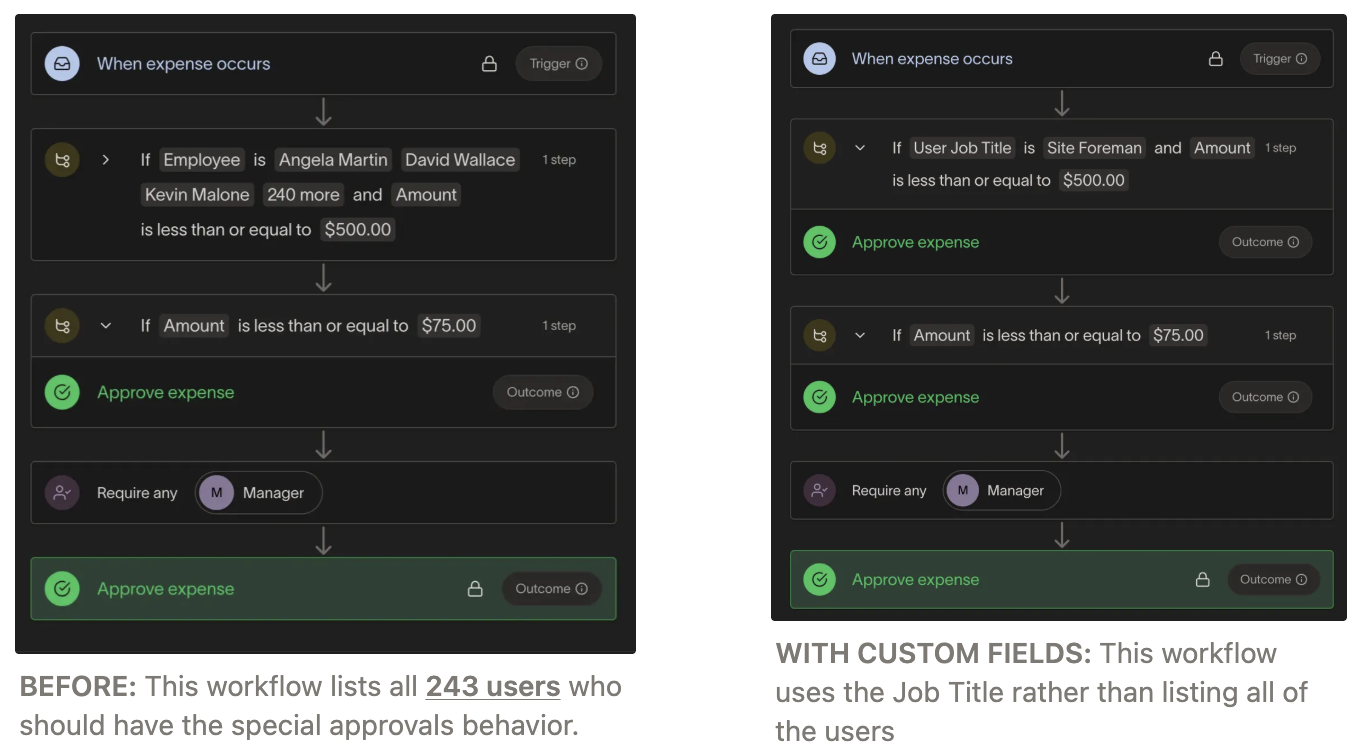
Use custom user fields to add a field like Job title (type=Select) to your Ramp users, then build workflows that reference this field instead of manually listing individuals.
At a high level, you will:
- Extend your Ramp Users with a Job title (or similar) custom field
- Import each user’s job title from a source of truth (for example, a CSV, SCIM, or an internal system)
- Update your approvals workflows to use conditions based on the custom job title field instead of individual users
This way, when job titles change or new people join, you only update the custom field data and all workflows stay in sync.
2. Set custom spend approvers for each user
Problem
Your internal approvals are based on something other than a user’s direct manager. For example, each user has a Budget owner (or similar role) that is responsible for approving their spend, and this relationship is consistent across workflows but does not match the org chart.
Example scenario
A school has a department head that approves any spend in their department (i.e. science, art):
- Every teacher has one or more Budget owners who should approve their spend
- These Budget owners are not the same as Manager in Ramp, so standard manager‑based routing does not work
Solution
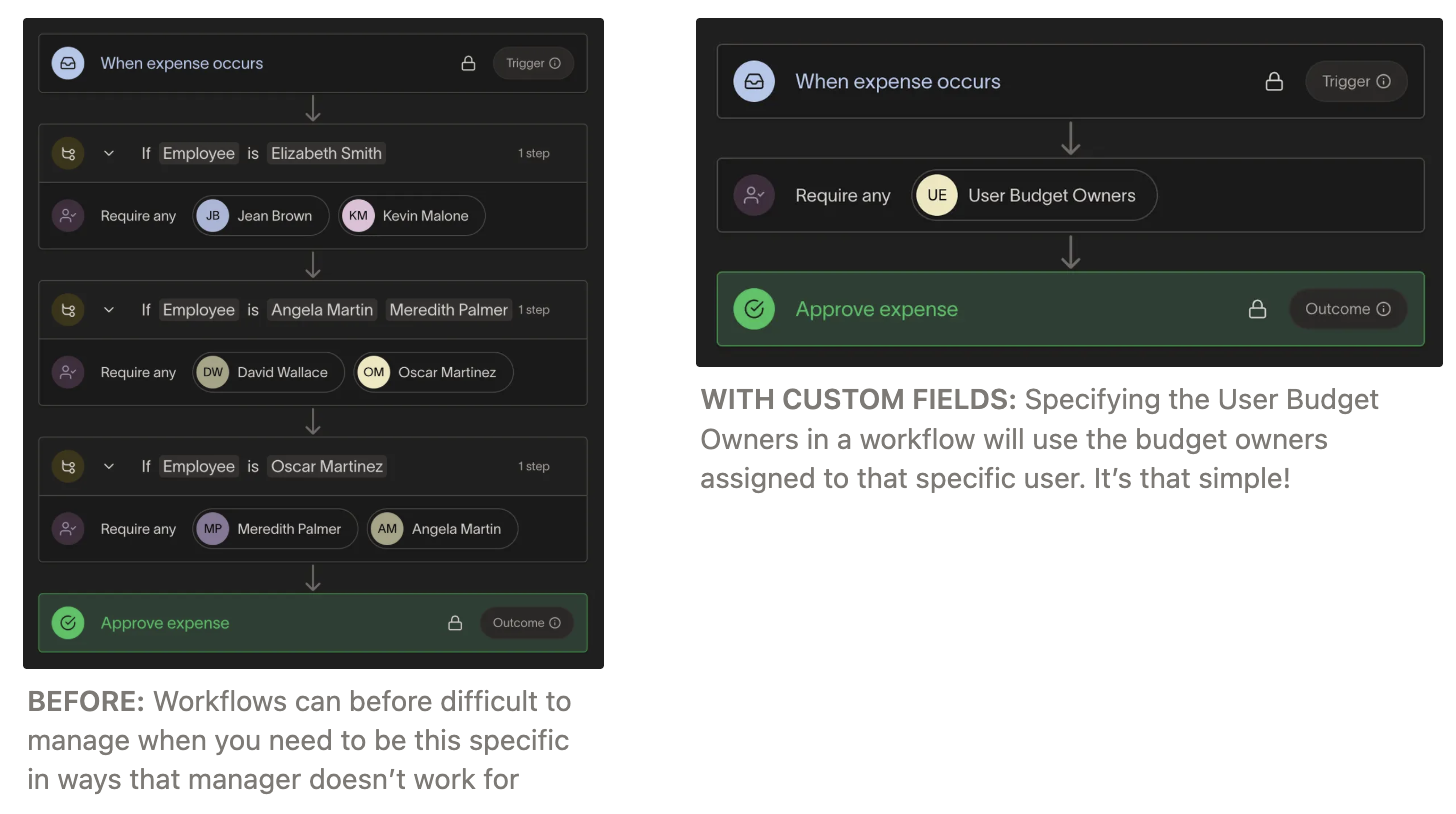
Use custom user fields to add a Budget owner field (type=User) to your Ramp users and route approvals to those owners instead of to managers.
At a high level, you will:
- Extend your Ramp Users with a Budget owner field that stores one or more user references per employee.
- Import each user’s Budget owner from a source of truth (for example, a CSV, SCIM, or an internal system)
- Configure approvals workflows to route based on the Budget owners field (for example, “send for approval to the user’s Budget owners”) instead of using the manager hierarchy.
This lets you keep your HR org chart intact while accurately reflecting who actually owns the budget for each user’s spend.
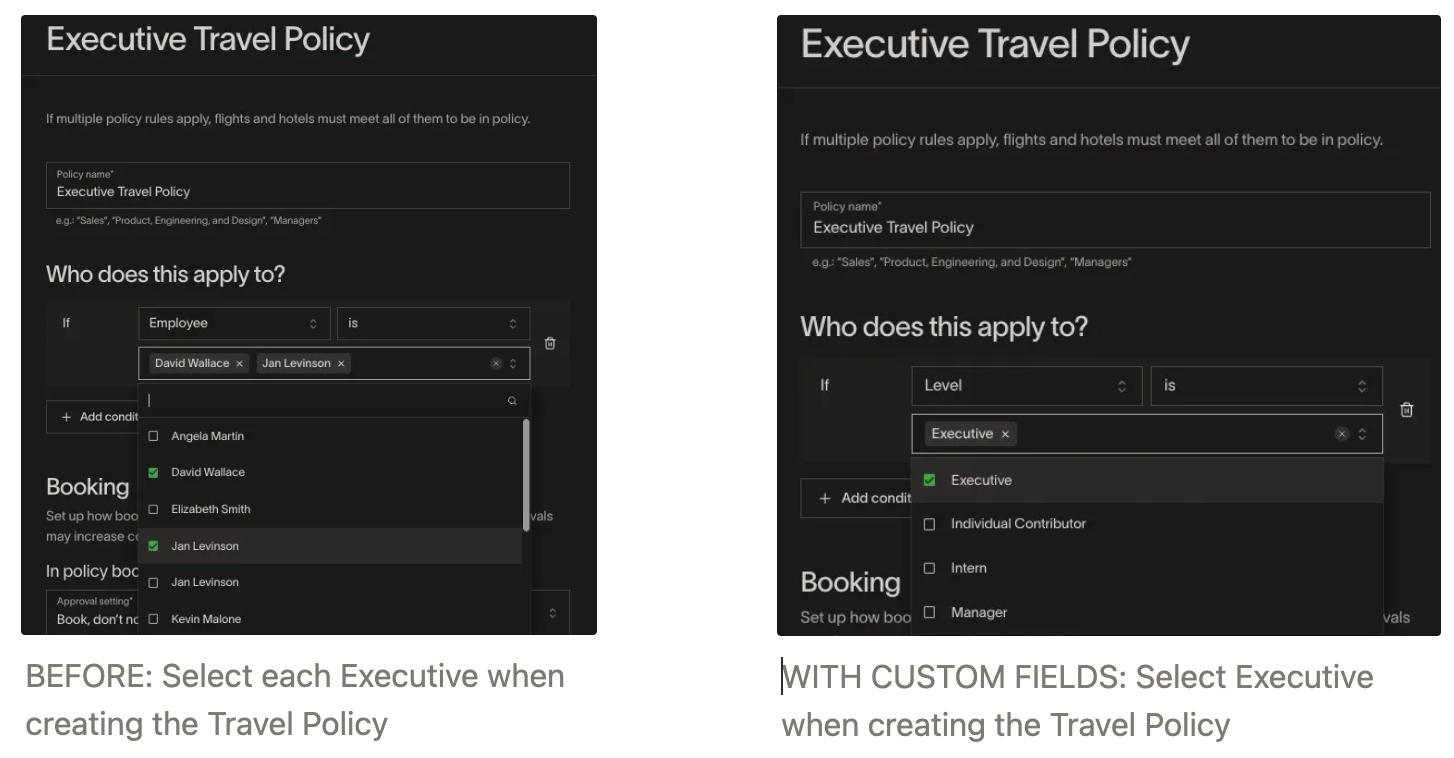
3. Set a travel policy based on user attributes
Problem
You have a specific policy for executive travel that you want to implement in Ramp
Example scenario
A business allows its executives only to fly business class
Solution
Use custom user fields to add a field like Level (type=Select) to your Ramp users, then build workflows that reference this field instead of manually listing individuals.
At a high level, you will:
- Extend your Ramp Users with a Level (or similar) custom field
- Import each user’s job title from a source of truth (for example, a CSV, SCIM, or an internal system)
- Update your Travel policies and Expense Policy language to use conditions based on the custom Level field instead of individual users
Frequently asked questions
Can I modify or delete columns in custom fields after creation?
Yes, you can modify column labels and hide columns that are no longer needed. You can delete a field that is not in use. For fields in use in workflows, rules, or policies, you cannot delete the field until you remove those uses.
Is there a limit to how many custom fields I can create?
While you can create multiple custom fields to suit your business needs, we recommend focusing on what's most valuable for your organization's workflows. If you're planning a very large or complex implementation, please contact your Ramp account manager for guidance.
Do I have to upload full custom user fields file every time or just the changes I want to make?
You only need to upload the employees you want to change. For example, if you upload rows for 100 ramp users and then again for 2 from that group, only the 2 will update with the second upload with no changes to the other 98.
How do custom fields integrate with workflows?
Custom Fields can be used in workflows for conditional filtering, determining approvers, and creating complex approval matrices based on your organization's structure and policies. This allows for highly customized approval flows that match your specific business requirements.
Can I use custom fields with SCIM for user management?
Yes, custom fields can be integrated with SCIM to map attributes from identity providers like Okta or Microsoft Entra to user profiles in Ramp. This allows you to maintain consistent user data across systems and leverage that data in your Ramp workflows.