Create and edit Spend Programs with AI
Overview
Alpha. This feature is in early development and may change based on feedback.
Use Ask Ramp in the Spend Program editor to customize purchase-order and approval-only programs from written instructions and reference files. Ramp can update program settings, request questions, and approval workflows; you review the changes and publish the program yourself.
Check access to AI program editing
This editor experience is available when enabled for your business. Ask Ramp must also be enabled, and you need access to Ask Ramp from Ramp's navigation.
You need permission to create and edit Procurement Spend Programs, including through a Custom Role. Editing approvals also requires permission to manage the applicable approval policies. Ask Ramp does not bypass your permissions or your plan's feature access. If Upgrade to save changes appears, the changes require additional plan access.
If you cannot access the program or Edit with Ramp, ask your Ramp Admin to check your access. You can continue with manual program setup. See Procurement role configuration for permission details.
Start a new Spend Program
These steps apply to the form-based Spend Program editor, not the document-based Agentic Intake Programs experience.
In Ramp's web application, use the Programs page that matches your navigation:
- With a Procurement sidebar section: Open Procurement > Programs. In this layout, Manage spend > Programs is for funds programs, not purchase-order creation.
- Without a Procurement sidebar section: Open Manage spend > Programs.
- Select Create program to open the template and starting-point picker.
- Choose a software or hardware template, or use Start from scratch to choose a purchase-order or approval-only program.
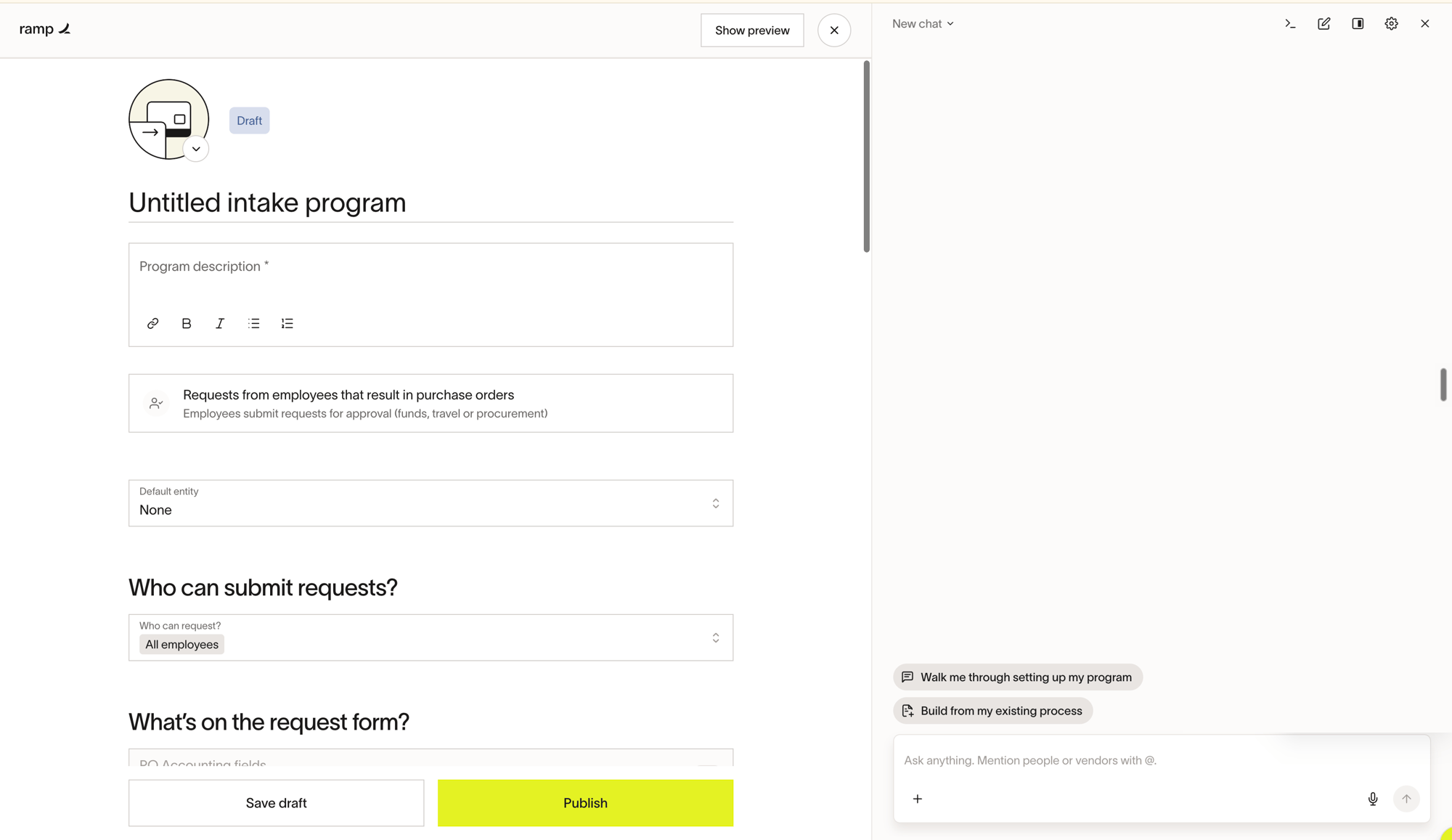
- Ramp creates a draft and opens it in the program editor. The software and hardware templates are AI-customizable starting points, not an automatic AI conversation.
- In Ask Ramp, select a suggested prompt to send it, or write and send your own message describing how to build or change the program. Choosing a template does not send a message or start AI editing for you.
The Choose a template to customize picker uses Purchase order and Approvals only. The Create procurement program picker uses Purchase order program and Approval-only program. If Ask Ramp is not already open in the editor, select Edit with Ramp. Funds templates use the manual setup flow described in Spend Programs creation and management.
Edit an existing Spend Program with Ask Ramp
Open Procurement > Programs, or Manage spend > Programs if Procurement is not a separate sidebar section. Open the program's row menu and select Edit, then select Edit with Ramp to open Ask Ramp. The action is also available in the program's approval and change-order workflow builders.
Send a specific instruction, such as "Make the quote or order form upload required" or "Require a needed-by date so equipment can be ordered and set up in time." You can continue editing manually, but manual changes during an active Ask Ramp response can interrupt it. Wait for the response to finish before making manual changes you want to review alongside it.
Attach documents or transcripts to Ask Ramp
In the program editor's Ask Ramp composer, use the attachment control to add reference documents or screenshots, then send a message explaining how to use them. For a Gong conversation, upload a transcript file, such as TXT or DOC, or paste the transcript text into your message. This does not connect Gong to Ramp.
If the microphone is available in your browser, select it to dictate a message. Allow microphone access if prompted, then stop recording and review or edit the transcribed text before sending. Dictation does not send the message automatically.
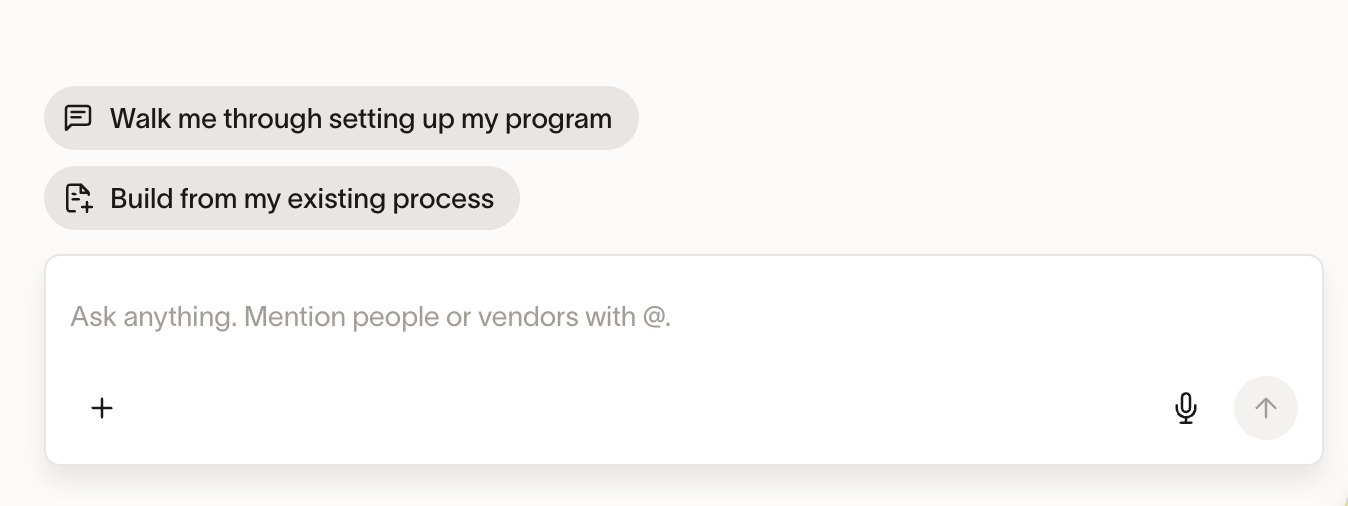
Supported formats are PNG, JPG/JPEG, WEBP, GIF, PDF, CSV, TXT, MD, DOC/DOCX, and XLS/XLSX. You can attach up to 10 files, each up to 10 MB. Audio and video files cannot be attached. Ask Ramp checks attachment count and size when you upload in the editor; open your program from Procurement > Programs, or Manage spend > Programs if Procurement is not a separate sidebar section, to attach files.
Tell Ask Ramp what to change
With the program editor open, describe the changes you want in Ask Ramp. For purchase-order and approval-only programs, you can ask it to:
- Update program details: Change the name, description, or icon.
- Set requester eligibility: Configure employees, departments, locations, entities, or groups that can request from the program.
- Configure purchase-order programs: Update settings such as the PO number prefix, invoice matching, payment automation, and request-level accounting fields.
- Add, edit, or delete custom questions: Customize request and purchase-order change-order forms. Built-in questions support changes such as visibility, required answers, and labels.
- Add, rename, or delete form sections: Organize questions into sections. See Move questions between form sections for movement constraints.
- Build or edit approval workflows: Configure question-based conditions, conditional or parallel steps, and individual, relative, or group approvers. Integration and approval-matrix steps depend on the features enabled for your business and your permissions.
For manual approval configuration, see Configure Procurement workflows.
Move questions between form sections
Ask Ramp can reorder custom questions or move them between sections of the same form, preserving the question and its workflow references. For example, ask it to move an existing question into another section rather than delete and recreate it.
A question cannot move between the request form and the change-order form. Fixed built-in questions cannot move outside their sections. A question that depends on another answer must remain after the question it depends on, and section-visibility rules can also restrict movement. Review the form after each move before saving or publishing.
Review, save, and publish program changes
Review the changed settings, questions, and approval routing in the editor before publishing. Ask Ramp highlights settings and question changes for review, but those edits remain unsaved until you save them. Agent-made workflow changes can save as a draft immediately; do not assume closing the editor discards every change.
- Review the changes and make any corrections in the editor or Ask Ramp.
- Select Next if the editor requires it to reach the final actions.
- For a new or draft program, select Save draft to keep working later. Select Publish when the program is ready; for change-order-only edits, the action is Save.
Ask Ramp does not publish the program for you. When it prepares a program-specific workflow from a company default, it can create a separate copy without changing the company default. For manual workflow review and testing, see Configure Procurement workflows.
Understand AI program editing limits
- Question types and protected questions: Ask Ramp cannot change an existing question's type or delete protected questions.
- Program type: Ask Ramp cannot change an existing program's type or outcome. Choose the intended purchase-order or approval-only starting point when creating the program.
- Custom-field eligibility: Configure requester eligibility based on custom user fields manually in the program editor.
- Other program types: Edit with Ramp is not offered in funds or issuing program editors. Funds templates remain manual, and creating a new Travel program with this AI generation flow is not supported. Use Spend Programs creation and management for manual funds setup.