Agentic Intake Programs
Overview
Alpha. This feature is in early development and may change based on feedback. Agentic Intake Programs are available to customers with Ramp's Procurement add-on when enabled for their business. If you don't see Intake program under Create on Programs, ask your Ramp account team whether the feature is enabled.
Agentic Intake Programs are a refreshed version of requestable Spend Programs that use an AI-driven conversation instead of a static intake form. You describe what you need to buy — from the Ramp app, Slack, or email — and Ramp assembles the request, asks only the follow-up questions the program requires, and routes it for approval. Admins who manage Procurement configure each intake program to control what Ramp collects and who approves.
Agentic Intake Programs provide a different intake experience from the traditional, form-based flow described in How to submit procurement requests. Legacy intake Spend Programs and Agentic Intake Programs appear together on the Programs page.
How Agentic Intake Programs work
Agentic Intake Programs replace a long, static intake form with a guided conversation configured by an administrator:
- You describe the purchase. Start a request and tell Ramp what you need in plain language.
- Ramp pre-fills what it can. It gathers details from available context rather than asking you to type everything in.
- Ramp asks only what's missing. Follow-up questions are generated from the intake program and limited to the details the program requires.
- You review and submit. The request appears as an editable summary so you can correct or add anything before submitting.
- Ramp routes the request. On submission, the request follows the approval workflow defined in the program, combining automated review assistance with human approvals.
Admins control this behavior by configuring and publishing an intake program. See Create and configure an intake program.
Start a request
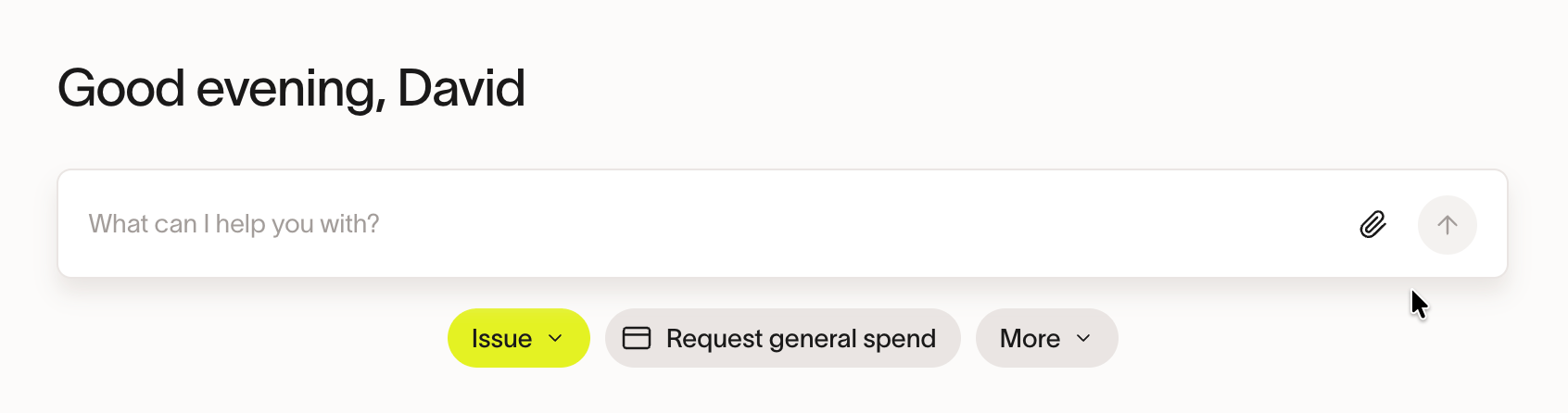
You can start an intake request from wherever you're already working. Each entry point opens the same guided conversation:
- From the Requests page — start an intake request from Requests.
- From the Ramp homepage — use the chat input at the top of your Ramp home page and describe what you need to buy, then send it.
- From Ask Ramp — open Ask Ramp from any page and describe your purchase there.
- In Slack — @mention Ramp's Slack app in a public channel, or send it a direct message, describing what you need. Private channels aren't supported yet. Your workspace must have Ramp's Slack app installed.
- By email — forward an email, such as a vendor quote or an internal approval thread, to
[email protected].
You can attach a contract, quote, or other document for Ramp to build from, but you don't have to — Ramp pulls the rest from the context described below. A request started in one place can be continued in another; for example, kick it off in Slack and finish in the app.
What Ramp gathers for you
Ramp pre-fills your request from the context it can reach. Depending on your access and your business's connected integrations, that includes:
- Vendors and contracts you already have in Ramp.
- Budgets and funds available to you.
- Accounting and entity data, such as departments and entities.
- Documents you attach, including extracting line items from a quote or order form.
- Connected sources like Slack, email, and Notion, where those integrations are set up.
- The web, to look up vendor information such as a public privacy or security page.
Connect your data sources
Slack, email, and Notion are optional connections Ramp can search while building a request. Connect the ones you use; Agentic Intake Programs work without them.
- Slack — an Admin connects Ramp's Slack integration once for the whole business. This is the same integration that powers Slack notifications and the Slack entry point above. See Slack integration: Set up for admins.
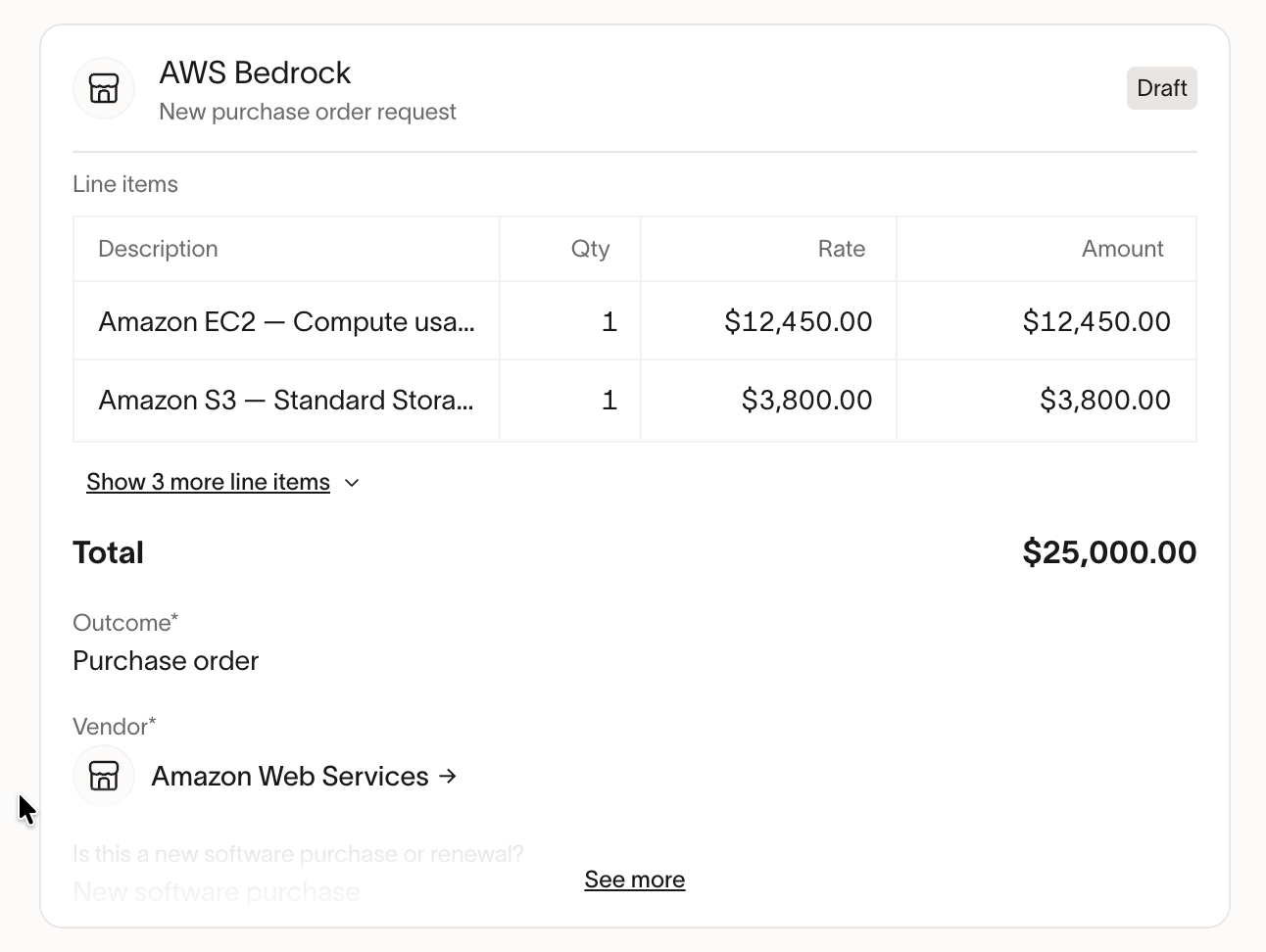
- Email — each person connects their own inbox from Email connections. Select Connect inbox, choose Connect with Gmail or Connect with Outlook, and turn on Agent search so Ramp can search your email while building a request. This is the same personal inbox connection used for receipt capture — the separate Agent search toggle is what makes it available to requests.
- Notion — each person connects their own Notion. Use the Add context button in the request chat.
Review and submit your request
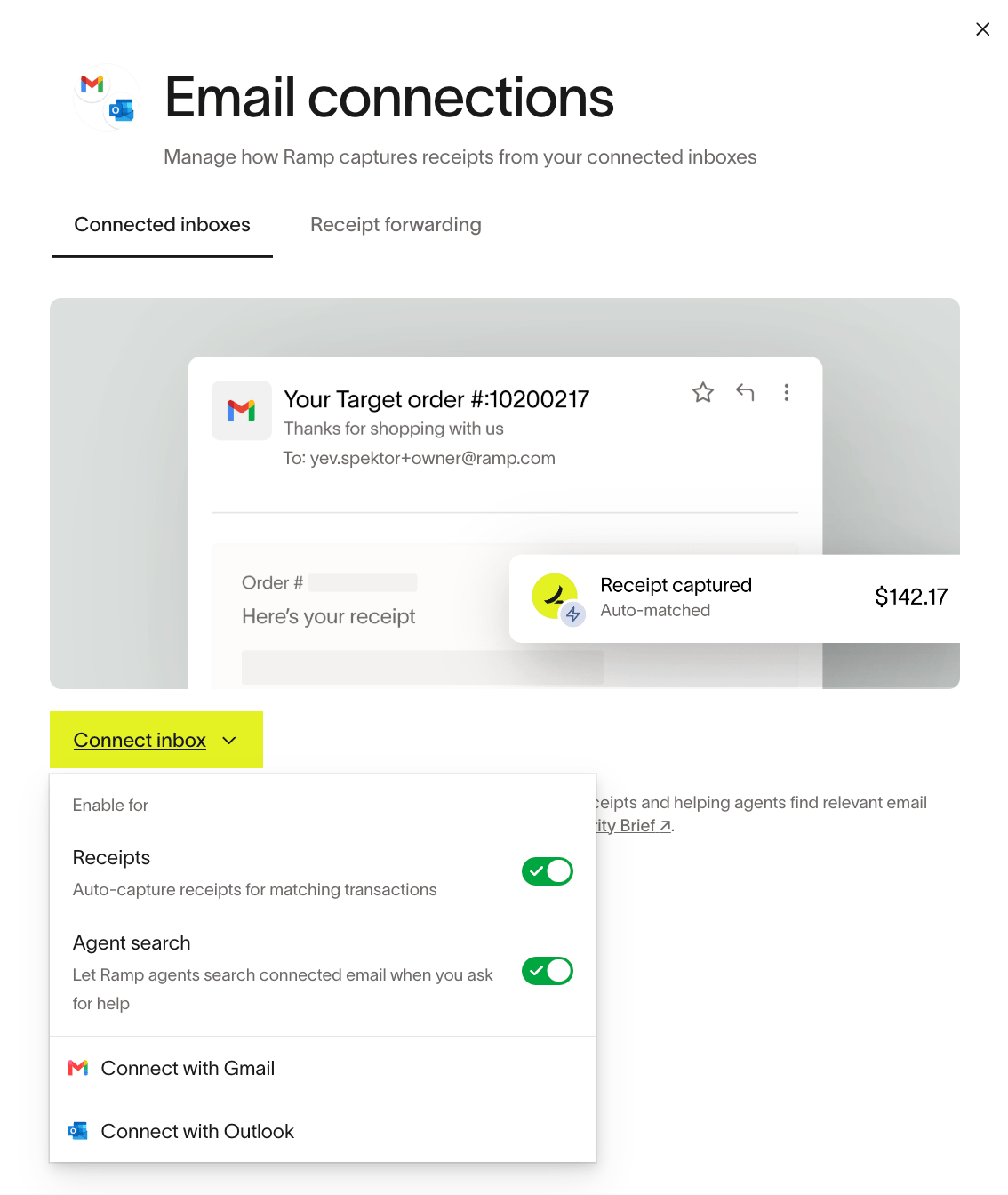
Your request appears as an editable summary that fills in live as Ramp gathers details. Review the fields and line items, edit anything that's wrong or missing, and submit once all required fields are complete. After submitting, track the request alongside your other requests on the Requests page.
Review and approve requests
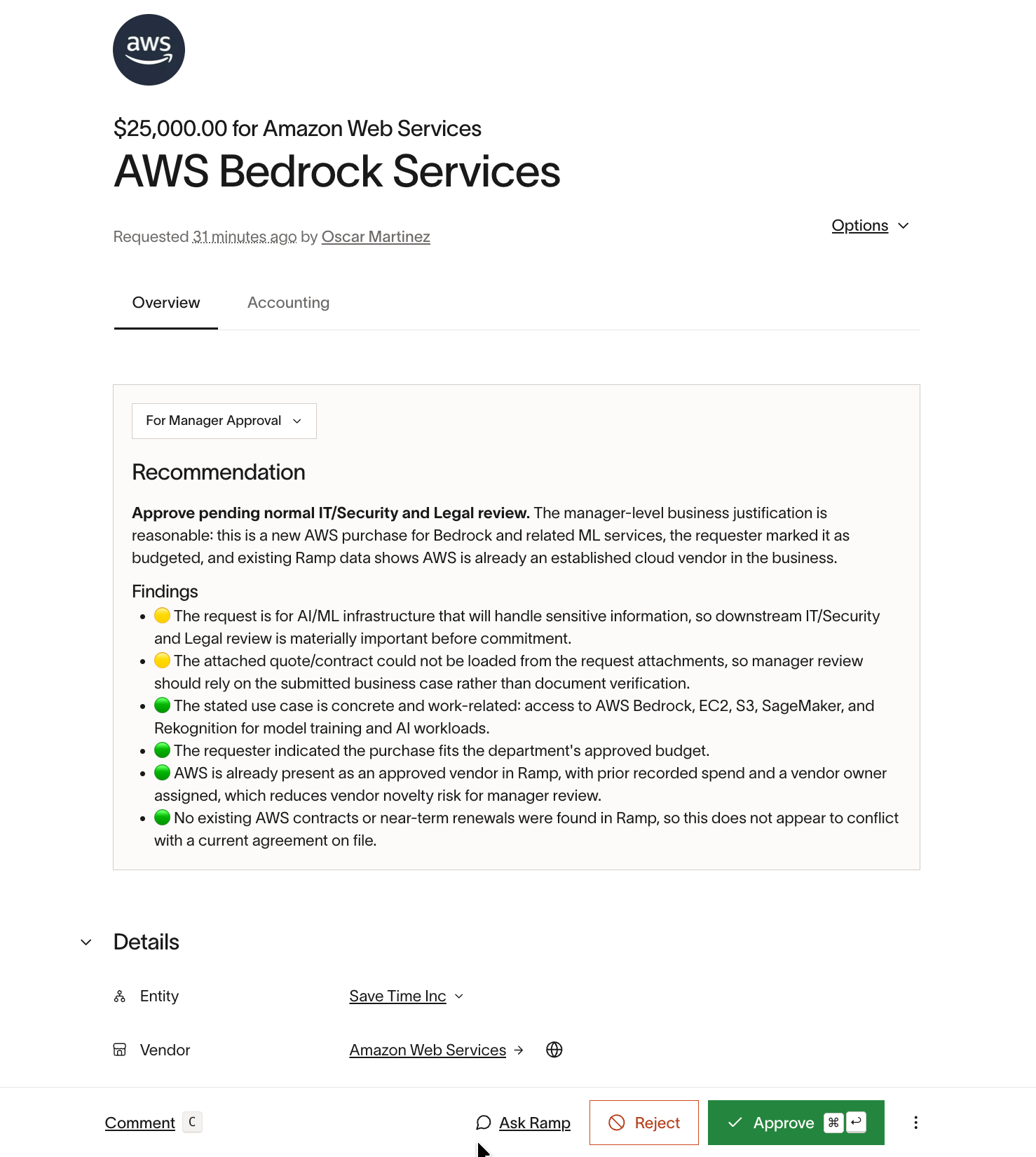
Approvers review an intake request on its request detail page.
For each approval step, Ramp generates an AI summary to speed up your review — a recommendation plus findings for the checks defined in the intake program. Ramp runs the research the program calls for, but it does not approve or reject on its own. You make the decision: Approve or Reject the request, ask follow-up questions with Ask Ramp, or leave a Comment.
All existing approval functionality — such as admin overrides, notifications, comments, and stakeholder updates — remains available on the request. See How to submit procurement requests.
Create and configure an intake program
Admins with permission to manage spend or Procurement programs create and configure Agentic Intake Programs from Programs. Select Create > Intake program to open a new draft in the program editor.
You define the intake program in a single natural-language document. The document is organized into sections — such as Scope, Submitting a Request, Steps, and Outcome — that describe what the program covers, what information to collect from requesters, how requests are routed for approval, and what Ramp does once a request is approved.
Ramp generates an approval workflow from the intake program document. For example, an intake program can route requests by amount, sending smaller requests through manager approval and larger ones through additional reviewers such as a manager's manager, with parallel IT, Security, and Legal review where the program calls for it. Use the document/workflow toggle in the top bar to switch between the natural-language document and its generated approval workflow.
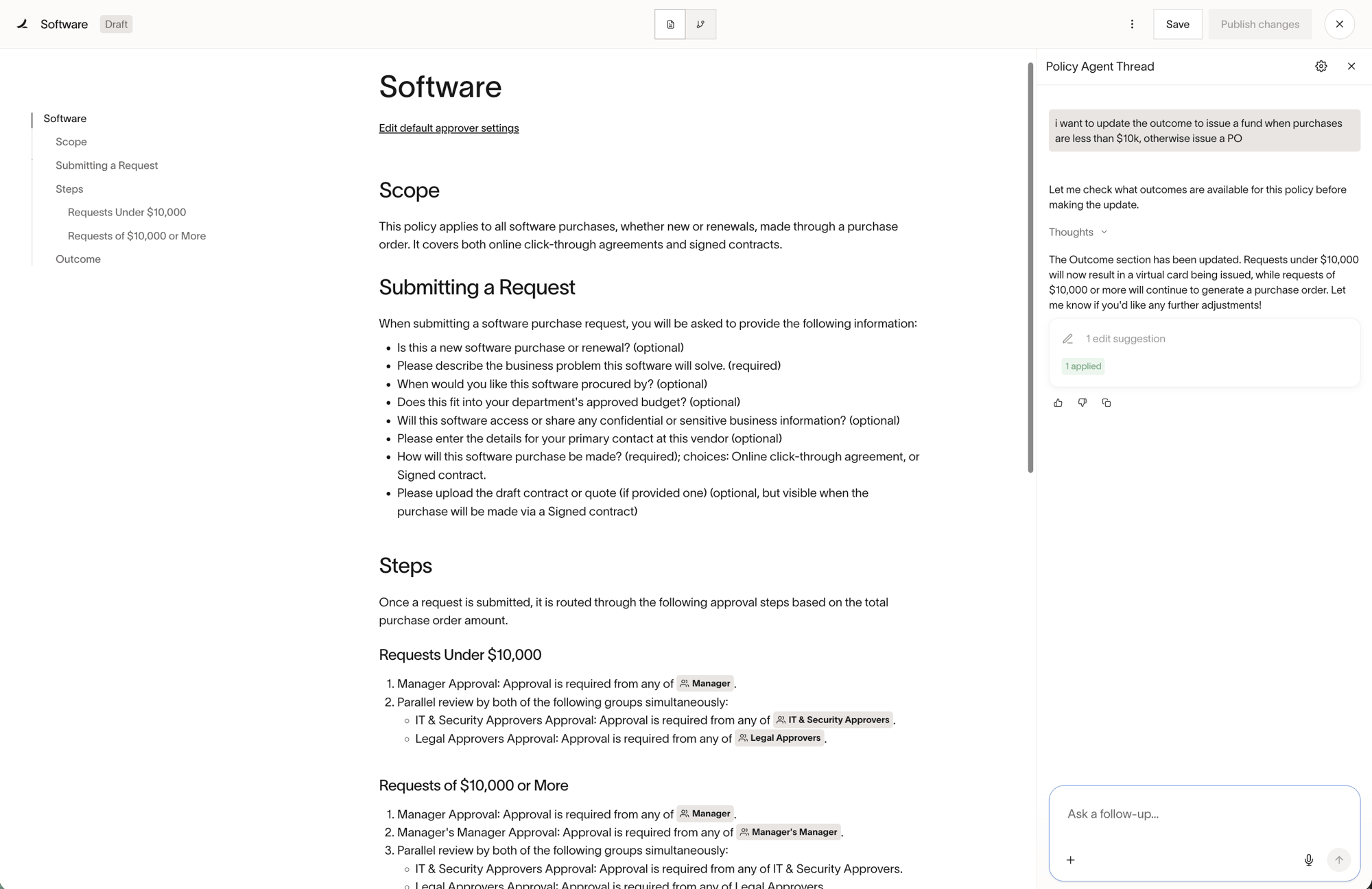
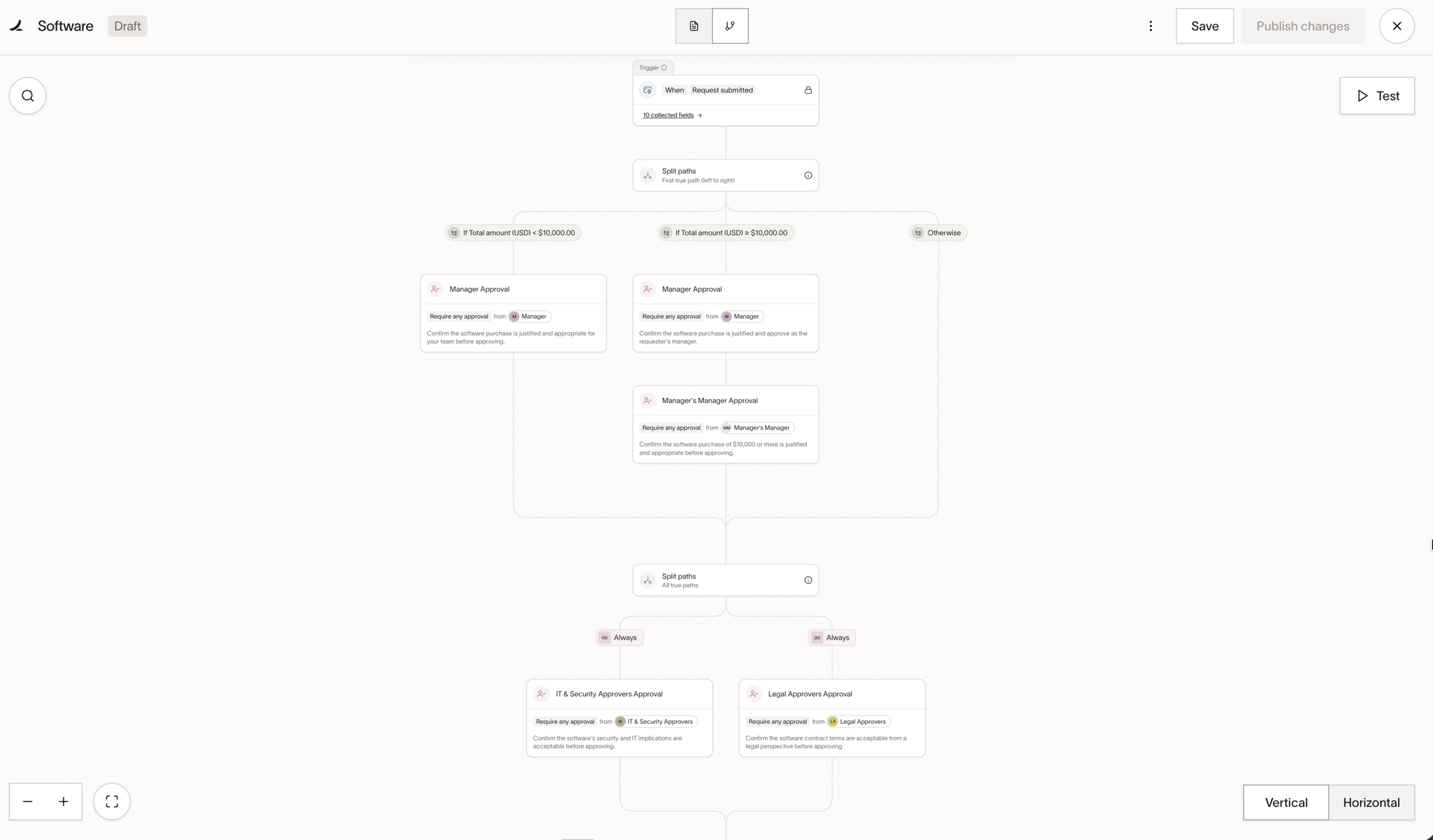
To change an intake program, update its document directly, use the chat side panel to instruct Ramp to edit the document for you, or edit the generated workflow. When you save workflow changes, Ramp updates the program draft to match.
Select Publish when the draft is ready. Only active, published intake programs are available to eligible requesters.
Preview the intake program request form
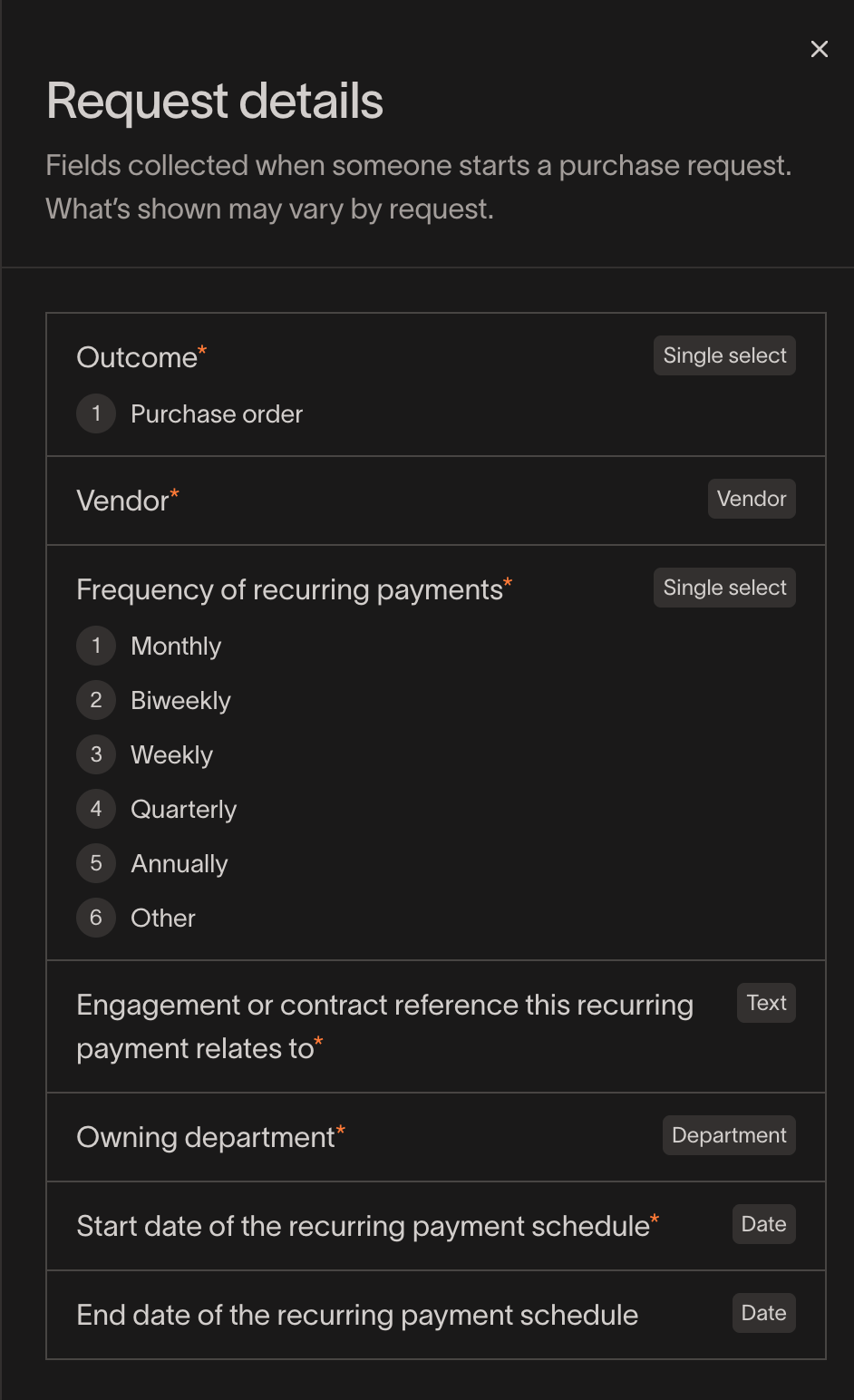
Admins with permission to manage spend or Procurement programs can preview the collected fields before publishing an intake program. These fields are the request form that requesters answer and approvers review after submission. If you don't have permission, ask a Ramp Admin who manages Procurement programs to review the fields.
-
Open the intake program from Programs, then select Workflow in the editor header.
-
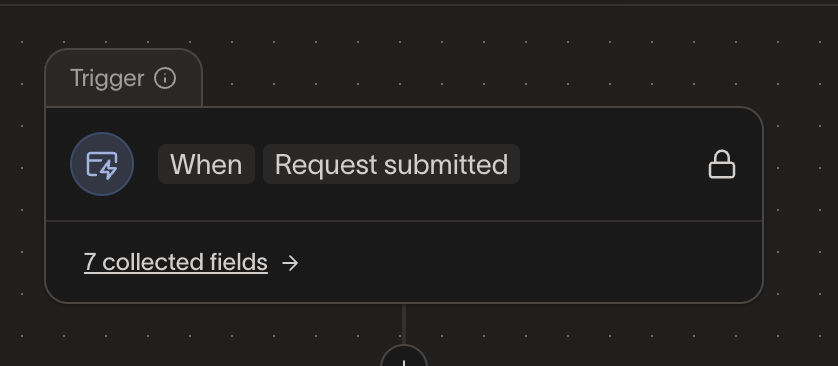
Under the When Request submitted Trigger, select the collected-field count, such as 7 collected fields.
-
Review each field in the Request details panel, including its type, options, and whether it is required. The fields shown may vary by request based on the program's conditions.
Manage migrated legacy intake programs
When Ramp migrates an eligible requestable Spend Program, it creates and publishes a new intake program and removes employee request access from the legacy program. Ramp preserves the legacy program's previous requests and history. The legacy program is hidden from the default Programs views, not deleted.
Admins can restore employee request access to a migrated legacy program:
- Open Programs.
- Open the Program type filter and select Legacy intake.
- Open the row's overflow menu and select Edit.
- Under Who can submit requests?, set Who can request? to All employees. If your business shows All users instead, select that option.
- Select Next, then select Update.
Important: Restoring employee request access reopens the old request path alongside the new intake program. It does not undo the migration.
Deactivate an intake program
Admins can deactivate a published intake program regardless of whether it has existing requests. Deactivation stops new requests, while active requests continue. Deactivation is non-destructive: it is not deletion, and the program and its existing requests remain in Ramp.
- Open Programs and select the intake program.
- Select Edit program.
- Open the overflow menu and select Deactivate program.
- Confirm by selecting Deactivate.
Availability and limitations
Agentic Intake Programs require Ramp's Procurement add-on, are currently in Alpha, and must be enabled for your business. Requesters can use only active, published intake programs for which they are eligible.
- Change orders: A change order reuses the approved request's workflow but does not start a new intake program conversation. See Change orders.
- Budgets: Agentic Intake Programs read budget information as context to help complete a request; they do not manage or set budgets.
- Workflow steps: Intake programs can include vendor onboarding and available connected integrations as workflow steps. Integration options depend on the connections enabled for your business. See Vendor onboarding in procurement and Ironclad integration: Set up.