Ironclad integration: Set up
Note: This article primarily applies to Ramp Administrators. Cardholders may find other articles in the Ramp Procurement section to be more applicable.
Overview
Ramp's Ironclad integration enables businesses to connect their Ramp account to their Ironclad account. After connection, add Ironclad workflows to approval policies and automatically launch Ironclad workflows as a part of the purchase request review process. Ramp will store contracts and documents from completed Ironclad workflows with approved requests.
Before you begin:
- You'll need to have Ironclad API access to use this integration. Please check with Ironclad support team to make sure you have access.
- You'll need both Ramp Admin and Ironclad Admin permissions to set up the integration.
Note: If you’d like each requester to connect their individual Ironclad account when launching workflows, pleasecontact Ramp Support.
Note: Ramp now supports opt-in requester ownership of Ironclad workflows. When enabled, the requester — rather than the admin who set up the integration — is listed as the workflow owner in Ironclad. To learn more or enable this, contact Ramp Support.
Connect Ramp to Ironclad
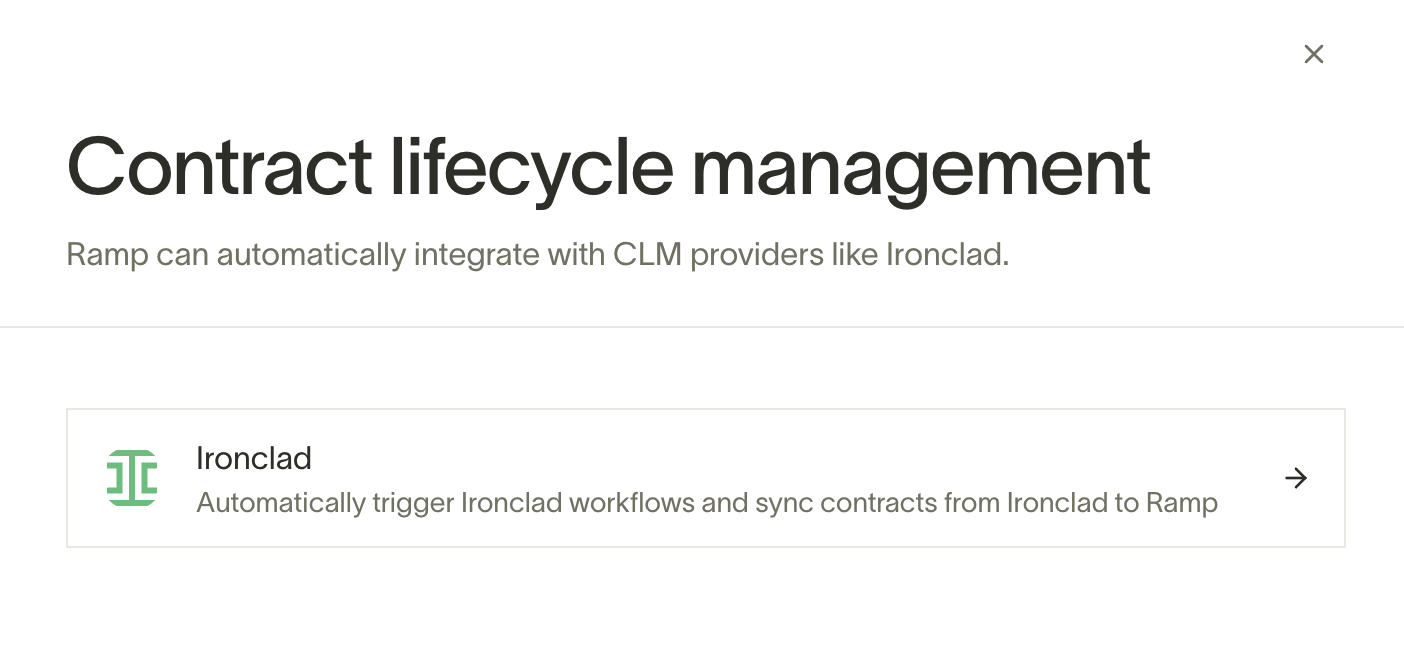
- In Ramp, open Integrations and search for "Ironclad"
- Click on Ironclad and click "Connect"
- In the Ironclad consent screen, choose the Ironclad instance that you'd like to launch workflows in and click "Allow access."
- You've successfully integrated Ramp with Ironclad.
Import Ironclad contracts: Businesses with access to Contracts & renewals can automatically import Ironclad contracts into Ramp and check daily for new ones. The user turning on contract import must be able to manage integrations and create contracts. Learn how.
Important: Each Ironclad workflow you plan to launch from Ramp must include a text field whose question name is set to Ramp ID. In Ironclad's workflow designer, the question name is the display label shown in forms. Ramp detects the field by matching on the question name (case-insensitive), so if the question name is not set to "Ramp ID", Ramp won't find the field. Ramp uses this field to link the workflow back to the originating purchase request. It is auto-managed by Ramp, so you don't need to map or fill it manually. See Ironclad's Help Center for details on adding fields in the workflow designer.

Add Ironclad workflow to your approval policy
Now that you've connected Ramp with Ironclad, you can add Ironclad workflow as a step in your approval policy. You can add Ironclad workflows to individual Spend Programs on Ramp.
- In Ramp, go to Spend Programs tab and choose either an existing Spend Program or create a new Spend Program to add Ironclad workflow step.
- Click "Edit approval policy"
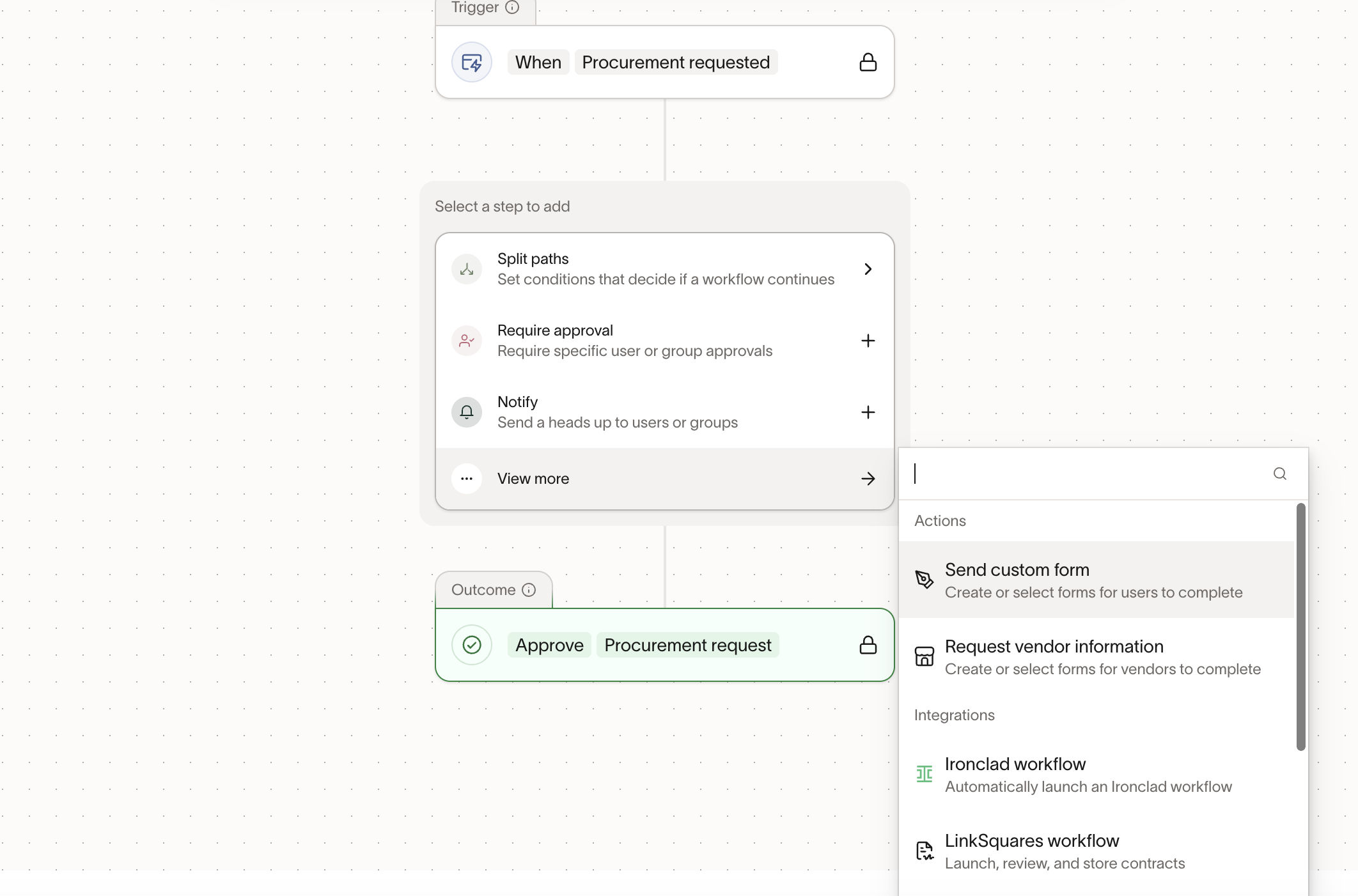
- In the approval policy editor, click + and select the Ironclad workflow step where you'd like to add it to your approval policy.
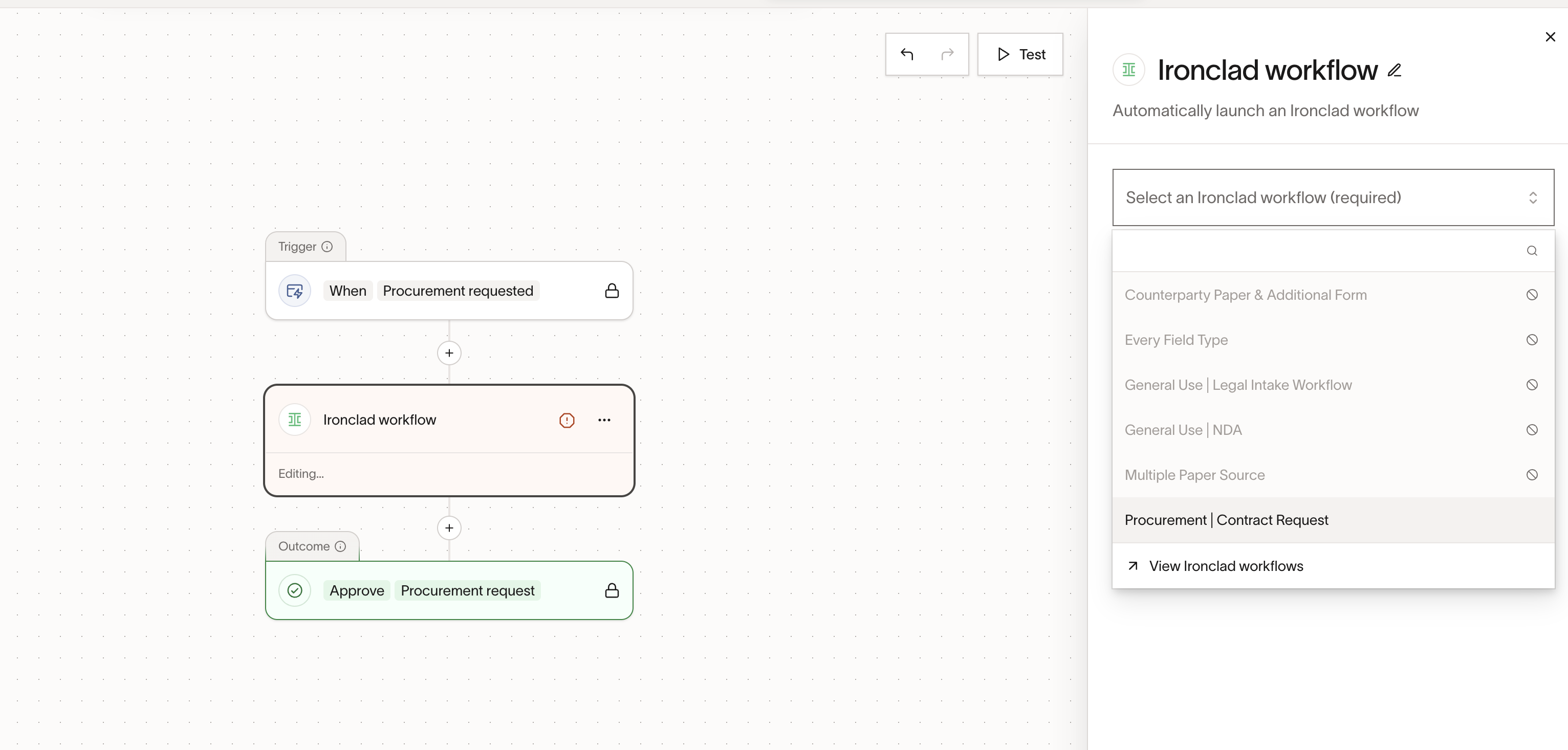
- Choose the Ironclad workflow you'd like to use as a part of your Ramp approval.
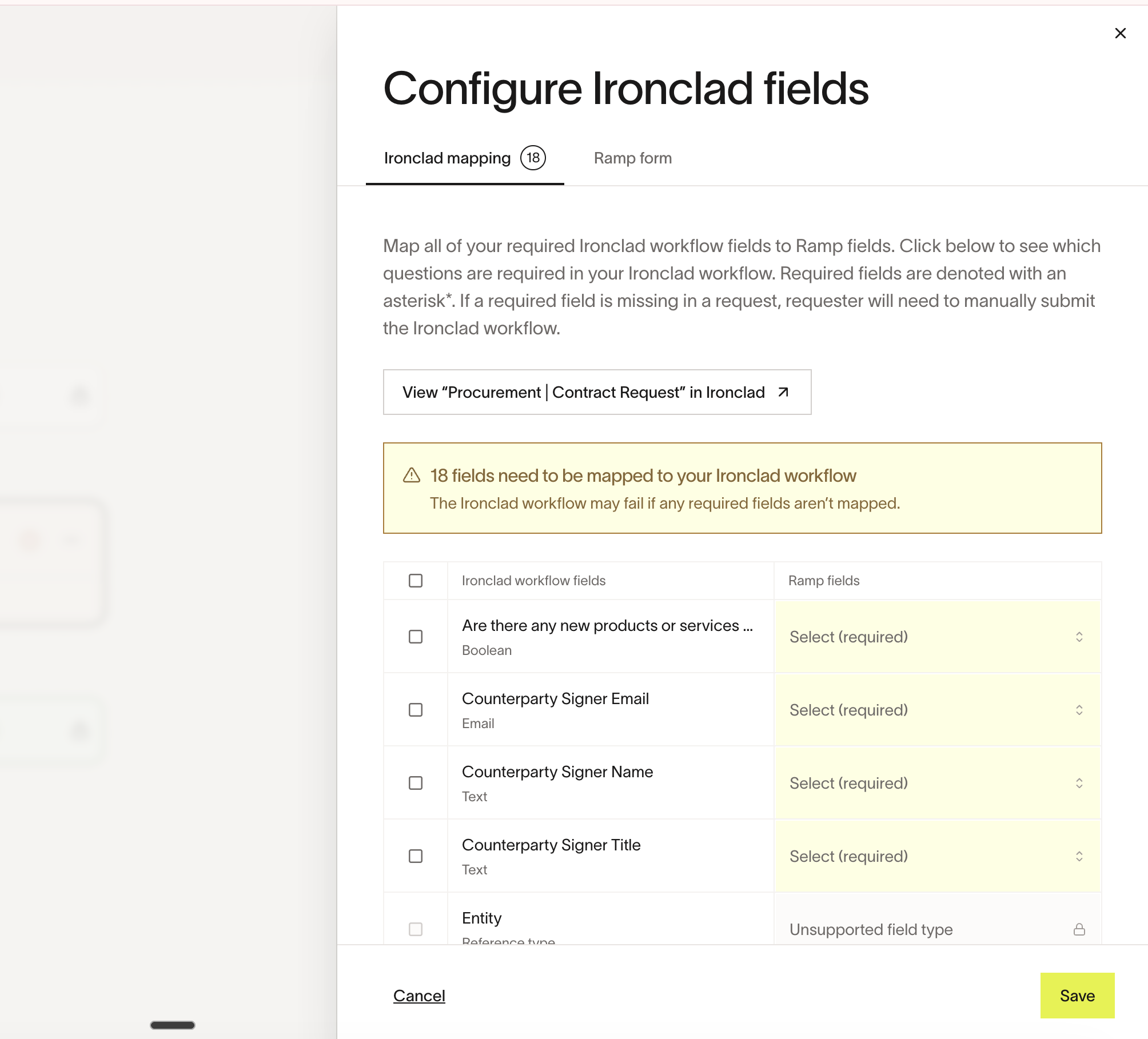
- Once you've selected the Ironclad workflow, click "Configure" to map over your Ramp request form questions to Ironclad workflow questions.
- Required Ironclad questions are marked with an asterisk in Ramp. Map all required questions.
- In the "Ramp fields" column, choose the corresponding question in your Ramp request form. If there isn't one, you can easily add the question for the specific question type (e.g. File upload).
- If you have a dropdown question in Ironclad, include those options in the Ramp single-select or multi-select question. Ramp marks incompatible mappings as unavailable, so select a Ramp question whose options match.
- Once you've mapped over all of your required questions, click "Save."
- Note: Some Ironclad field types are not supported in the Ramp mapping. Before publishing, confirm that all required fields show as supported in the mapping UI. If you encounter an unsupported field type that blocks your workflow, contact Ramp Support .
- Click the "Save" button
- Click "Save workflow" in the top right corner. You'll now see the final approval policy that includes your Ironclad workflow step.
- Click "Next" and either create the new Spend Program or update the existing Spend Program.
Automatically launch Ironclad workflows on purchase requests
- When an employee now goes to request your new Spend Program (in our case, Software Procurement), they'll see that the Ironclad workflow will be launched.
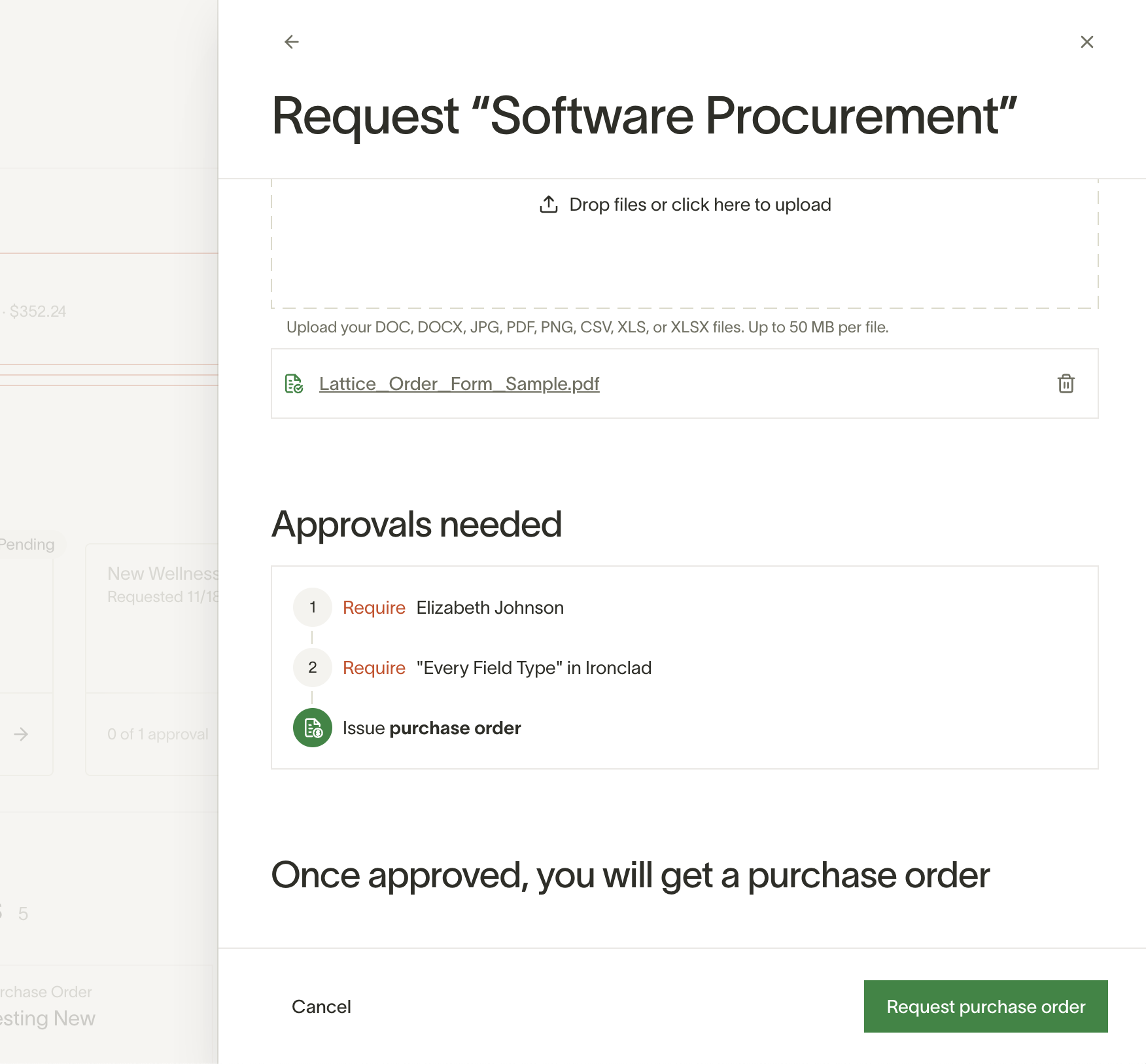
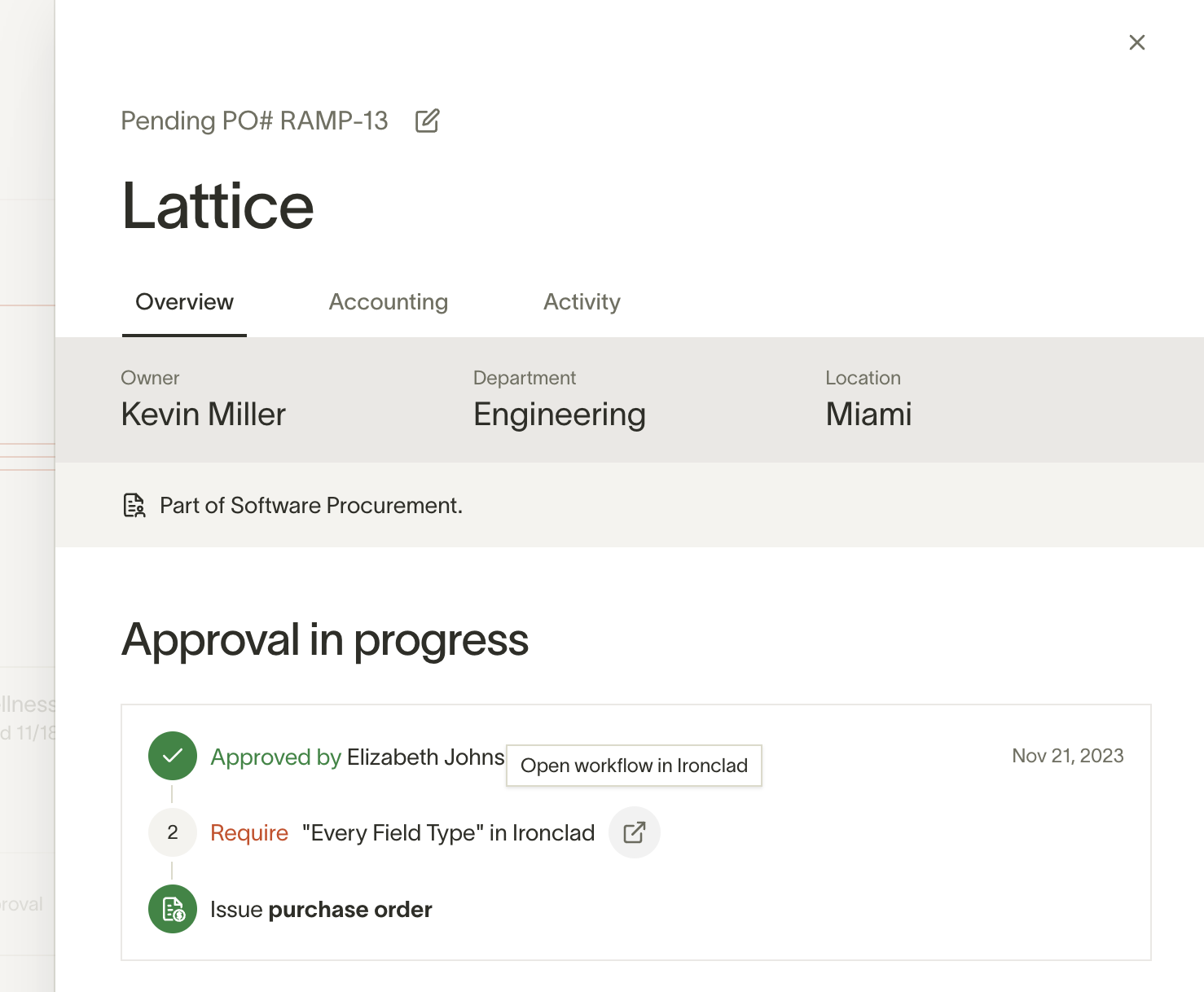
- Once Elizabeth approves the request, the Ironclad workflow will be automatically launched. You'll be able to open the workflow that was launched directly in Ironclad. You'll also see the history in the "Activity" tab.
- As the Ironclad workflow is reviewed by your legal team, Ramp will automatically sync back updates to the Activity tab to show:
- Approvals in Ironclad
- When Ironclad workflow moves steps from Review to Sign
- Signature status updates
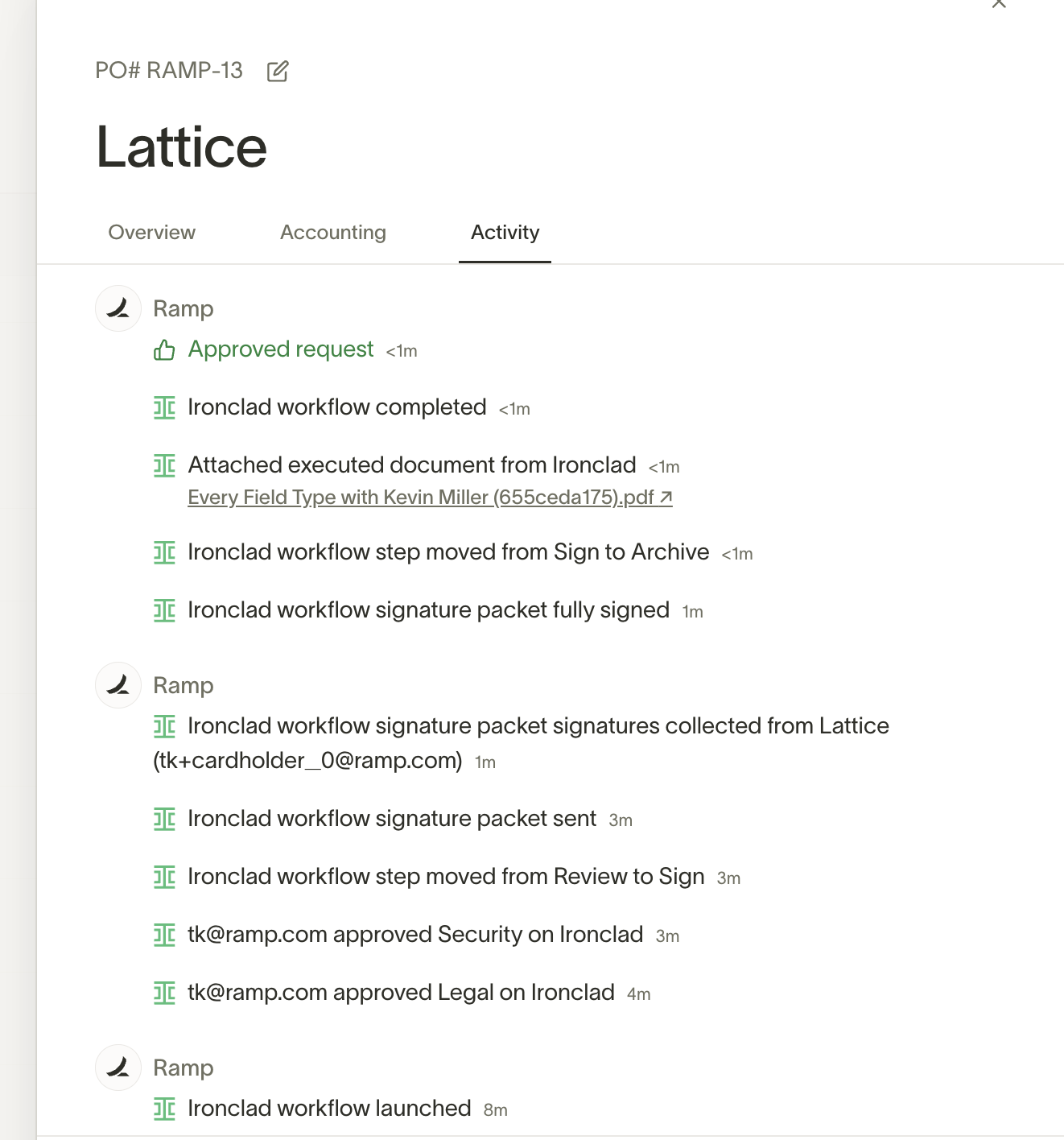
- By default, Ramp advances the request when Ironclad moves the workflow from Sign to Archive. To wait until the Archive step is complete, turn on Wait on Ironclad "Archive" step to move to next approver in Ironclad integration settings.
- Congrats, you've successfully launched your first Ironclad workflow automatically with Ramp.
Sync contracts and documents from completed workflows
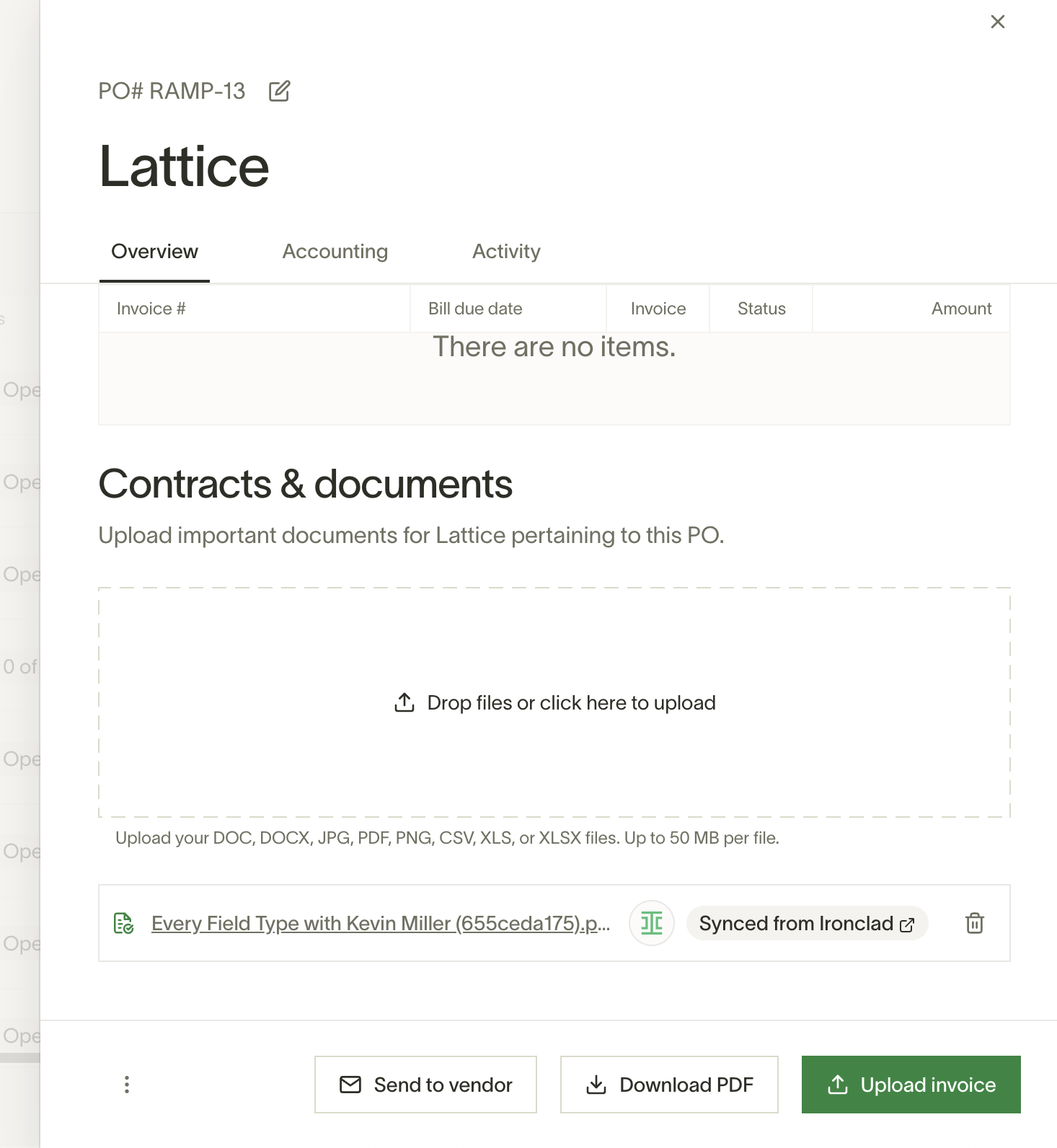
As shown above, after the contract or document is executed within Ironclad, Ramp will automatically fetch and sync the executed documents in the Ironclad. No more opening multiple tabs to find the contracts when invoices come in.
You can view the contracts and documents in the "Overview" tab of the approved PO in the "Contracts & documents" section. This will also show you a direct link to open the record in Ironclad.
Manually launch workflows in case of an error
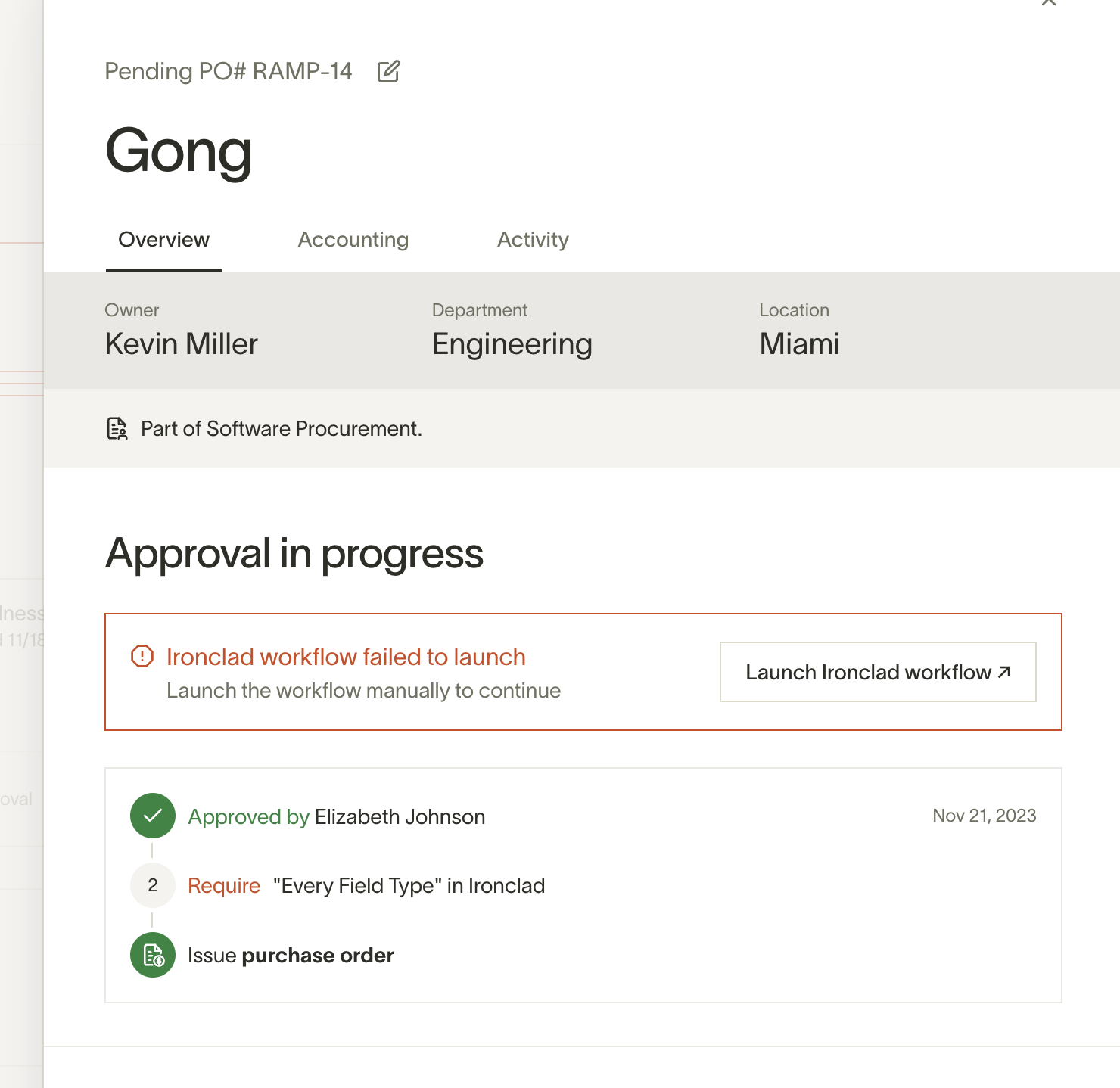
If there's an issue automatically launching the Ironclad workflow, Ramp notifies the requester so they can resolve the issue and resubmit. Depending on the error, Ramp may provide a draft workflow with pre-filled information that the requester can review and submit directly in Ironclad.
If automatic launch errors happen repeatedly, review your field mapping configuration to make sure all required Ironclad workflow fields are mapped to Ramp request form fields.
Frequently asked questions
Can a single Ramp PO launch multiple Ironclad workflows?
- Yes.