Construction job costing and project coding
Overview
Available on Ramp Plus. See Ramp Plus overview for plan details.
Ramp can require users to code spend to a project and include the selected project when supported records sync to your accounting provider. Coding relationships guide users toward valid combinations when one accounting field depends on another.
Require users to code projects
To require project coding on card transactions and reimbursements, add the project accounting field to the applicable expense requirements. See Requiring employees to code their own transactions for setup instructions.
When the project field comes from your connected accounting provider, Ramp includes the selected project when supported transactions, reimbursements, bills, or purchase orders sync. Complete the project field before syncing the record.
View coding relationships
When Filtering Relationships is available for your business, users with access to all accounting pages can open Filtering Relationships to see how accounting fields depend on one another and which options become available after earlier selections.
If Filtering Relationships is unavailable, open What's new and select Ramp for Construction to review the access options available to your business.
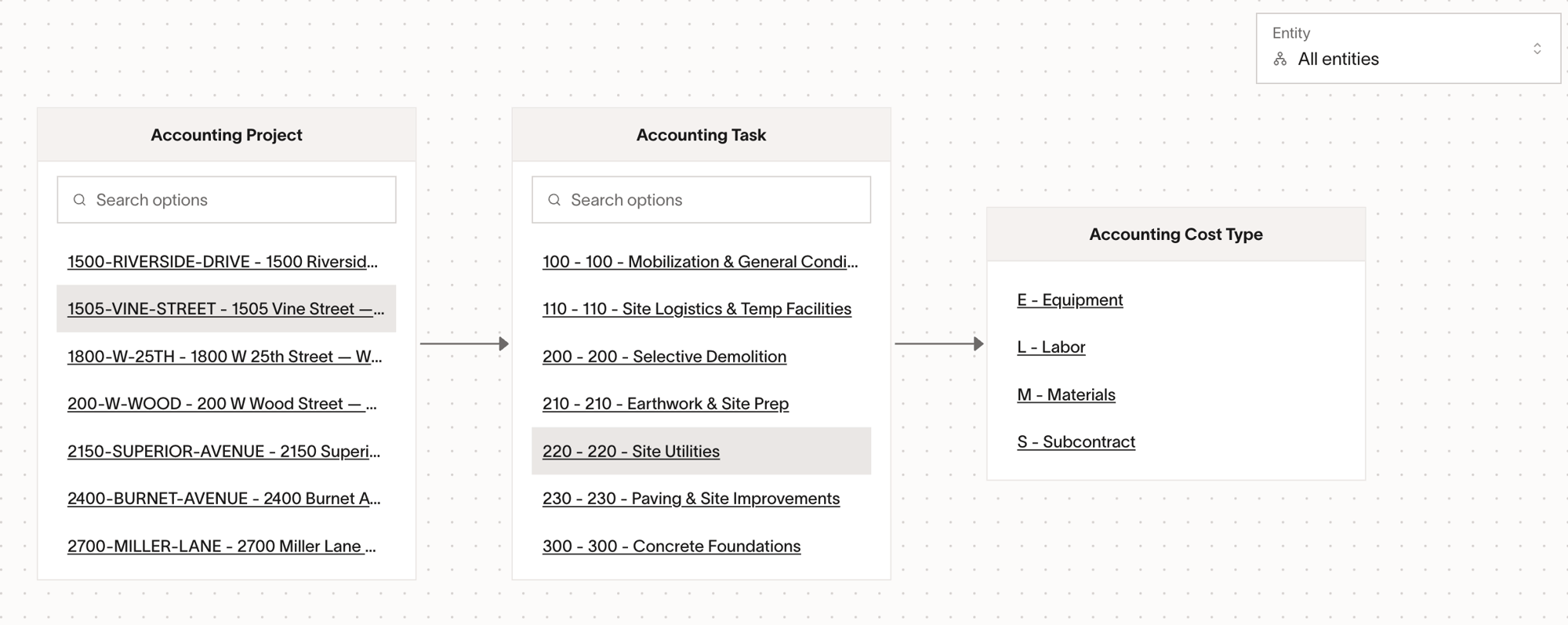
Filtering Relationships is view-only. To change a relationship or its available options, update the accounting fields in your connected accounting provider, then return after the next accounting sync to confirm the change.
Code fields that have relationships
When an accounting field is locked, its message tells you which related field must be selected first. After you complete the required field, the locked field becomes available and shows the options that apply to your earlier selection.
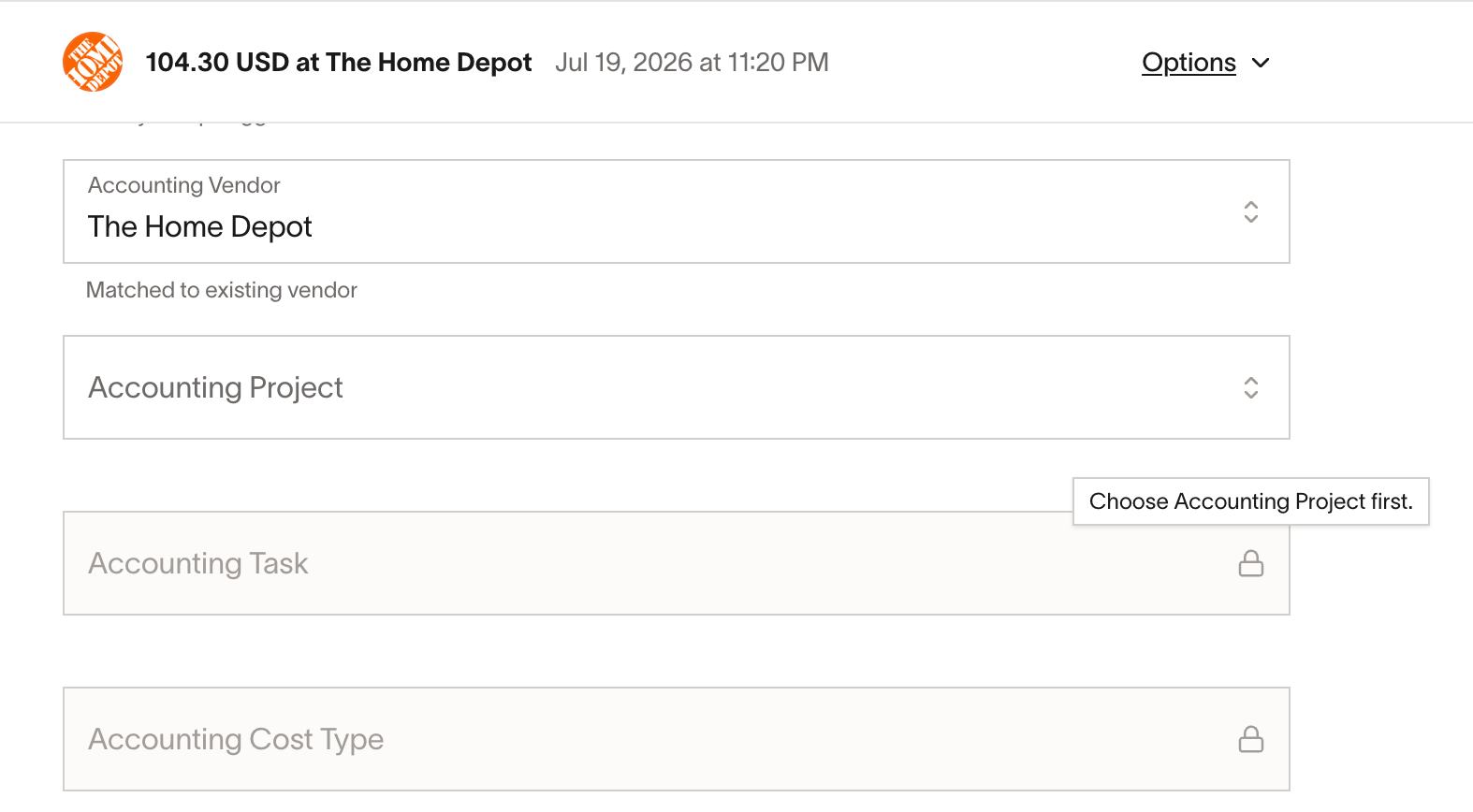
If you change an earlier selection, Ramp may clear a related field that no longer applies. Select the field again from the updated options.
Track projects only in Ramp
If your business does not track jobs or projects in its accounting provider and Ramp-only accounting fields are enabled for your business, create a Ramp-only accounting field for project coding. Ramp-only fields can appear in coding and review workflows and can be required through expense policies, but their values stay in Ramp and do not sync to your accounting provider.