Ramp-only accounting fields
Overview
Ramp-only accounting fields let you collect accounting details in Ramp without creating matching fields in your ERP. Use them when you need internal coding values, such as project names or review attributes, that should stay in Ramp and not sync to your accounting provider.
If your business uses Universal CSV and you need fields for a CSV-based export setup, use UCSV | Adding and updating accounting fields instead.
Before you begin
Creating or editing Ramp-only accounting fields requires accounting-settings admin access. For businesses that use a direct accounting integration, the feature also requires Ramp Plus and Ramp must enable it for your business; it is not a self-service Early Access feature.
If you don't see the option to add a field on the Accounting fields page, your role may not include accounting-settings access — ask a Ramp Admin to update your access or create the field for you. If you have accounting-settings access on Ramp Plus and still don't see the option, Ramp-only accounting fields may not be enabled for your business yet; contact Ramp Support for help enabling it.
Available field types depend on your accounting setup. For direct accounting integrations, Ramp-only fields support Text field, Boolean, and Single select. Text field accepts manually entered values, Boolean provides a yes-or-no choice, and Single select uses a controlled option list.
If you plan to use a Single select field, prepare the option list before setup. Ramp's CSV upload flow can create the initial list for the field, and later bulk updates replace the current option list rather than merging with it.
Create a Ramp-only accounting field
Available on Ramp Plus for businesses on a direct accounting integration. Ramp must also enable the feature for your business. If you have Ramp Plus but do not see Add Ramp-only field, contact Ramp Support. Businesses that use Universal CSV can create Ramp-only fields without Ramp Plus.
Start from Accounting > Settings >Accounting fields. From there, you can create a field that lives only in Ramp.
If Add new field is unavailable: go to What's new. If Ramp-only accounting fields is listed, select Enable. If the feature is not listed, or Add new field is still unavailable after you enable it, contact Ramp Support to request access.
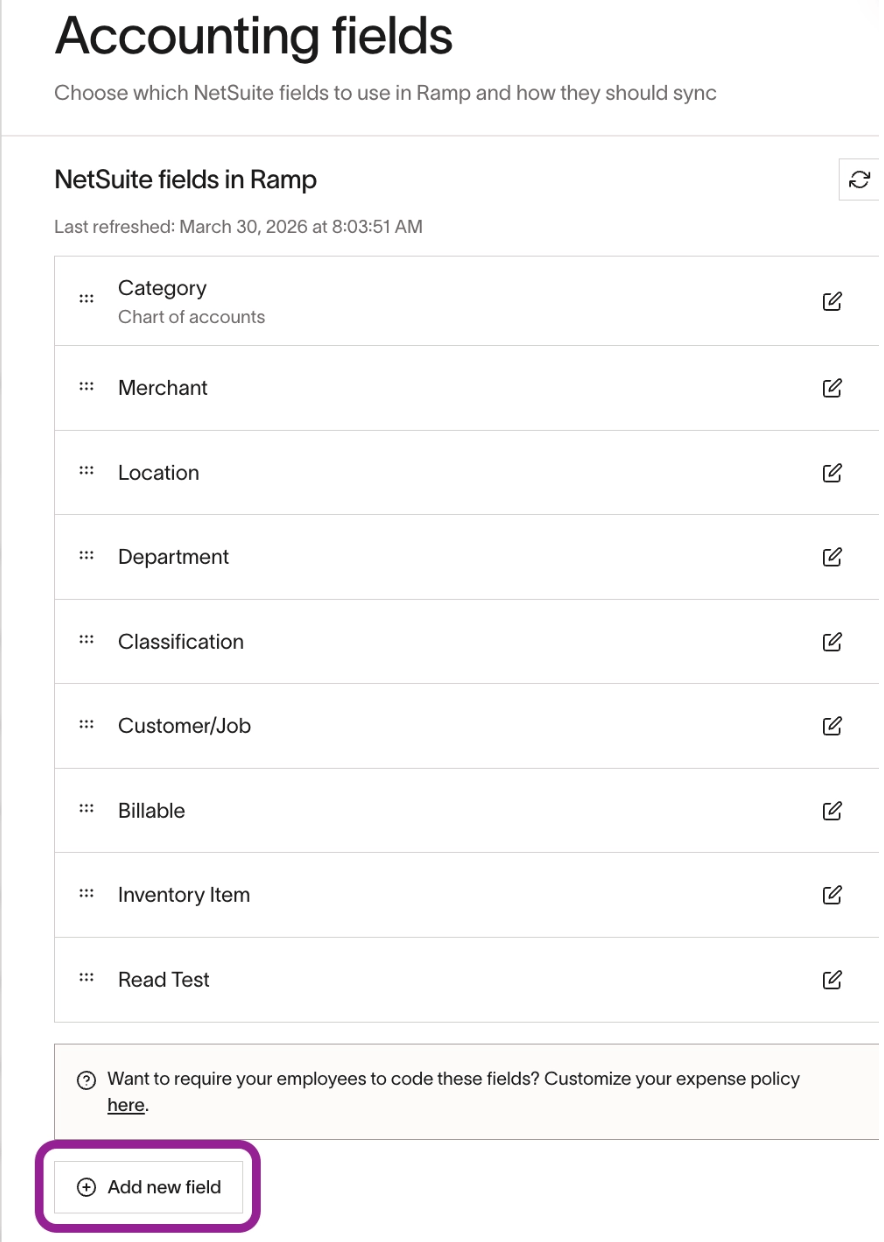
- Click Add new field. If your business uses a direct accounting integration, this option is labeled Add Ramp-only field.
- Enter the field name you want users to see in Ramp.
- Choose the field type.
- If you choose Text field or Boolean, save the field.
- If you choose Single select, click Download template, add the option list, upload the completed file, then save the field.
After the field is created, you can use Ramp settings to control how people interact with it in coding flows. If you need to guide users toward different options based on another field, use Conditional filtering.
Update options for a single-select field
To update an existing single-select field, go to Accounting > Settings >Accounting fields, select the field, and click Update options.
You can either add one value at a time or upload a replacement CSV. Use single-value updates for small changes. Use CSV when you need to add, remove, or revise a larger list of options at once.
Important: A CSV update replaces the current option list. Include any existing options you still want available before you upload the file.
Remove options from a single-select field
To remove options from a single-select field, upload a replacement CSV that omits the options you no longer need.
- Go to Accounting > Settings > Accounting fields and select the field.
- Click Update options, then click Update via CSV.
- Download the current options and remove the options you no longer need. Keep every existing option that should remain available.
- Upload the replacement CSV.
- On Review & confirm changes, review the options that will be deleted, added, or updated, then click Confirm changes.
Important: When an option is deleted, Ramp clears it from unsynced transactions and accounting rules that use it. Review the affected-transaction counts before you confirm the changes.
Where Ramp-only fields appear
Ramp-only fields appear anywhere Ramp surfaces accounting fields for coding and review, so your team can capture internal accounting details without adding those fields to the ERP. They stay in Ramp even when the related transaction, reimbursement, or bill syncs to your accounting provider.
You can also rename these fields in Ramp and add helper text for employees and reviewers. If a field is required in your coding workflow but users cannot fill it in, review the field's visibility and requirement settings in your accounting configuration and submission policies.
Frequently asked questions
Do Ramp-only accounting fields sync to my ERP?
No. Ramp-only accounting fields stay in Ramp and do not sync to your ERP.
What field types are supported?
For direct accounting integrations, Ramp-only accounting fields support Text field, Boolean, and Single select. See Before you begin for how each type works.
Can I update the options after I create a single-select field?
Yes. You can add options individually or upload a replacement CSV from Accounting > Settings >Accounting fields.
Can I customize the field name and instructions shown to users?
Yes. You can rename the field in Ramp and add helper text so employees and reviewers know how to use it.
What happens when I remove an option that is already assigned?
Ramp clears the deleted option from unsynced transactions and accounting rules that use it. See Remove options from a single-select field before you confirm the changes.
Can I hide a Ramp-only accounting field I no longer need?
Yes. Go to Accounting > Settings >Accounting fields, select the field, and click Disable this field in Danger zone. Click Disable to confirm. To restore the field, find it under Unused fields and click Enable in Ramp.