Bill Pay fees
Overview
Ramp consolidates Bill Pay fees into a monthly billing statement. Instead of paying these fees on a per-bill basis at the time of each transaction, all applicable fees will be collected and presented in a single monthly statement, making it easier for you to track and reconcile Bill Pay-related fees.
Bill Pay fees by payment method
- Standard ACH payments: $0.59 per transaction (effective June 1, 2026, with a 3-month grace period for active Bill Pay customers with at least 1 bill paid before May 1, 2026)
- Same-day ACH payments: $10 per transaction
- Domestic wire transfers: $15 per transaction
- International wire (SWIFT USD) payments: $20 per transaction
- Standard check payments: $1.99 per transaction (effective June 1, 2026, with a 3-month grace period for active Bill Pay customers with at least 1 bill paid before May 1, 2026)
- Overnight check delivery: $20 per transaction
- Check attachments: $1 per page
- Stablecoin payments: no fee
These fees will be summarized and presented at the end of each monthly billing period in a clear, itemized statement. Learn more about Bill Pay payment methods here.
Save on fees with Ramp Checking Account
Waive eligible Bill Pay transaction fees by paying from Ramp Checking Account. When paying out of Ramp Checking Account, transaction fees for standard ACH, standard check, same-day ACH, domestic wires, and SWIFT transfers are waived. Fees for overnight check delivery and check attachments still apply. To pay with your Ramp Checking Account, simply select "Checking Account" under "Pay from account" within each bill. If you haven't set up a Ramp Checking Account yet, you can sign up here or read more here.
How Bill Pay fees are tracked and managed
Step 1: Selecting a payment method or add-on with fees
When scheduling your bill, you will select your desired payment method. If the selected payment method or add-on includes a fee — such as standard ACH, same-day ACH, domestic wire, international wire (SWIFT USD), standard check, overnight check delivery, or check attachments — the associated fee will be displayed and a tooltip will show that the fees will be added to the billing statement.
The bill fees will not be debited from your account with the scheduled bill payment nor will they be synced over to your accounting provider with the bill. Bill payment fees will be added separately in a consolidated billing statement payment, and customers are responsible for accounting for those fees each month.
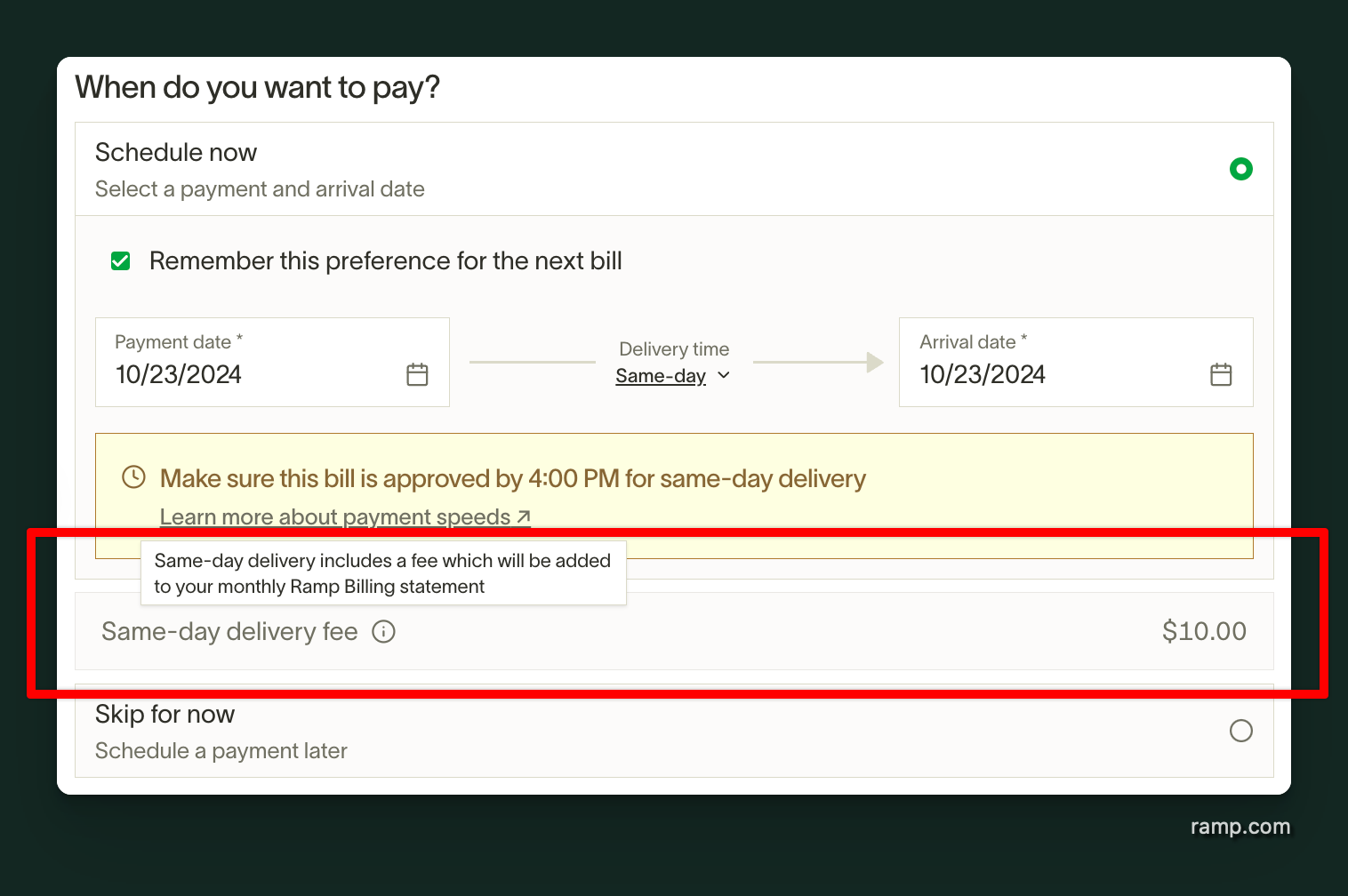 | 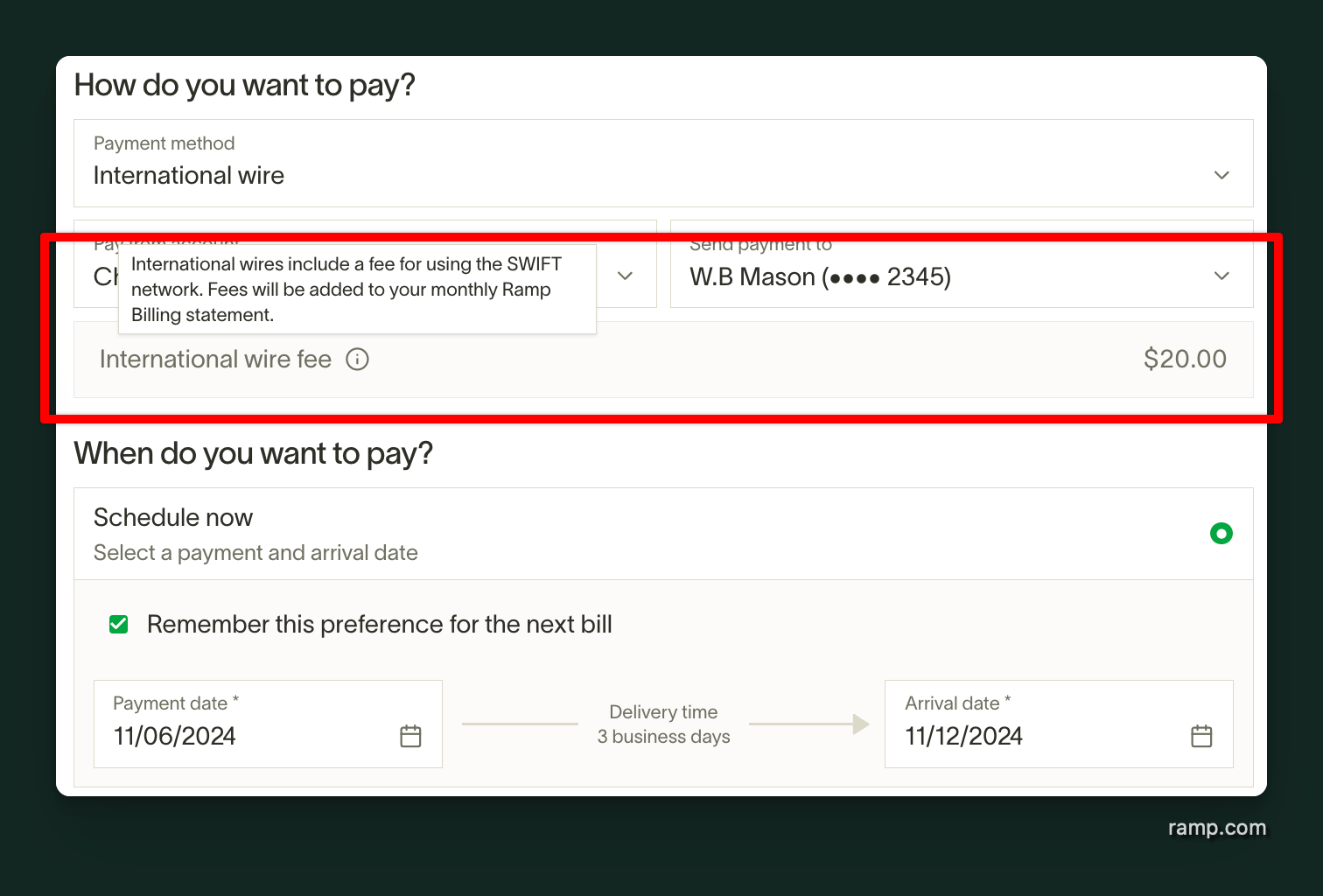 |
|---|---|
| Same-day ACH payment selected | International Wire (SWIFT USD) payment selected |
Step 2: Reviewing accrued fees in the billing statement
Once the payment for the associated bill is complete and the bill is paid, Ramp will add any of the associated fees to the current billing statement period. To view Ramp bill fees history, follow the steps below.
- Navigate to Company > Statement & payments
- Select Bill Pay under the Subscription and fees section
- Review accrued fees for the current statement period
Step 3: Billing statement payment for subscription and fees
At the end of each statement period, Ramp will generate a billing statement summarizing all fees accrued during the billing period. This statement will include a breakdown by the type of payment, the number of transactions, and the total fee amount. Billing statements and associated payment can be viewed from the Company > Statements & paymentspage.
If you are on the Ramp Plus plan, Bill Pay fees will be automatically added with Ramp Plus subscription charges on your billing statement.
Bill Pay fees billing bank account
For customers not using Ramp Plus, Ramp will automatically set your billing bank account for Bill Pay fees as your associated credit card statement account once your first Bill Pay fee is incurred. If you have a multi-entity set up on Ramp, fees will be set to charge from the credit card statement account linked to the entity listed on the bill associated with the fee.
However, Admins with access to payment sources can change the billing bank account for subscription and fees independently from card statement accounts. If your Banking menu shows Linked accounts, open Banking > Linked accounts and select Payment sources. If your Banking menu shows Accounts instead, open Banking > Accounts and select Payment sources from the page menu.
If you have a multi-entity set up on Ramp, fees will be charged from the billing bank account linked to the entity listed on the bill associated with the fee.
How payments will appear in bank entry
Bill Pay service charges will be listed on your billing statement. These debits will show up as a bank entry as one of the following:
- RAMP FEES
- RAMP BILLING FEES
You'll be able to find your billing statement for subscription and fees by navigating to Company > Statements & payments > Statements tab
Frequently asked questions
When will the bill fees appear in my billing statement?
Ramp will only add the bill fees to the billing statement once the associated bill payment is complete
When will Ramp debit my account for bill fees?
Ramp will debit your account at the end of the statement period for the sum of all fees accrued during that period. If you are a Ramp Plus customer, any Plus associated charges will be included in the statement payment
Are batched payments to the same vendor charged one fee or multiple fees?
When multiple payments to the same vendor are batched into a single ACH or check payment, only one transaction fee is charged for the batch.
Am I charged again if a payment fails and I need to resend it?
No. If an ACH or check payment fails and you resend it, you are only charged one transaction fee total — the resend does not incur an additional fee.
If I pay one invoice with multiple payments, how are fees calculated?
Each payment incurs its own transaction fee. For example, if you split an invoice across two separate ACH payments, each payment is charged separately.
Can I opt out of the consolidated billing statement?
Not at this time
I am an existing customer. Do I need to turn this on?
No - we will automatically enroll you in the new monthly billing cadence upon your first bill fee being generated
Which bill is this fee for? What does this Payment ID refer to?
You can find the respective bill by searching for the Payment ID in Bill Paysearch
Are my vendors charged fees?
Vendors can receive a Faster Payment for the fee shown in their offer, typically 1%. Faster Payment offers are not guaranteed. Eligible fee-free offers paid to a Ramp account may be accepted automatically. See Faster Payments.
Do Bill Pay fees sync to my accounting provider?
No. Bill Pay service charges (e.g., same-day ACH, SWIFT USD, overnight check delivery, and domestic wire fees) do not sync to your accounting system because they are not tied to individual bill payments. Instead, they are grouped into a monthly billing statement. Customers must manually create a journal entry in their ERP or accounting software (e.g., NetSuite, QuickBooks) to account for these fees.
Where can I find and reconcile my Bill Pay fees?
You can find all accrued fees in your billing statement, located at:
Company > Statements & Payments > Subscription and fees
The statement provides a breakdown by payment type and transaction count. At the end of each statement period, Ramp debits your account for the total amount. These charges may appear in your bank statement as:
- RAMP FEES
- RAMP BILLING FEES
To reconcile, download the statement and log the fees manually in your accounting system.