Batch payments on Ramp Bill Pay
Overview
Available on Ramp Plus. See Ramp Plus overview for plan details.
There's way more—check here for the complete list of features.
The Batch Payments feature allows you to streamline your payment process by paying multiple bills to a single vendor in one transaction, rather than handling each bill separately. This is particularly useful for businesses managing a large volume of invoices, helping you and your vendors save time and simplify reconciliation.
Please note, payments are batched on a per vendor basis. Ramp cannot batch a payment across multiple vendors (e.g. a single debit and multiple credits).
The following payment methods can be batched: ACH, Single-use Cards sent to the vendor, Check, SWIFT, and International and Domestic Wires. We do not currently support batching other card payments, or payments marked as "paid outside of Ramp."
Auto-batching set up
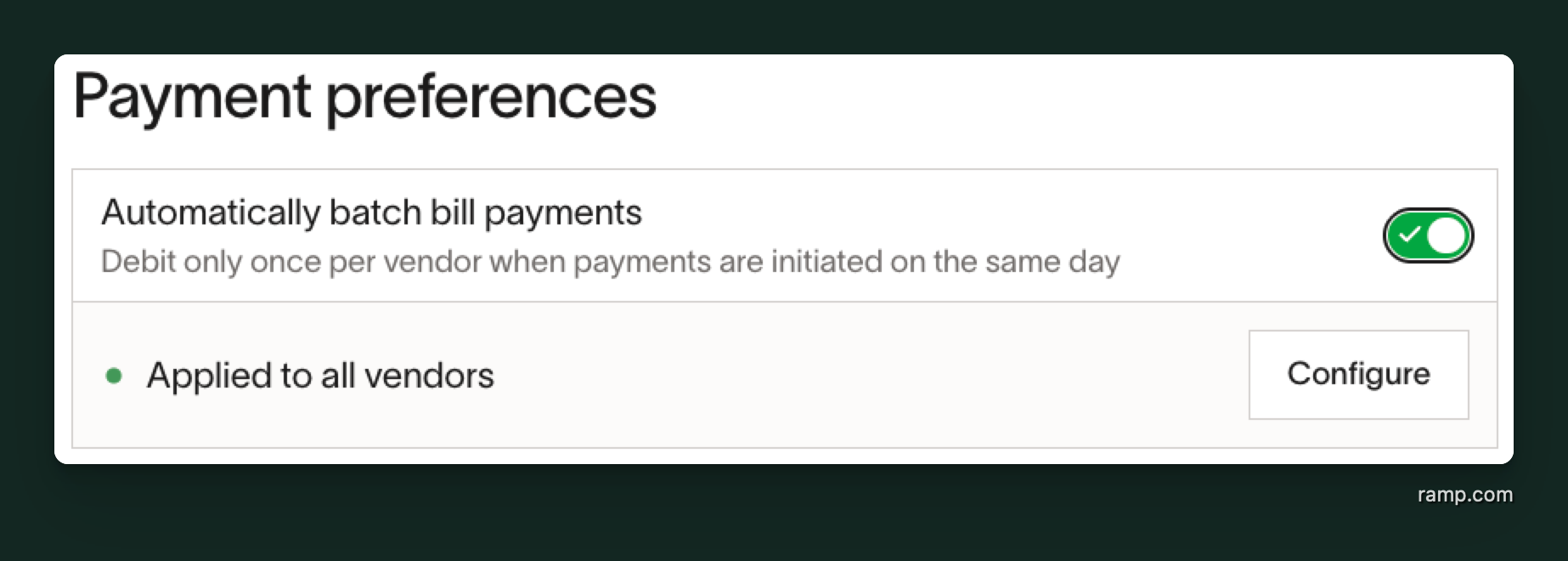
Auto-batching can be enabled from the Bill Pay settings, under the Payments tab
Vendor filter
By default, auto-batching will be turned on for all vendors. However, if there is a preference to include or exclude specific vendors, you can do so by setting a vendor filter for auto-batching within Bill Pay settings.

How bills are batched
With automatic batching, Ramp will automatically group together bills into one combined batch payment if they are going to the same vendor, with the same payment date and payment details (method, timelines, source/destination accounts, and vendor contact where applicable). Please note, a bill cannot be added to a batch if either the bill or the batch has initiated payment.
- For customers who are using our Payment Release approval feature , bills will be batched after payment release, and upon any updates made to bills post-release.
- For customers who are not using our Payment Release feature, bills will be batched after bill approval, and upon any updates made to bills post-approval.
Batching limits
- Up to 500 bills can be included in a single batch
- There is a $1 million cap per batch for ACH, check, and domestic wire payments. International payment limits, including SWIFT, vary by currency and payment method. See Bill payment methods and timelines for current payment-method limits.
Eligible bills that exceed batch limits will automatically spill over to the next batch.
- For example, if there are 502 eligible bills for a batch, we will automatically batch the first 500 into a batch and then group the remaining 2 into another batch.
- Similarly, if you have 3 bills of $500K each to the same vendor on the same day, Ramp will create 2 batch payments, the first one of $1M with 2 bills and the second one of $500K with the 3rd bill, so as not to go over the $1M limit per payment.
Viewing and reviewing batched bills
From the Bill Pay table
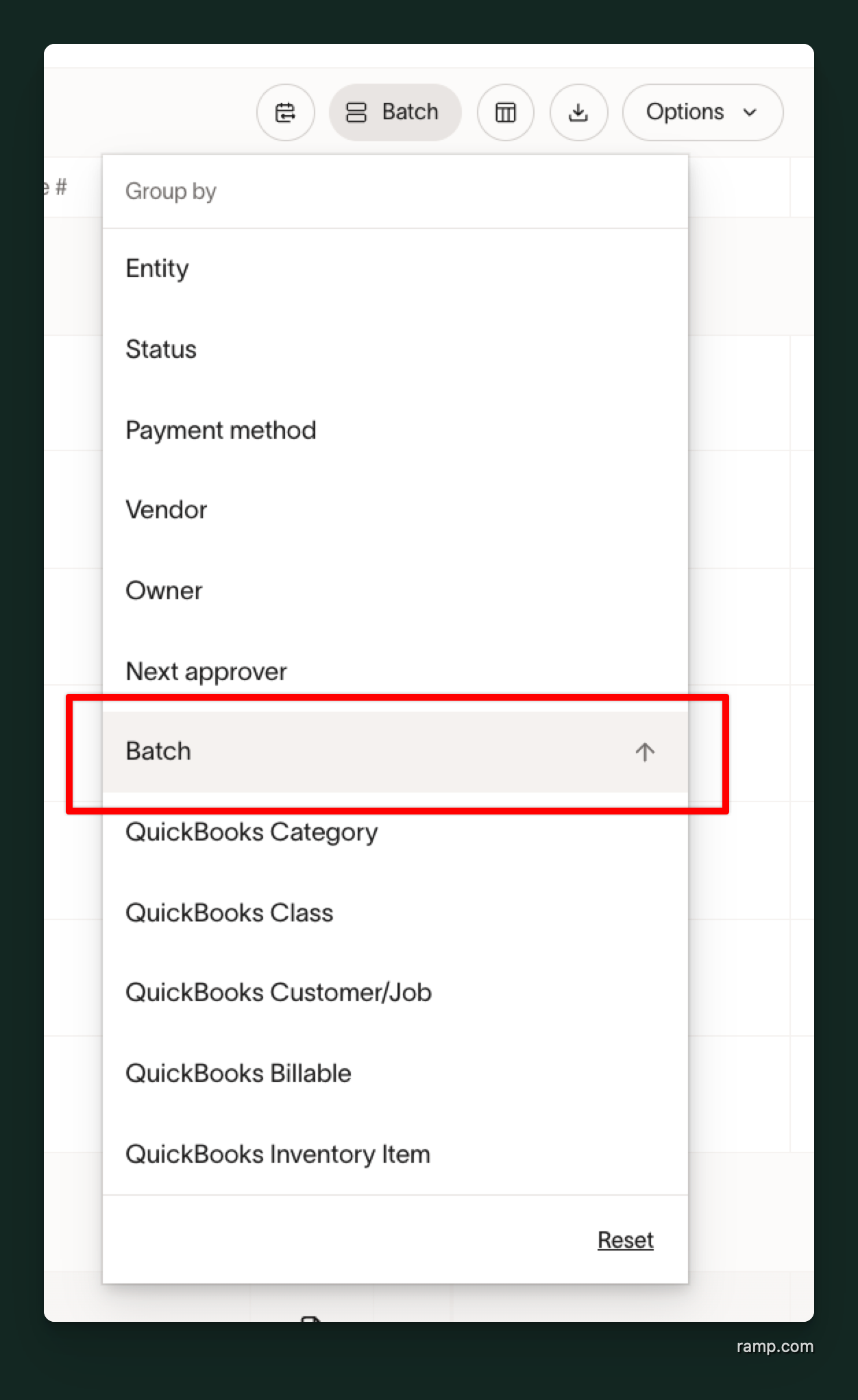
In the Payment required and History views, bills can be grouped by Batch to show which bills will be paid together.
From the individual bill
Open a batched bill and select View payment or View payments. If your company has access to the Payments dashboard, the action opens that dashboard; otherwise, it opens the batch payment drawer.
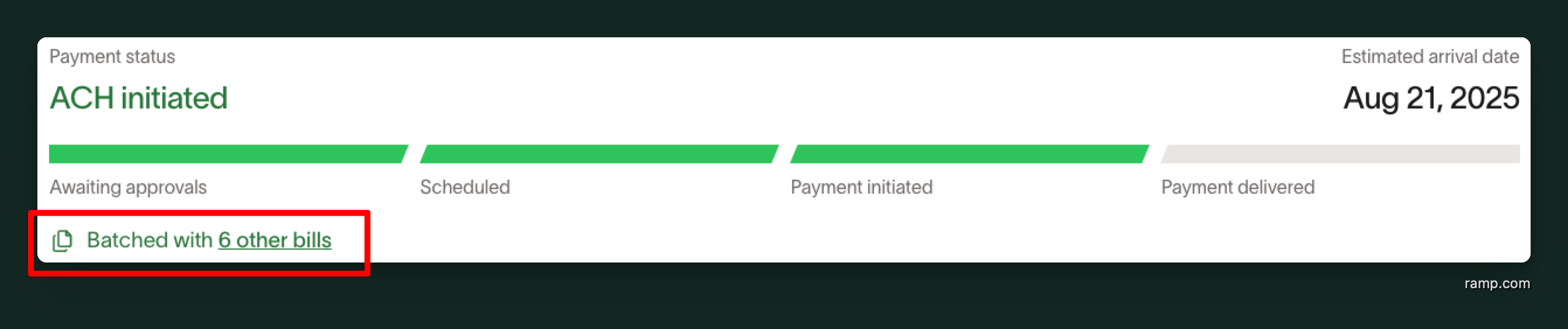
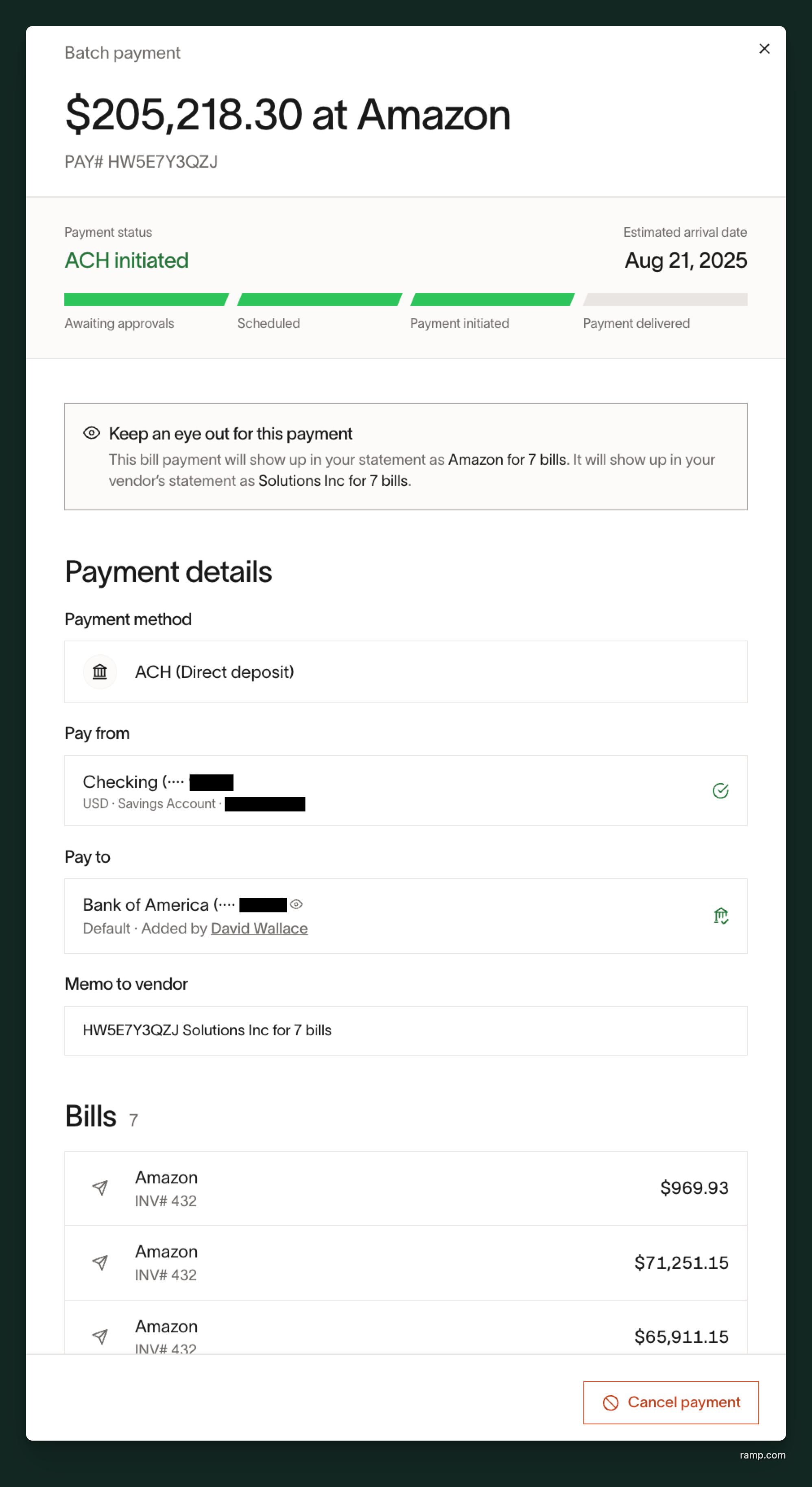
For a scheduled batch, select Unschedule payment to unbatch the bills. For an initiated payment, Cancel is available only when the payment is eligible for cancellation.
Batch payment remittance - how payers and vendors reconcile batch payments
Emails
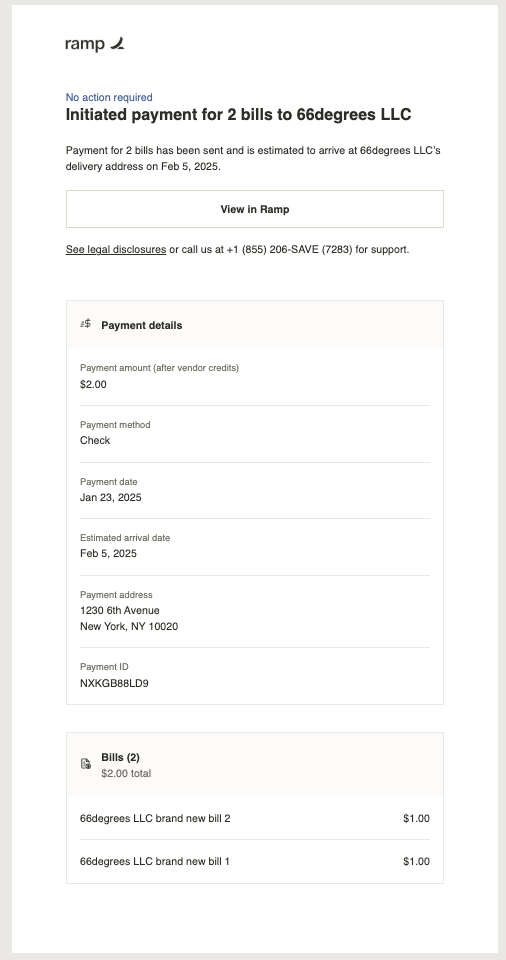
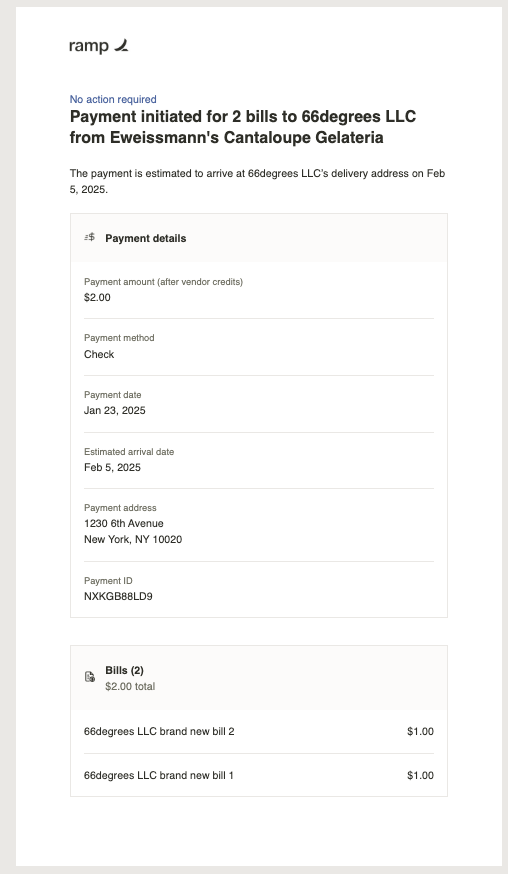
Ramp sends initiation and delivery emails to eligible payer and vendor users.
Initiation emails and full-detail delivery emails contain the included invoices and payment tracking information, such as bank trace IDs for ACH payments or check numbers for check payments. Some payer delivery emails show only a subset of the bills the recipient can access and omit payment tracking details.
| Example payer initiation email | Example vendor initiation email |
|---|---|
 |  |
Payment ID
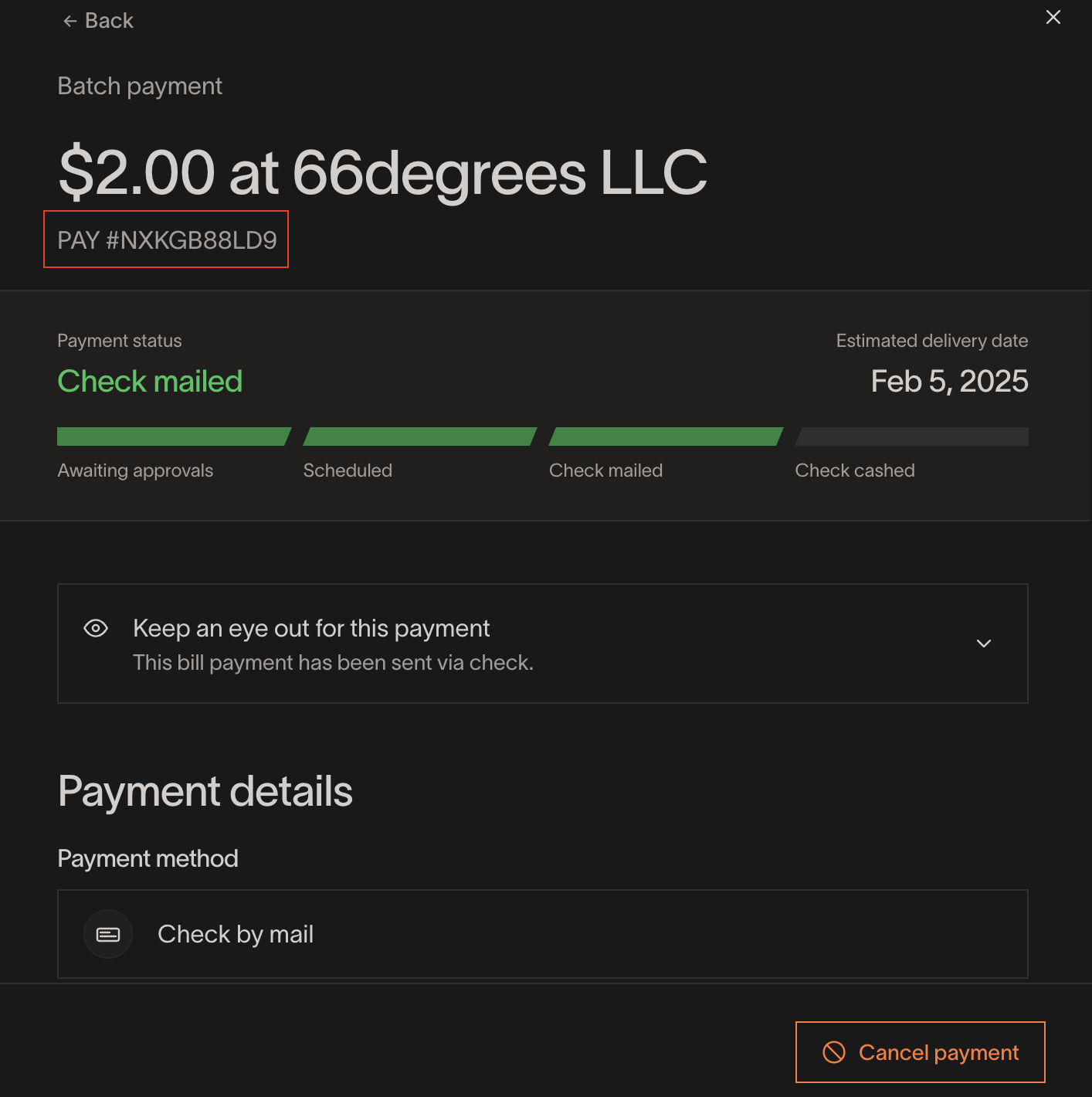
Some payment methods generate a unique Payment ID. When available, a batch has one Payment ID for all included bills, and full-detail payer and vendor emails contain the ID.
When available, payers can find the Payment ID near the top of the payment drawer. Open the drawer by selecting View payment or View payments on a batched bill.
You can also search by Payment ID in the bill's table.
ACH and check memos
For ACH payments, we include the following messages in your and your vendor's bank feeds. We do not include invoice numbers due to the 80-character limit.
- Your bank feed: { Payment ID } {Vendor name} for X bills
- Your vendor's bank feed: { Payment ID } {Your business name} for X bills
For check payments, the memo begins with the Payment ID followed by the number of bills and as many invoice numbers as fit within the 400-character limit. If you entered individual check memos on each bill, the batch payment memo overrides them.
- { Payment ID } X bills: {Invoice numbers}
Batch payment accounting
Ramp syncs the batch payment only when its payment status and accounting details are ready. Each included bill is marked Paid after the batch payment completes.
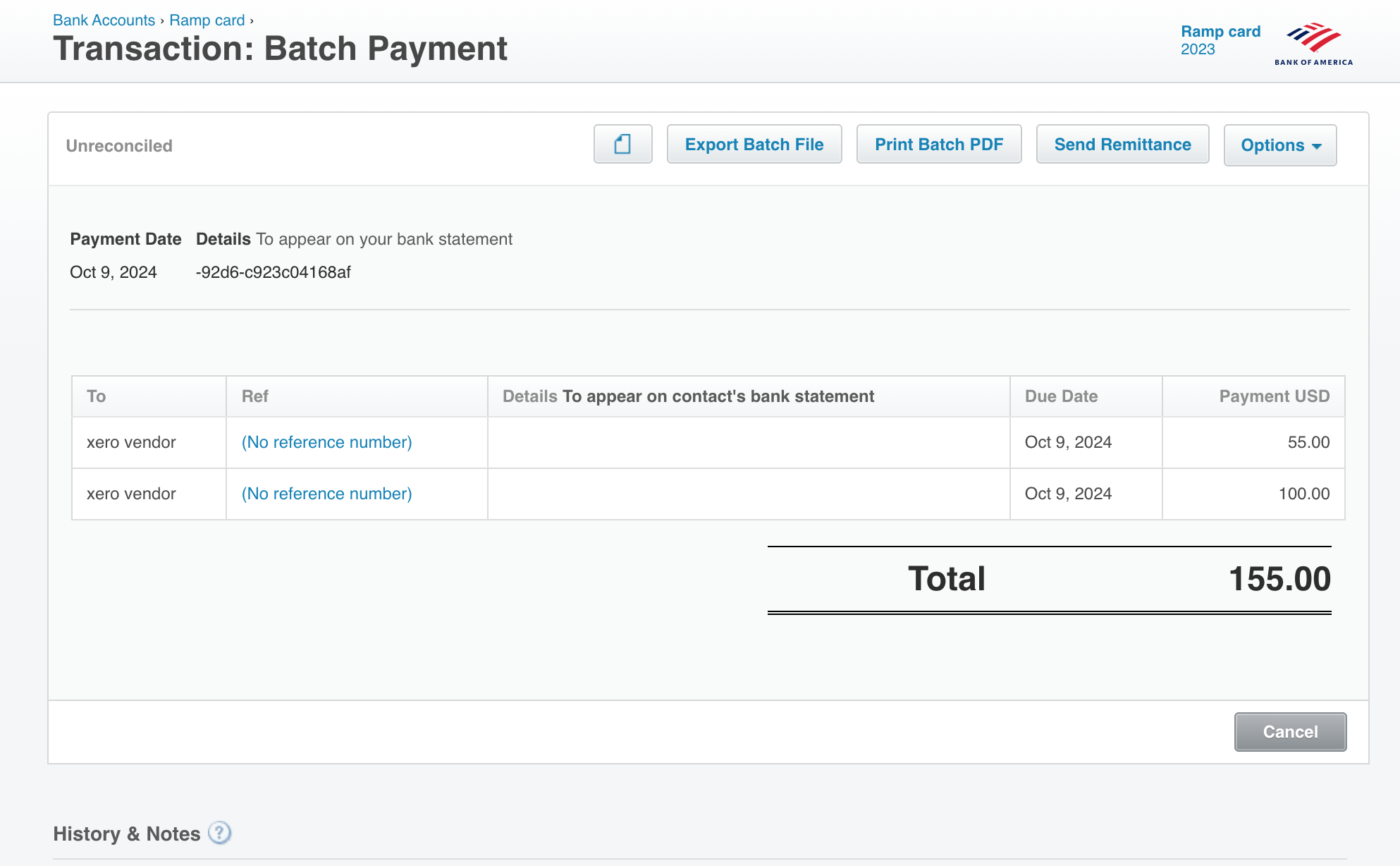
Below is a screenshot of an example of how a batch payment will be represented in Xero. In the example, 2 bills to the vendor "Xero Vendor" of $55 and $100 were paid with a single batch payment of $155.