Set up AI Spend Limits
Overview
AI Spend Limits help you monitor spending and alert people before they exceed their configured amount. You can set soft limits for individual users, departments, or everyone in your company.
Soft limits send alerts without blocking AI usage. Company and department limits apply individually to each person they cover—not to a shared company or department budget.
Before you configure AI Spend Limits
Before configuring limits, check the paid-access requirements for AI Spend Limits. AI Spend Limits are available through an active AI Token Spend subscription. Access under existing or custom billing arrangements may differ.
To configure these limits, you need the Manage AI spend limits and controls permission.
Company and department limits must also be enabled for your business. Paid access and this permission alone do not make them available.
On Ramp Plus, a Ramp Admin can enable this permission for a Custom Role. This settings path is not available to standalone AI Token Spend Management accounts.
- Open Settings, then Roles & permissions (or Roles & access).
- Under Additional roles, select the Custom Role you want to configure.
- In the role’s configuration drawer, open Permissions and search or filter for AI Token Spend.
- Enable Manage AI spend limits and controls. Ensure View AI provider usage data is enabled for Everyone.
- Select Save changes.
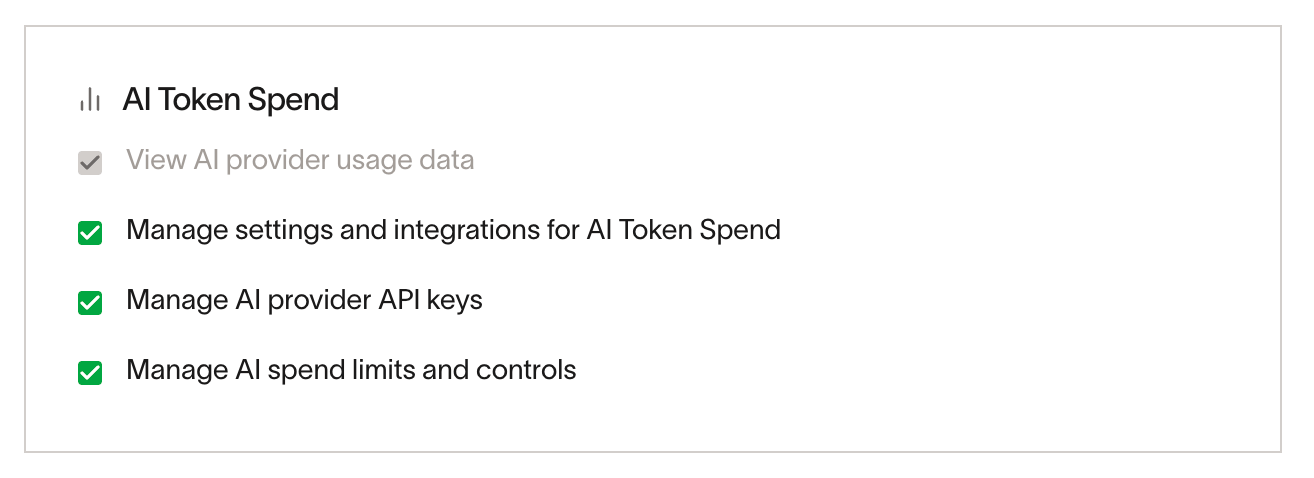
Changes apply to everyone assigned to that Custom Role.
If you cannot manage limits, ask your Ramp Admin to review your access.
Choose the level for your AI Spend Limits
You can configure limits at three levels:
- Company: Assign a per-person limit across your business.
- Department: Assign a per-person limit for a department. Department limits take priority over the company limit.
- User: Set a custom limit for an individual. Custom user limits take priority over department and company limits.
Ramp uses the most specific applicable limit—not necessarily the lowest amount. A custom user limit can therefore be higher or lower than the department or company limit.
Limits track AI usage costs attributed to each person. They do not represent total company spending, card charges, or every cost displayed on your company dashboard.
Spend imported from AWS Bedrock and Google Cloud (Gemini) is not included in per-person limit calculations. Spend from service keys is also excluded.
Set company and department AI Spend Limits
- Open the AI token spend Team page and select Manage limits.
- To configure a company-level limit, expand the company section and enter the per-person Amount and Frequency.
- To configure department-level limits, select Add department, choose a department, and enter its per-person amount and frequency.
- Configure alert thresholds and additional recipients for each company or department limit you’re setting.
- Submit your changes.
- If Review user limits appears, review the current and proposed limits. Choose whether to keep existing custom user limits with a specified amount or replace affected custom limits with company and department limits, then confirm.
Important: Creating or updating a company or department limit clears existing no-limit exceptions for affected people, even when you keep existing custom user limits. Those people can receive the applicable company or department limit and its alerts again.
Set a custom user AI Spend Limit
These steps apply when company and department limits are enabled for your business.
From the AI token spend Team table, open the person’s action menu and select Add custom user limit. Enter the amount, choose a recurring frequency, configure alerts, and save.
A custom user limit replaces the applicable department or company limit for that person.
Edit a custom user limit: From the Team table, open the person’s action menu. Select Edit custom user limit, update the settings, and save.
Configure AI Spend Limit alerts and resets
Alerts are measured against each person’s applicable limit. Default recipients depend on the limit type:
- Company and department limits: The person receives alerts at the configured thresholds.
- Custom user limits: Alerts go to the person with the limit. For standalone AI Token Spend Management businesses with an assigned Owner, that Owner receives alerts at every configured threshold instead—not just at 100%.
For both limit types—including standalone businesses—when spending triggers an alert at or above 100% of the limit, the person’s active direct manager is also notified, if one is assigned.
You can select additional recipients to receive alerts at the configured thresholds. The 100% threshold is always included.
Review company and department alert settings in Manage limits, or open a person’s user-limit settings from the Team table.
Reaching a soft limit does not block usage or automatically lock API keys. Separate API-key controls can affect access independently.
Spend data and alerts are not real-time. Spending can pass a threshold before imported data triggers an alert.
In company and department limit settings, or the user-limit editor opened from the Team table, choose a calendar frequency:
- Monthly: Resets on the first day of the next month.
- Quarterly: Resets on the first day of the next calendar quarter.
- Yearly: Resets on January 1 of the next year.
Resets occur at midnight UTC.
Edit, remove, or reset AI Spend Limits
The reset and no-limit-exception actions below apply when company and department limits are available. Open the Team table to manage individual limits.
Edit company or department limits: Open Manage limits, update the settings, and save. Review affected user limits before confirming.
Remove a company limit: Select Remove in the company section of Manage limits, then save. Department and custom user limits remain in place.
Remove a department limit: In Manage limits, select Remove department limit, then save. People without a custom user limit inherit the company limit, if one exists.
Reset a custom user limit: Select Reset to company limit or Reset to department limit to remove the custom limit and restore the applicable inherited limit.
Remove a custom user limit: From the AI token spend Team table, open the person’s action menu, select Remove limit, and confirm. This creates a no-user-limit exception: company and department limits will not apply to that person. It is different from resetting their custom limit.
Exclude a person who inherits a company or department limit: Direct single-person removal is not available for inherited limits. To exclude just one person, first set a custom user limit. After saving succeeds, remove it using the action above. Until removal succeeds, the custom limit remains active instead of their inherited limit.
To exclude a group that includes people with inherited limits, select at least two people you intend to exclude in the Team table. Select Add custom user limits or Set custom user limits, then Remove limits in the configuration dialog, and confirm removal. All selected people receive a no-user-limit exception; do not select an extra person solely to make the removal action appear.