Accounts Payable Role on Ramp
Overview
Accounts Payable is a permission set on Ramp designed for team members who need to manage your business's accounts payable (AP) process within Ramp Bill Pay. This role gives users the ability to draft, create, edit, view, and initiate the approval process for bills, as well as manage vendor information.
The Accounts Payable role is not a standalone role but rather a set of permissions that can be added to a user's existing base role (e.g., Employee, Manager). This allows for flexible and secure delegation of your AP tasks.
How to assign the Accounts Payable role
An administrator can assign the Accounts Payable role through the Bill Pay settings by following the steps below:
- Navigate to the Bill Pay tab on the left-hand menu.
- Click the three vertical dots ( ⋮ ) on the top right of the page and select Settings .
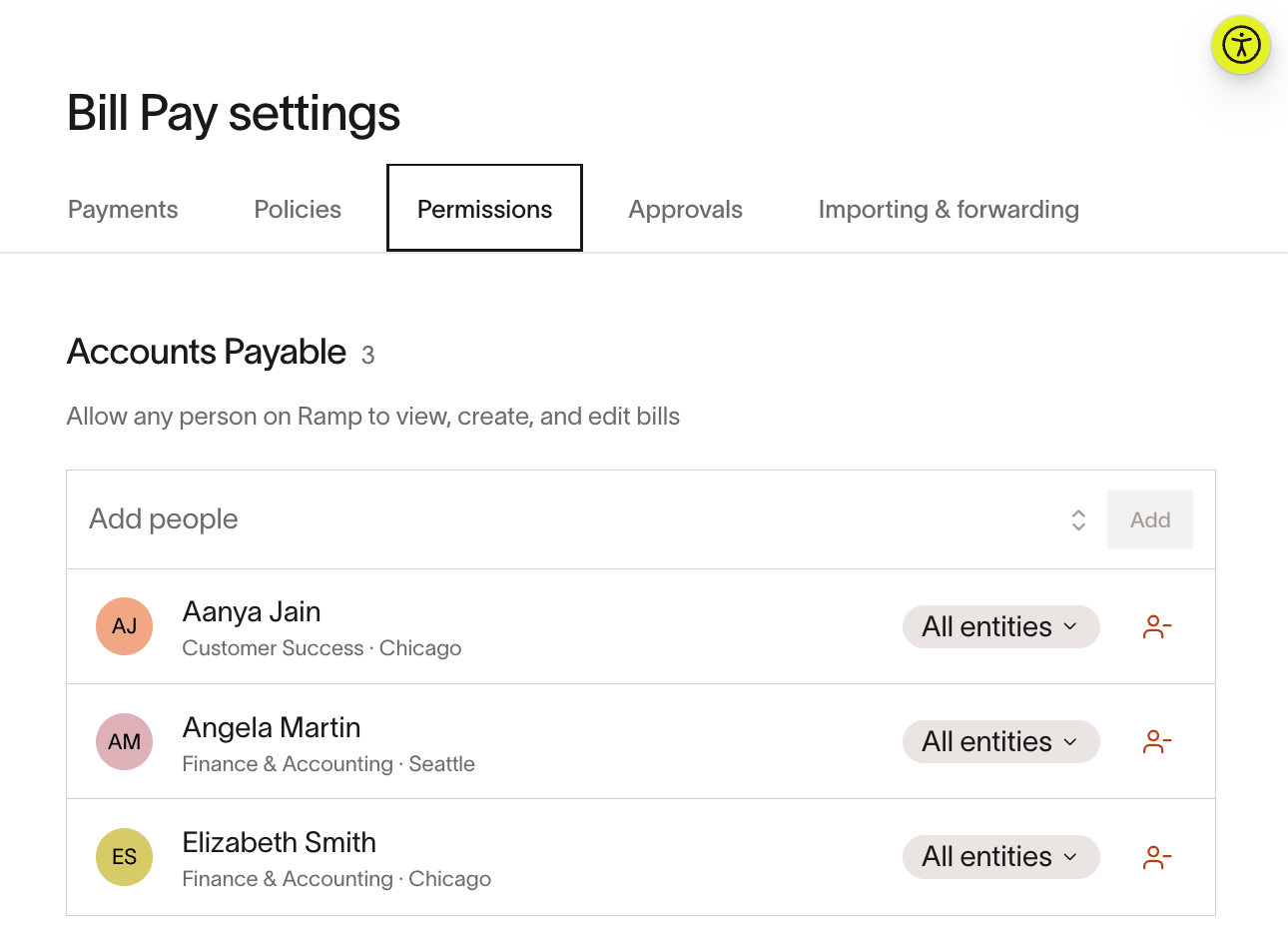
- Go to the Permissions tab.
- Under the "Accounts Payable permissions" section, use the dropdown menu to search for and select the user(s) you want to assign.
- Click the Add button. The user will now have Accounts Payable permissions.
Managing multi-entity access
Beta. This feature is currently in Beta.
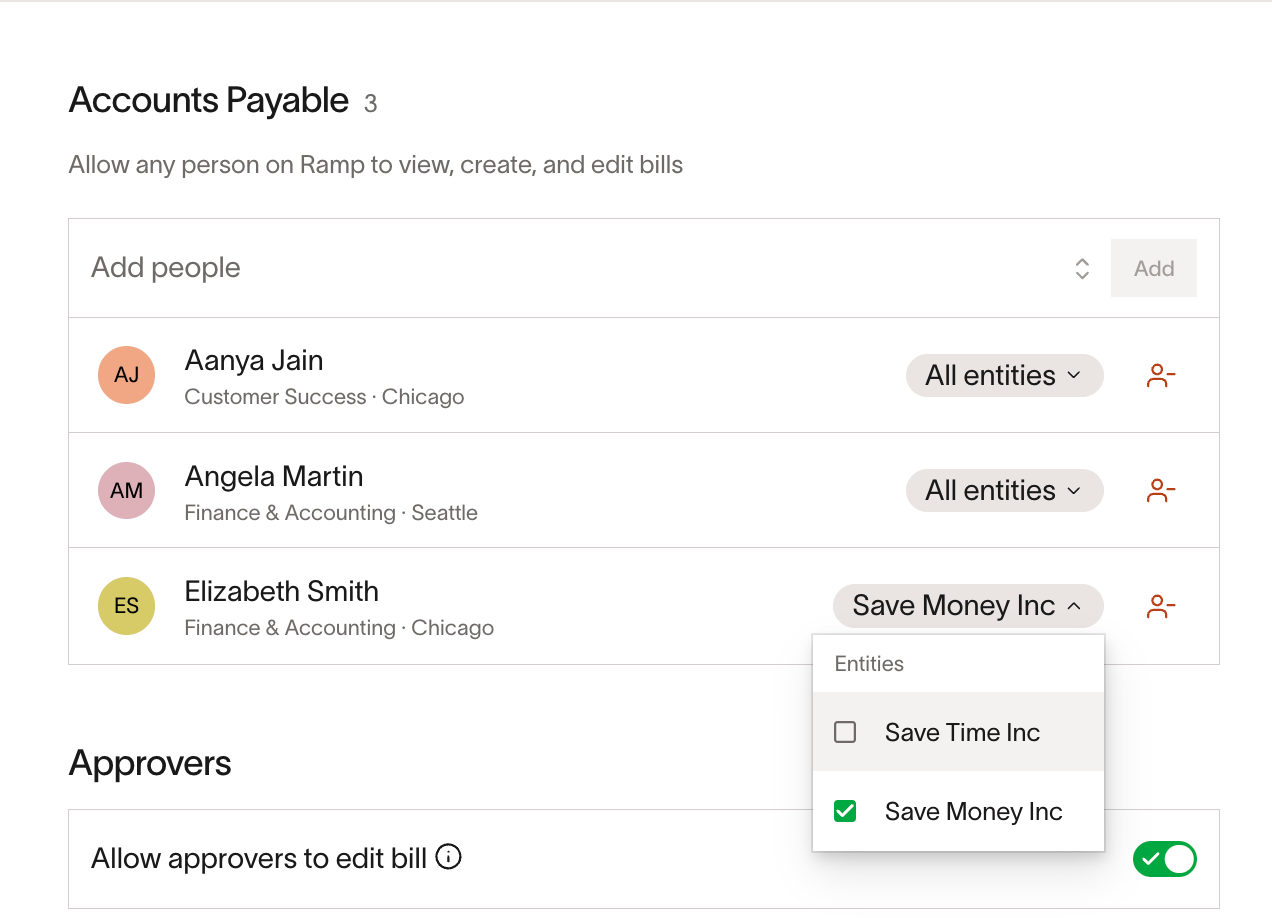
If your business uses Ramp's multi-entity functionality, you can restrict access for the Accounts Payable role to specific entities. This ensures they can only view and manage bills for the entities they are responsible for.
To configure entity access for the Accounts Payable role:
-
Navigate to Bill Pay > Settings > Permissions .
-
Find the user in the "Accounts Payable" list.
-
To the right of their name, click the dropdown menu that defaults to All entities .
-
Select the specific entity or entities you want to grant them access to.
-
The changes are saved automatically. The user will now only see bills and vendors associated with their assigned entities.
Customizing permissions for the Accounts Payable role
Available on Ramp Plus. See Ramp Plus overview for plan details.
Beta. This feature is currently in Beta.
Ramp allows administrators to customize the specific permissions granted to the Accounts Payable role to fit your company's internal controls.
To customize the role:
- Navigate to the Company tab and click on Settings .
- Select the User Roles tab.
- Click on the Accounts Payable role to open the permissions editor.
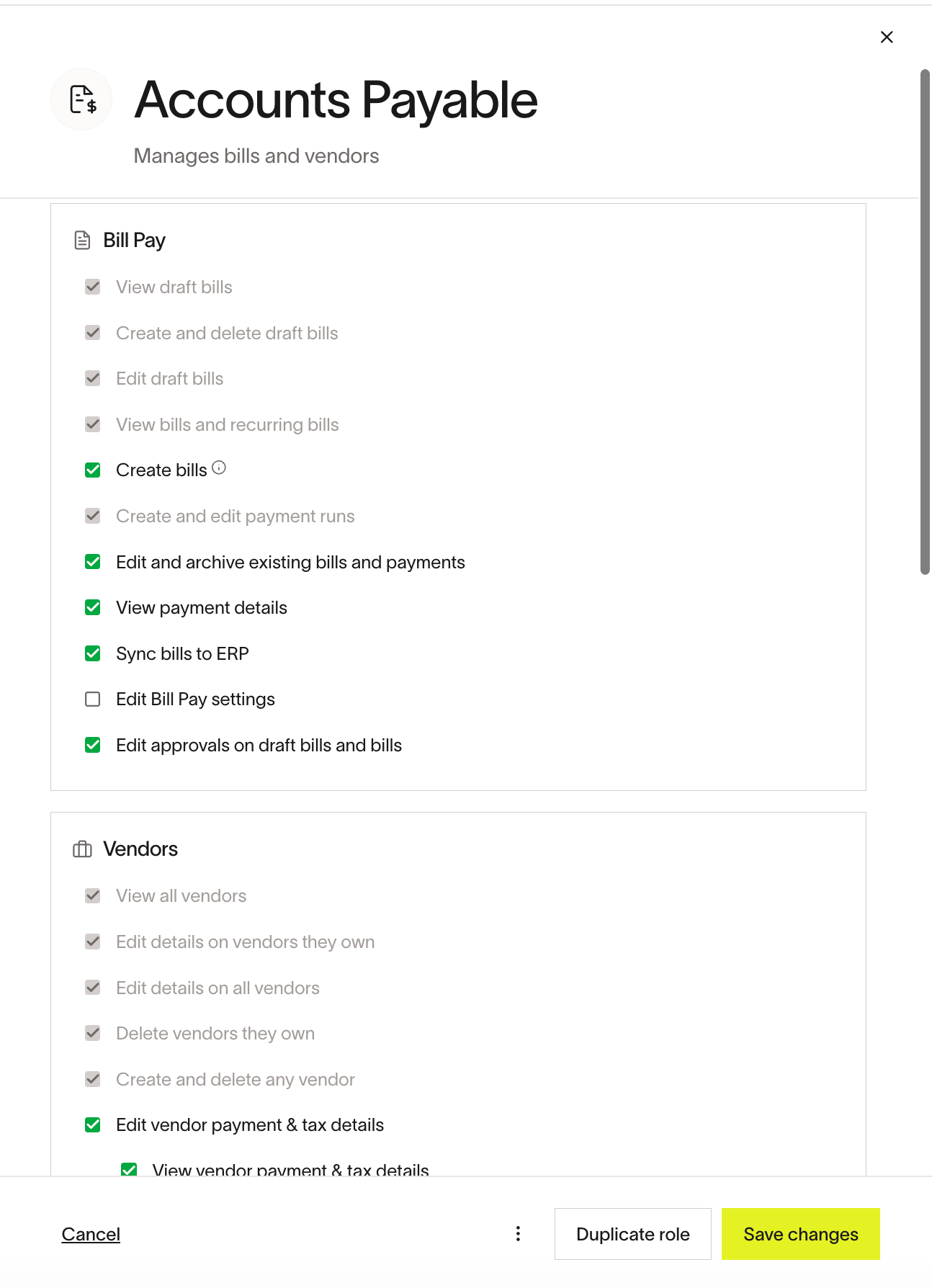
From here, you can view the default permissions for Accounts Payable as well as enable/disable specific capabilities:
Default Permissions: By default, all users with the Accounts Payable role can:
- View, create, edit, and delete draft bills
- Note, if multi-entity restrictions are toggled on, then they would be limited to bills tied to the entity they are assigned
- View all submitted bills and recurring bills
- Note, if multi-entity restrictions are toggled on, then they would be limited to bills tied to the entity they are assigned
- View and edit details on all vendors.
Price Intelligence is not included in the Accounts Payable role by default.
Customizable permissions: You can grant the following additional permissions to the Accounts Payable role:
- Create and submit new bills and recurring bills (kicking off the approval workflow)
- Edit and archive existing (submitted) bills and payments.
- View payment details (like payment scheduling, payment method, bank account details, etc.)
- This permission is dependent on the "edit and archive existing bills and payments being" on
- Sync bills to your integrated ERP
- Edit Bill Pay settings.
- Edit the approval chain on draft bills and submitted bills
Learn more about customizing roles and permissions on Ramp here.
Frequently asked questions
- Who can be designated with the Accounts Payable role?
- An administrator can designate any Ramp user (Employee, Manager, etc.) with the Accounts Payable role.
- Can I assign Accounts Payable permissions from the Company tab?
- Yes. While you can manage existing users with the Accounts Payable role from the Bill Pay settings, you can also assign the Accounts Payable role to a new user directly from the Company > People tab when you invite them to Ramp.
- What specific capabilities can the Accounts Payable role have?
- The Accounts Payable role is primarily focused on Bill Pay and Vendor management. Permissions can be customized, but this role can be granted the ability to:
- Manage Bills: Create, view, edit, and delete draft bills. They can also optionally be permitted to submit bills for approval, edit/archive already submitted bills, and edit and view payment details on bills
- Modify Approval Workflows: Adjust the approval chain for bills that require different routing.
- Manage Vendors: Access, create, and maintain all vendor information, including payment and tax details.
- Sync Data: Sync bills to your connected ERP (optional permission).
- The Accounts Payable role is primarily focused on Bill Pay and Vendor management. Permissions can be customized, but this role can be granted the ability to:
- Can I limit the Accounts Payable role's access to bills from specific business entities?
- Yes. If your company has multiple entities on Ramp, you can configure permissions for the Accounts Payable role to grant access to all entities or restrict to one or more specific entities. This is managed in the Bill Pay settings.
The following tags apply to this article:
- Admin
- Accounting
- Accounts Payable
- Bill Pay