Workflow blocks in the Blank Canvas Builder
This is available to all Procurement customers.
Overview
Note: Features and functionality may change based on feedback.
Workflow blocks let you package multi-step approval logic into reusable components that you can embed across multiple workflows in the Blank Canvas Builder. Instead of rebuilding the same approval paths in every workflow, you build a block once and drop it in wherever it's needed.
With workflow blocks, you can:
- Simplify complex workflows — Collapse multi-step approval paths into a single, readable node on the canvas.
- Standardize approval patterns — Build common patterns like legal reviews, security reviews, or FP&A sign-offs once and reuse them across workflows.
- Update everywhere at once — Edit a block and publish the changes to every workflow that uses it, without manually updating each one.
Note: Workflow blocks are only available in the Blank Canvas Builder, not the legacy workflow editor. If you're looking for general workflow setup, see Blank Canvas Builder overview.
How it works
Workflow blocks live in a central hub where you can create, manage, and track usage across your workflows. Open Workflow blocks to access your blocks.
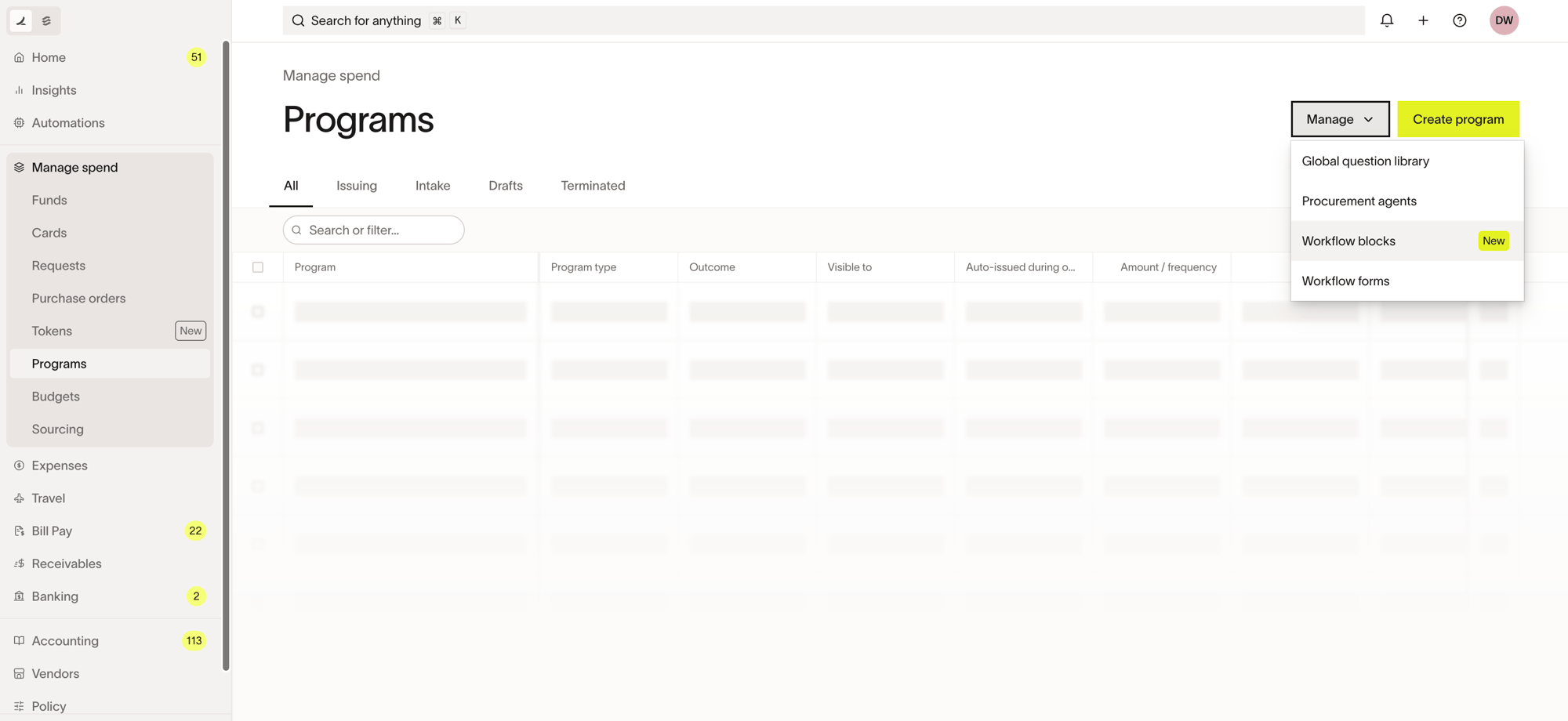
From the Blocks tab, you can see each block's name, who created it, and how many workflows currently use it.
Create a block from scratch
- Open Workflow blocks.
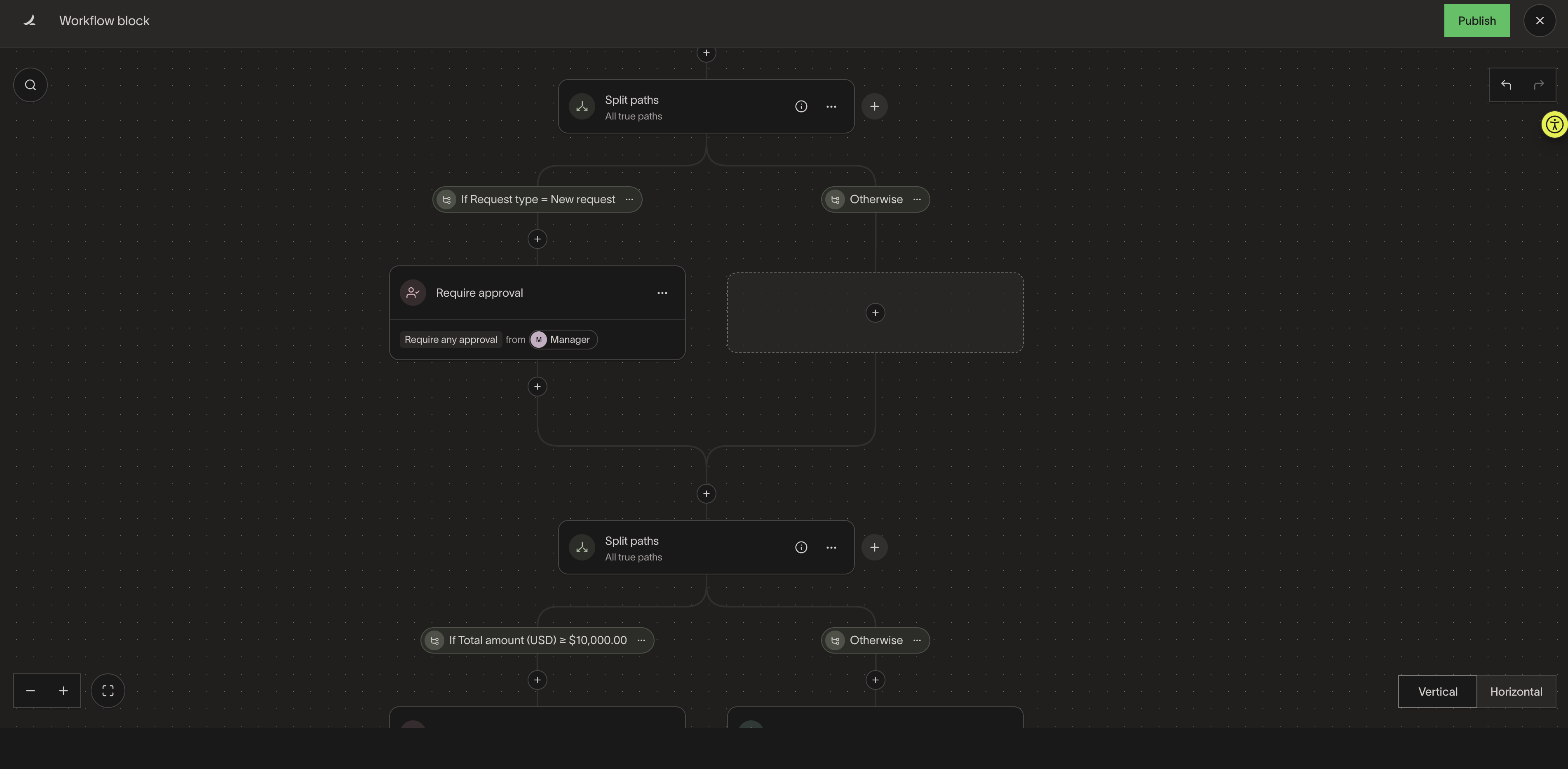
- Click Create block .
- Build your approval steps, including split paths and conditional logic, just as you would in a regular workflow.
- Name your block something descriptive (e.g., "Legal and security review" or "FP&A sign-off").
- Publish the block to make it available for use in workflows.
Create a block from existing workflow steps
If you already have steps in a workflow that you want to reuse, you can convert them into a block directly from the canvas.
- Open the workflow in the Blank Canvas Builder.
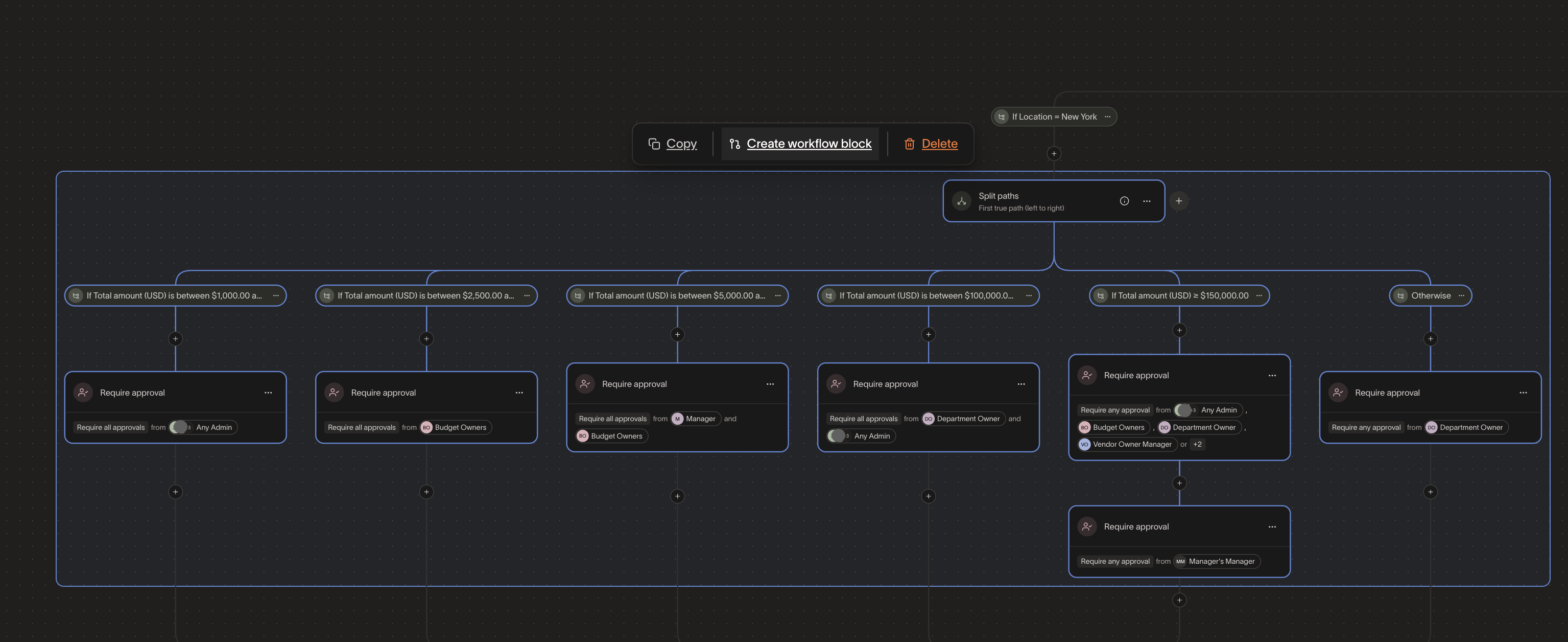
- Hold Shift, click, and drag to select the steps you want to package into a block.
- Click Create workflow block .
- The selected steps are saved as a new block and replaced with a single block node on the canvas.
Add a block to a workflow
- Open a workflow in the Blank Canvas Builder.
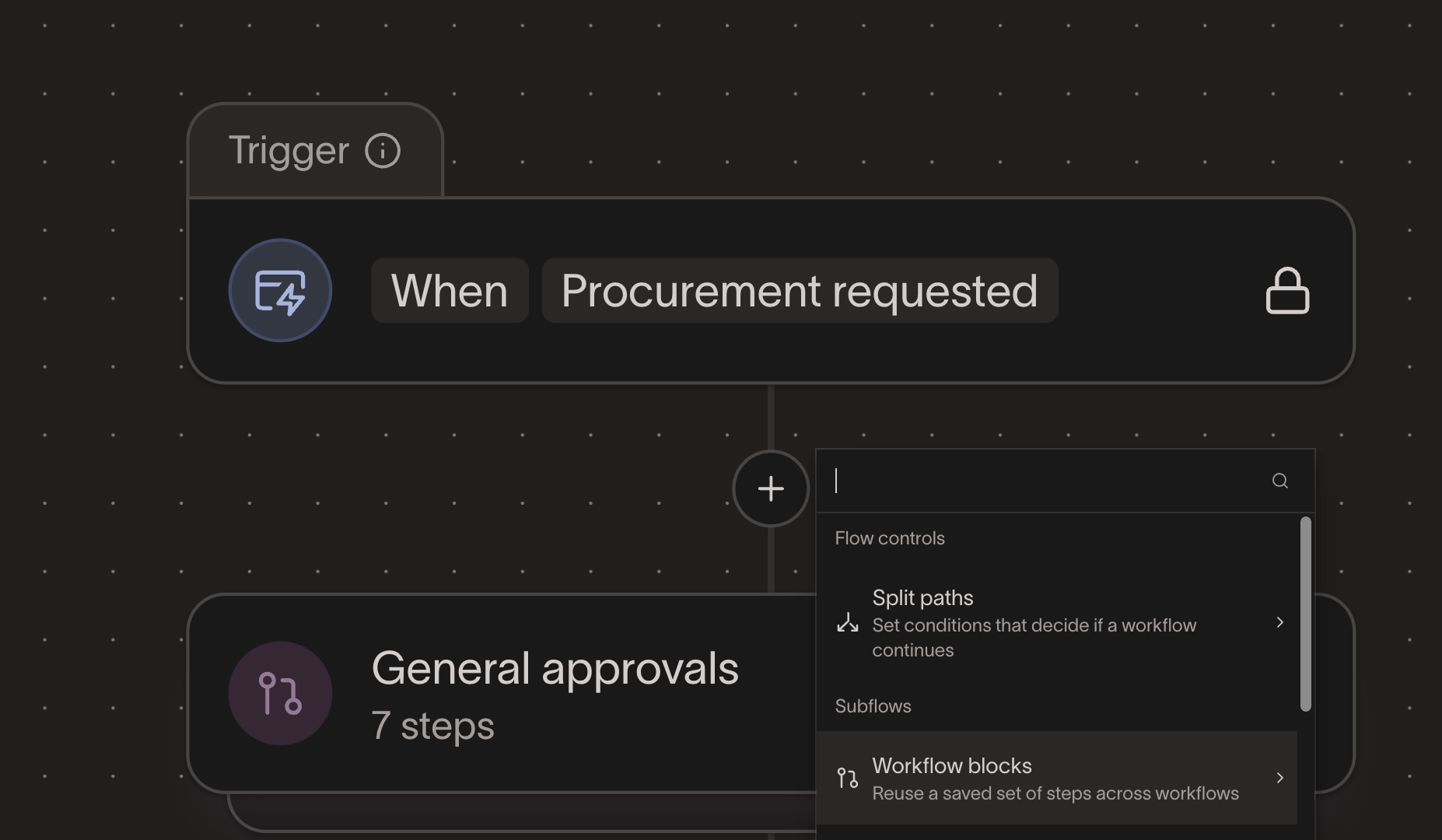
- Click the + button where you want to insert the block.
- Under the Subflows section, select the block you want to add.
- The block appears as a single node on the canvas. Click the block node to expand and preview the steps inside (read-only).
Edit a block
When you edit a block, the changes apply to every workflow that uses it.
- Open Workflow blocks, then click the block you want to edit.
- Click Edit and make your changes.
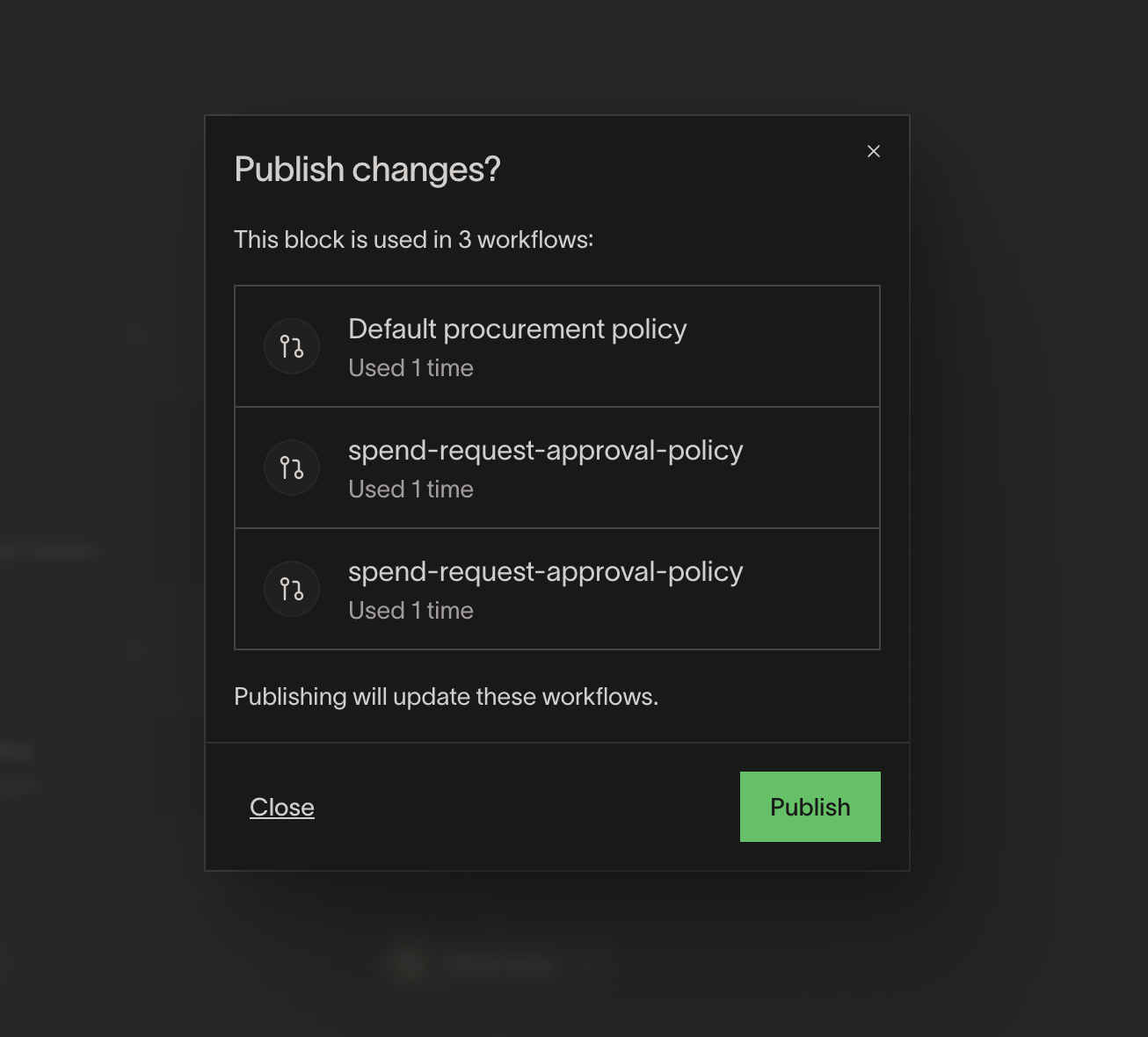
- Click Publish . Before publishing, you'll see a list of all workflows that will be updated.
- Confirm and publish.
Changes apply to new requests only. Requests that are already in progress continue using the version of the block that was active when the request started.
Rename a block
You can rename a block at any time without affecting its functionality. Open Workflow blocks, click into the block, and update the name by editing the title in the block editor. You can also select the three dot menu for the block you'd like to rename, and then click Edit name.
Delete a block
Deleting a block removes it from every workflow that uses it.
- Open Workflow blocks and locate the block you want to delete.
- Select the three dot menu > Click Delete .
- Review the confirmation dialog, which lists every workflow that will be affected.
- Confirm the deletion.
Note: This action cannot be undone. Review the list of affected workflows carefully before confirming.
Use cases and examples
Standardize approval paths across locations
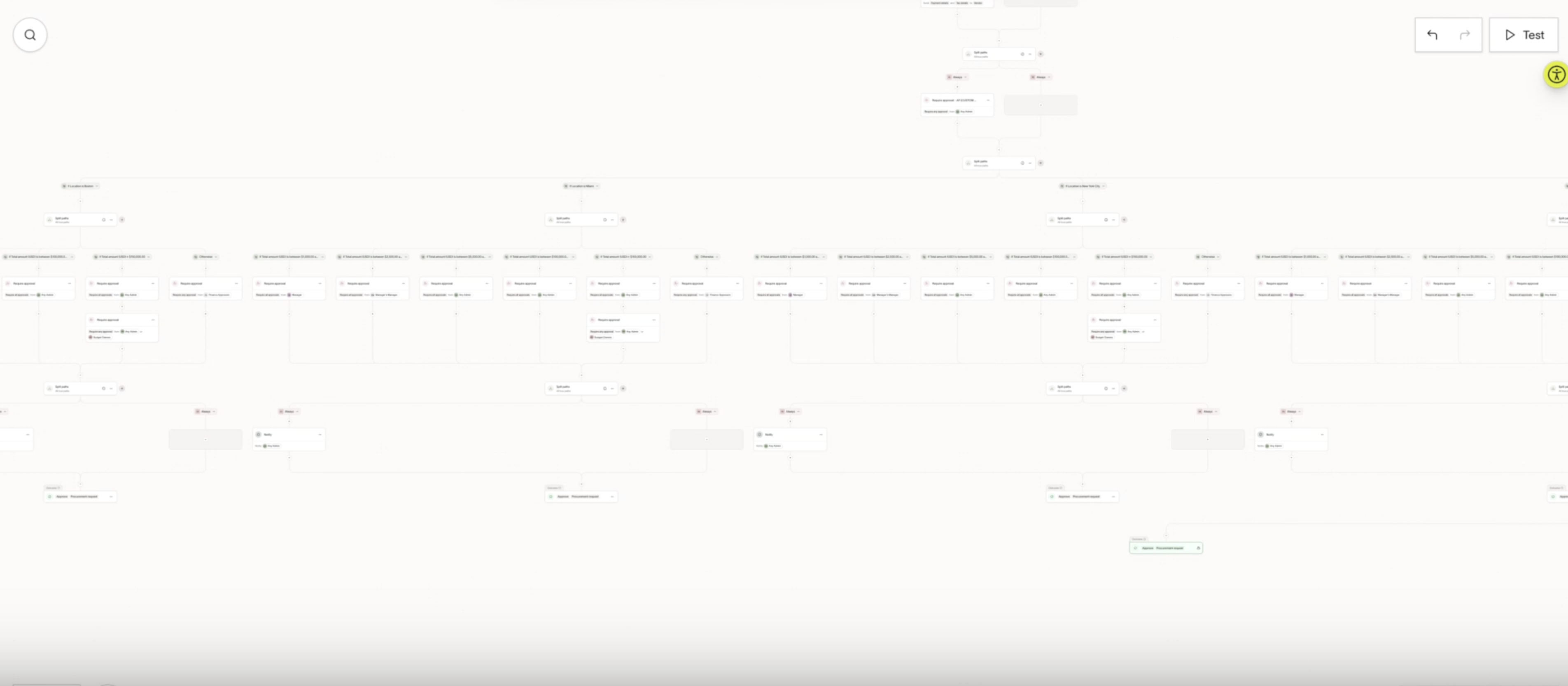
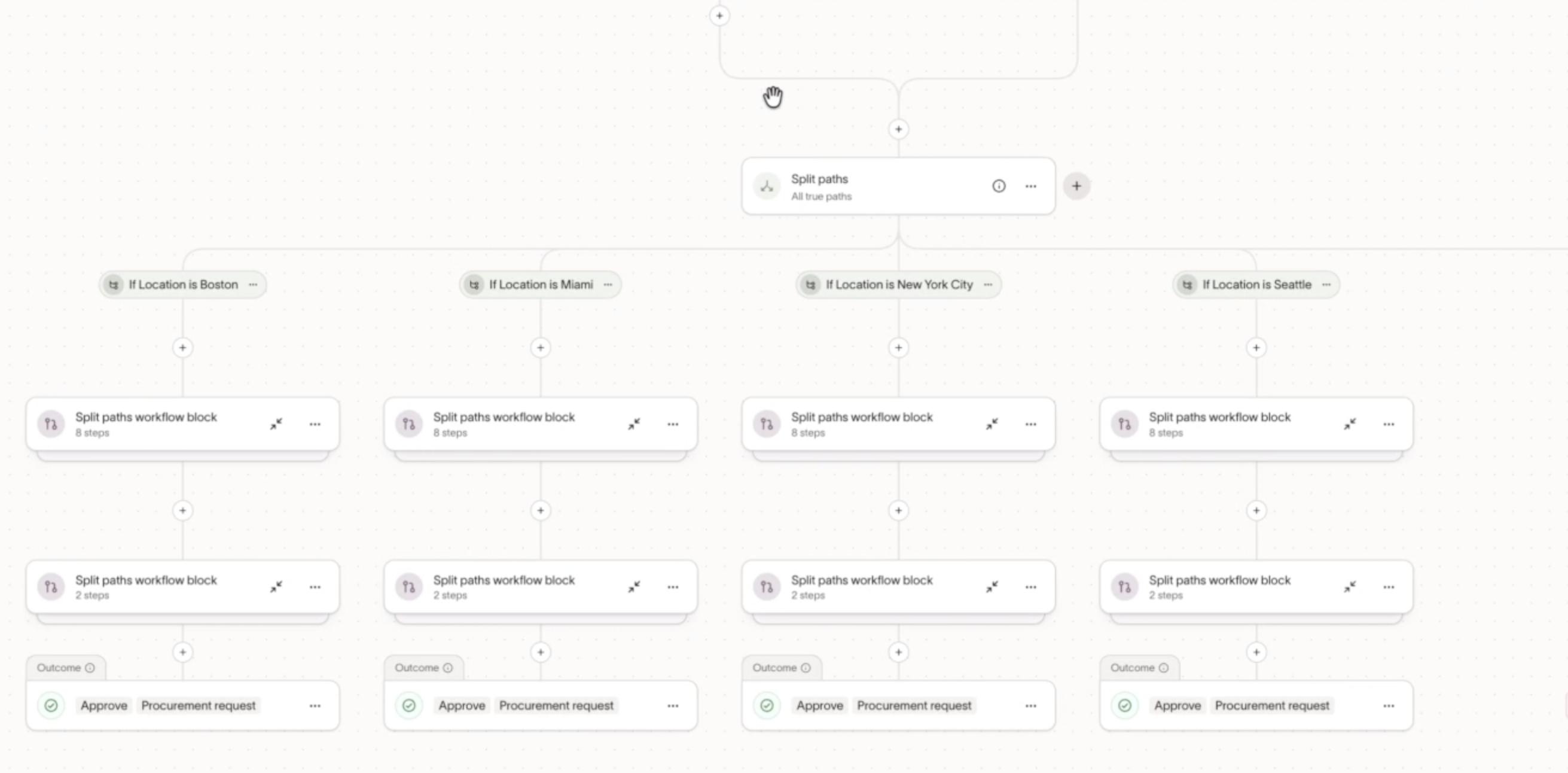
If your organization uses the same approval steps for purchasing requests across multiple office locations, create a single block with your approval logic (e.g., different approvers based on spend amount) and add it to the branch for each location. When your approval process changes, update the block once instead of editing every branch individually.
Reuse a legal and security review
If every vendor onboarding workflow requires a legal review followed by a security review, package those steps into a "Legal and security review" block. Insert it into each vendor workflow to keep the review process consistent across the organization.
Centralize FP&A sign-off logic
Create a block for your FP&A review process, including conditional logic for different spend thresholds, and embed it in any workflow that requires finance approval. When thresholds change, update the block once and the changes propagate everywhere.
Best practices and tips
- Use descriptive names. Name blocks after the process they represent (e.g., "Security review" or "VP approval for $50K+") so they're easy to identify when inserting them into workflows.
- Check usage before editing or deleting. From the Blocks tab, review the usage count and click into a block to see which workflows it's embedded in. This helps you understand the impact of your changes before publishing.
- Start with your most-repeated patterns. Identify the approval sequences that appear in the most workflows and convert those to blocks first for the biggest time savings.
- Keep blocks meaningful. A block should represent a complete process (e.g., "Legal review" or "Split-path approvals by amount"). If a block contains only one step, it's probably not worth the overhead.
Frequently asked questions
Can I nest a block inside another block?
No. Blocks cannot contain other blocks.
What happens to in-flight requests when I update a block?
Changes apply to new requests only. Requests already in progress continue using the version of the block that was active when the request started.
Can I use integration nodes (e.g., Ironclad, DocuSign) inside a block?
Not yet. Integration nodes are not currently supported within workflow blocks.
What happens if I delete a block that's used in multiple workflows?
Ramp shows you a confirmation listing every affected workflow. Once you confirm, the block is removed from all of those workflows. This action cannot be undone.
Can I use workflow blocks in the legacy workflow editor?
No. Workflow blocks are only available in the Blank Canvas Builder.
Can I see which workflows use a specific block?
Yes. From the Blocks tab, each block shows a usage count. Click "View details" to see the full list of workflows where it's used, and click through to navigate directly to any workflow.
Can I edit a block from within a parent workflow?
You can preview a block's steps from within a workflow (read-only), and from there navigate to edit the block directly. Edits are always made to the block itself, not within the parent workflow.