Ramp-managed amortization with accounting integrations
Overview
Available on Ramp Plus. See Ramp Plus overview for plan details.
Ramp-managed amortization lets eligible businesses spread a prepaid cost across the months it covers. Instead of posting the full expense at once, Ramp syncs journal entries over time to move the amount from a selected prepaid account to an expense account in QuickBooks Online, QuickBooks Desktop, Acumatica, Xero, or Sage Intacct.
This is the amortization workflow that uses Prepaids in Ramp. NetSuite customers use NetSuite amortization templates instead of Prepaids.
For provider-wide coverage, including NetSuite template-based amortization, see Ramp amortization with accounting integrations.
Prerequisites
- Your Ramp account is connected to QuickBooks Online, QuickBooks Desktop, Acumatica, Xero, or Sage Intacct.
- Ramp-managed amortization is enabled for your business.
- You have a prepaid asset account in your accounting provider, and it is visible in Ramp.
- The expense account for the transaction, reimbursement, or bill line item is correct before you sync.
- The accounting period you want to post to is open in your accounting provider.
Set up amortization on an item
- Open the bill, transaction, or reimbursement you want to sync.
- In the Accounting section, review the expense coding for the item.
- Confirm the correct expense account is selected.
- Turn on Amortization.
- Enter the amortization start date and end date.
- Select the prepaid asset account you want Ramp to use.
- If prompted, choose the amortization period shown in Ramp.
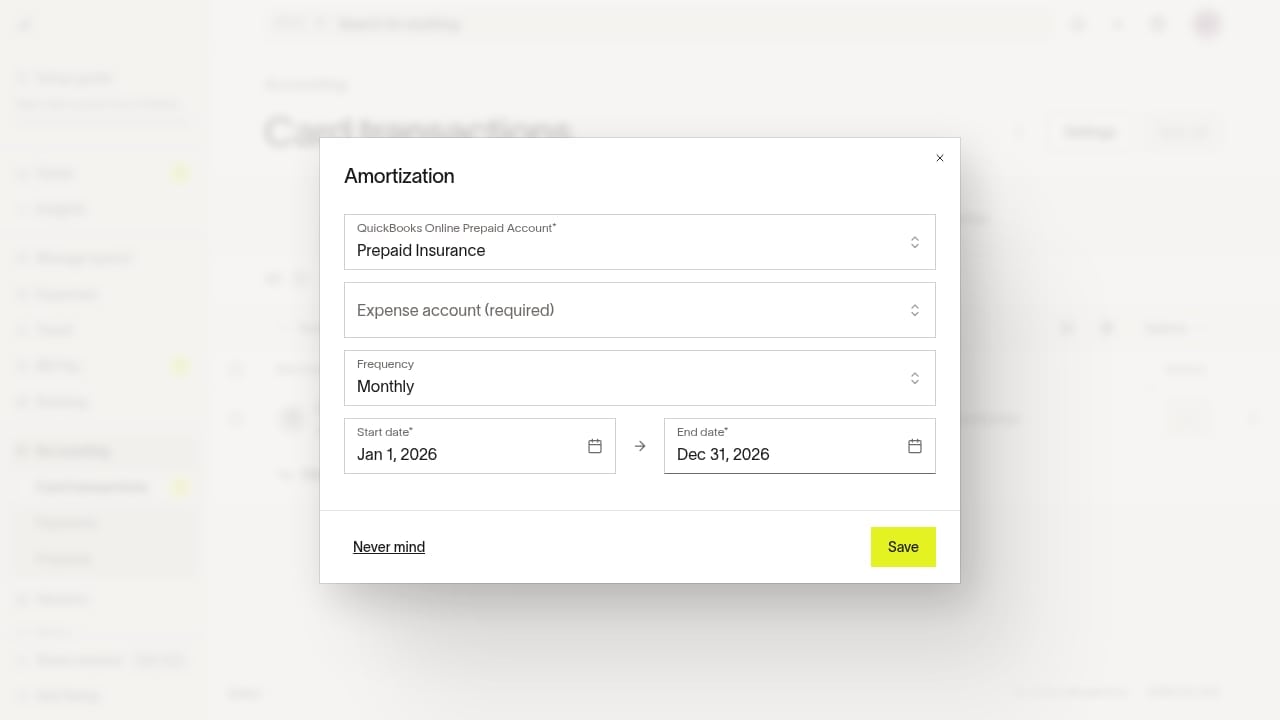
Example: Ramp-managed amortization fields on a QuickBooks Online transaction. QuickBooks Desktop, Acumatica, Xero, and Sage Intacct use the same Ramp-managed setup pattern when enabled for your business.
- Save your accounting changes.
- Sync the item to your accounting provider.
Ramp uses the dates and selected period to create the amortization schedule.
Use Ramp-managed amortization for Bill Pay
Eligible businesses can use Ramp-managed amortization for Bill Pay bills in QuickBooks Online, QuickBooks Desktop, Acumatica, Xero, or Sage Intacct. Bill Pay amortization uses the same prepaid account and scheduled journal entry model as card transaction and reimbursement amortization.
Set up amortization on each eligible bill line item before syncing the bill. Ramp posts the bill line item to the selected prepaid asset account, then creates scheduled journal entries that recognize the expense over the amortization period.
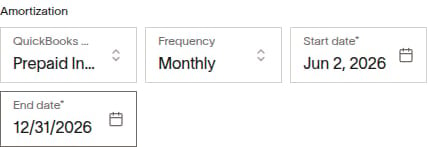
Example: Ramp-managed amortization fields on a QuickBooks Online Bill Pay line item. QuickBooks Desktop, Acumatica, Xero, and Sage Intacct use the same Ramp-managed setup pattern when enabled for your business.
Bill Pay amortization differs from card transaction and reimbursement amortization in where you review the source item: bill line items are reviewed from Bill Pay and accounting sync, while card transactions and reimbursements are reviewed from the Accounting queue. The accounting result is the same Ramp-managed schedule model for eligible providers.
Expected result in your accounting provider
Before the sync completes, Ramp-managed amortized items are available in Accounting > Prepaids.
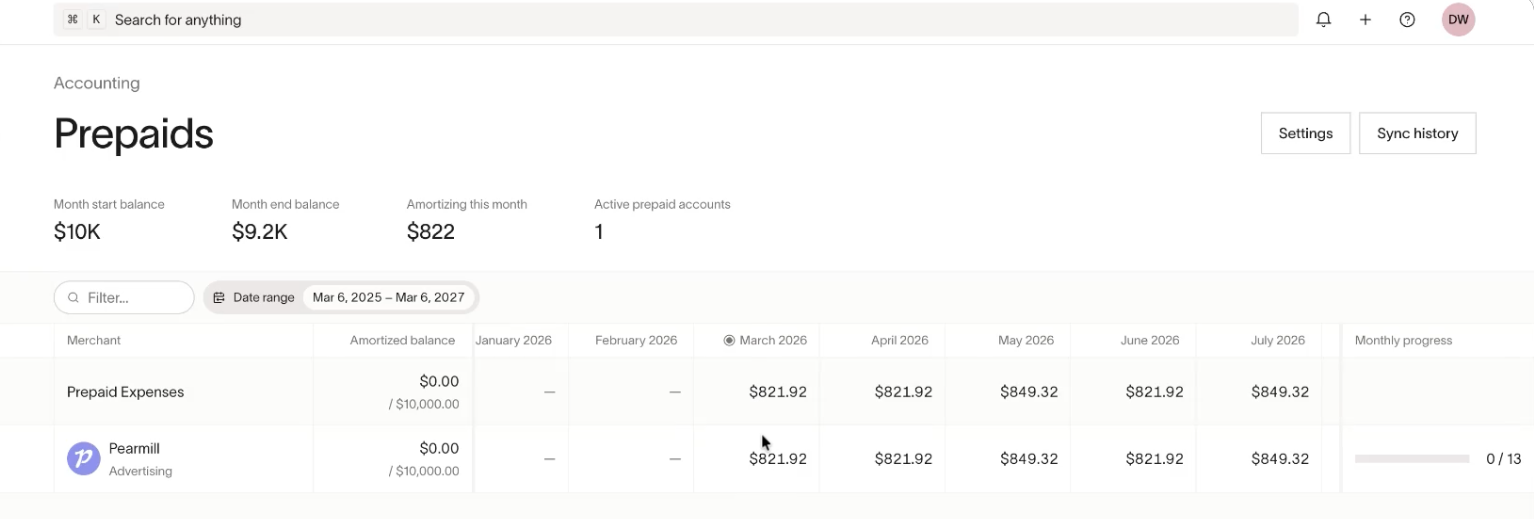
After the sync completes:
- The initial amount posts to the prepaid asset account, not as an expense.
- Ramp creates journal entries on schedule to move the balance from the prepaid asset account into the expense account.
- The expense account comes from the coding on the original bill, transaction, or reimbursement.
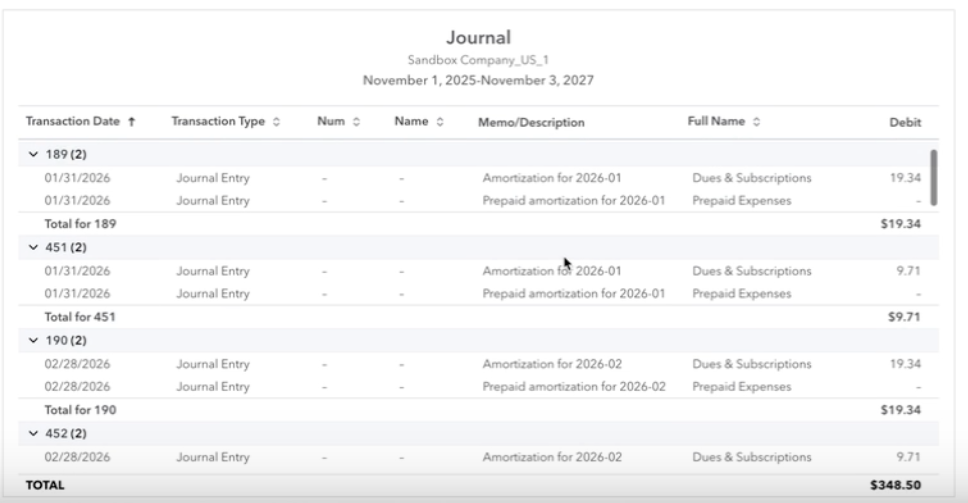
The screenshots in this article show QuickBooks Online examples. QuickBooks Desktop, Acumatica, Xero, and Sage Intacct use the same Ramp-managed prepaid account and scheduled journal entry model when the feature is enabled for your business.
Note: Schedule edits after sync depend on your business's amortization eligibility. If Ramp does not let you edit the schedule or create adjustment entries, update the schedule or posted entries directly in your accounting provider.
Review amortization suggestions
For eligible businesses, Ramp may suggest amortization details based on prior coding and available accounting data. Suggestions can include a prepaid asset account or other amortization fields that help prepare the item for sync.
Review every suggestion before syncing. The prepaid asset account determines where Ramp posts the initial cost, and the expense account on the source item determines where Ramp recognizes the expense over time.
If Ramp does not suggest an amortization value, select the prepaid asset account and dates manually. Suggestions are not required to use amortization.
Turn amortization suggestions on or off: In Automation settings, use the Auto-code amortization toggle, then select Save. When you turn the toggle off, Ramp asks you to confirm: select at least one reason, enter your feedback, then select Disable. The toggle is on by default. When it is off, Ramp does not suggest amortization for card transactions or reimbursements. Ramp also does not suggest amortization when I don't want to use AI coding is selected in the same settings.
Suggest amortization only at or above a minimum amount: In the same settings, enter a Minimum amount, then select Save. Ramp suggests amortization only for transactions at or above that amount. To remove your minimum, clear the field and select Save. Ramp does not suggest amortization for transactions under USD 100, so a minimum below USD 100 has no effect. When the field is empty, Ramp applies a default minimum of at least USD 100.
If you cannot open Automation settings or do not see Auto-code amortization, ask someone who manages your business's accounting settings to change it.
Edit schedules and create adjustments
For eligible businesses, Ramp may let you edit an amortization schedule after sync or create adjustment entries when amortization details change. Editable details can include the schedule dates, prepaid asset account, or expense coding.
Closed periods affect what Ramp can post. If a prior amortization period is closed, Ramp may post a catch-up or adjustment entry in an open period when your business is eligible and your accounting provider allows it.
If Ramp does not let you edit the schedule or create an adjustment, make the correction directly in your accounting provider or contact Ramp Support for help with the synced item.
Provider notes for Ramp-managed amortization
Ramp-managed amortization uses the same setup model across supported providers, but provider availability differs.
| Provider | Availability | Notes |
|---|---|---|
| QuickBooks Online | Supported for eligible businesses | Intuit Enterprise Suite uses the same workflow as QuickBooks Online. |
| QuickBooks Desktop | Supported for eligible businesses | Ramp syncs scheduled journal entries from the selected prepaid asset account to the coded expense account. |
| Acumatica | Supported for eligible businesses | Ramp syncs scheduled journal entries from the selected prepaid asset account to the coded expense account. |
| Xero | Supported for eligible businesses | Ramp syncs scheduled journal entries from the selected prepaid asset account to the coded expense account. |
| Sage Intacct | Supported for eligible businesses | Ramp syncs scheduled journal entries from the selected prepaid asset account to the coded expense account. |
Frequently asked questions
Why can't I select a prepaid account in Ramp?
Your prepaid asset account may not have synced to Ramp yet. Sync your chart of accounts in Ramp, then try again. If the account still does not appear, confirm it is set up as an asset account in your accounting provider.
Can Ramp suggest a prepaid account?
Yes. For eligible businesses, Ramp can suggest a prepaid account when the account is available in Ramp. Review the suggestion before syncing because the prepaid account controls where the initial cost is posted.
Can Ramp suggest other amortization details?
Yes. For eligible businesses, Ramp may suggest amortization details based on prior coding and available accounting data. Review the suggested values before syncing, and manually update any prepaid account, expense account, start date, or end date that is not correct.
Can I turn off amortization suggestions?
Yes. Turn off Auto-code amortization in Automation settings to stop amortization suggestions for card transactions and reimbursements. See Review amortization suggestions for details and the minimum amount setting.
What happens if the sync fails because the accounting period is closed?
Ramp can only post entries to a period your accounting provider allows. Use an open accounting date, or update your closed-period settings in your accounting provider before you sync again. If part of the schedule already synced, eligible businesses may see catch-up or adjustment behavior in Ramp; otherwise, correct those entries directly in the accounting provider.
Can I change the amortization schedule after the item syncs?
Schedule edits after sync depend on your business's amortization eligibility. If the schedule cannot be edited in Ramp, make changes to the schedule, dates, or journal entries directly in your accounting provider.
Can I change the prepaid account or expense coding after sync?
For eligible businesses, Ramp may let you edit the prepaid account or expense coding and create adjustment entries for the change. If that option is not available, update the affected entries directly in your accounting provider or contact Ramp Support for help.
Which account does Ramp use to recognize the expense over time?
Ramp uses the expense account coded on the original bill, transaction, or reimbursement. The journal entries move the balance from the prepaid asset account into that expense account over the schedule.
Does this workflow apply to Intuit Enterprise Suite?
Yes. The amortization workflow is the same for Intuit Enterprise Suite.
Does this workflow apply to NetSuite?
No. NetSuite customers do not use Prepaids for amortization. NetSuite uses NetSuite amortization templates instead of Ramp-managed prepaid accounts and scheduled journal entries. See NetSuite integration: Transaction amortization or NetSuite integration: Bill Pay amortization.