Split expense automations in Ramp
Overview
Available on Ramp Plus. See Ramp Plus overview for plan details.
Ramp’s split automation feature allows you to divide a transaction into multiple lines based on supported accounting fields like category or department. This helps ensure accurate attribution for shared expenses, like allocating a shared business across all departments.
Split automations are designed to reduce manual work, improve consistency, and eliminate errors. They support:
- Creating reusable saved splits
- Customizing split allocations by percentage across various fields
- Automatically applying splits based on rules and conditions (e.g., merchant = Facebook Ads)
How it works
Ramp provides two ways to manage splits: manually saved splits and automated rules. These tools work together to streamline categorization and ensure accurate accounting.
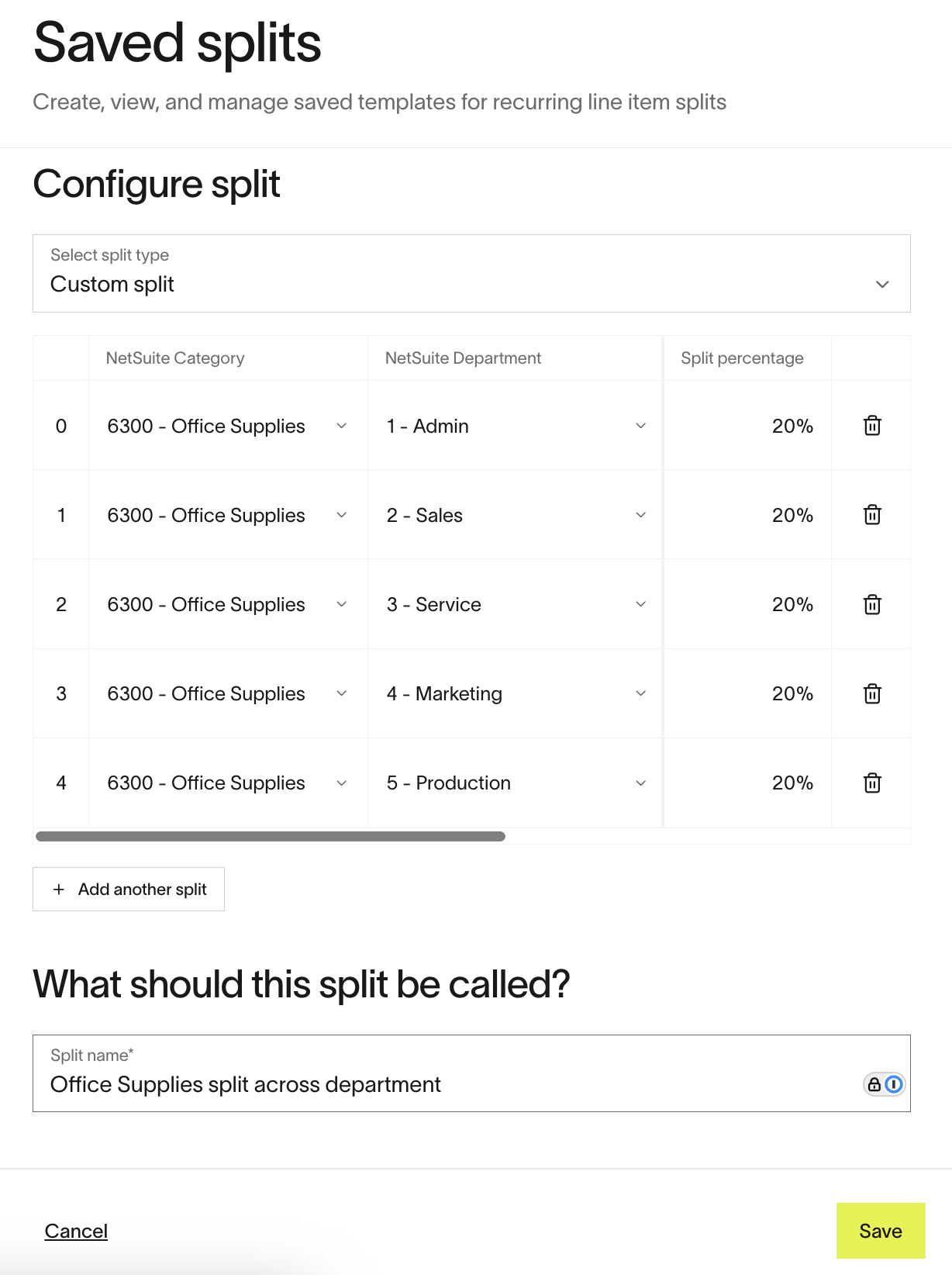
Step 1: Create a saved split
If your business has a connected accounting provider and you have permission to manage saved splits, create a reusable template from Saved splits. If you do not have permission, ask your Ramp Admin to create the template for you; see User roles overview for role and permission details. You can also create a template while setting up an advanced rule.
- Choose to split by a single field (like Category) or do a custom split across multiple fields.
- Example: Split 20% of a transaction across five departments—Sales, Marketing, Admin, Service and Production.
If you select a field value (e.g., the “Implementations” department) that is not available for a specific entity, Ramp will automatically indicate unsupported values.
Step 2: Apply a saved split
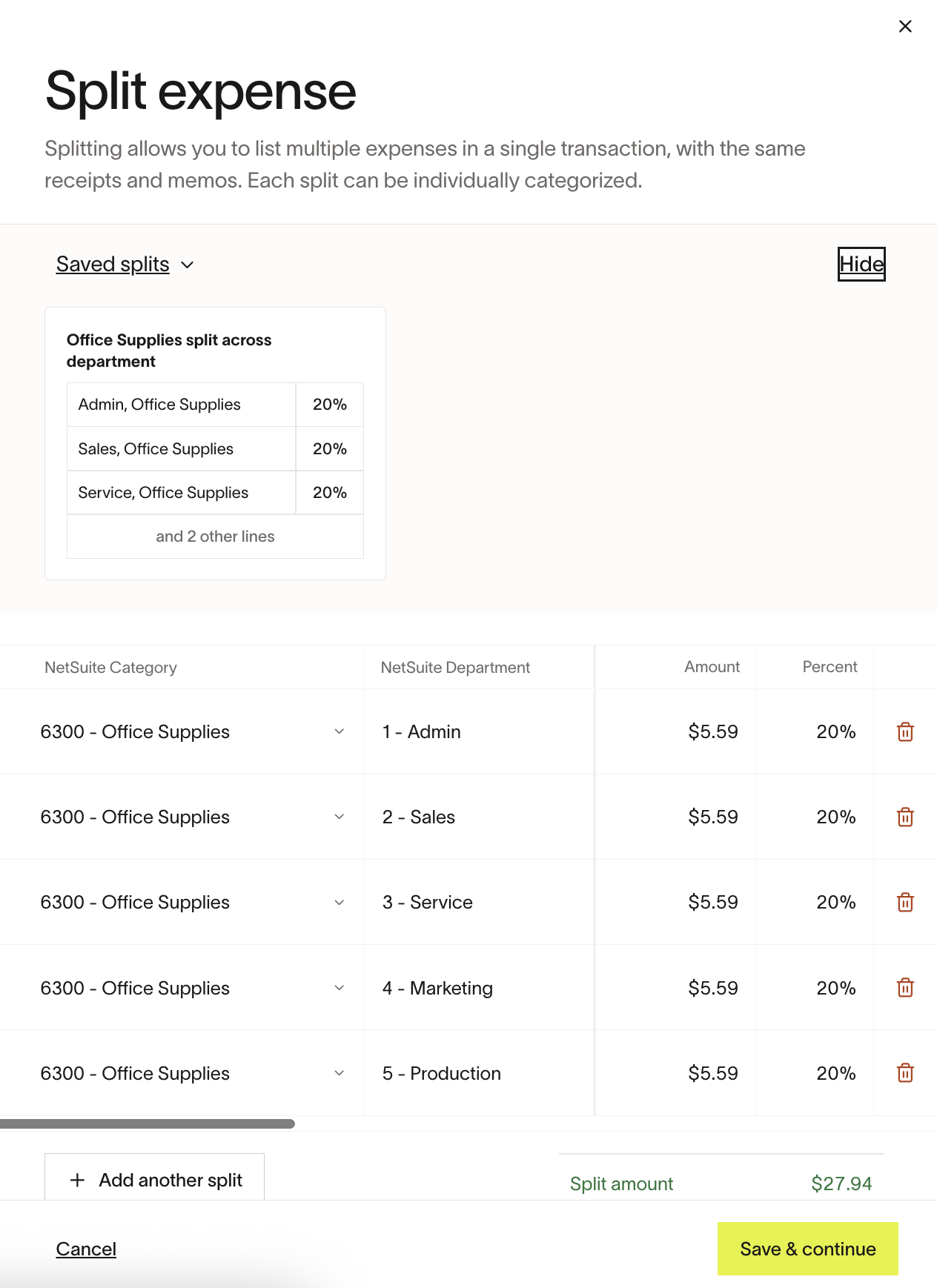
Saved splits appear in a dedicated menu for easy access when reviewing or editing transactions.
- You can see examples like:
- Office supplies split across department
- Split between Admin and Engineering
Note: These templates make it faster to apply consistent logic to similar expenses.
Step 3: Automate splits with rules
You can also automate splitting by creating a rule that matches transaction details to a saved split.
- Example:
- If merchant = “Amazon”
- Then use the “Office supplies split across department” template
- Ramp will automatically apply this split for future transactions that meet the condition.
Suggested screenshot: Rule creation screen with split automation logic and preview.
Role-based functionality
For Admins
- Admins can create, edit, and apply Saved Splits, and create or edit Split Rules
- Can view and manage split automations across all entities
- Will receive warnings for unsupported values in certain entities
For Employees
- Employees do not create split automations but may see splits created by admins
Use cases and examples
- Office expenses split across all department
- Advertising spend shared between departments like Sales and Marketing
- Software licenses split between Engineering and Admin
- Team events split across different teams based on headcount or budget contribution
Note: Use Split Automations to apply consistent rules across recurring shared expenses—saving time during close and review.
Best practices and tips
- Name your splits clearly (e.g., “Marketing event split Q3”) to make it easier to know when to select them.
Common mistakes to avoid:
- Trying to use a department or category not supported in a specific entity.
- Forgetting to update split rules when team structures change.
Frequently asked questions
What happens if I select a field that isn't supported by one of my entities?
Ramp will highlight unsupported values. You can still save that split but it will only be available in the entities where all options are available.
Can I reuse a saved split across different rules?
Yes, saved splits are reusable and can be linked to multiple rules.
Will split automation overwrite manual edits?
No. If a user manually overrides a split on a transaction, Ramp will respect the manual input unless the rule is reapplied.