Sharing an SSO domain across multiple Ramp businesses
Overview
Shared SSO domain management is available on all plans. To request or review domain sharing, you need access to Company security settings.
Shared SSO domains let multiple Ramp businesses use the same email domain for SAML SSO. This helps organizations with parent and subsidiary entities, multi-entity structures, or separate Ramp businesses that all use one company domain.
In the standard SSO setup, one domain is connected to one SAML provider. If another Ramp business already uses your domain, you can request access instead of starting over. Each business still keeps its own SSO provider configuration.
How it works
- The requesting business selects a domain that another Ramp business already uses for SSO.
- Ramp lets the requester ask for access. The owning business's admins are notified and can approve or deny the request.
- Only the requesting business is notified of the result. The owning business reviews the request from View domain requests on Company security or the email it received and chooses whether to approve or deny it. If approved, the requesting business finishes setup normally.
- Each business stays independent. Sharing a domain does not merge metadata URLs, certificates, or sign-in controls between businesses.
- Existing SSO setups are unchanged. If your business does not have a domain conflict, the standard SSO setup stays the same.
Request to share an SSO domain
- Go to Settings > Company settings > Security .
- In the Identity providers section, click Begin setup or Add provider .
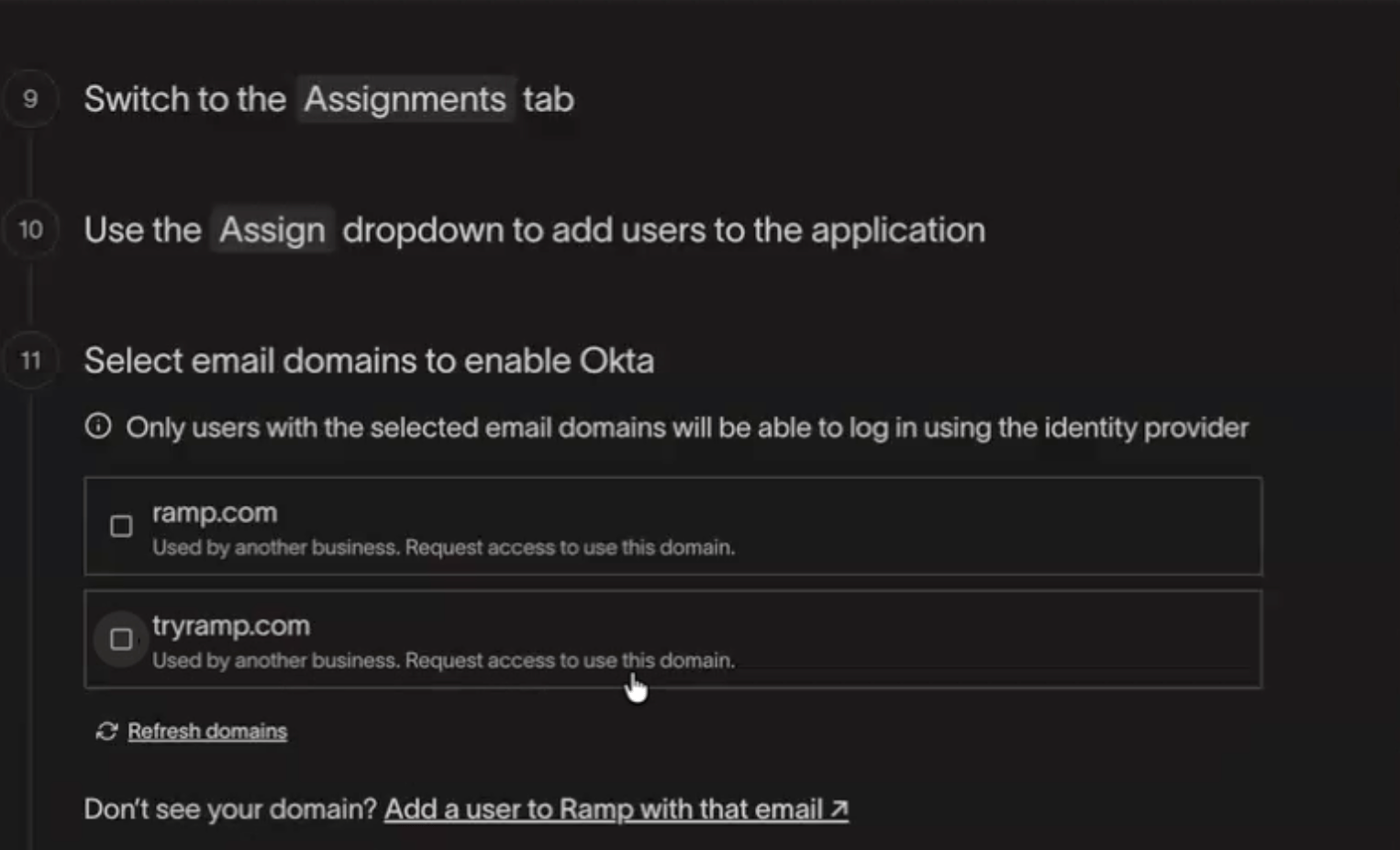
- Select the email domain you want to use for SSO.
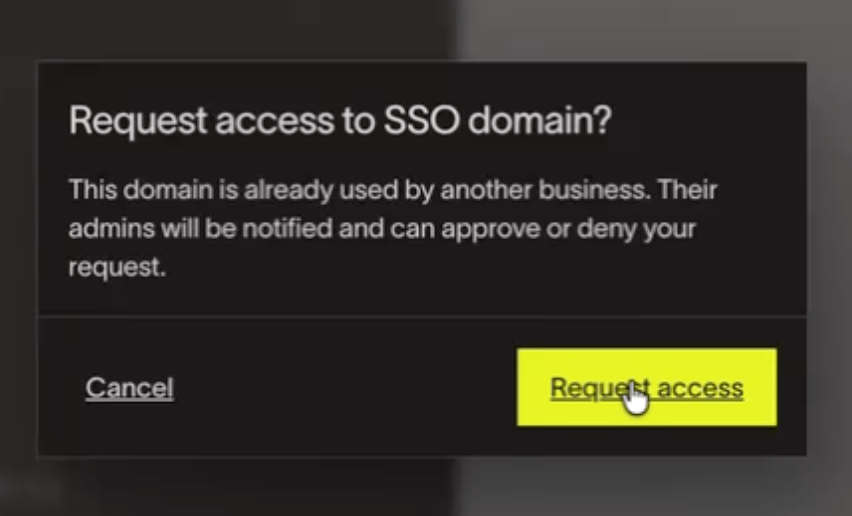
- If another Ramp business already owns that domain, Ramp shows Used by another business. Request access to use this domain. .
- Click Request access .
- Wait for the owning business to approve or deny the request.
- If the request is approved, return to the provider setup flow and complete SSO setup as usual.
Note: If you do not see your domain during setup, add a Ramp user with that email domain first, then refresh the list.
If a request is Denied, return to Identity providers, open the denied provider, and click its Disconnect button (for example, Disconnect Okta). Set up the provider again before requesting the domain.
Important: Disconnecting deletes the provider's saved configuration.
Review a domain-sharing request
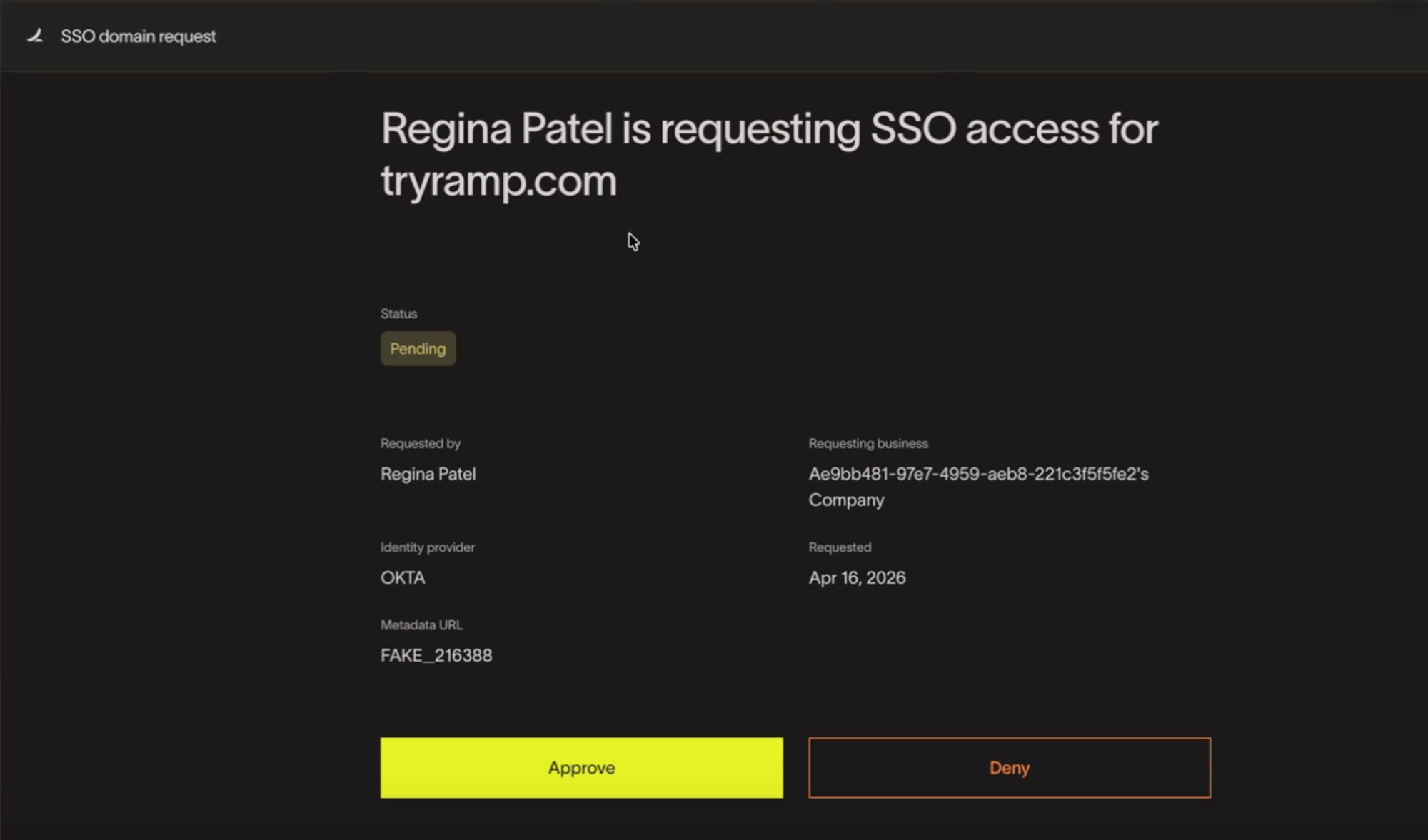
When another Ramp business requests to share a domain your business already owns, Ramp emails admins on the owning business. You can review incoming requests from View domain requests on Company security or from the approval email. View domain requests appears when your business has at least one incoming request.
- Open SSO domain requests or the approval email.
- Review the request details, including the requester, requesting business, identity provider, metadata URL, and current status.
- Click Approve or Deny .
Only the requesting business is notified of the outcome. If the request is approved, the requesting business can finish configuring its SSO provider. If the request is Denied, the requesting business must follow the retry steps.
After a request is approved
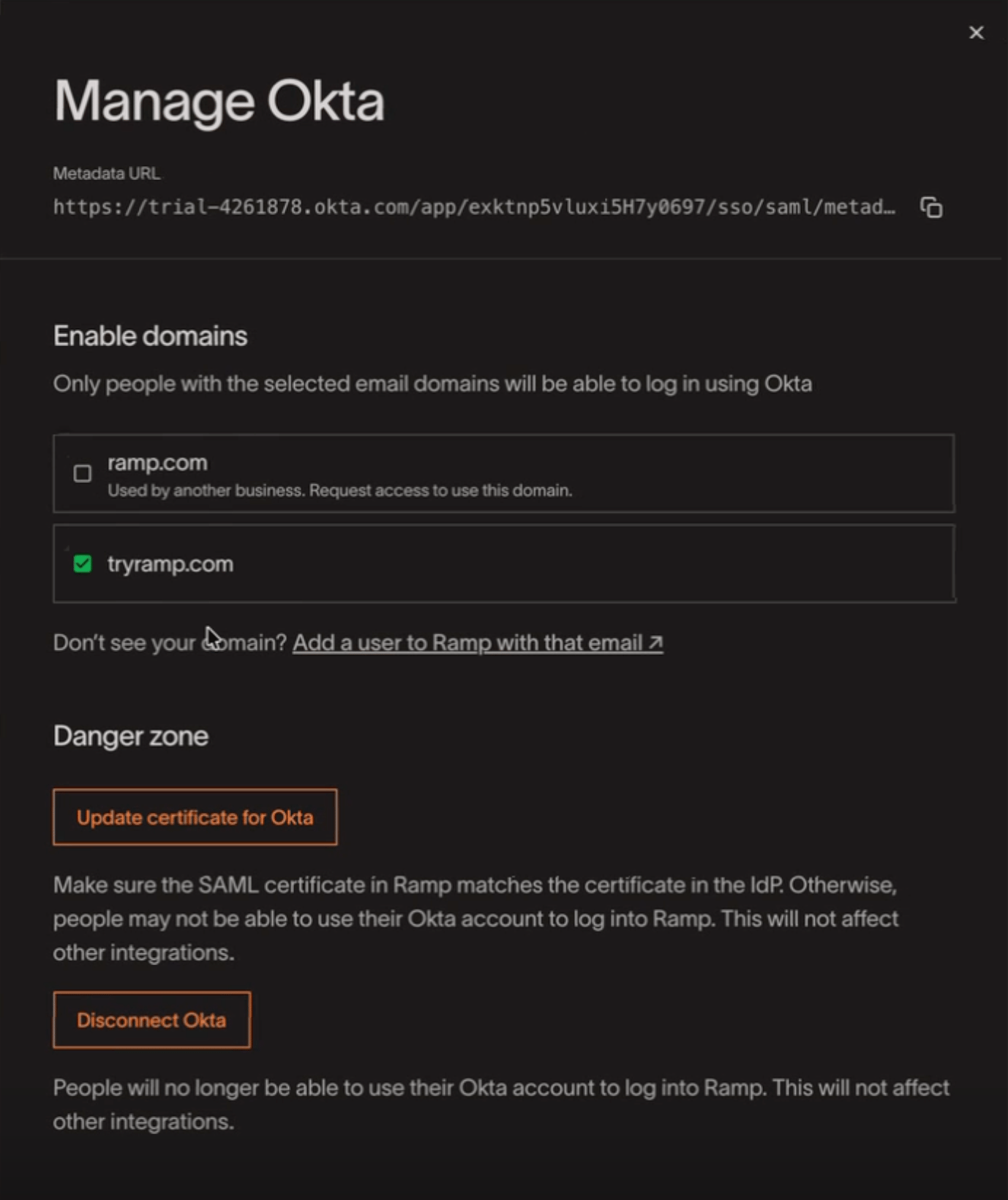
After approval, the requesting business can finish its SSO setup. The shared domain appears in that business's provider settings just like any other enabled domain.
Provider statuses
- Pending: The requesting business submitted the request and is waiting for a response. In the domain picker, this appears as Access request pending .
- Approved / Active: The requesting business can finish setup and use the shared domain in its own provider configuration.
- Denied: The owning business rejected the request. In the domain picker, this appears as Request was denied . The requesting business can follow the retry steps, then submit a new request.
- Closed: The request review page can also show Closed .
Frequently asked questions
Does this change anything for existing SSO setups?
No. If your business does not have a domain conflict, the SSO setup experience stays the same.
Can I transfer domain ownership to another business?
Not through a self-serve workflow today. Ownership stays with the first business that claimed the domain unless that business deletes its provider.
What happens if the domain owner deletes its provider?
If another active shared provider exists for that domain, ownership transfers automatically to the next oldest active provider.
What happens if my request is denied?
Follow the retry steps before requesting the domain again.
Why don't I see my domain during setup?
Ramp only shows domains that already belong to an active Ramp user. If the domain is missing, add a user to Ramp with that email domain and refresh the list.