Set Up Policy Agent
Overview
Available on Ramp Plus. See Ramp Plus overview for plan details.
Policy Agent is Ramp’s AI expense reviewer that applies your written expense policy to every card transaction and reimbursement. This article walks through how to onboard Policy Agent, convert your existing policy into an AI-friendly structure, and publish the agent-facing policy so it can start evaluating expenses.
For new businesses that keep Ramp’s default expense workflows, Policy Agent can be enabled automatically. Businesses with custom workflows decide where to enable it.
Access and prerequisites
To set up Policy Agent, you must:
- Be on Ramp Plus
- Be an admin with access to Policy > Travel & expenses
In the Ramp app, go to:
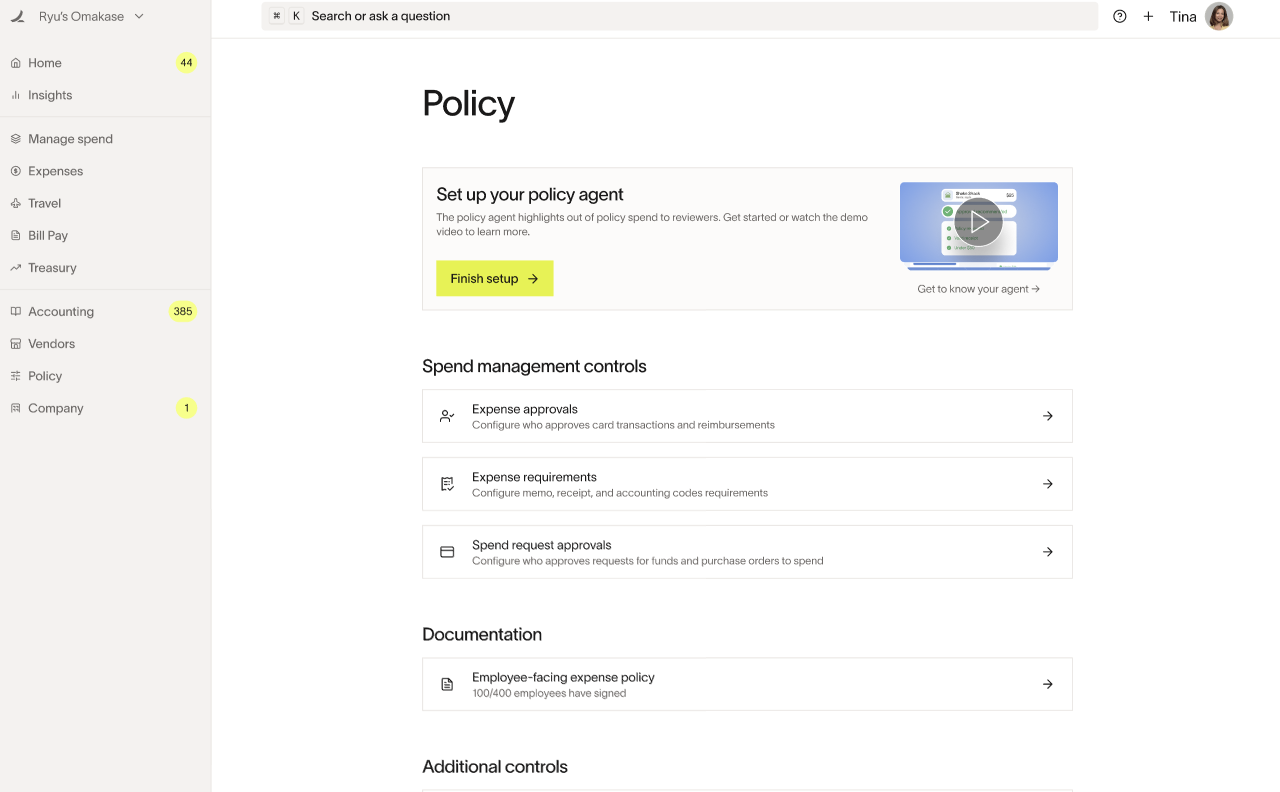
From there, you can start configuring Policy Agent’s knowledge center.
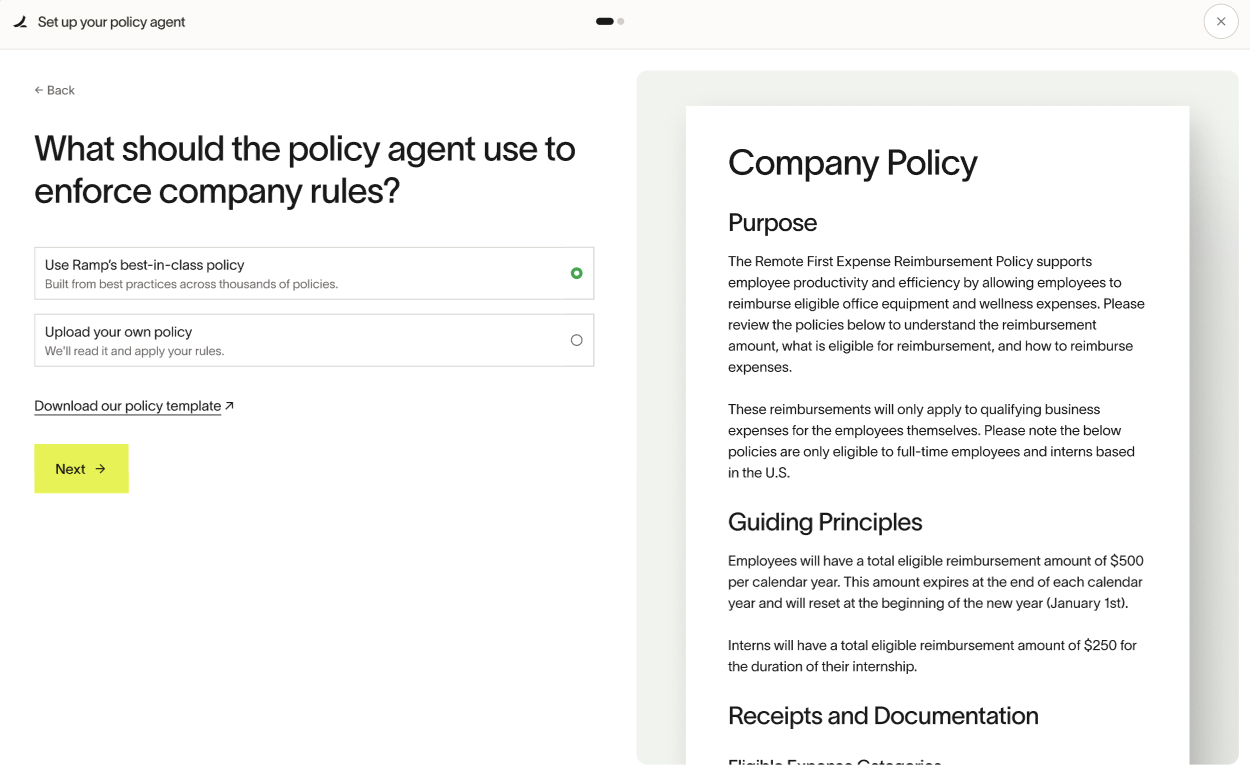
Choose how to start your policy
On the Travel & expenses page, the Policy agent section shows options to onboard Policy Agent using your existing materials:
- Use Ramp’s best-practice template
- Good if you don’t have a detailed expense policy yet.
- Use your existing employee-facing policy as a starting point
- Good if you already have a policy in your handbook or PDF and want the agent to mirror it.
- Upload another policy document
- Good if your expense policy lives in a separate doc you maintain elsewhere.
Regardless of which path you choose, Ramp converts your input into an AI-friendly structured policy that the agent can interpret and cite.
FAQ – How does my existing policy get formatted for the agent? Ramp transforms your long, human-written expense policy into a concise, structured format that Policy Agent can understand best. This makes Retrieval-Augmented Generation (RAG) more effective, so the agent can look up and reference the correct part of the policy in real time when analyzing every expense.
Document size and format
To get the best results from Policy Agent, prepare your policy document with these constraints in mind:
- Recommended limit: ≈10 pages / 10,000 words
- The agent cannot interpret images or hyperlinks
- Any rule that matters for enforcement must be written in plain text
- Avoid unnecessary filler or narrative content that doesn’t drive a decision
FAQ – Is there a certain page limit or file size for policy upload? Approximately 10 pages / 10,000 words is recommended.
FAQ – How does the agent handle images or hyperlinks? The agent cannot interpret images or hyperlinks, so make sure all important context is explicitly stated in text.
How conversion to AI-friendly format works
After you select a starting document and kick off conversion, Ramp:
- Parses your existing policy
- Strips filler and non-enforcement text
- Restructures content to highlight clear, enforceable rules
- Organizes the policy into a concise, structured format optimized for AI understanding and citations
This is what allows Policy Agent to:
- Retrieve the right rule at evaluation time
- Cite the exact policy text it used for each recommendation
What changes (and what doesn’t)
During conversion:
- Content that is not helpful for policy guidance or enforcement may be removed
- Rules from your configured travel settings may be added when they are missing from the uploaded document; other rules are not invented
- Images and hyperlinks are ignored as a source of policy logic
The conversion preserves your policy intent while also aligning missing rules with your configured travel settings.
FAQ – What happens when the Policy Agent is making my existing policy AI friendly? The conversion strips filler and non-enforcement text and restructures content for clarity. It does not invent policy rules, but it can add rules from your configured travel settings when those settings are missing from the uploaded document. The result is a concise, structured version of your existing policy optimized for the agent’s understanding and citations.
FAQ – Will any content be removed or added from my existing policy when I convert it to an AI-friendly format? Content that is not helpful for policy guidance or enforcement may be removed. Ramp may add rules from your configured travel settings when they are missing from the uploaded document, but it does not invent other rules.
Conversion status and notifications
Once conversion starts:
- The process runs asynchronously (you can safely leave the page)
- You’ll see progress states (e.g., “Request received”, “Reading doc”)
- You’ll be notified on your homepage when conversion is complete
FAQ – If I exit the page during conversion, will my progress be lost? No. Once the process is kicked off to make the policy AI friendly, you will not lose your progress by leaving the page. Your progress will be trackable, and you’ll be notified on the homepage once it’s complete.
Publish the agent-facing policy
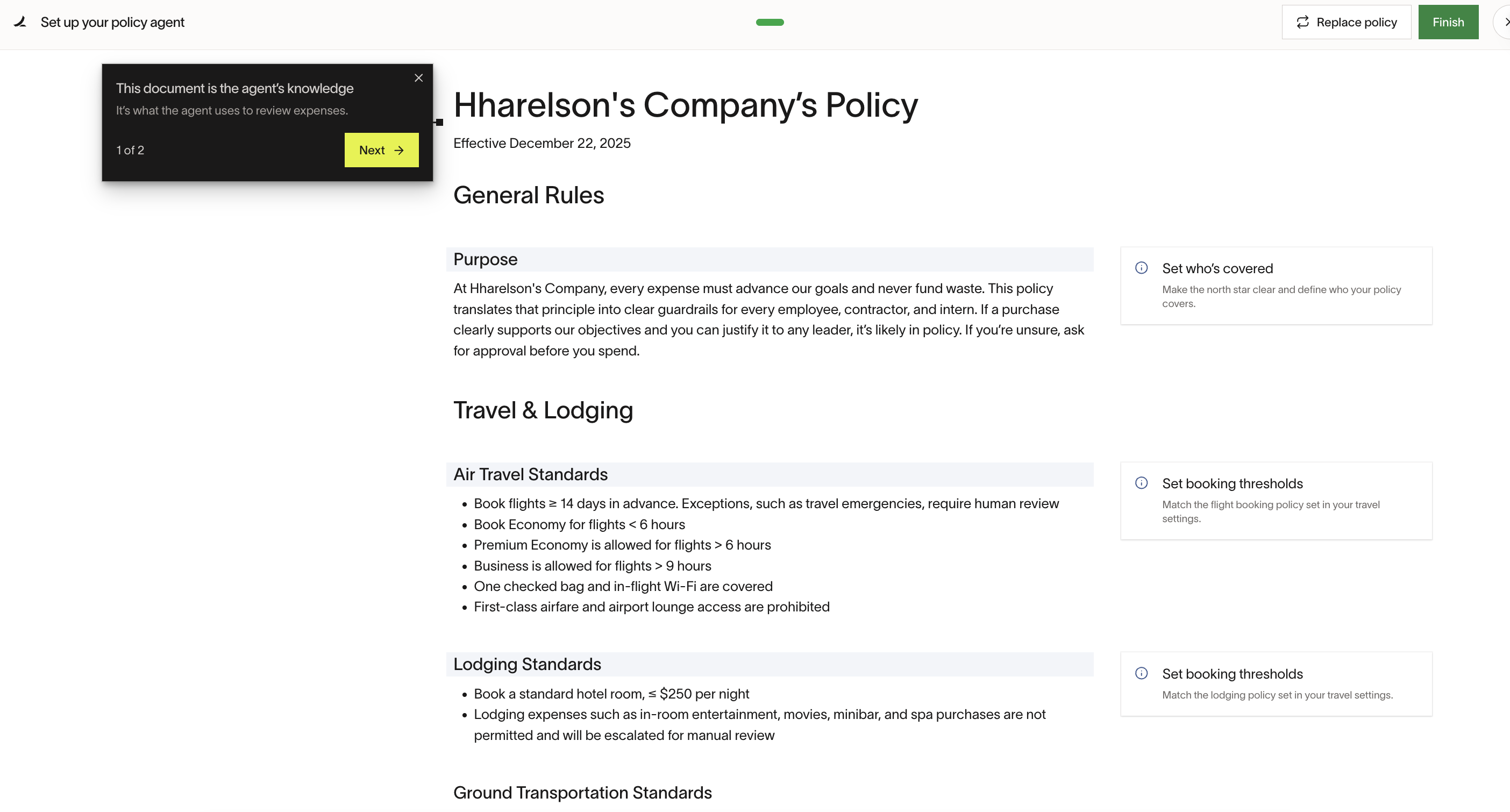
Once conversion is complete, you’ll land in the Policy Agent editor with a draft version of your agent-facing policy.
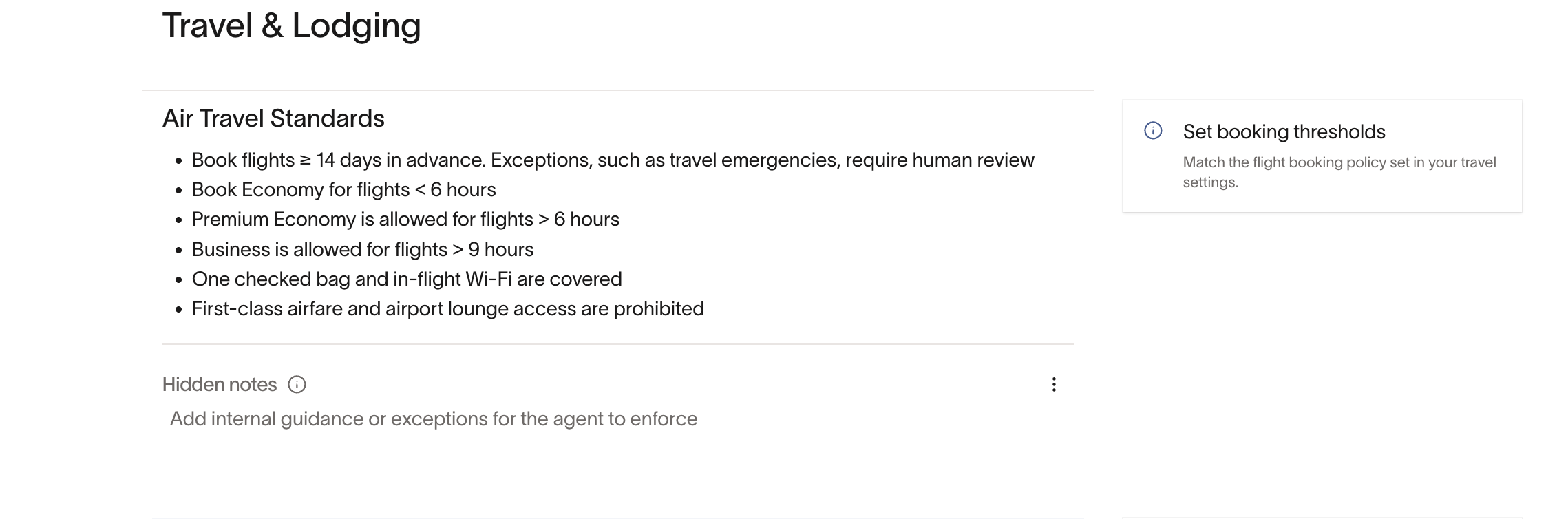
In this editor, you can:
- Review the structured rules and sections
- Clarify ambiguous language
- Add per-entity, per-department, or per-location rules in plain English
- Add hidden notes for sensitive exceptions (visible only to admins and the agent)
When you’re satisfied with the draft:
- Review each section for accuracy and completeness
- Confirm that all important rules appear in plain text (not only in images or links)
- Click Publish to make the agent-facing policy live
Publishing:
- Updates the agent’s knowledge center
- Does not change the employee-facing PDF by itself
- Does not force employees to re-sign the policy
Initial evaluation timing
After you save and publish the agent’s knowledge:
- Policy Agent evaluates recent expenses against your policy
- This initial evaluation can take up to 24 hours
- You’ll be notified on your homepage when this backfill is complete
Once the initial evaluation finishes:
- New card transactions and reimbursements are evaluated as they come in
- On the homepage, recommendations appear in separate approval, review, and rejection sections
- For new businesses using Ramp’s default expense workflows, Policy Agent may already be enabled for automatic approvals
- For custom workflows, Policy Agent remains in review-only mode until you add it to an approval workflow
Agent-facing vs Employee-facing documents
As part of setup, it’s important to understand the two distinct policy documents you’ll manage in the Policy tab:
Policy Agent document / knowledge center (Admin-facing)
- Structured, AI-optimized policy that Policy Agent uses to evaluate expenses
- Contains rules, hidden notes, and references to custom fields, entities, and programs
- Feeds the agent’s reasoning and citations
- Editable at any time without directly changing what employees see
Employee-facing policy document
- The PDF or handbook version that employees see and optionally sign
- Not automatically updated when you edit the agent-facing document
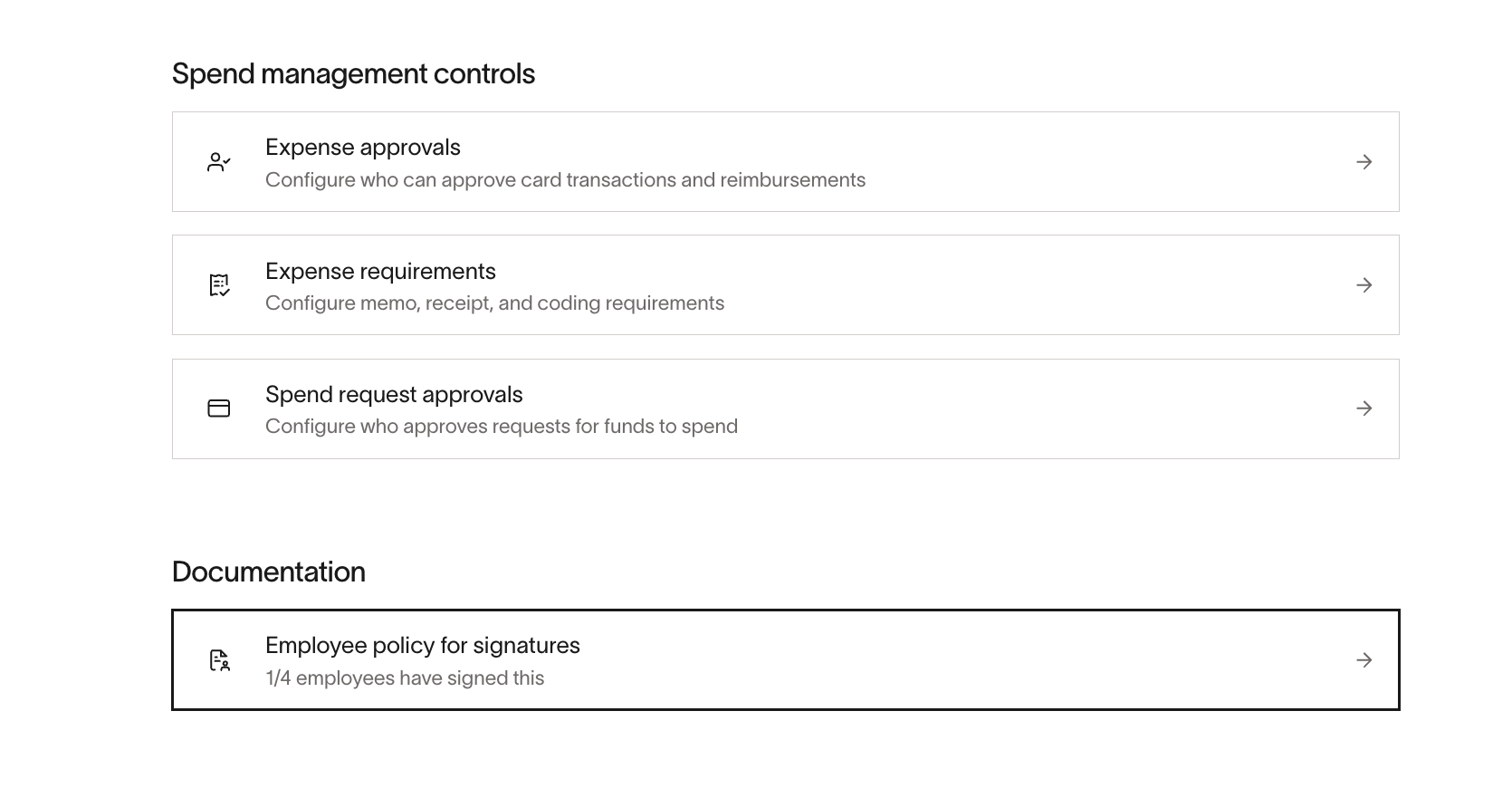
- Can be replaced at any time via Policy > Travel & expenses > Additional controls > Employee policy for signatures
FAQ – Does it overwrite the existing PDF policy? No. Your existing employee-facing PDF policy remains unchanged. Policy Agent uses a separate agent-facing knowledge center.
FAQ – Do changes re-trigger employee sign-off like the original PDF? No. Modifications to the agent-facing policy do not force all employees to re-sign. The employee-facing policy document remains separate. If you want employees to sign again, you can save the updated policy document as a PDF and re-upload it via Policy > Travel & expenses > Additional controls > Employee policy for signatures.
FAQ – Is there a way to toggle whether the refined AI policy can overwrite the existing PDF? No. There isn’t a toggle for the agent document to automatically replace your employee PDF. You can download or export a structured version and upload a new PDF if you’d like them to align.
FAQ – How can we see which PDF was uploaded for the Policy Agent? Not currently supported. You can replace the employee-facing PDF at any time via Policy > Travel & expenses > Additional controls > Employee policy for signatures.
FAQ – How are employees notified of policy changes to Policy Agent’s knowledge center? They aren’t. The agent’s knowledge center is separate from the employee-facing PDF and signature experience. Changes you make there don’t trigger notifications or new acknowledgments.
Travel & expenses page overview
The Travel & expenses page under Policy provides access to:
- Policy knowledge, which is distinct from the employee-facing policy
- Policy Agent visibility settings, which control who can see assessments
- Additional controls for expense requirements, expense reviews, and spend request approvals
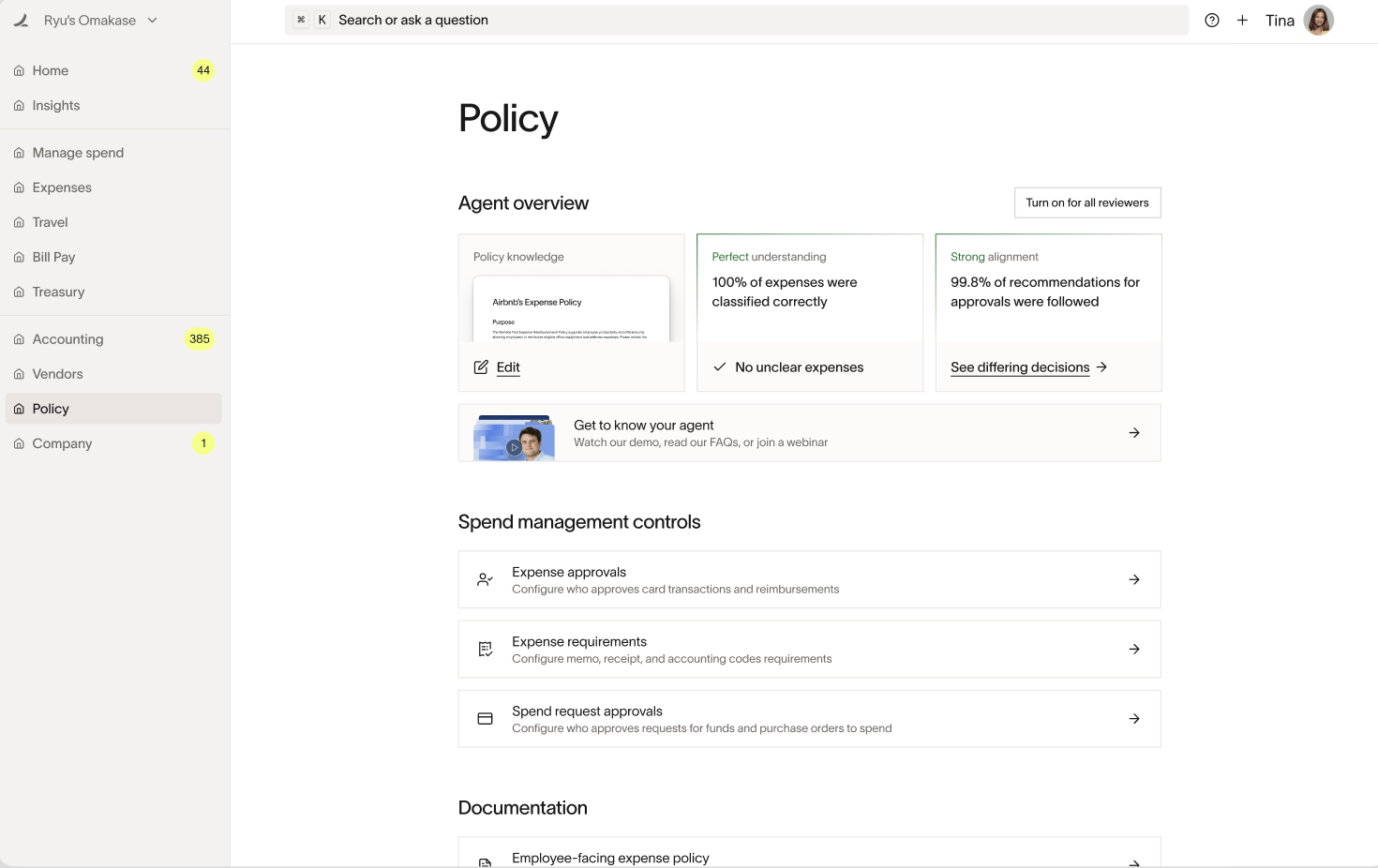
This page is your main control center for Policy Agent configuration.
Testing with real transactions
Policy Agent runs only in production, but you can safely test it before rolling it out broadly. Check your existing approval workflows first because Policy Agent may already be enabled for a new business using Ramp’s default workflows. If it is, adjust that workflow so test expenses continue to a human reviewer.
FAQ – Is there a way to test Policy Agent with real or sample transactions before going live? Policy Agent only runs in production. Before testing, check whether Policy Agent is already in an approval workflow. If it is, adjust that workflow so test expenses continue to a human reviewer. Visibility controls who can see assessments, not whether automatic approvals occur. To test privately, leave all-reviewer visibility off while you refine your policy configuration.
Recommended testing approach:
Only Admins can change Policy Agent visibility. If you cannot access the setting, ask your Admin to update visibility.
Employees cannot see Policy Agent assessments.
- Publish your agent-facing policy
- Check whether Policy Agent is already in an approval workflow; if it is, adjust that workflow so test expenses continue to a human reviewer
- Under Policy > Travel & expenses > Policy agent, leave all-reviewer visibility off so approval recommendations remain visible to admins and owners only
- Review the agent’s assessments and citations on real expenses
- Refine policy language if needed
- When you’re ready, turn on visibility for all reviewers and add or keep Policy Agent in workflows where you want automatic approvals