Dropbox Sign integration: Set up with Ramp Programs
Overview
The Dropbox Sign integration lets you add signature requests directly into your procurement workflows. Instead of managing contracts and purchase orders outside of Ramp, you can send documents for signature as a built-in step in your approval process — keeping everything in one place.
With this integration, you can:
- Send envelopes for signature from within a procurement request
- Attach purchase orders, intake form documents, or other files to signature requests
- Pre-configure default signers and CC recipients at the company or workflow level
- Track signature status (sent, viewed, signed) in real time from the request activity feed
- Automatically advance your procurement workflow once all signatures are complete
Note: This integration is specifically for adding e-signature steps to procurement workflows. If you're looking for general document storage, this is not the right integration.
Compatibility
This integration requires an active Dropbox Sign account. Dropbox Sign was formerly known as HelloSign — if your organization still references HelloSign, this is the same product.
Prerequisites
- An active Dropbox Sign account with permission to connect third-party apps
- Admin access in Ramp to connect integrations and configure procurement workflows
- At least one procurement program with an active workflow where you want to add signature requests
Known issues
- There is a known issue at this time that when a customer submits a new Dropbox Sign request for a workflow, the owner of that envelope in Dropbox will be the person who initially linked the integration, not the person who initiated it. Until this is resolved with Dropbox, the workarounds Ramp implemented are:
- We set the person who initially linked the Dropbox integration as the value in the requester email address.
- We automatically add the person who initiated the request as a CC on the envelope. This way, they will get emails when any changes are made (and can also see an up to date list of signers on the blank canvas node).
Integration steps
Step 1 — Connect Dropbox Sign to Ramp
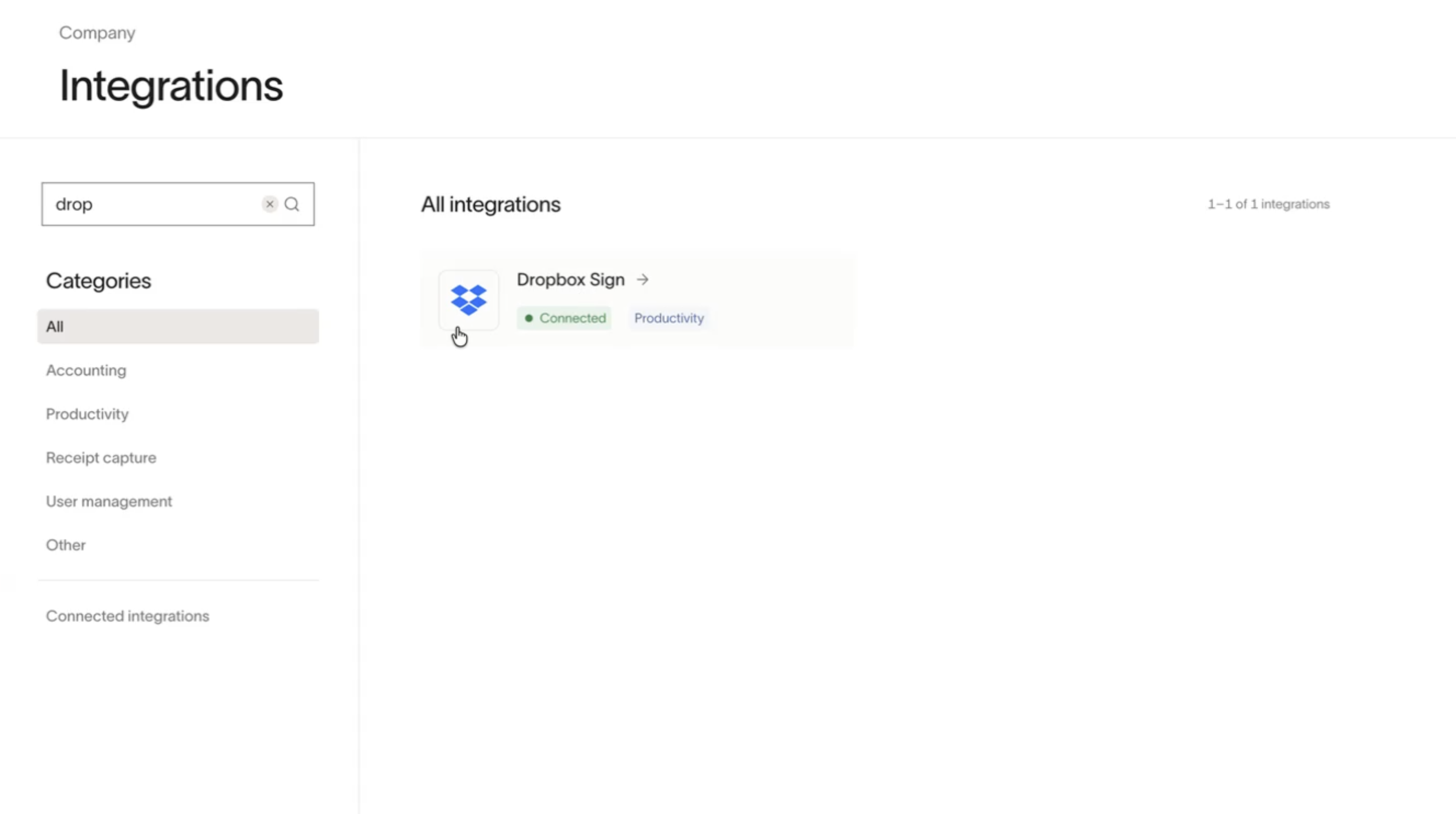
- Go to Company > Integrations .
- In the app store, find Dropbox Sign and select it.
- Follow the prompts to authorize the connection between Ramp and your Dropbox Sign account.
Once connected, you'll see the integration listed with within Connected Integrations as well as Settings.
Step 2 — Configure default signers and CC recipients
After connecting, configure your company-level defaults so signature requests are pre-filled with the right people.
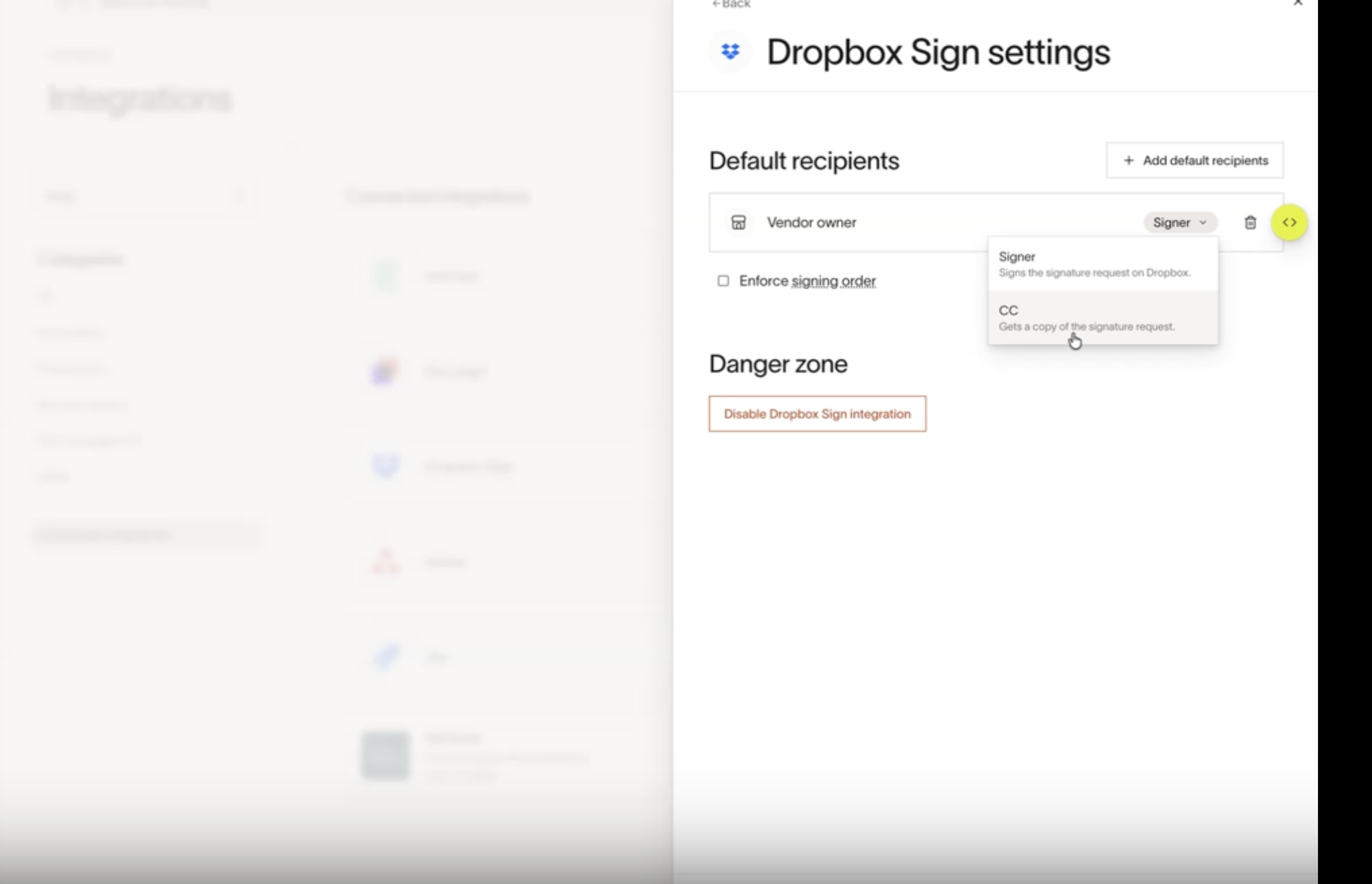
- From the Dropbox Sign integration page, select Settings .
- Under Default recipients , choose who should be pre-assigned as signers when a Dropbox Sign step is triggered.
- You can change the status of a recipient to CC. These are the people that should automatically receive a copy of every signature request.
- Optionally, configure the Enforce signing order setting if signatures need to happen in a specific sequence.
- Save your changes.
These defaults apply across all procurement workflows unless overridden at the workflow level (see Step 4).
Step 3 — Add a Dropbox Sign node to your procurement workflow
- Open a procurement program and navigate to its workflow.
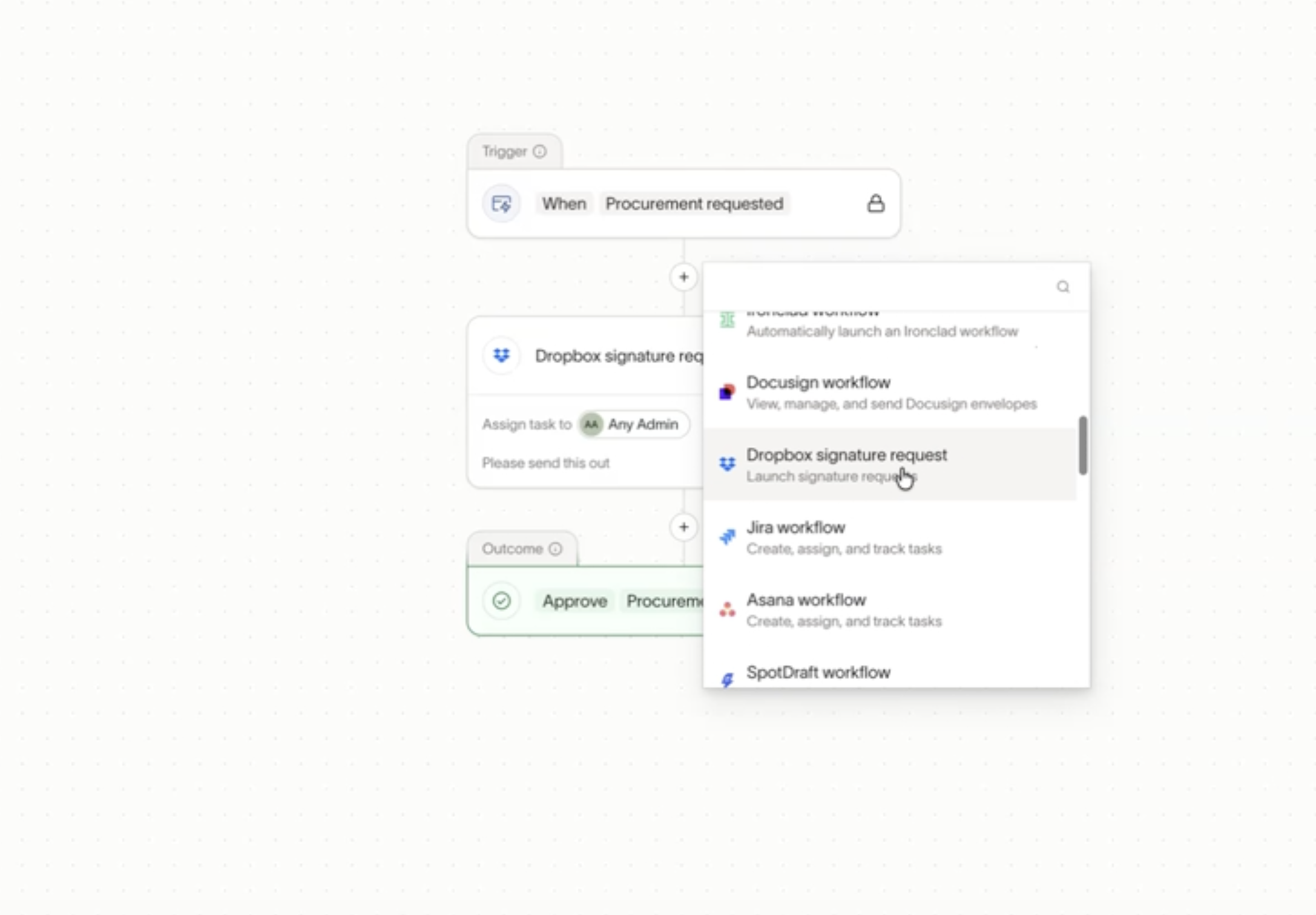
- Select the + button where you want to add the signature step.
- From the list of available integrations, select Dropbox signature request .
You can add multiple Dropbox signature request nodes to a single workflow. This is useful when different conditions — such as request value or vendor type — require different signers or documents.
Step 4 — Configure workflow-level signer overrides (optional)
If a specific workflow needs different signers than your company defaults, you can override them directly on the node.
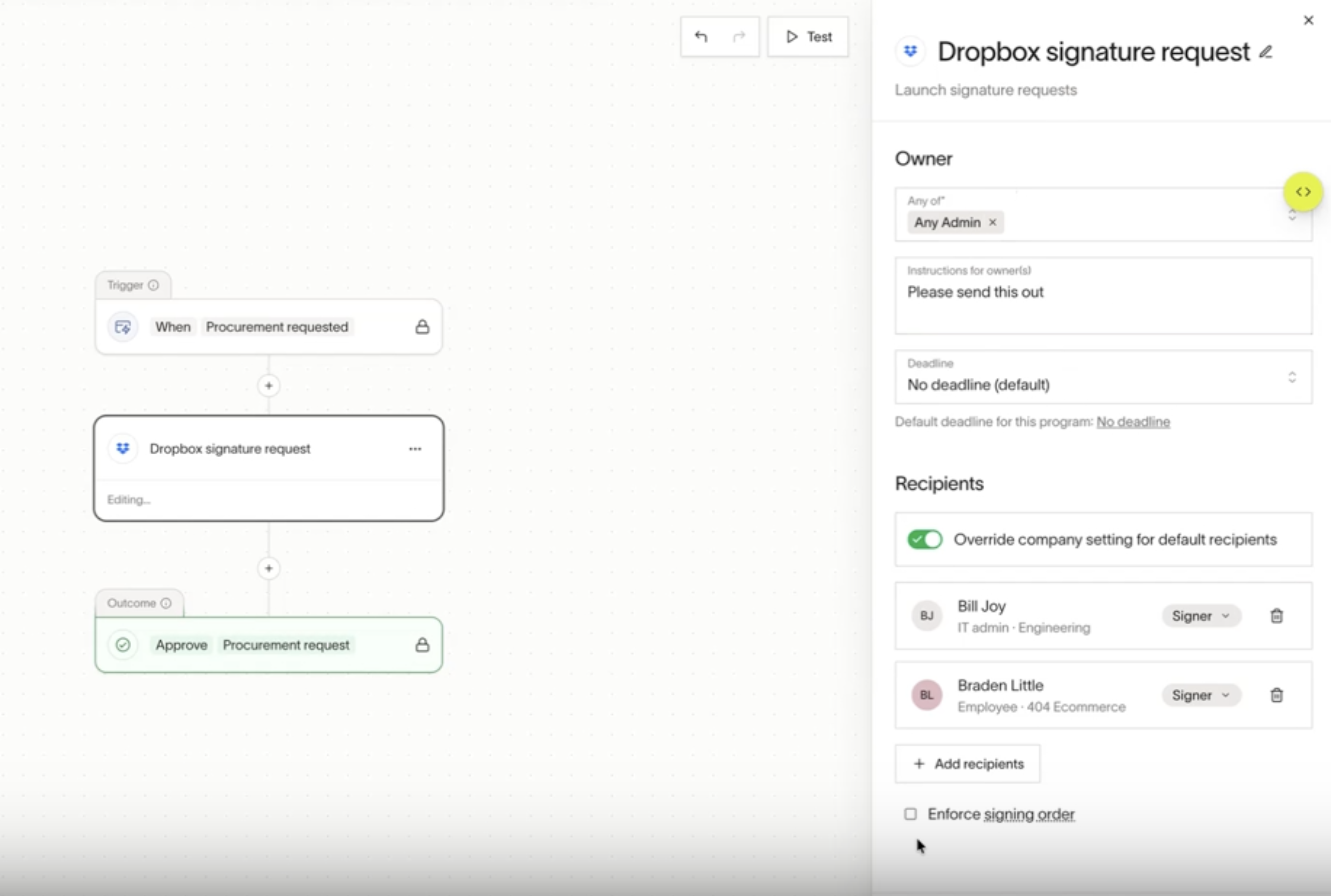
- Select the Dropbox signature request node in your workflow.
- Turn on Override company setting for default recipients. Ramp copies the company default recipients into the node.
- Remove copied recipients you don't need, and use the Signer or CC menu to change each remaining recipient's role.
- Select Add recipients to assign other people as signers (e.g., your CFO for high-value requests).
- Set the Owner — this is the person responsible for sending the envelope. You can assign this to any admin or use the "any admin" option.
- Optionally, configure the Enforce signing order setting if signatures need to happen in a specific sequence.
If you leave the override off, Ramp uses the default recipients from your company-level settings. If you turn on the override, review the copied recipients and keep at least one recipient on the node.
Step 5 — Send a signature request from a procurement request
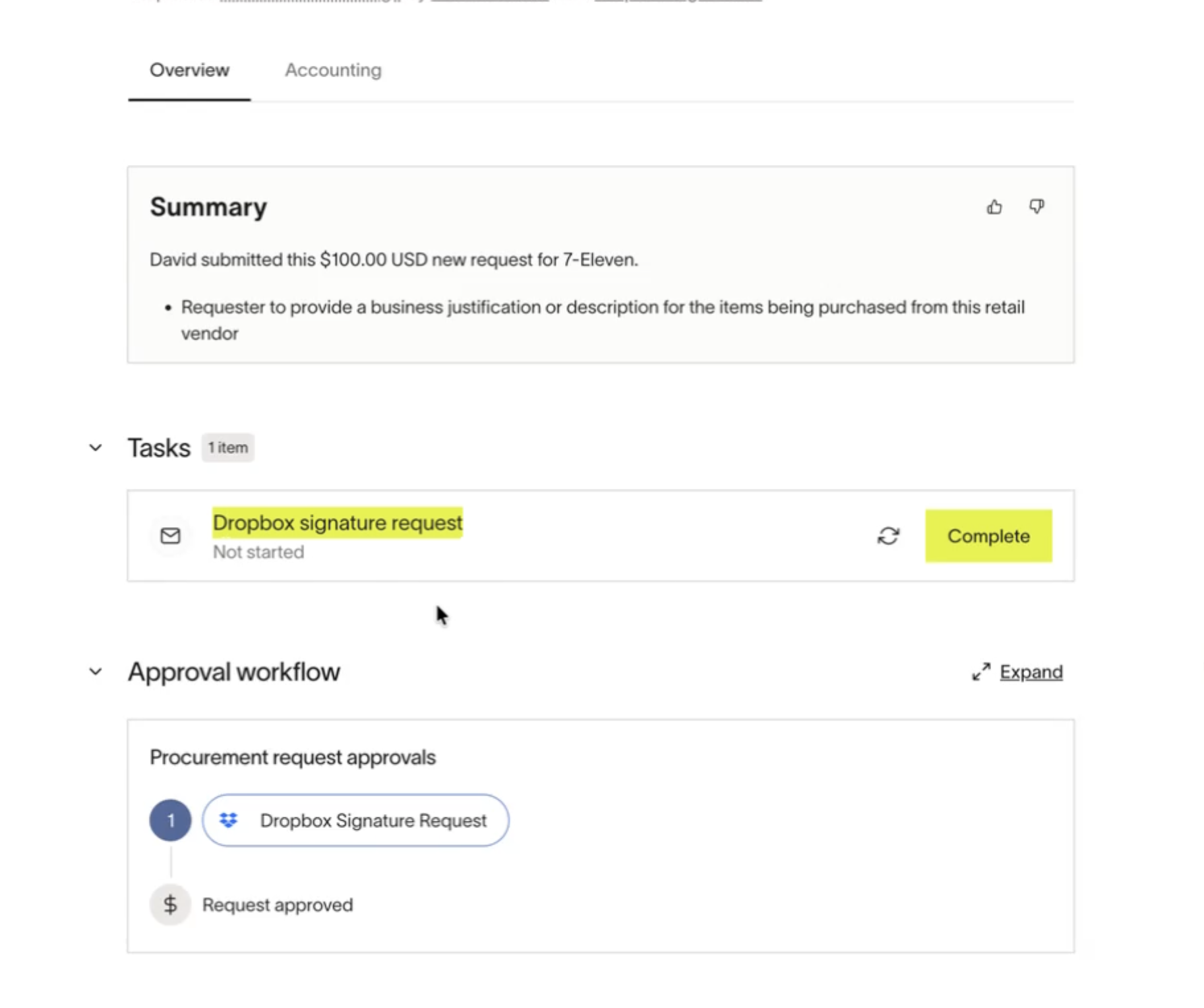
When a procurement request reaches the Dropbox Sign step in the workflow, the assigned owner receives a task to send the envelope.
- Open the procurement request. You'll see a task for Dropbox signature request in the workflow timeline.
- Attach documents to the request. You can include:
- The purchase order (PO) generated automatically from the request details
- Documents collected from the intake form
- Files manually attached in the Documentation tab
- Select Review & send in Dropbox .
Step 6 — Place signature fields and send
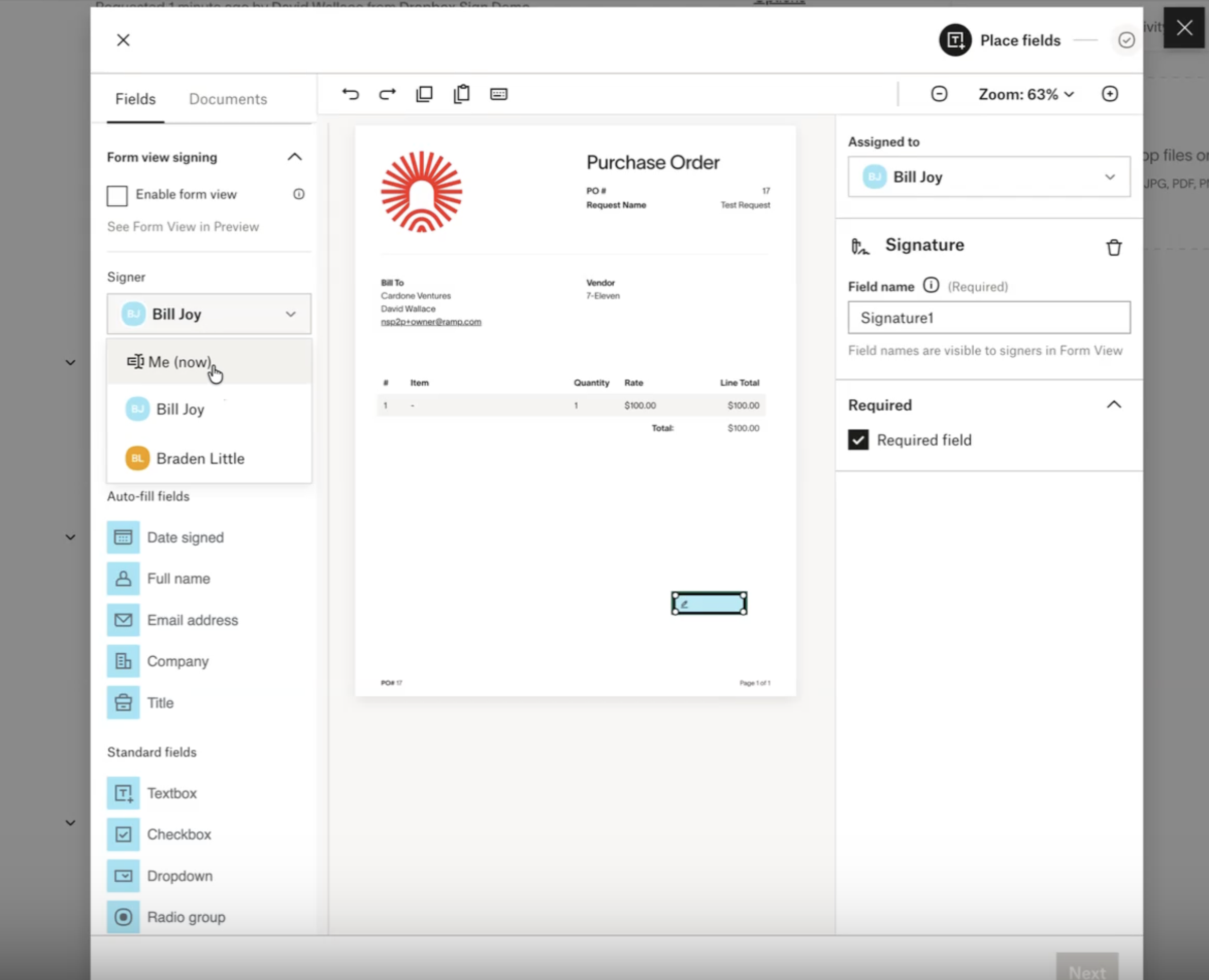
After selecting Review & send in Dropbox, you'll enter the Dropbox signature flow.
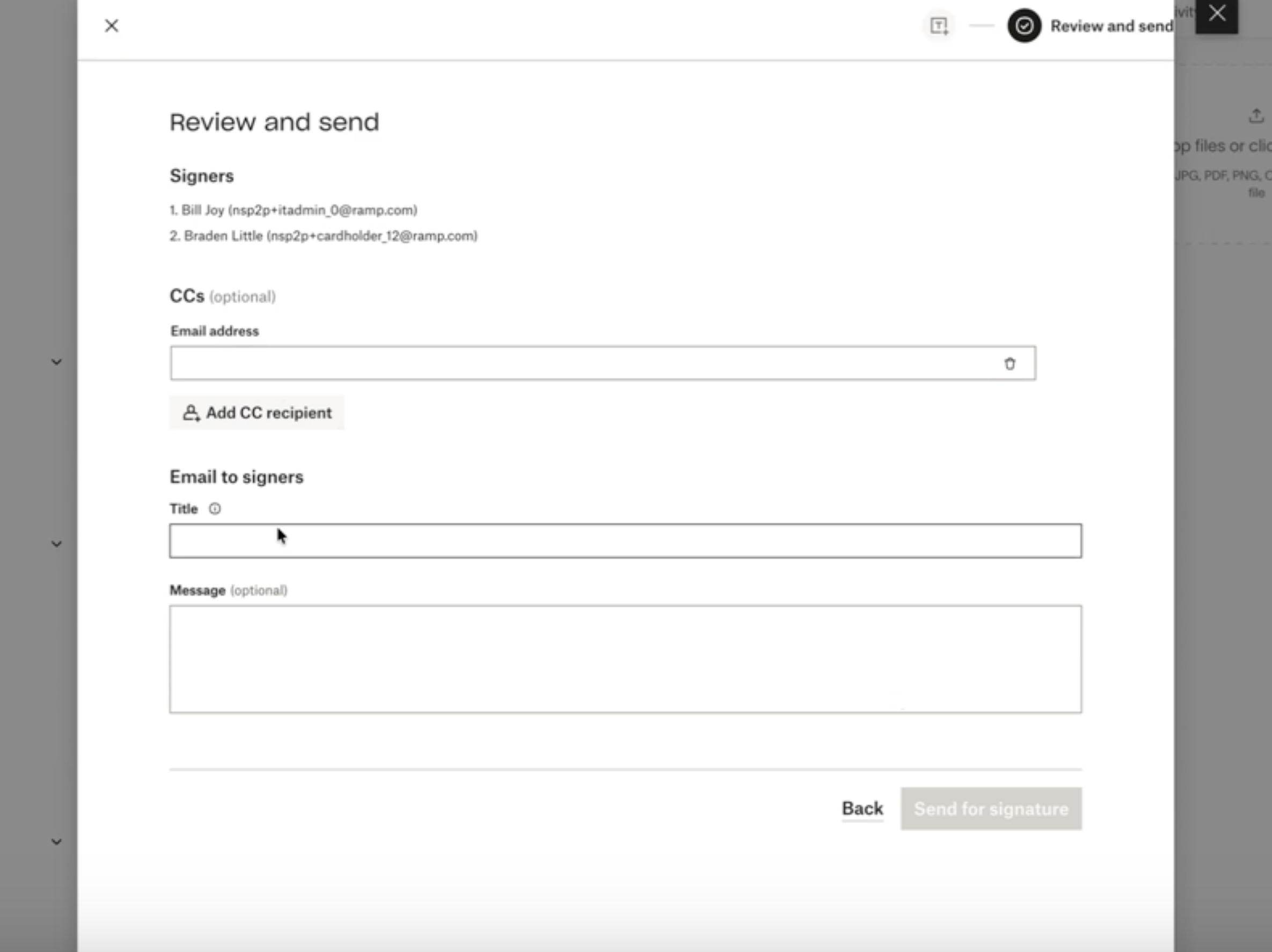
- Review the attached document. Ramp pre-fills the signer emails based on your configuration.
- Place signature fields, date fields, and any other required form fields on the document.
- Add or modify CC recipients if needed — Ramp pre-fills these based on your settings.
- Select Send for signature to send the envelope for signature.
Step 7 — Track signature status in the activity feed
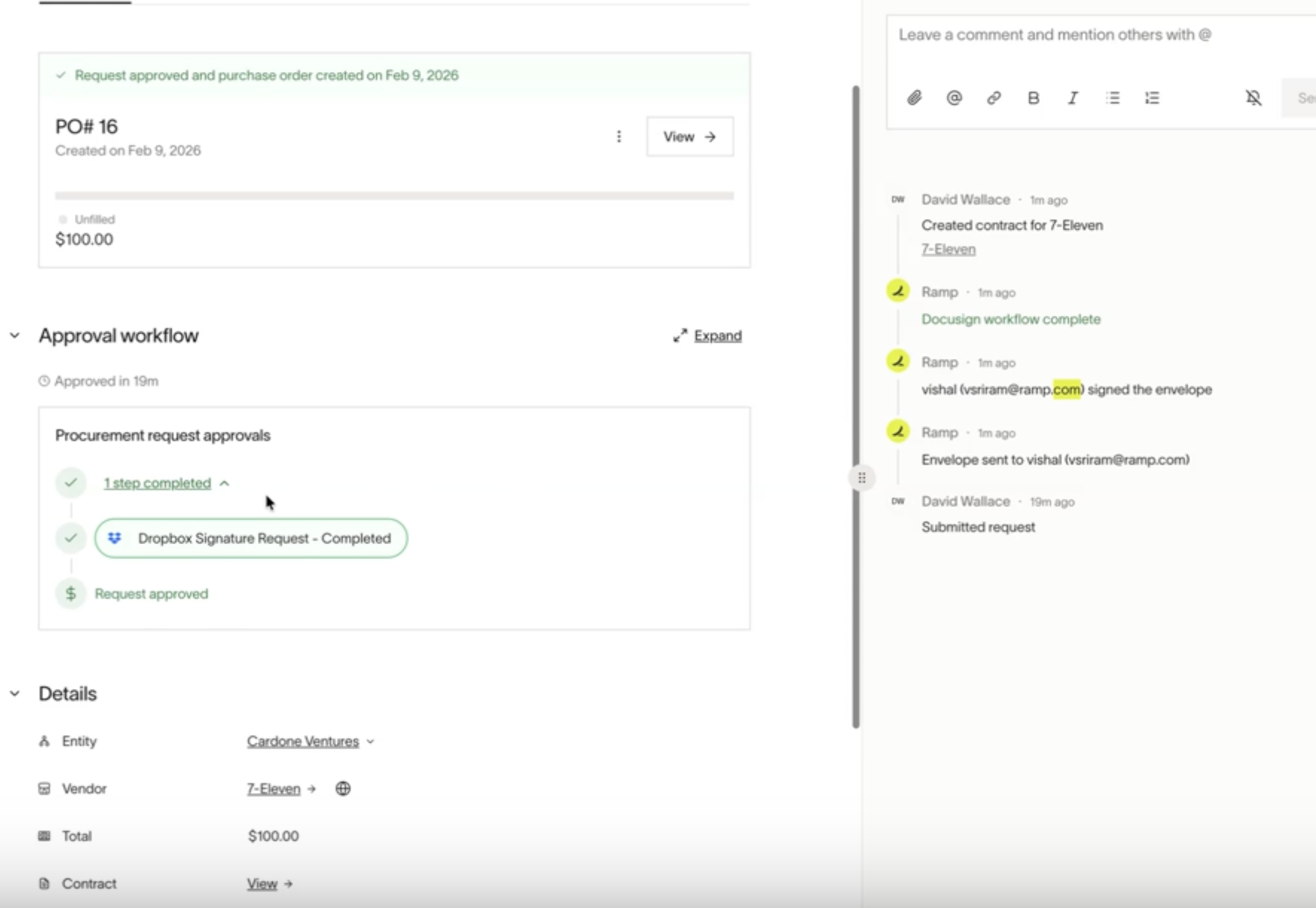
Once the envelope is sent, Ramp tracks its status in real time on the request's activity feed. You'll see updates when:
- The envelope is sent
- A signer views the envelope
- A signer signs the envelope
When all required signatures are collected, the Dropbox Sign step is automatically marked as completed and the request advances to the next step in your workflow.
Troubleshooting
The Dropbox signature request option doesn't appear in my workflow
Make sure the Dropbox Sign integration is connected in Company > Integrations. The option only appears in the workflow editor after the integration is active.
Signers are not pre-filled when I send an envelope
Check Default recipients on the Dropbox Sign integration page. If Override company setting for default recipients is on, make sure the node has at least one recipient. A node with overrides turned on and no recipients won't pre-fill any signers.
I need to disconnect the integration
Go to the Dropbox Sign integration settings page and select Disable Dropbox Sign integration. This discards all stored credentials from your Ramp instance. You can reconnect at any time by going through the setup flow again.
Best practices
- Set company-level defaults first. Configure your most common signers and CC recipients in the integration settings. Override at the workflow level only when a specific program requires different signers.
- Use conditional signature nodes for complex workflows. If different request values or vendor types require different signers, add multiple Dropbox signature request nodes with conditions rather than manually changing signers each time.
- Attach documents before sending. Make sure all relevant documents — POs, contracts, intake form attachments — are attached to the request before entering the Dropbox Sign flow to avoid re-sending envelopes.
- Monitor the activity feed. Use the real-time status updates on the request to track where a signature is blocked, so you know exactly which signer hasn't acted yet.
Additional resources
- For help with procurement workflows, see Configuring Procurement Workflows .
- For Dropbox Sign documentation, visit Dropbox Sign resources .
- If you're experiencing issues not covered here, contact Ramp support through the in-app chat or at support.ramp.com .