Policy Editor Chat Assistant & the Policy Agent
The Policy Editor includes a built-in chat assistant that helps you manage your expense policy through conversation. You can use it to draft new policy sections, compare your limits against similar companies, find where the Policy Agent's recommendations don't match your reviewers' decisions, and test changes before publishing.
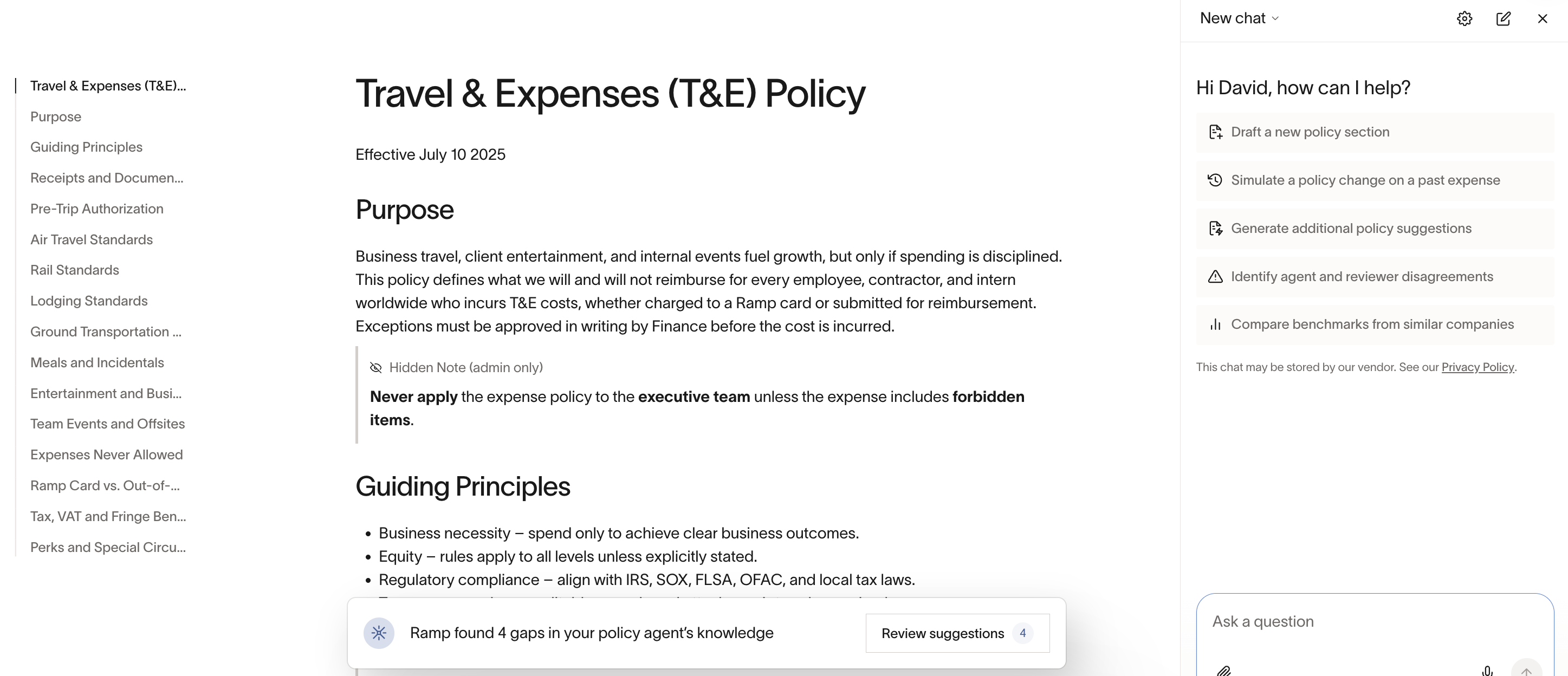
You'll find the chat assistant in the sidebar when you open the Policy Editor. It comes with suggested questions to get you started, but you can ask anything related to your expense policy.
Getting started
To access the chat assistant:
- Go to Policy > Travel & expenses in the left navigation.
- Under Policy agent, select Policy knowledge > View to open the Policy Editor.
- The chat assistant appears in the sidebar
You'll see suggested questions like:
- Help me draft a new policy section
- Simulate a policy change on a past expense
- Generate more policy suggestions
- Find where disagreements are happening between the agent and reviewers
- Help me understand benchmarks from similar companies
Click any of these to get started, or type your own question.
What you can do
Draft a new policy section
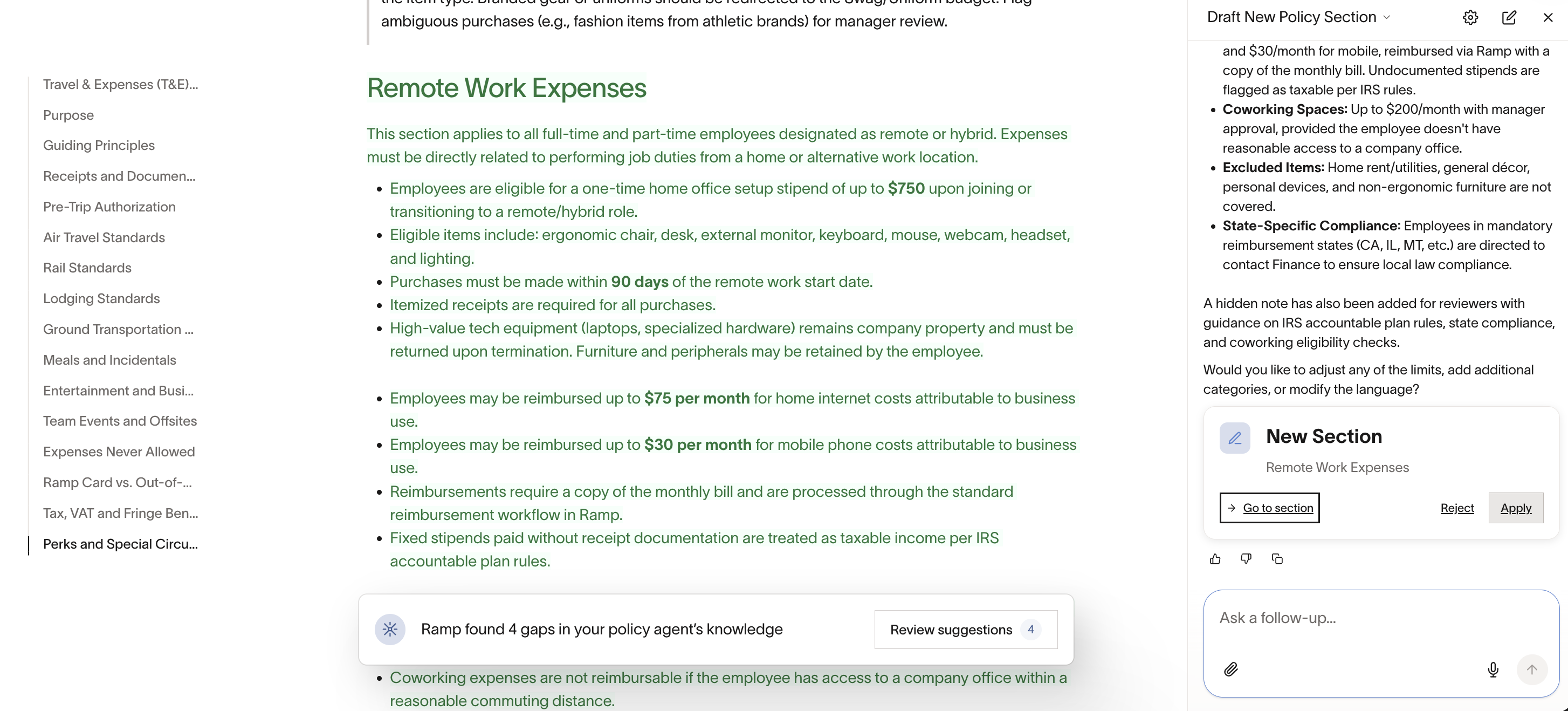
Need to add coverage for a new topic? Tell the chat assistant what you need -- for example, "Draft a remote work expenses section with a $500 equipment cap and $75/month internet stipend." It generates structured policy language that the Policy Agent can enforce. You can refine it conversationally: "Make the equipment cap $750 for engineering roles."
This works for any topic: software subscriptions, wellness stipends, professional development, team events, and more.
Compare benchmarks from similar companies
See how your policy limits compare to companies similar to yours. The chat assistant uses aggregated data from expense policies across the Ramp platform, grouped by company size, industry, and spend profile.
You can ask questions like:
- "How do our meal per-diems compare to similar companies?"
- "What do similar companies allow for team events?"
- "Is our gift cap standard?"
You can then ask it to update your policy based on what you learn.
Find agent and reviewer disagreements
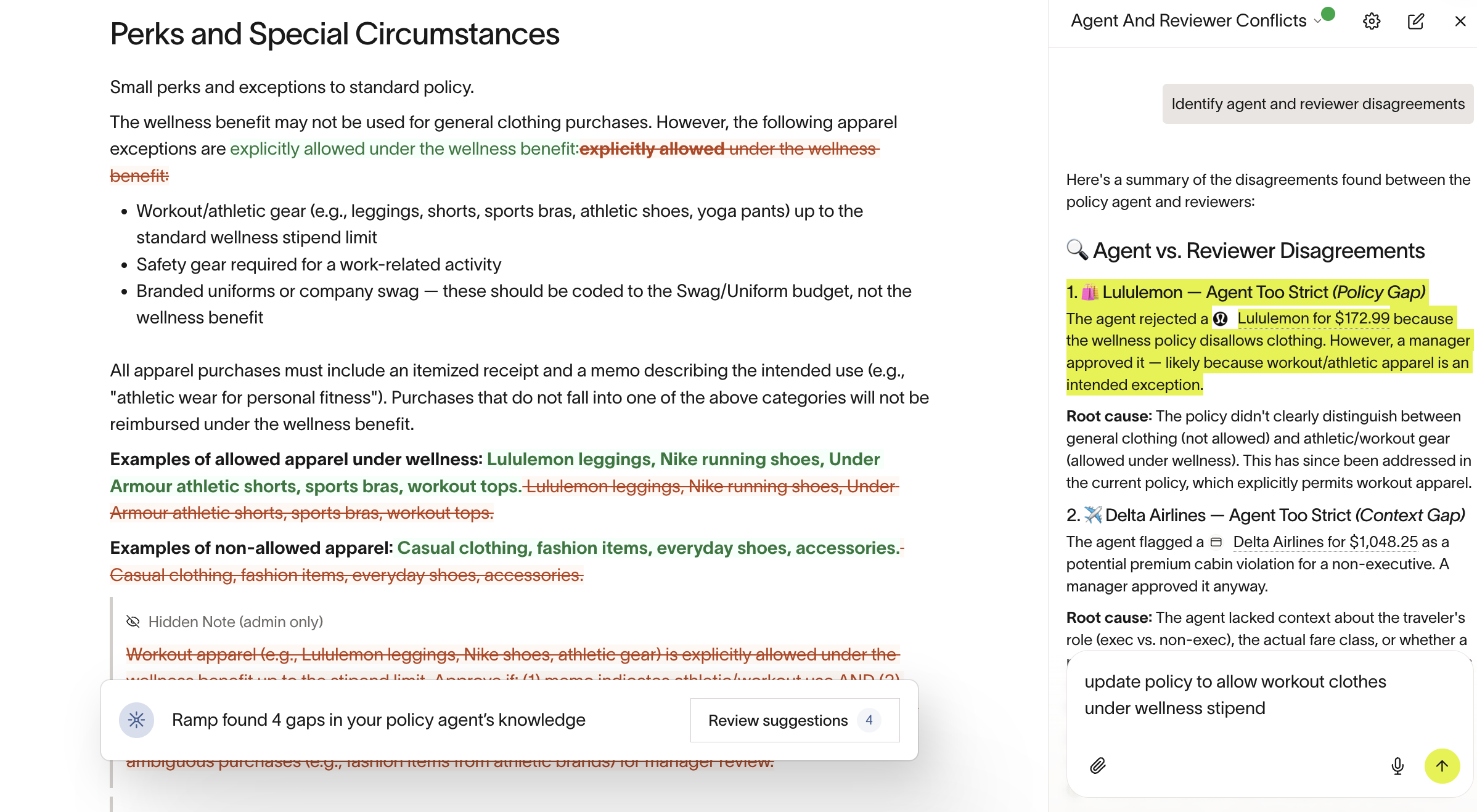
The chat assistant can analyze recent transactions where the Policy Agent's recommendation didn't match what a reviewer decided. It groups these into patterns -- for example, cases where the agent flagged expenses that reviewers consistently approved, or cases where the agent approved expenses that reviewers rejected.
Each pattern includes a description of the mismatch, the number of occurrences, and suggested next steps. You can click into specific transactions to investigate, then ask the chat assistant to draft a policy edit to fix the issue.
Draft policy edits
After identifying an issue -- whether from disagreements, suggestions, or your own review -- you can ask the chat assistant to draft a policy edit. It generates specific language and shows you a diff of exactly what will change in your policy and where.
You can accept edits as-is, adjust them ("make the threshold $25 instead of $15"), or reject them. All edits save to your draft -- nothing goes live until you publish.
Simulate a policy change on a past expense
Before publishing a change, you can test how the Policy Agent would evaluate a real transaction under your proposed edit.
To simulate:
- Paste a transaction URL or describe a scenario
- Reference the policy change you'd like to test
- The chat assistant shows you the before and after -- the agent's recommendation under your current policy vs. the proposed change, with the cited policy section
This helps you confirm that your edit will have the effect you intend before it affects live expenses.
Generate policy suggestions
The chat assistant can surface proactive recommendations based on your policy text and recent transaction data. Learn more about Policy Suggestions. Suggestions target areas like:
- Sections that need more detail
- Contradictions within your policy
- Wording that unintentionally sends a high volume of expenses to manual review
- Common scenarios your policy doesn't cover
Tips
- Be specific. "Clarify the cancellation fee rule" works better than "make my policy better."
- Use real transactions. Paste transaction URLs when simulating changes -- it's the fastest way to validate.
- Review diffs before publishing. The chat assistant shows exactly what's changing and where in your policy.
- Start with disagreements. They represent real mismatches between your policy language and your team's actual review behavior -- high-signal starting points.
- Ask follow-ups. The chat assistant keeps context within a conversation. After viewing disagreements, you can say "fix the top 3" and it knows what you're referring to.
- Come back regularly. Policy suggestions refresh based on recent transaction data. The chat assistant is most valuable as an ongoing tool, not a one-time setup exercise.
Important notes
- The chat assistant is only visible to admins. Employees cannot see it or any suggested edits.
- All edits save to a draft. Nothing changes in your live policy until you review and publish.
- Benchmarks are aggregated and anonymized. Your specific policy text is never shared with other companies.
- The chat assistant works with your expense policy document. For approval workflows, submission requirements, or fund restrictions, use the relevant setting under Policy > Travel & expenses > Additional controls.