Ordering or requesting physical cards, virtual cards, and funds
Overview
We understand that ordering a card or requesting funds is an important step in accessing Ramp's features and managing your expenses. We want to make this process as easy as possible. Below are instructions for ordering both physical cards, virtual cards, and funds. We've also described how shipping works within the United States, and internationally.
Ordering a physical card
Each employee generally has one active physical card at a time. During a damaged-card replacement, the current card remains active until the replacement is activated. Ramp can send a physical card to any United States address, except PO boxes. Cards can also be shipped to international addresses.
For Admins, Owners, and managers
If you're an admin or owner, you can order a physical card for yourself or your team by following these steps:
- From your "Home > Overview" menu, click on "Issue".
- Select the type of card you want to order.
- Fill in the required information, double-check the shipping address for accuracy, or ask for an address from your cardholder through Ramp, and click "Next" once finished.
- If you're creating a card for a colleague who hasn't joined Ramp yet, the card will be shipped to them once they sign up.
For Employees
If you were invited to Ramp with a physical card, you'll be prompted to enter your shipping address when you accept the invite during the onboarding flow. However, if you need to request a physical card, please follow these steps:
- From Home, open New, then select Request.
- Select the type of card you need.
- Fill out the required information on the following screen and select Confirm & request card once finished. This request will be sent to your manager or company-specified approvers for review.
- Once approved, delivery estimates vary by card type, destination, and shipping method. On the web, select the physical card from your Home page and click Track order when available. If Track order is unavailable, see No tracking visible.
Card branding
Admins and Owners can customize the branding that appears on physical cards for their company. To view or edit card branding, go to Settings > Company, find Card branding, then select Edit.
Branding options
- Company name (text) — Your company name is printed on the card. The name can be up to 21 characters long and can include letters, numbers, spaces, and select special characters. For businesses with multiple entities, you can set a different company name for each entity.
- No branding — Remove branding so cards are issued without a company name.
Note: Branding changes apply to newly issued cards only. Cards that have already been shipped are not affected. Card color and material are not customizable.
Physical card shipping
Updating my shipping address: If you need to update your shipping address before you receive your physical card, open your physical card in the dashboard, select Ship to a different address or re-order card, then select Reorder card. Please see more information on reordering here.
Updating the name listed on my card: If you need to update your listed name before you reorder your physical card, you can do so by going into your dashboard, clicking on Settings > Personal Settings, clicking "Edit Profile," and updating your name. Please see more information on updating your name here.
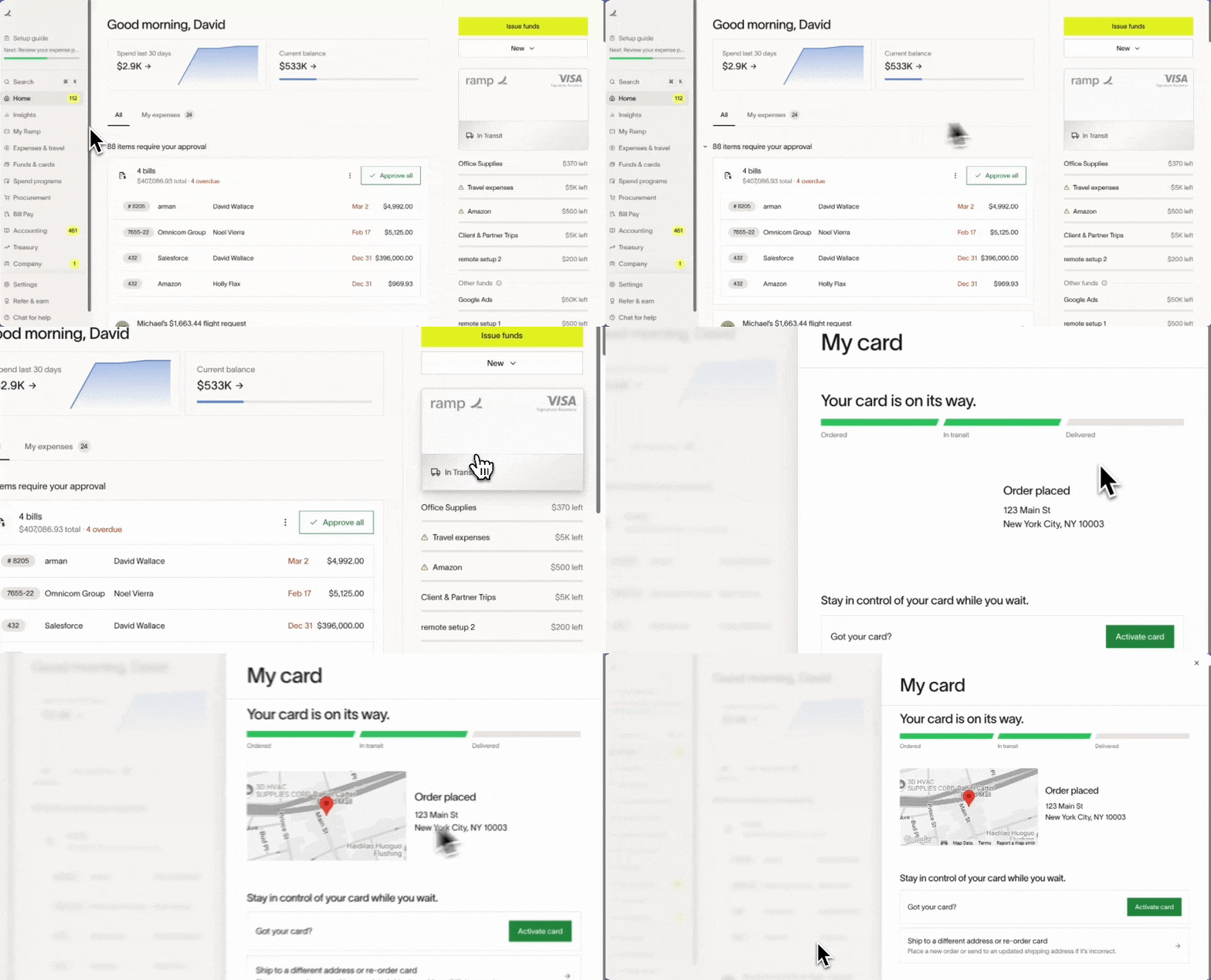
Tracking the delivery status of the new card: You can track the delivery status by clicking on the card on the right side of your home page. Delivery statuses include the following:
- Order placed — The card has been successfully requested and is being prepared for shipment.
- In transit — The card has shipped and is currently on its way to the delivery address.
- Delivered — The card has arrived at the delivery address. This shipping status does not mean the cardholder confirmed receipt.
Reordering physical cards: For a card eligible for replacement, you can reorder your own physical card on the web again two days after your last replacement request. If Replace card is unavailable, see what to do. To replace someone else's card, ask an Admin who can manage physical cards. During a damaged-card replacement, the current card remains active until the replacement is activated; Ramp then automatically cancels it. See Reordering physical cards for more information.
International shipping: Available countries depend on the card programs your business uses. The countries below are unavailable across all current card programs. If you need to ship to a country that isn't available when you enter the address, contact Ramp Support.
| Iran | Sao Tome & Principe | Wake Islands | Belarus |
|---|---|---|---|
| Johnston Island | Russia | Central African Republic | Somalia |
| Ukraine | China | St. Helena (S. Atlantic) | Sudan |
| Cuba | Syria | Myanmar | Tajikistan |
| Falklands | Nauru | Tokelau Islands | Niue |
| Turkmenistan | India | Saint Pierre Et Miquelon |
Requesting a virtual card or funds
For Admins, Owners, and managers
As an admin or owner, you can request a virtual card or funds for yourself or your team by following these steps:
- From your "Home > Overview" menu, click on "Issue".
- Select the type of funds you want to request.
- "General expenses" are for day-to-day expenses. If your employee has a physical card, their funds will not have a card number by default. They can spend their funds via their physical card.
- "Virtual cards" are a type of funds issued with a card number that is meant for online-only purchases.
- Fill in the required information and select Issue or Request, depending on your permissions and approval settings.
- Issue creates the funds without an approval step. If you select Request, the fund details will become available after approval.
For Employees
If your manager has created a virtual card or funds for you, it'll be available for use as soon as you sign up for Ramp. If you need to request a virtual card or funds, please follow these steps:
- From Home, open New, then select Request.
- Select the type of funds you need.
- "General expenses" are for day-to-day expenses. If you have a physical card, your funds will not have a card number by default. You can spend your funds via your physical card.
- "Virtual cards" are a type of funds that are meant for online-only purchases and have a card number.
- Fill out the required information on the following screen and select Request once finished.
- Your virtual card or funds details will be generated and available immediately upon approval.
We understand that ordering a card and/or requesting funds are essential steps in using Ramp. If you have any further questions or need assistance, please don't hesitate to contact our dedicated support team. We're here to provide a seamless experience with Ramp.
Tracking your physical card shipment
After you request a physical Ramp card, you can monitor its status and delivery in your dashboard.
1. Card approval and shipping status
- After requesting a physical card, approval from a company admin or designated approver may be required before the card ships.
- Your card will not be shipped until it is approved. If you have not received a shipment notification, check with your approver or company admin.
- If you have not received your card after several business days, confirm the card’s approval status with your company admin.
2. Viewing shipment tracking (if available)
- After your card ships, you can check the Ramp dashboard for shipment and tracking details (when available).
- Tracking is only provided for certain shipping methods (for example, expedited shipping)
3. No tracking visible
- Tracking information may be unavailable because the card is still being prepared or because the shipping method does not provide tracking.
- Order placed means the card is still being prepared and has not shipped.
- An estimated delivery date or delivery range shows timing based on the available shipment details. Track order appears only when package tracking is available.
Card delivery failed or package returned to sender
If your card cannot be delivered, the shipment may be returned to Ramp.
- Delivery may fail if the recipient name on the package does not match the address records for the destination.
- When delivery fails, the shipper will return the card to Ramp’s production warehouse. You cannot pick up the package locally.
- To proceed, void or cancel the failed card order in Ramp and request a new physical card to the correct name and address.
- If a company address is causing repeated name mismatches, consider shipping the card to the cardholder’s residence instead.
Frequently asked questions
- Ramp ships physical cards via USPS to valid street addresses only (no PO Boxes). If USPS cannot deliver to your address and you have no alternate, contact support. In some cases, expedited FedEx shipping to your street address may be possible.
- Cards replaced due to fraud are shipped with expedited 2-day shipping.
- Card tracking info appears only after courier pickup. Shipping/tracking emails are sent once the courier has the cards.
- Troubleshooting: Option to request a physical card is missing
- If you do not see the option to request a physical card in Home, it may be due to your company settings or permissions:
- Your company may not have enabled physical cards for your role or entity.
- If the option is missing:
- Reach out to your Ramp admin or manager to confirm whether physical cards are enabled for your account.
- If you do not see the option to request a physical card in Home, it may be due to your company settings or permissions:
- Can I customize the color or design of my physical card?
- Card color and material are not customizable. However, you can add your company name to your cards. See Card branding for details.