Multi-currency funds, cards, and Spend Programs
Overview
Available on Ramp Plus. See Ramp Plus overview for plan details.
Multi-currency allows your team to issue spend in an employee's local currency. For example, your admin team can now issue spend that display in CAD on your Canadian employees' dashboard. Canadian employees can then spend in their local currency without having to mentally convert from USD.Multi-currency is also supported on the iOS and Android apps for existing card or funds, transaction, and reimbursement flows. This change does not impact accounting, and the currency cannot be changed for existing cards or funds.
Admins
As an admin, you may issue spend and create Spend Programs in non-USD currencies. First, you must navigate to your settings to configure currencies for your company at the business level or entity level, depending on your preference.
Setting up and assigning a currency to an entity
If multi-entity is enabled, you may go to the Entities drawer, select Details, and assign currencies to each entity.
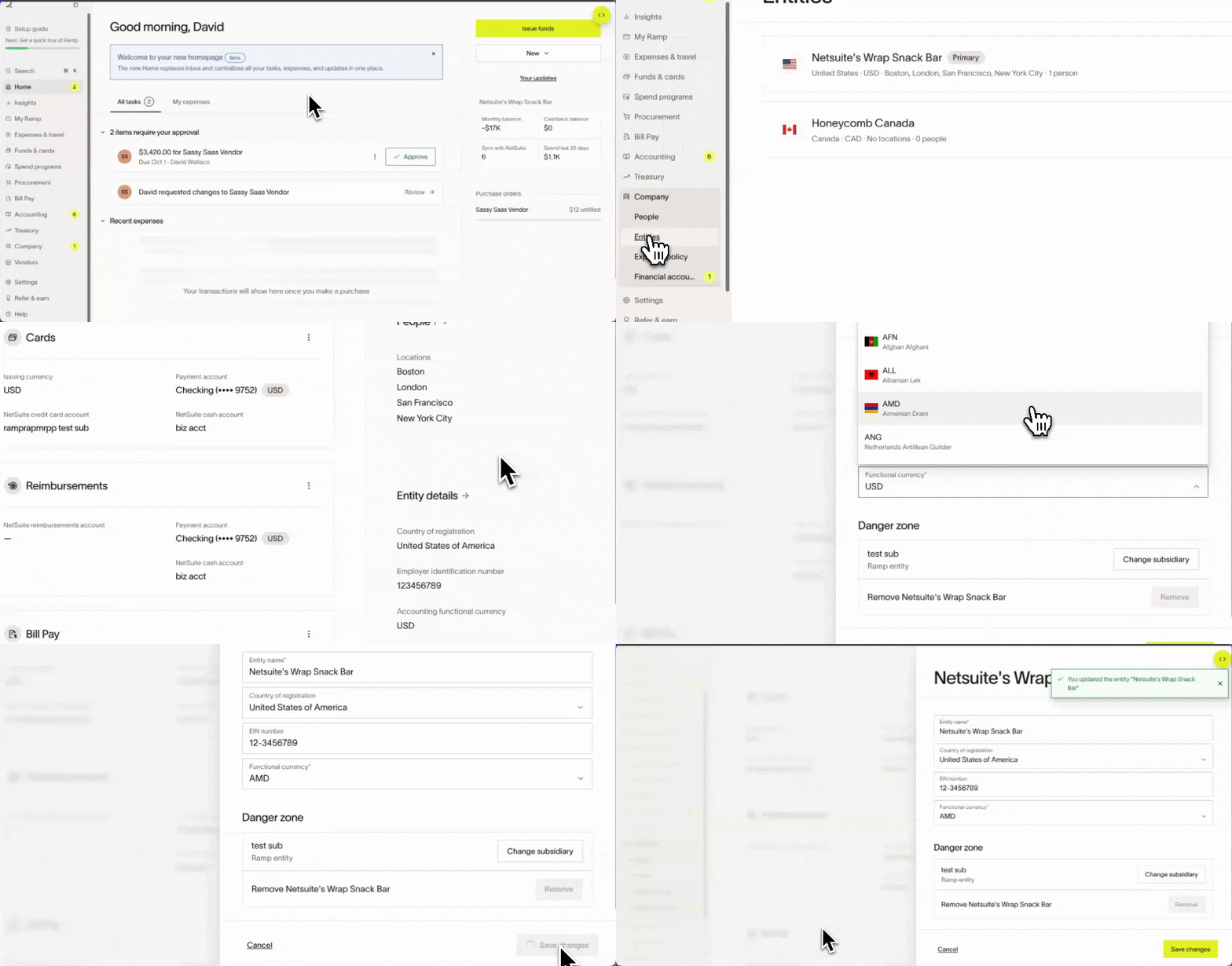
If multi-entity is not enabled and you want to set currencies at the business level, you may go to Settings > Company Settings > scroll down toCurrencies. You will need to manually select the currency, and you can view the assigned currency from the Locations page.
In the spend issuance flow, your default currency will populate, and you may change it (e.g., if you are issuing a card or funds for an employee who belongs to a CAD entity with a default CAD currency assigned, you can update the currency to USD in the issuance flow).
Issuing spend and creating Spend Programs
Admins can create a non-USD currency by selecting the currency dropdown in the spend creation flow, the “Product or Service” flow, and the physical card request screen.
Reviewing spend
In Cards or Funds, you will be able to see the card or funds spending limit in the local currency, see utilization against the total spending limit, and understand how much your business limit has been spent
The globe icon appears when the original transaction amount or currency differs from the statement amount or currency. Hovering over the icon shows the original transaction amount and currency. For example, a CAD transaction has a globe icon if the statement currency is USD.
Spend controls like Amount and Maximum Transaction Amount are currency-aware and match the currency of the Spend Limit. Monetary thresholds in spend policies like Approvals and Submission Policies are evaluated in USD.
Please note: The currency on a card, funds, or Spend Program may NOT be edited after creation.
Employees
Cards, funds, and transactions
Employees can now request spend in non-USD. In the request spend flow, your currency is defaulted to your entity’s default currency. However, you may change the currency to any currency available to your company. You may also request spend from any non-USD / local currency program.
You can view your transaction amount in the card or funds currency in your recent activity. When the original transaction amount or currency differs from the statement amount or currency, the globe icon appears. Hovering over the icon shows the original transaction amount and currency.
Reimbursements
If you attach your reimbursement to a non-USD spend, you can see the reimbursement amount in that spend. If your reimbursement is not attached to a non-USD card or funds, the payout currency will be USD. Similar to transactions, the globe icon will display when the reimbursement currency is not the same as the cleared currency.