Migrate your card vendors
Overview
By uploading your past credit card transaction data, we can identify large and recurring vendors from your old credit card provider for you to seamlessly switch that spend over to Ramp. This will make the transition process much easier by listing out all the vendors, giving you the option to assign tasks to your employees to switch that spend, providing the payment URL of the merchant, and earning cashback for these vendors.
Migration steps
Uploading your previous credit card transactions
Uploading a CSV or XLSX file (est. 1-2mins): The process to upload transactions from your previous credit card provider is very simple:
- Download your transaction history for the last 90 days, submit it to Ramp, and wait for it to process (normally takes 1-2mins). We'll also send an email once it's ready.
- We can support multiple files at once and from distinct credit card providers, so feel free to download multiple and upload them all at once.
To start, head to the Setup Guide on the top of the left panel and selectMove your spend on Ramp.
Transitioning spend
Once you connect your previous credit card, we will generate the report and email you when it's ready.
Assigning cardholders
- If we detect the cardholder and they are on Ramp, we will automatically fill in the row with the said cardholder. If the cardholder is not on Ramp, we will suggest the user to invite.
- By clicking the drop-down, you can select anyone else on Ramp if you'd like to assign the task of switching to someone else (including yourself)
- Additionally, you can invite a team member you'd like to assign the task to who isn't on Ramp yet (for more information on inviting a user during the flow, scroll to the invite a user section below)
Assigning cards
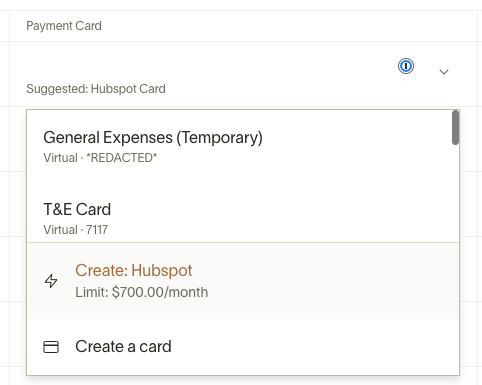
- Once you've selected someone, you can either create a card for this specific vendor or select a pre-existing card for the employee
- Note: We recommend creating a virtual card per vendor for security (for more info on why we recommend this, please reference this article ).
- Below is the drop-down once you click into the Payment Card column
- If you select to create a card, we will automatically fill in the merchant and category restrictions to make sure the card is only used for the intended purpose (you can always edit this + the limit amount once you click on "Create: card name"
Assigning tasks
Once you assign the task by selecting the "Assign" button, we will:
- Mark task as assigned
- Move the task to the bottom of the report to consolidate all completed tasks
- Send a message to the cardholder
- Flag the item on the landing page of Ramp
- Send payment URL to easily switch card details
Inviting cardholders
Lastly, there is the possibility that we identify a cardholder. However, we don't recognize them as users on Ramp. If this is the case, you can invite the employee, and we will also include a virtual card with the invite for the user to migrate the payment.
Dismissing vendors
Lastly, you can delete a vendor from the vendor tab by selecting the "trash" icon if the vendor is not relevant.