Match card transactions to Purchase Orders
Overview
Available on Ramp Plus. See Ramp Plus overview for plan details.
- Match card transactions to purchase orders and easily view linked transactions.
- If you use card spend to buy things for certain purchase orders, you can now link transactions directly with a purchase order rather than having to upload a bill.
How to match card transactions to POs
Who can do it?
Admin, Accounting, and Accounts Payable roles, and the PO owner can match card transactions to a PO. The same roles can also un-match a transaction from a PO.
What does matching do?
"Matching" a card transaction means that the transaction amount is counted against the PO total. You cannot match card transactions to a line item. A card transaction can be matched to one PO at most.
When a transaction is matched, it will appear in the PO's and transaction's event history. Matching is only in Ramp, it will not appear in your ERP.
What is eligible to match?
You can only match transactions to POs that are created in Ramp and approved.
You can only match card transactions that are:
- Approved
- From the same entity as the PO
- Not matched to a bill
- Not already matched to a PO
- Transaction's original currency matches the PO currency
Open the PO you want to match
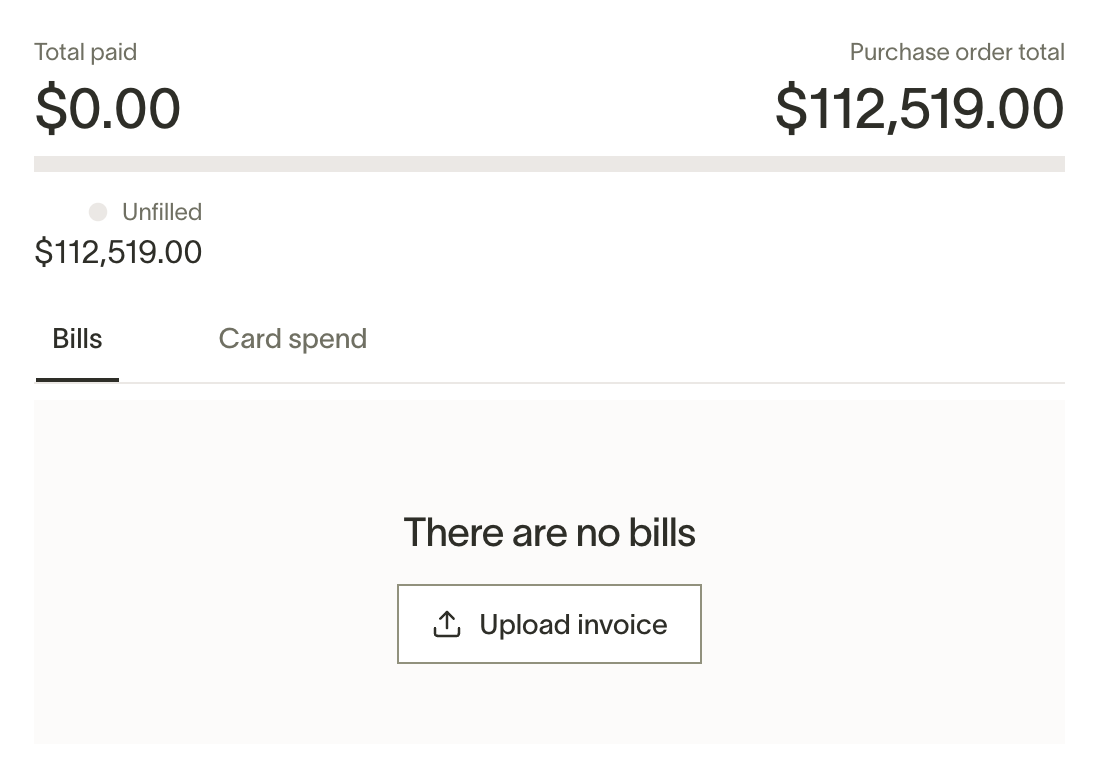
When you open a PO, you will now see the option to toggle between "Bills" and "Card spend" under the Purchase order total.
Match card transactions (from PO)
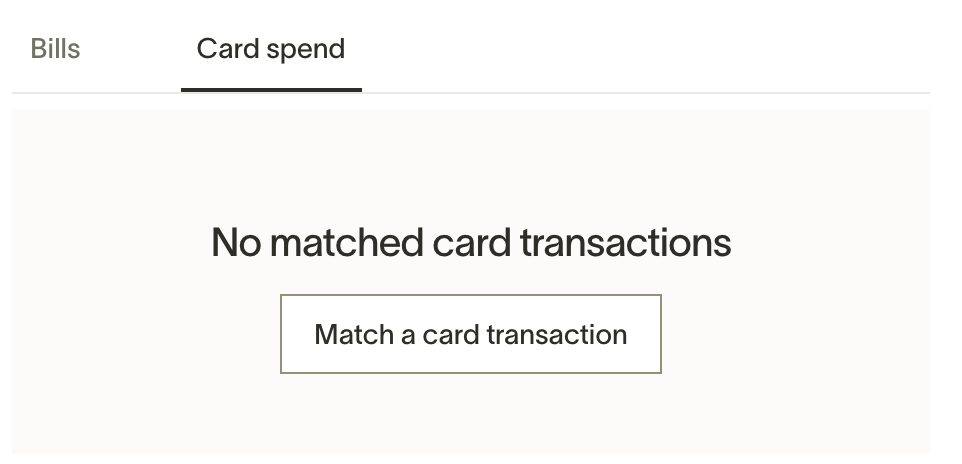
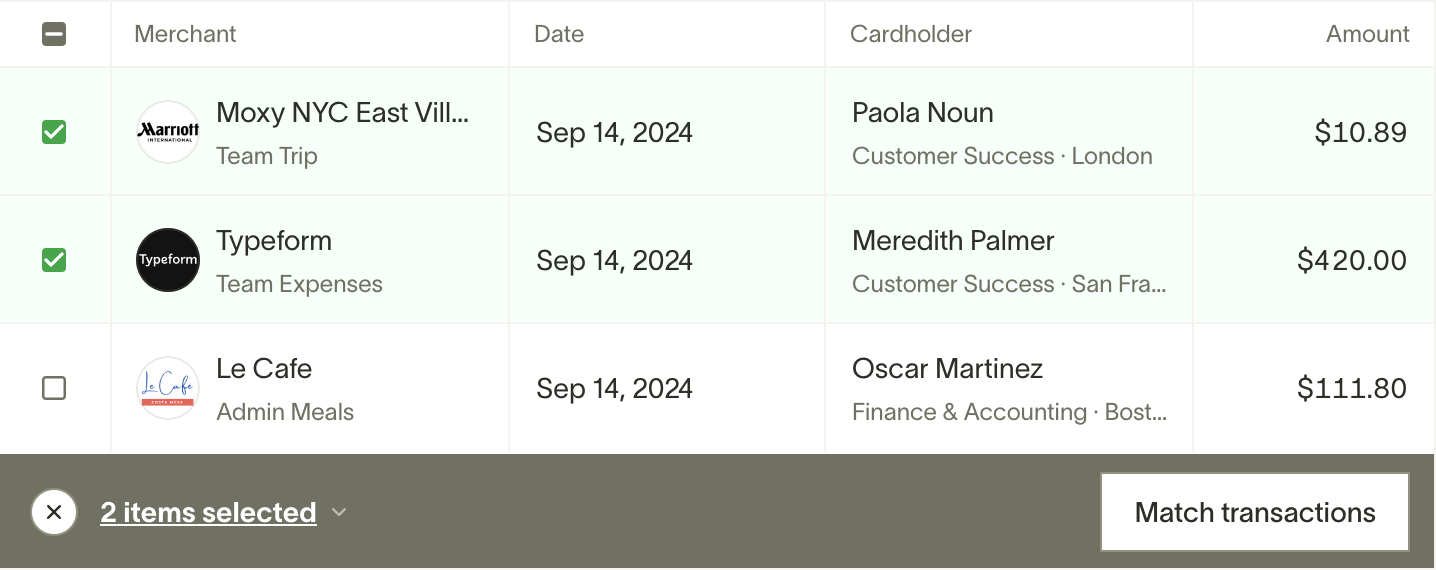
Click on "Card spend" then "Match a card transaction" to open a view of qualified transactions. Transactions are suggested using the criteria mentioned above. You can filter by card merchant, cardholder, card, and date. (You need to filter the date range to see transactions from more than 4 weeks before the day the PO was created).
You can select one or multiple transactions, then click "Match transactions". You can also match a transaction by clicking "Options" on the PO or "Match a transaction" under the card spend table.
Total paid amount updated
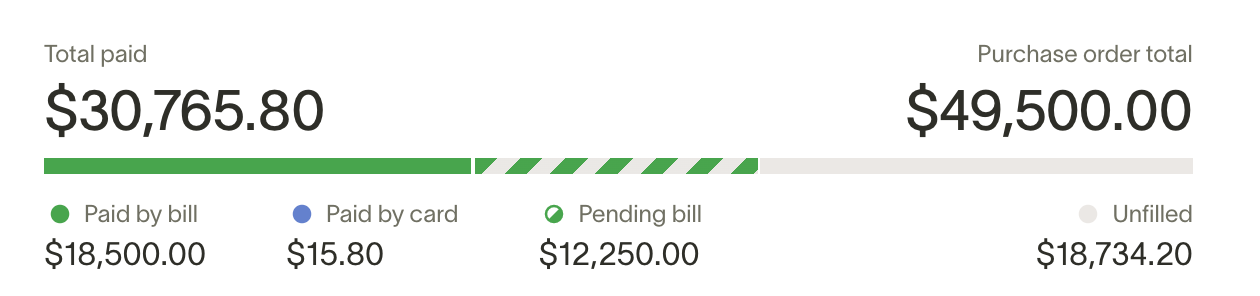
After matching a transaction to the PO, you'll land on the PO screen and see an updated billed amount bar. This contains a breakdown of how much of the PO has been paid by bill or card.
Match card transactions (from transaction)
You can match a transaction to a PO directly from a transaction if you have the Admin, Accounting, or Accounts Payable role, or are the owner of the PO.
Open the "Transactions" page and select the transaction you want to match. Scroll down to the "Accounting" section and click "Match to purchase order". Here you can view all PO's. Reminder that a transaction can only be matched to 1 PO, so you will have to un-match it from one to match to another.
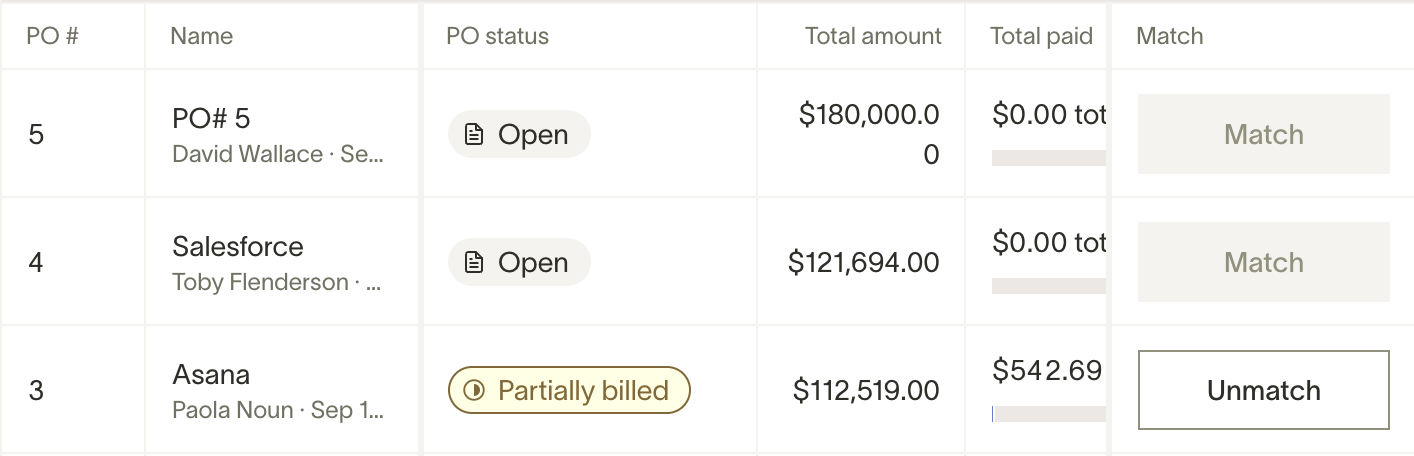
Un-match a transaction
To un-match a transaction from a PO, click on the icon under "Actions" on the PO overview page.

You can also un-match a transaction from a PO in the transaction itself on its "Overview" page.
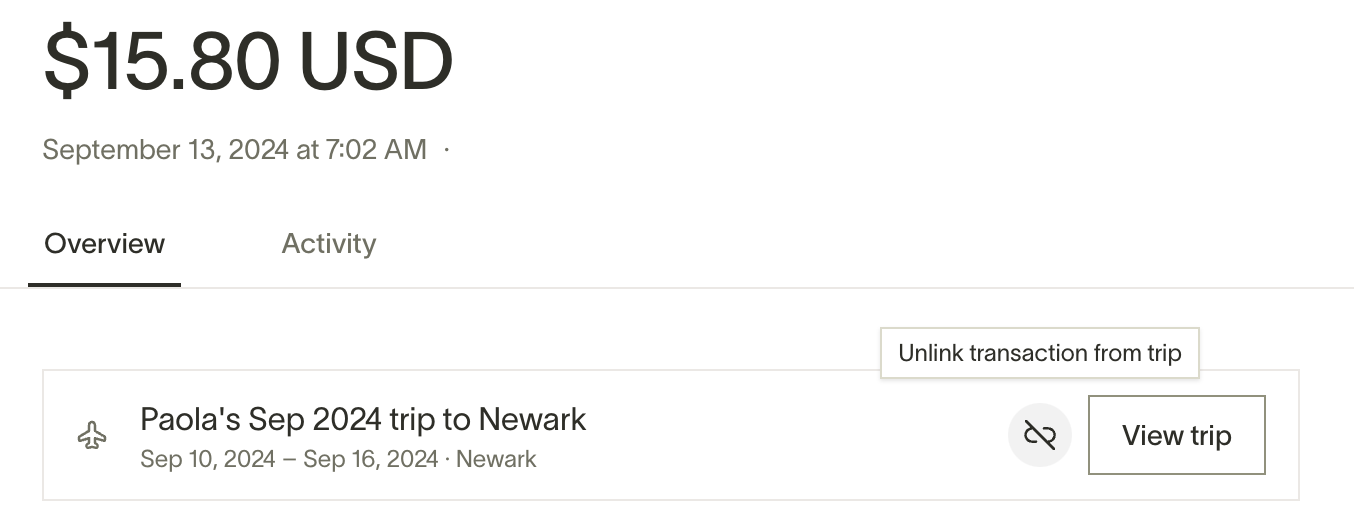
View matching history in "Activity" of PO or transaction
Navigate to the "Activity" section of a purchase order to view all matching history.
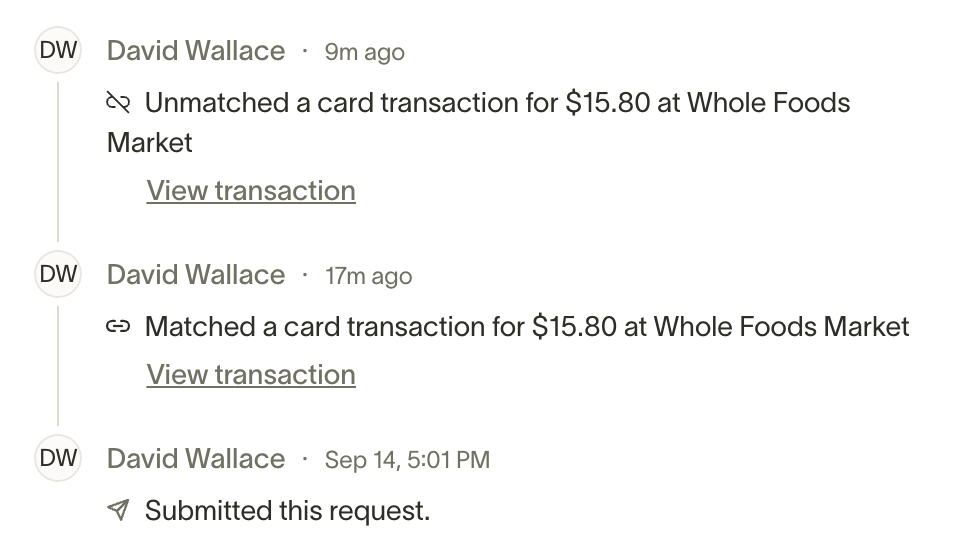
If you "View transaction", you can see the matching history in transaction's "Activity" tab.
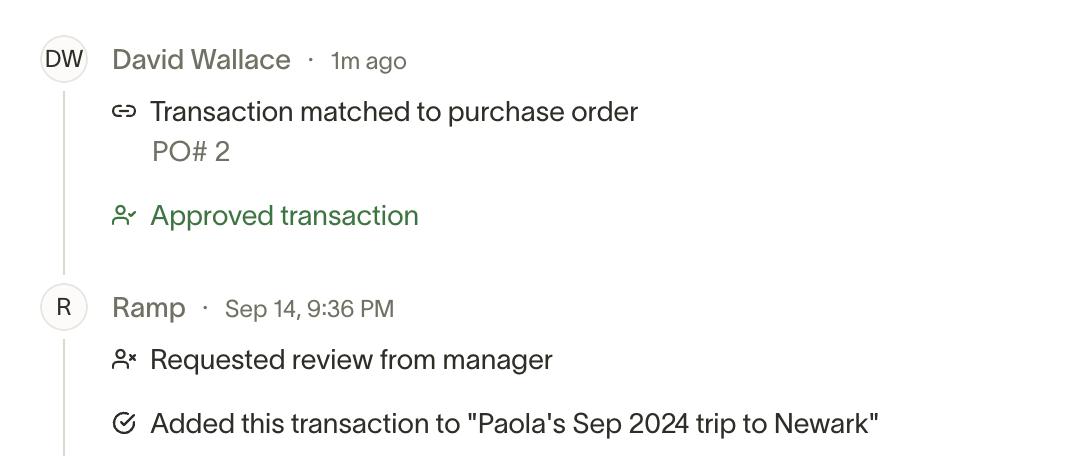
Frequently asked questions
Can transactions be automatically matched to POs?
At this time, transactions can only be matched manually.