Ironclad integration: Set up multi-step approvals
Overview
Beta. This feature is currently in Beta.
This setup requires access to Ramp Procurement approval workflows. See Get started with Procurement for access and setup guidance.
Ironclad multi-step approvals separate launching an Ironclad workflow from approving a role later in the same workflow. This lets contract review in Ironclad run alongside Ramp approvals while a later Ramp workflow step controls when Ironclad can move beyond Review.
Use an Ironclad workflow step to launch the contract workflow early and a separate Ironclad approval step after the Ramp approvals that must precede signing.
Prepare Ironclad multi-step approvals
Before setup:
- Connect the business Ironclad integration and configure the workflow mapping. The linked Ironclad account must allow Ramp to update the approval role you configure.
- Confirm the Ironclad workflow and Ironclad approval steps are available in your Ramp approval workflow.
- Use a Ramp account with permission to edit the procurement approval workflow and an Ironclad account that can edit the Ironclad workflow design.
- The Ironclad workflow must contain a Ramp ID field configured as optional and locked. See the Ironclad integration setup guide for field configuration.
This setup uses the business Ironclad connection. An individual requester's connection does not provide the approval permission used by the Ironclad approval step. Older business connections may need to be reconnected with the updated permission.
Configure the approval in Ironclad
- In Ironclad, edit the workflow that Ramp will launch.
- In the Review stage, add a required approval role named Ramp Approval. If you use another name, enter that exact name later in the Ramp Ironclad approval step.
- Place Ramp Approval after any Ironclad approvals that must finish first.
- Configure the Ironclad workflow so that this approval is required before the workflow can move to Sign.
- Assign this approval role to the same Ironclad user account that was used to connect your business’s Ironclad integration to Ramp. That account must also have permission to approve the role.
The example below uses Procurement - Full Access and Ramp Ironclad Integration SVC. These are organization-specific names. If you connected the business integration using a service account, assign the approval role to that same service account. Your Ironclad administrator can confirm the account and its approval permission.
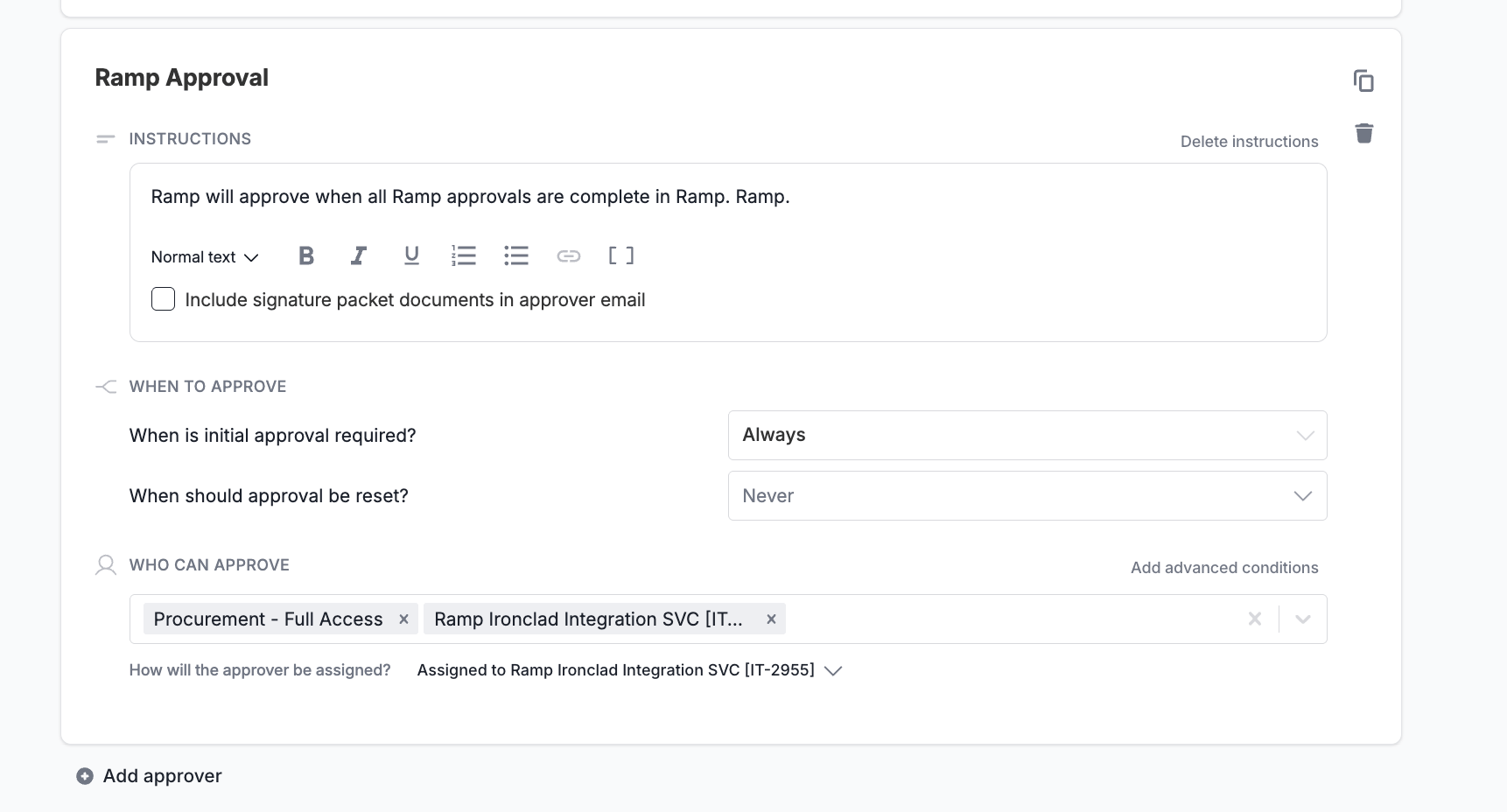
Example only: Use your business integration's linked account, not the example account name.
Configure multi-step approvals in Ramp
- From Spend Programs, open the program and select Edit approval workflow.
- Add or open one Ironclad workflow step before the Ironclad approval step. Select the Ironclad workflow and finish mapping the required fields.
- Set Complete on step to Create. Ramp continues after Ironclad finishes Create and moves into Review, allowing later Ramp and Ironclad review steps to proceed without waiting for signature.
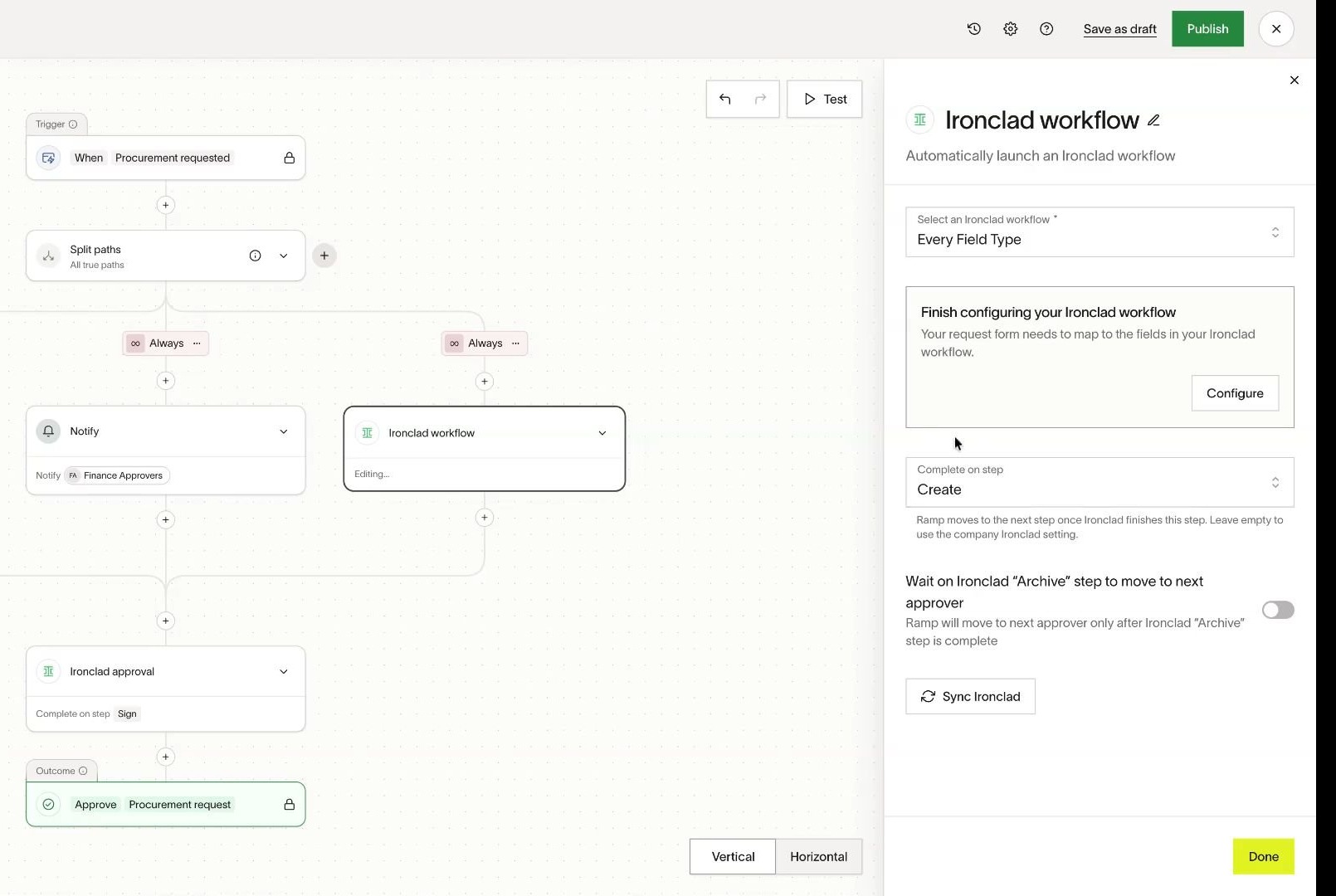
The launch step completes after the Ironclad workflow finishes Create.
- Arrange the Ramp approval steps that must finish before Ironclad can move toward signature.
- After those approval steps, add the separate Ironclad approval step. This step acts when the Ramp workflow reaches it; it does not independently check whether every Ramp approval is complete.
- In Approver name, enter the exact Ironclad approval role name. The default role name is Ramp Approval.
- Set Complete on step to the Ironclad step you want to finish before Ramp continues. The Ramp step completes after Ironclad finishes the selected step, not when it begins. We recommend Sign so Ramp waits until signing is complete.
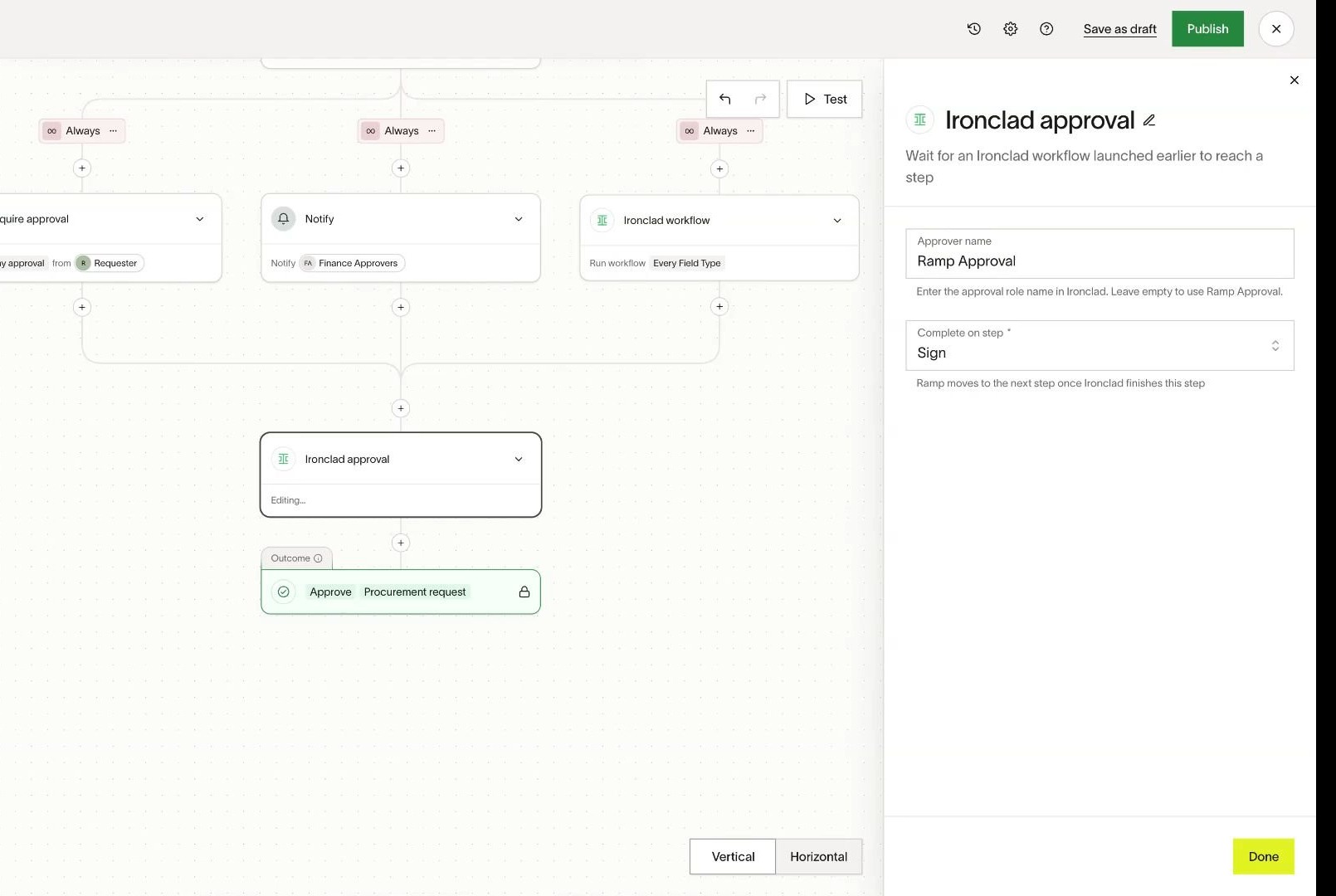
The approval step approves the matching Ironclad role, then waits for Sign to finish.
- Publish the approval workflow.
Understand the end-to-end approval flow
- The Ironclad workflow step launches the selected workflow. With Complete on step set to Create, Ramp continues after Ironclad enters Review.
- Ironclad contract review and the configured Ramp approval branches can proceed in parallel.
- When the Ramp workflow reaches Ironclad approval, Ramp looks for a pending role whose display name matches Approver name in the active, uncancelled Ironclad workflow's Review stage. Ramp approves the role once its approval group is active. If earlier Ironclad reviews are still pending, Ramp waits and checks again as Ironclad progresses.
- Ironclad's configured workflow rules determine whether approving the role allows the workflow to move to Sign.
- With Complete on step set to Sign, the Ramp step remains pending until Ironclad finishes Sign. Ramp then continues to the next step in its approval workflow.
In the example below, the request activity records the Ironclad workflow launch, role approvals, and transition to Sign.
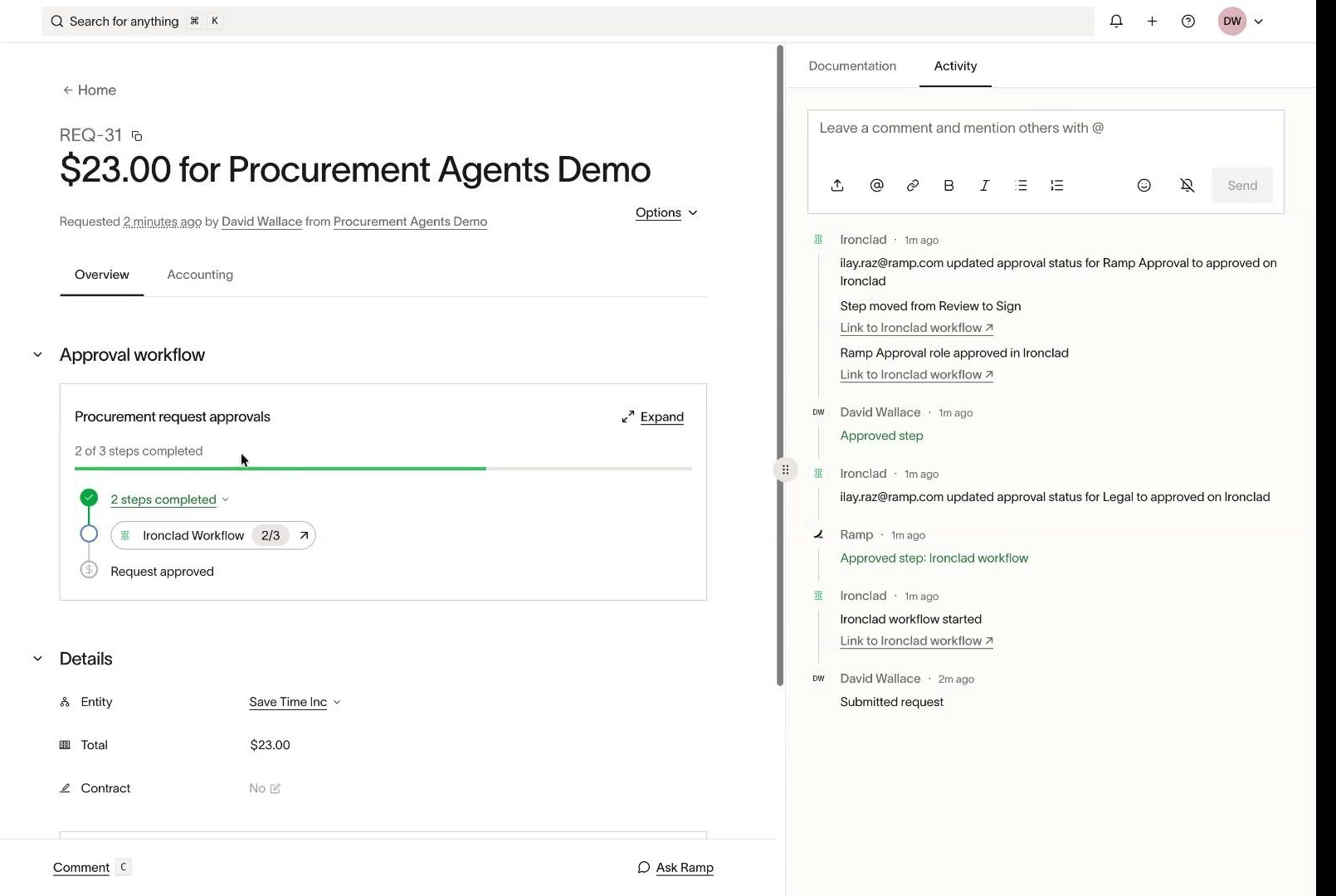
Example: After Ramp approves the role, Ironclad moves to Sign according to its workflow configuration.
Limitations of Ironclad multi-step approvals
- Two-system setup: Configure the approval role in Ironclad and the matching step in Ramp separately.
- Role validation: Ramp does not verify during setup that the named role exists in Ironclad. Check the exact name before publishing.
- One launch per execution: Configure exactly one Ironclad launch before the approval step. If an execution has multiple successfully launched Ironclad workflows, Ramp uses the first one for approval. The approval step does not let you select another workflow or approve all launched workflows.
- No successful launch: If no Ironclad workflow was successfully launched in the same execution, the approval step completes without approving an Ironclad role. Ensure every path reaching the approval step includes a successful launch.
Troubleshoot Ironclad multi-step approvals
Ironclad approval is missing with an older connection: The business connection needs permission to update approvals. If the existing connection lacks that permission, open Ironclad settings, disconnect the integration, and connect Ironclad again to authorize the updated permission.
Earlier Ironclad reviews are still pending: A role in a later approval group cannot be approved yet. Complete the earlier Ironclad reviews so the group containing the role configured in Approver name becomes active. The default role name is Ramp Approval. Ramp checks again as Ironclad progresses.
The role is missing or its name does not match: Confirm that the role exists in Ironclad and its display name exactly matches Approver name in Ramp, which defaults to Ramp Approval. Without a matching role, Ramp approves nothing. If the required Ironclad approval remains outstanding, Ironclad cannot proceed to Sign and the Ramp step stays pending.
The linked account cannot approve the role: Have your Ironclad administrator confirm that the role is assigned to the same Ironclad account used to connect your business's integration to Ramp, including when that account is a service account, and that it has permission to approve the role. See Configure the approval in Ironclad. A missing business connection or an approval-permission error leaves the Ramp step incomplete.