Perk integration: How it works
Ramp’s integration with Perk (formerly TravelPerk) helps streamline your travel-related expense management. This guide explains how the integration works, what information is synced, and where to find key data in your Ramp account.
What the integration does
When you book a trip using Perk, the following happens automatically in Ramp:
Step 1: Transaction data syncs automatically
Ramp automatically pulls in the transaction for the booking date. This includes:
- The total amount of the flight
- The cardholder who made the purchase
- Custom fields from your ERP (Enterprise Resource Planning) system
- You can choose up to two fields within Perk which will sync to Ramp
Step 2: Custom fields are mapped
Custom fields selected during the Perk booking process (such as Vendor, Customer, and Job) sync correctly to Ramp. For example, if you selected Amazon as the vendor and CoolCars as the job, those values appear in the transaction record in Ramp.
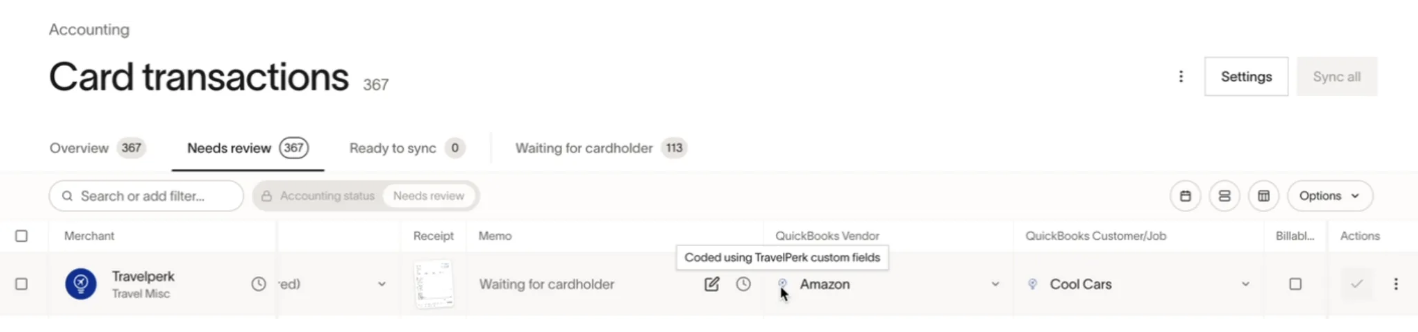
Note: Fields that are not custom-mapped in the booking—such as a default category—may not sync automatically.
Step 3: Receipt is attached after matching
When Ramp matches the Perk invoice to a Ramp transaction, Ramp attaches the PDF to the transaction. You can view this by clicking into the specific transaction. The receipt appears on the right-hand side of the transaction detail page.
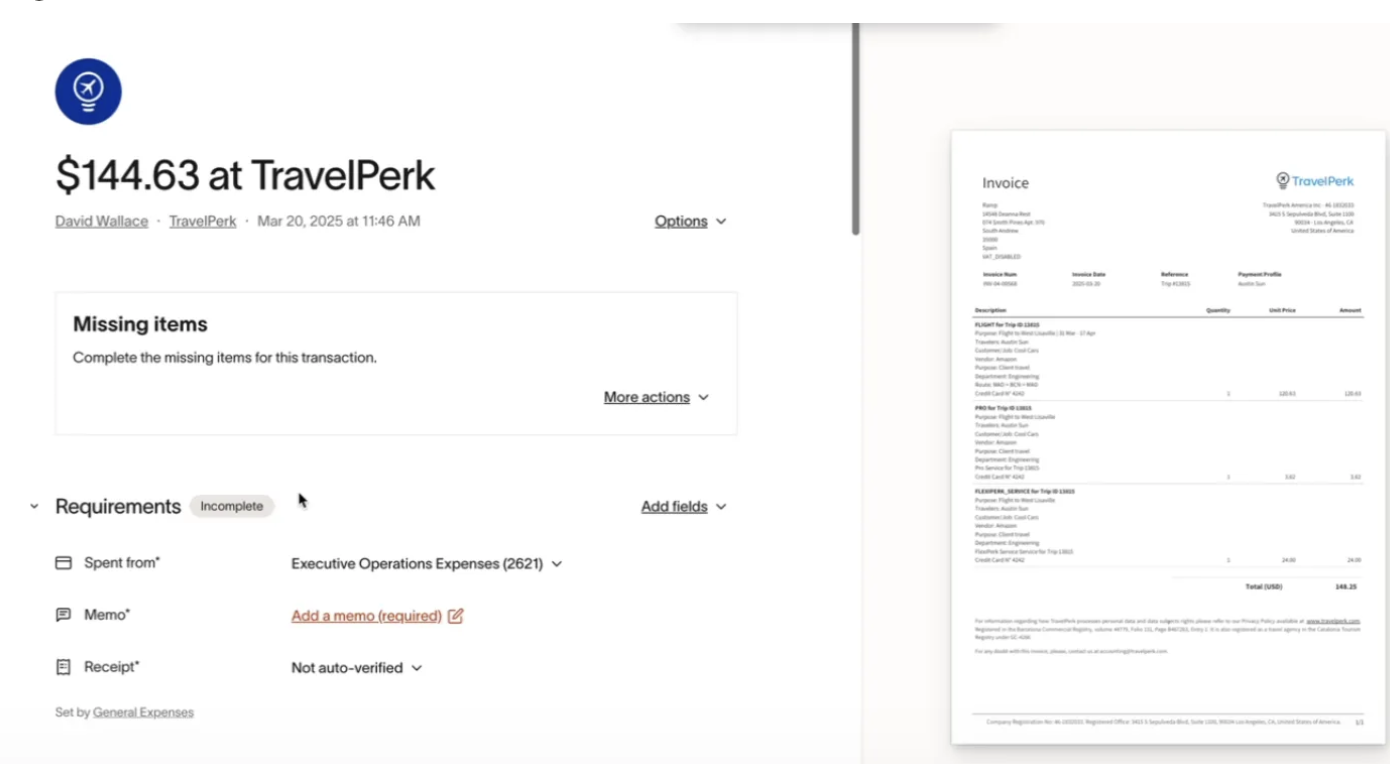
The transaction record also includes:
- QuickBooks Vendor
- QuickBooks Customer and Job
- Flight details from the receipt
Step 4: Itinerary is synced
Ramp also pulls in itinerary details for upcoming trips booked via Perk—even if the trip was not booked directly through Ramp. You’ll be able to view:

- Departure and return dates
- Trip cost
- Destination details
To view the trip in Ramp, navigate to Travel → upcoming → scroll down until you see your trip.
Frequently asked questions
How long does it take for a trip booked in Perk to sync to Ramp?
The transaction will populate immediately upon purchase. The field information and the trip itinerary itself will populate in Ramp after 4 hours. Ramp attaches the receipt only after matching the Perk invoice to a transaction. If the receipt does not attach, see Submitting receipts, memos, and accounting for your Ramp transactions for other submission options.
Why is a Perk transaction not getting coded by a rule I set up in Ramp?
Custom fields that are coded in Perk will take priority over rules set in Ramp. This will be denoted by the Perk icon next to the field option selected.
What trip types are supported?
Today, Ramp only supports this functionality for flight bookings.
Are one-way trips supported?
Yes, one-way trips are supported