Procurement Role Configuration
Overview
While Ramp offers multiple different types of user roles, we understand that customers may want additional granularity over the specific permissions a certain role may have on Ramp. With role customization, admins can set the specific permissions of each role across the different product areas on the platform.
Note: Procurement requires the Procurement add-on; if your business is eligible, you may be able to start a 60-day free trial.
For general guidance on customizing roles, see How do you customize role permissions? and What permissions does each role have?.
What customizations are available for procurement?
After navigating to the Custom Roles section in Ramp via Company > Settings > Roles & permissions, you will see that you can assign different procurement permissions to any existing roles or those you choose to create. The options are shown in the following screenshot:
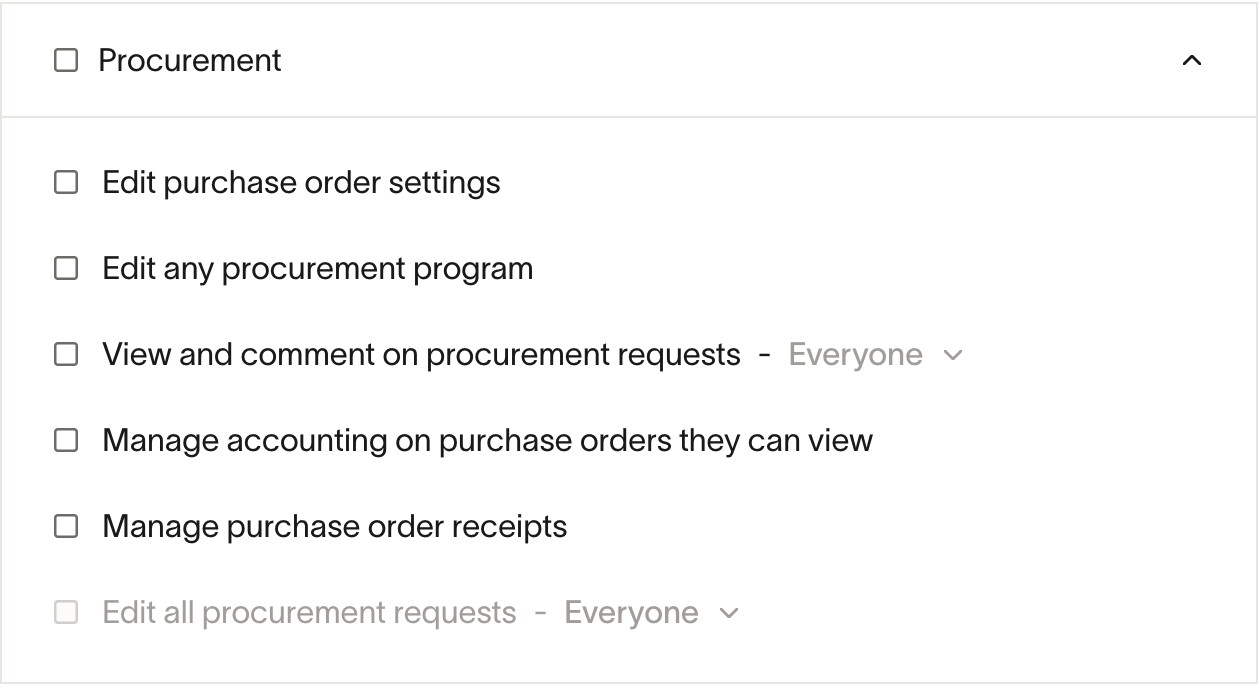
Edit purchase order settings
What it does: Allows users to configure system-wide purchase order settings.
Scope: They will be able to configure settings for all Purchase Orders, or none at all.
Users cannot:
- Edit individual purchase orders (different permission required)
- Manage procurement programs (different permission required)
- Configure approval policies (different permission required)
Typical use case: Operations managers or system administrators who set up how procurement works at your company.
Edit any procurement program
What it does: Allows users to create and manage procurement programs.
Scope: They will be able to edit all Procurement Programs, or none at all.
Users can:
- Create, edit, and delete procurement programs
- Configure program settings:
- Program name and description
- Approval policies for requests
- Who can submit requests (by department, location, role)
- SLA settings (response time targets)
- Manage custom forms for procurement requests
- View all programs
Users cannot:
- Edit individual purchase orders
- Edit non-procurement programs
- Configure global procurement settings
- Manage approval policies for other products (Spend Limits, Bill Pay)
Typical use case: Procurement managers or program administrators who set up different types of procurement programs (office supplies, software, equipment, etc.).
View and comment on procurement requests
What it does: Allows users to see procurement requests and purchase orders in your organization.
Scope options:
- Everyone : View all procurement requests across the entire company
- Team members : View procurement requests owned by anyone in your reporting chain (both direct reports and their reports)
Users can:
- View request details (amounts, line items, vendors, status)
- See purchase orders associated with these requests
- Read comments and view attachments
- Post comments on requests
- View approval history
Users cannot:
- Edit or modify requests
- Change accounting information
- Manage receipts
Manage accounting on purchase orders they can view
What it does: Allows users to manage accounting information on purchase orders they can view.
Scope: They will be able to edit accounting on all Purchase Orders that they can see, or none at all.
- Note: This is a “view-based” permission - users can manage accounting on any PO they can see, even if they can’t edit the PO itself.
Users can:
- Update accounting codes and categories
- Sync purchase orders to your accounting system (QuickBooks, NetSuite, Sage Intacct, Xero, etc.)
Users cannot:
- Edit vendor, amounts, or line items
- Manage receipts
- Change non-accounting fields
Typical use case: Accounting team members who need to assign GL codes and cost centers to purchase orders.
Manage purchase order receipts
What it does: Allows users to record when goods or services are received against purchase orders.
Scope: They will be able to receive against all Purchase Orders they can see, or none at all.
- Note: This is a “view-based” permission - users can manage receipts on any PO they can see, even if they can’t edit the PO itself.
Users can:
- Create and manage item receipts
Users cannot:
- Edit PO terms (vendor, amounts, dates)
- Manage accounting codes
- Approve or reject requests
Typical use case: Warehouse staff or receiving clerks who need to record when items arrive, without having access to edit purchase order details.
Edit all procurement requests
What it does: Allows users to edit procurement requests at various stages of the approval process.
Scope options:
- Everyone : Edit all procurement requests in the company
- Team members : Edit procurement requests owned by direct reports only
For pending (submitted) requests
A pending procurement request can be edited by the requestor/creator, owner, or coordinator; anyone who has participated in its approval chain; the direct manager of its owner or coordinator when granted team-level procurement management permission; and users with company-wide procurement management permission, including Business Owners, Admins, Finance Admins, and AP Clerks. Custom Roles can also be granted these abilities.
For approved purchase orders
Business Owners, Admins, and Finance Admins can edit all fields of an approved purchase order directly. Custom Roles can also be granted these abilities.
Accounting/Bookkeeper and AP Clerk roles, and Custom Roles granted these abilities, can edit secondary details without a change order. See Editing purchase orders for the primary and secondary field lists, and Purchase orders created outside Ramp for source-specific editing restrictions.
All other users must submit a change order for material changes such as amounts or line items. Archived purchase orders cannot be edited.
Rejected requests
- Can edit and resubmit through the approval workflow