Upload Bank Feed (OFX) to ERP systems
Exportable bank feed helps you reconcile Ramp Banking activity on the bank side of your accounting systems. You can now export a standard OFX file of all transactions to/from your Ramp Checking Account(s) and upload it to your ERP system. Go to Accounting > Banking, click the download icon to download the bank feed.
This article provides instructions and resources on how to upload an OFX file into the following ERP systems.
QuickBooks Online
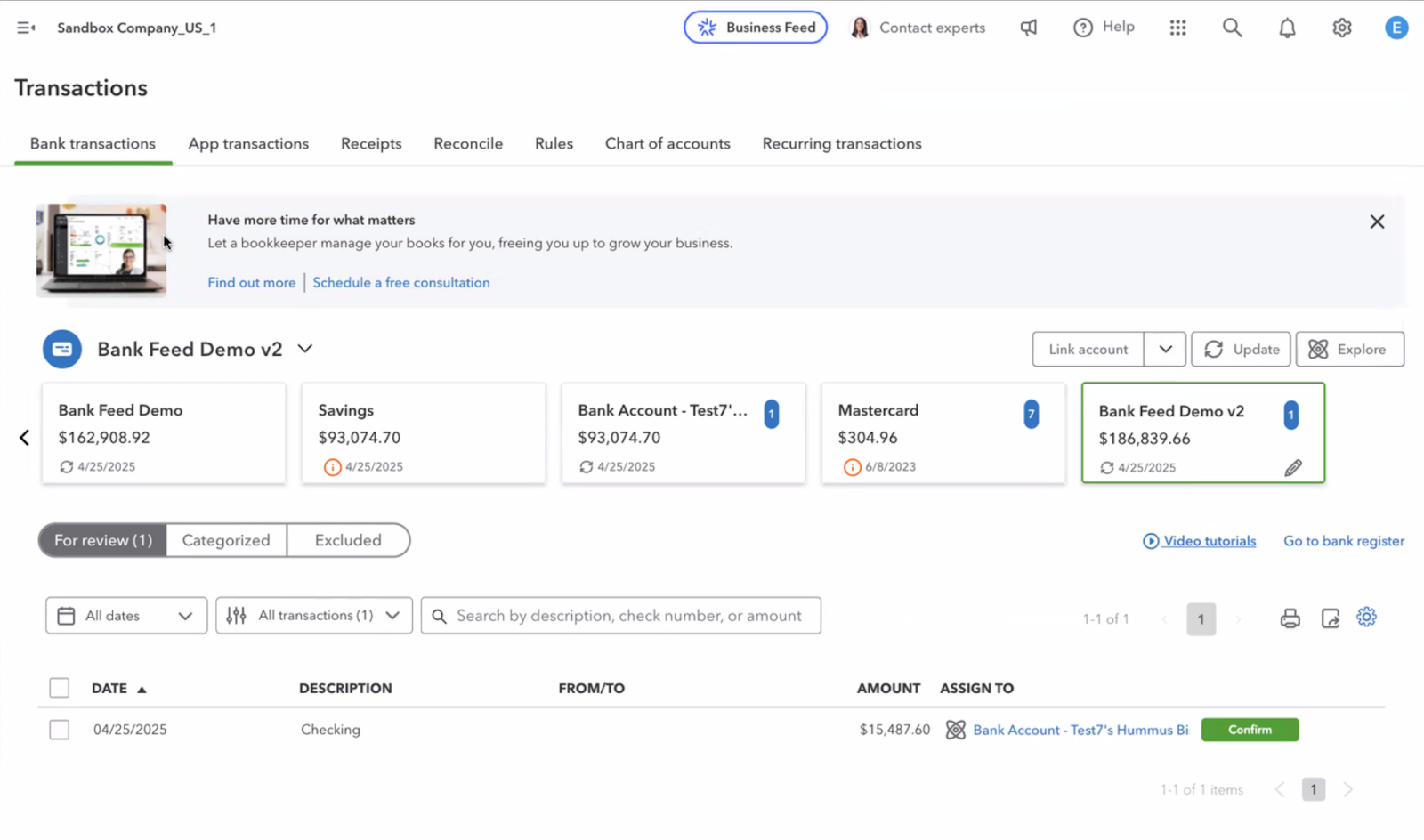
- Go to Transactions > Bank transactions
- Click the dropdown icon next to "Link account"
- Upload the OFX file you exported from Ramp
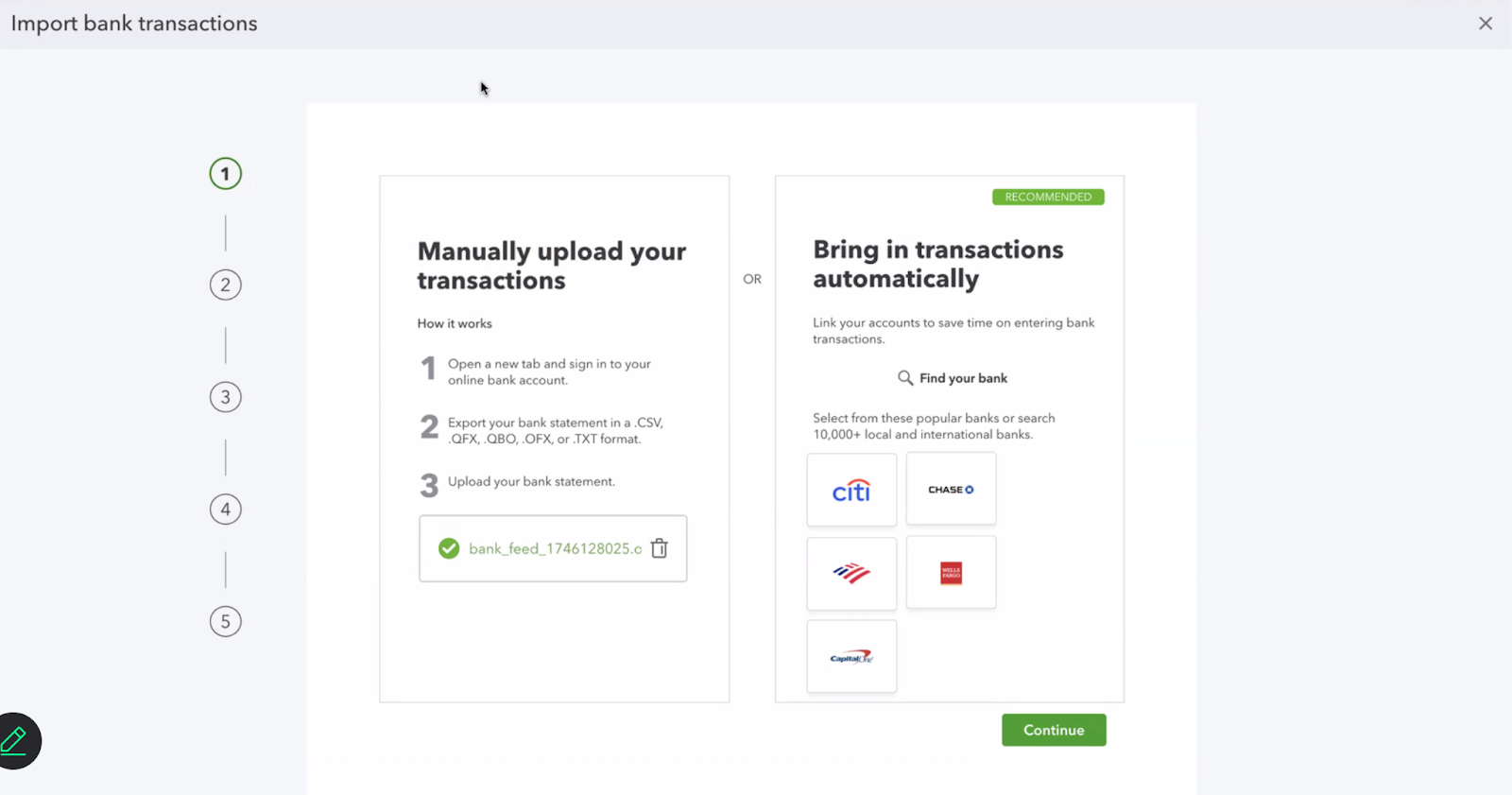
- For better matching, select the account already selected for Ramp Checking Account under Sync settings in Ramp
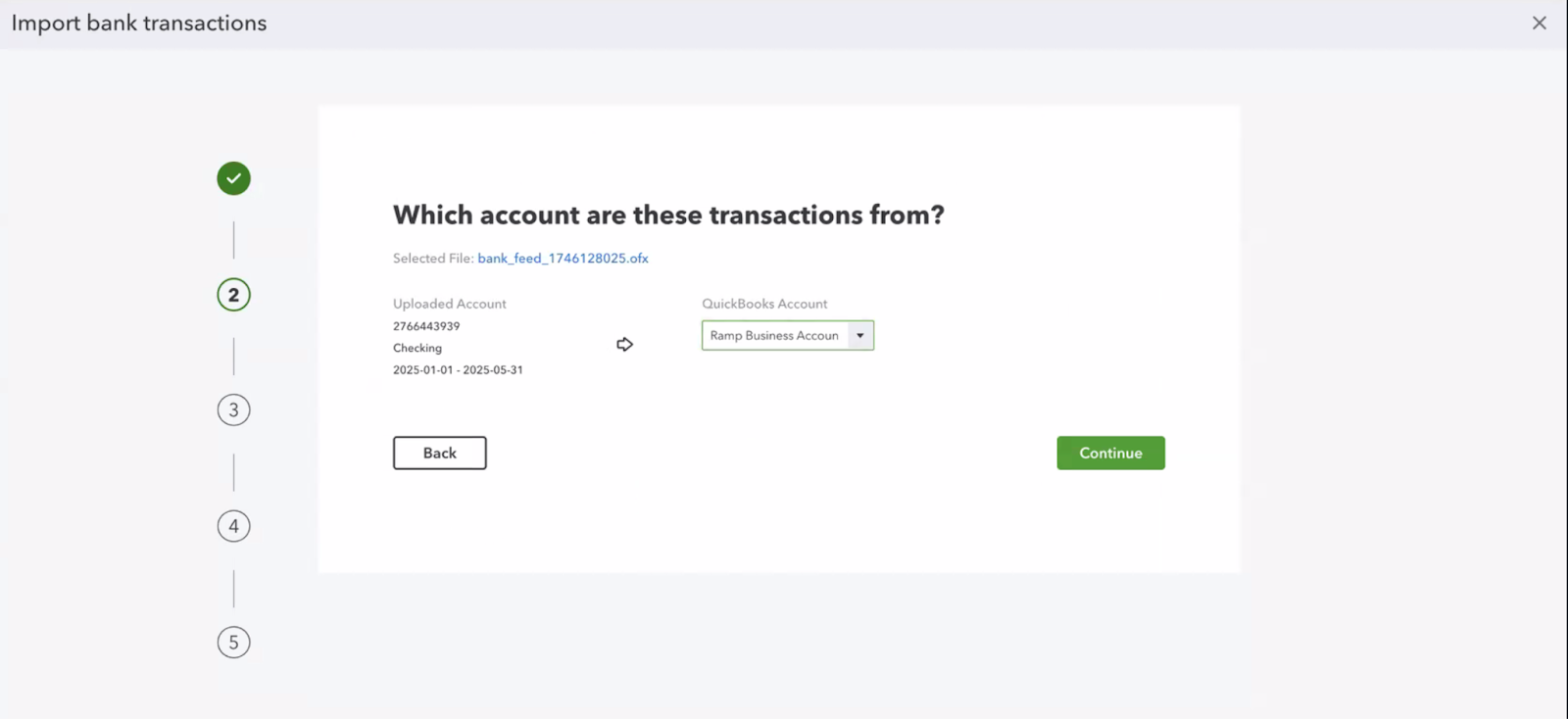
- Click "Continue"
- You can now go through the reconciliation process in QuickBooks Online.
For more details, see Quickbook’s documentation here. Note: Direct bank feed connection is now supported, see Ramp Checking Account Bank Feeds: QuickBooks Online and QuickBooks Desktop Set Up for more details.
NetSuite
-
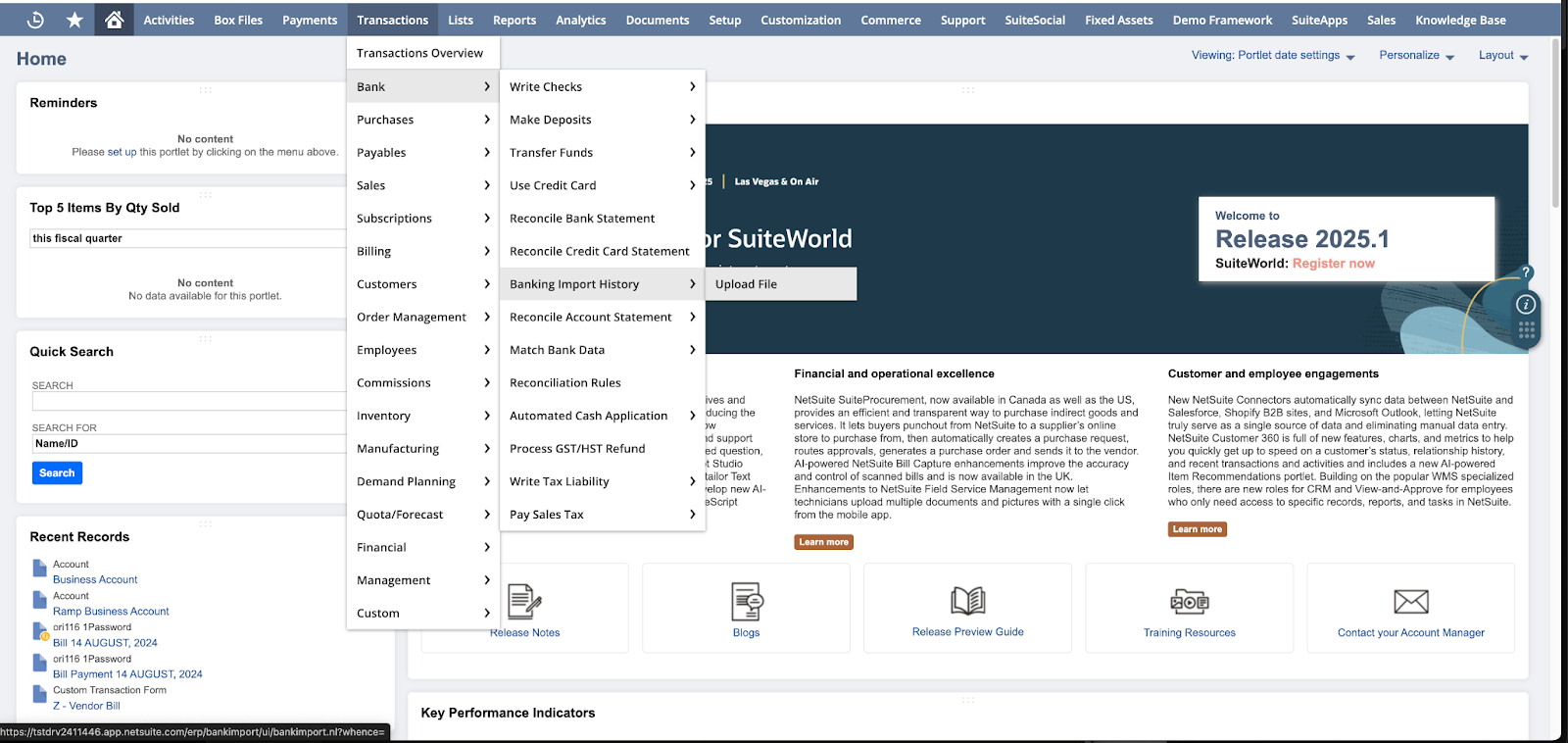
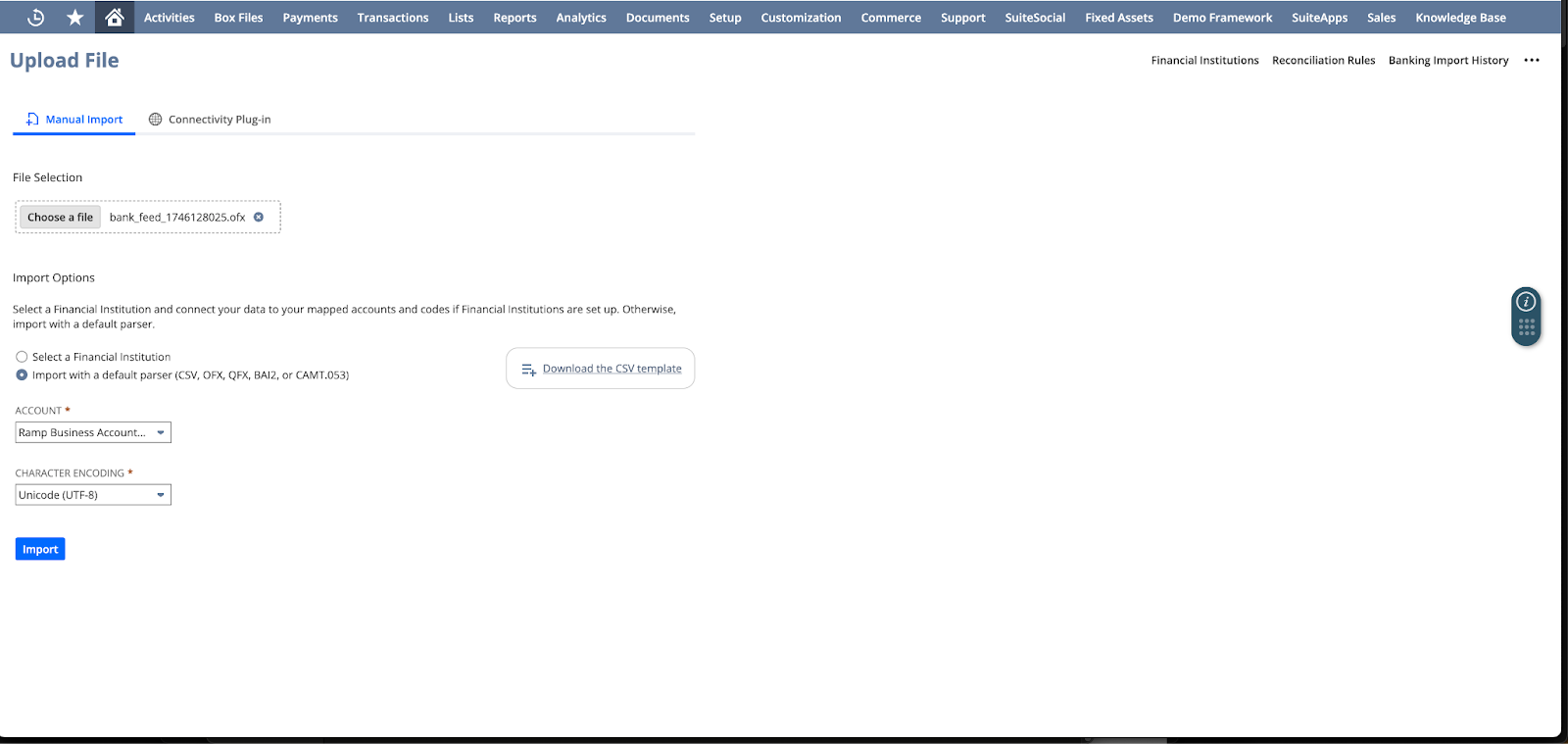
Go to the import page from Transactions > Bank > Banking Import History > Upload File
-
Upload the OFX file exported from Ramp and select your Ramp Checking Account, then click Import
-
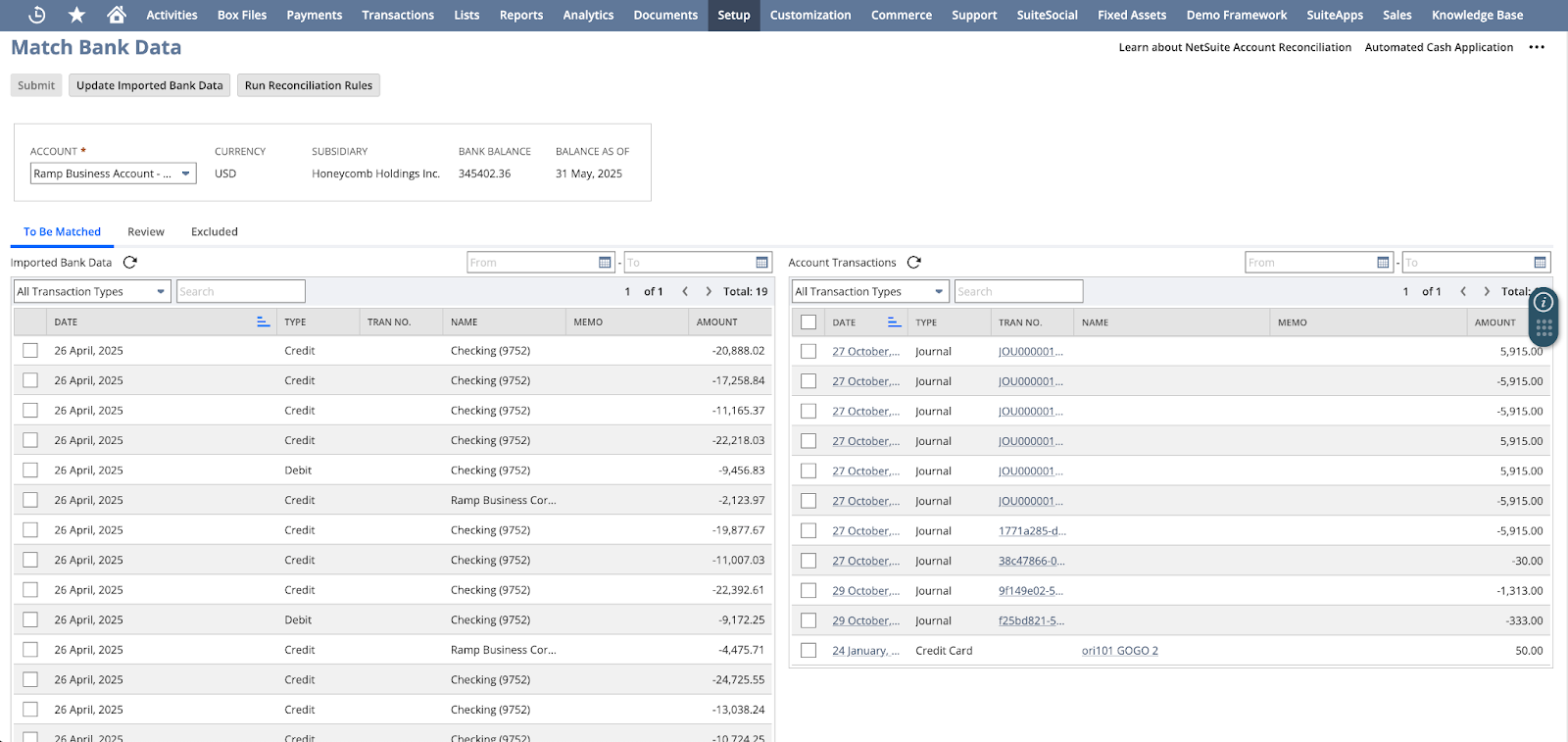
You can now see the Ramp bank transactions in the Match Bank Data page and begin the reconciliation process
See NetSuite’s documentation here.
Xero
-
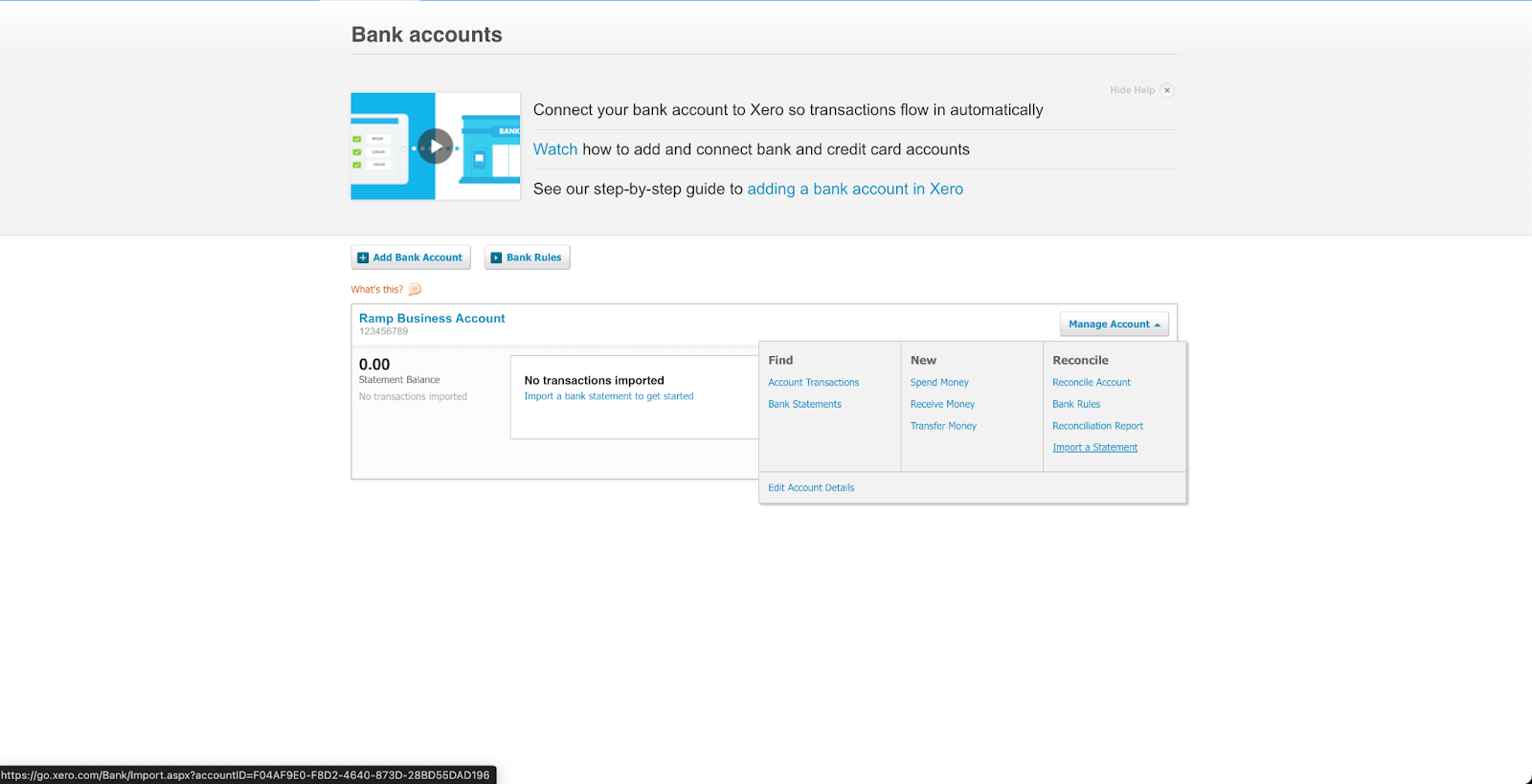
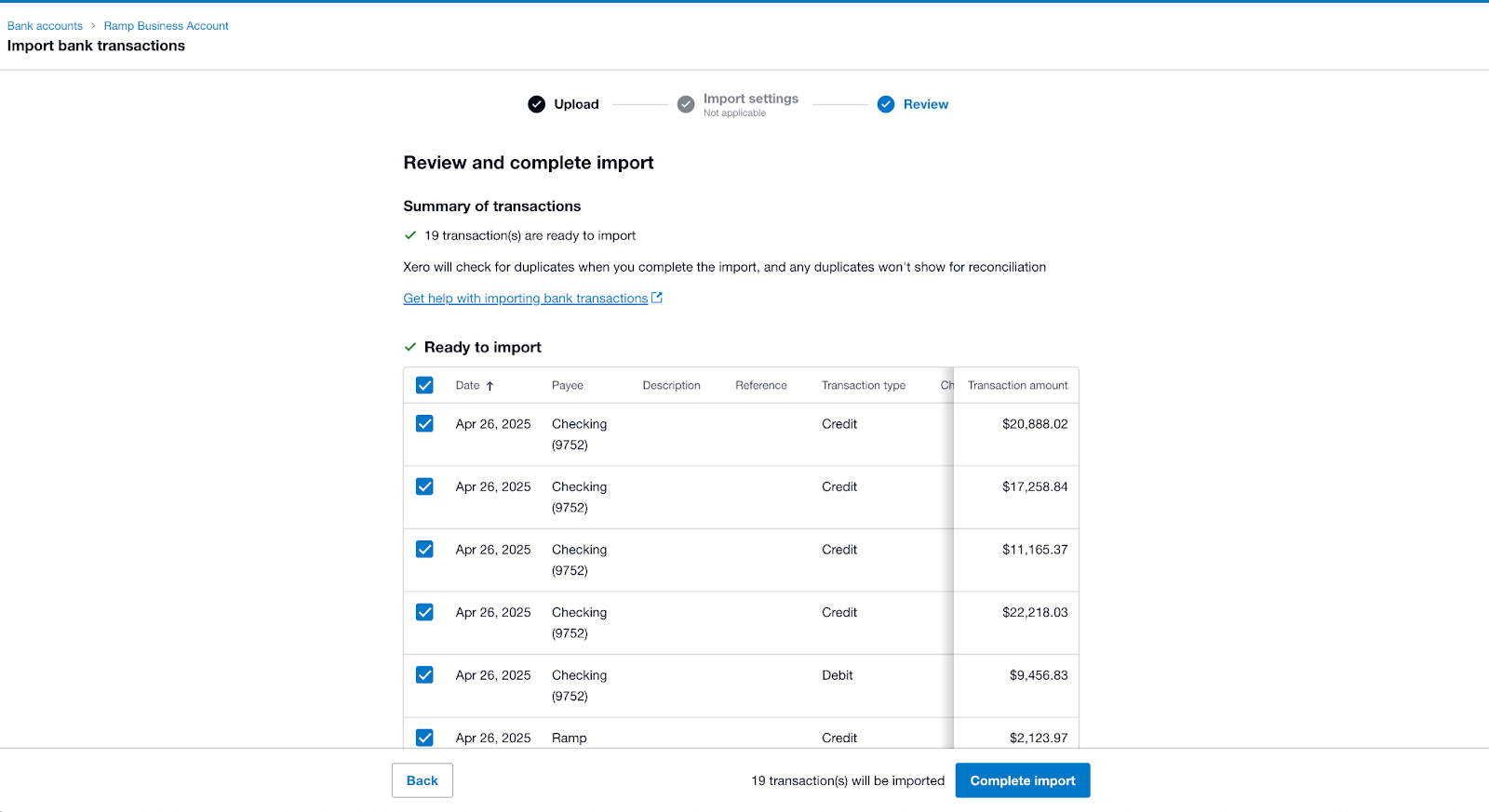
Select the Ramp Checking Account you'd like to import bank feed data to (Accounting > Bank accounts > Import a Statement).
-
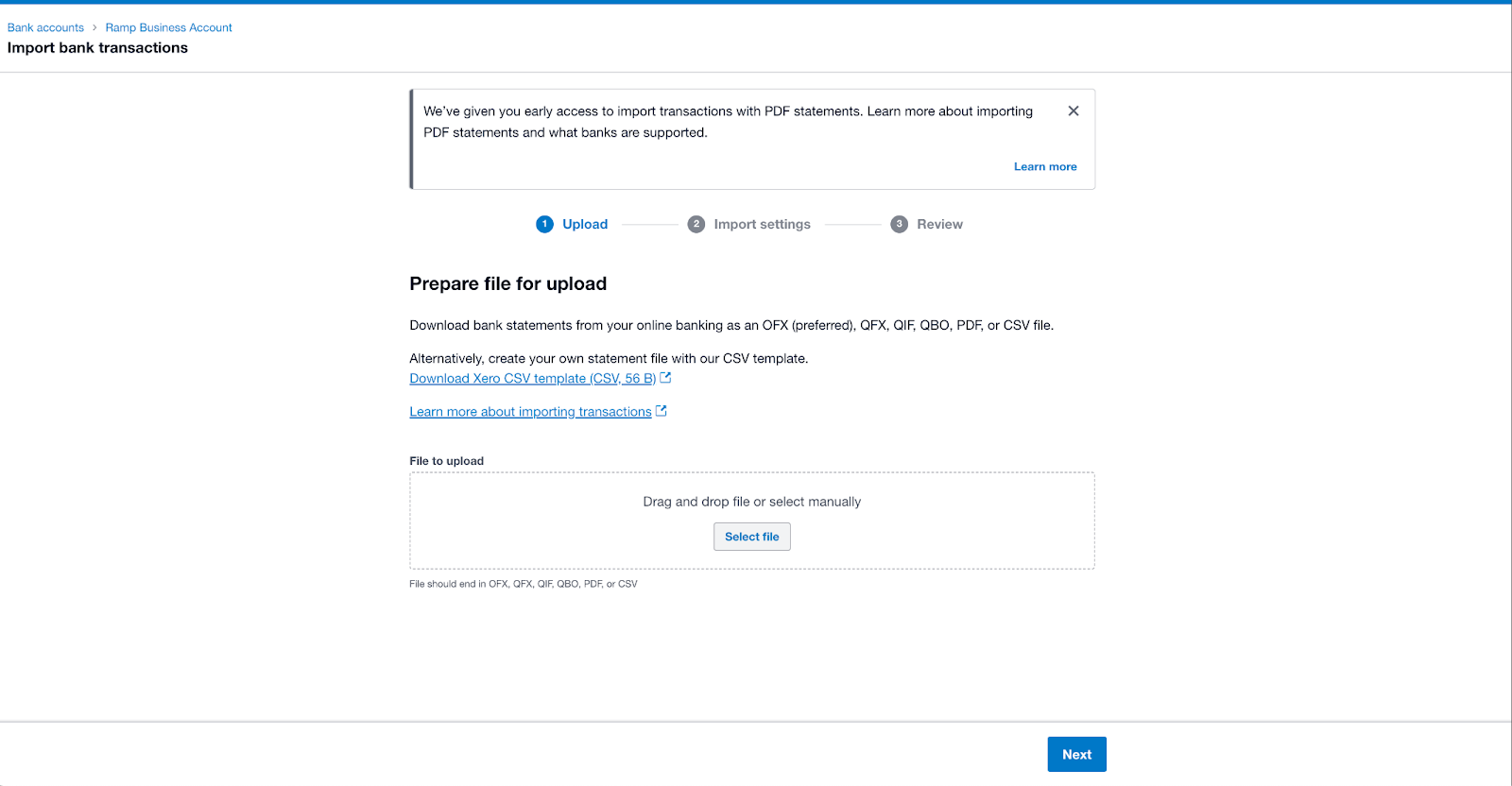
Upload the OFX file exported from Ramp
-
Select the transactions that you want to import
-
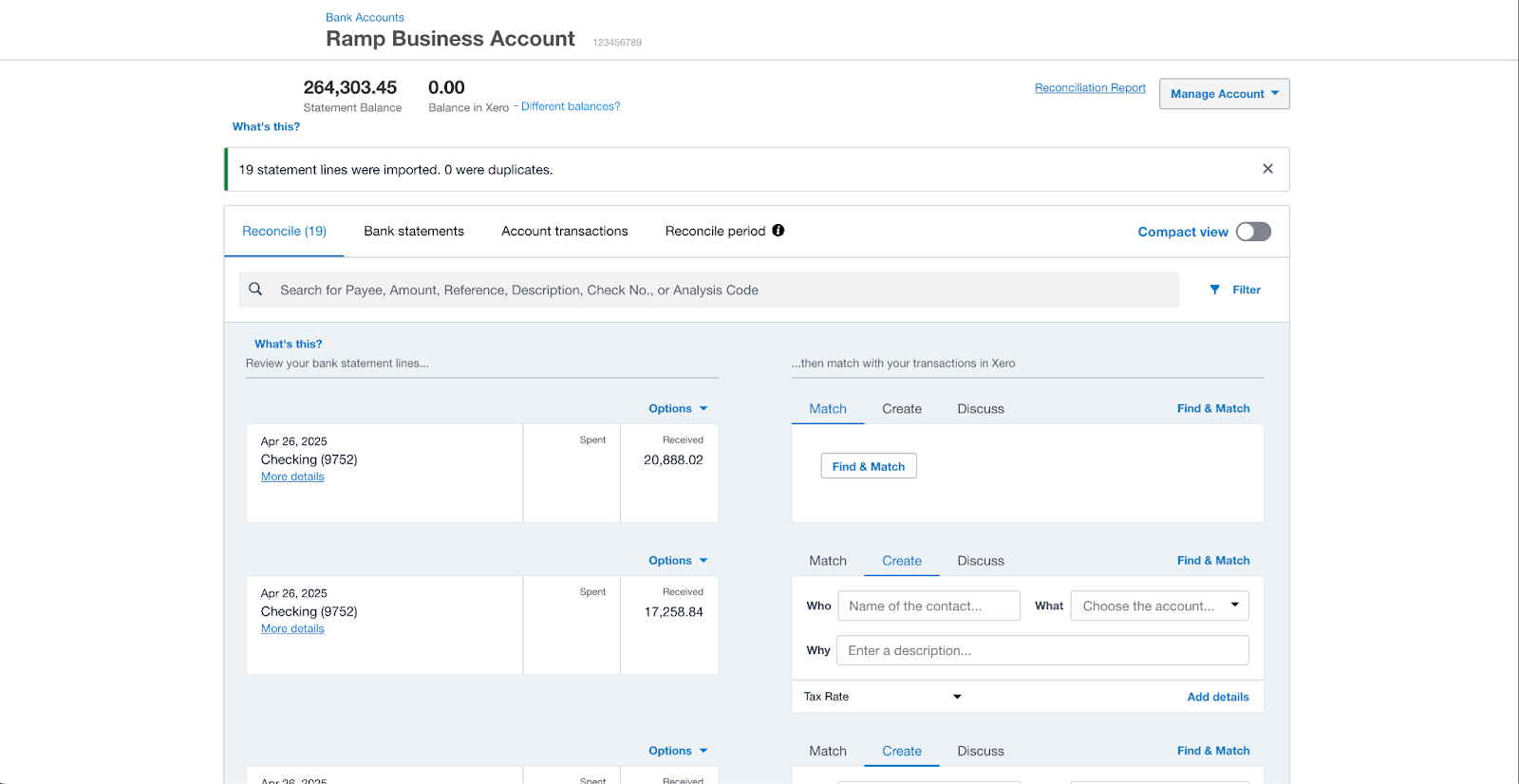
Go through the reconciliation process in Xero
See Xero’s documentation here.
Sage
See Sage’s documentation here. Direct bank feeds is now available, see Ramp Checking Account Bank Feeds: Sage Intacct Set Up.