Bulk update/edit vendors
Overview
Bulk edit and update vendors in Ramp via a provided template to manage vendors more efficiently.
How it works
Go to vendors settings
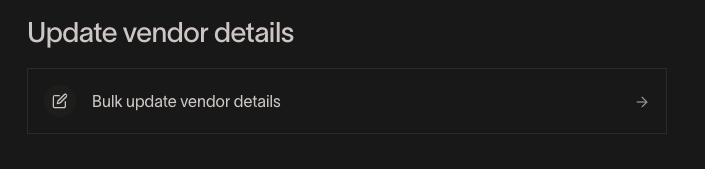
Vendors > Settings > Bulk update vendor details
Download template
Download the template you'll need to use to make bulk edits. The downloaded template contains all your active Bill Pay vendors.
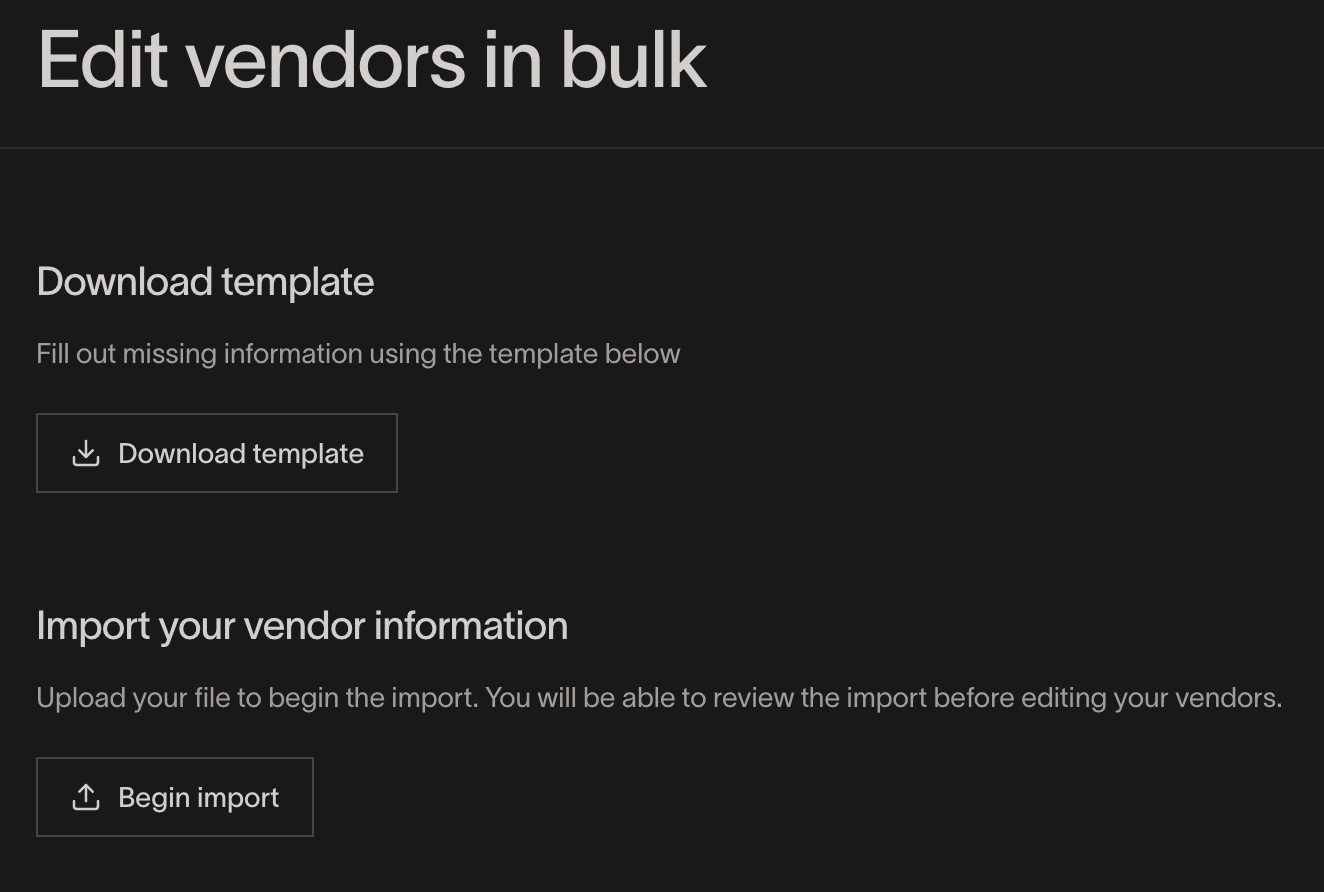
Edit vendors
You can edit all fields on the download besides the Vendor ID and name. Ensure the text and capitalization match exactly what appears in your ERP.
Make updates to any fields then save your file.
***Note:***To bulk update custom fields, you must go to Vendor Settings > Setup & approvals > Import custom field values.
Import vendor file
Begin the import by uploading the edited file (which must be in CSV or Excel format). Once you do this you'll be brought to a validation screen where you can make any additional edits or fix any issues.
If there is a field that isn't formatted properly, it will be highlighted in red and shown on the right panel. You can either fix the errors or hit "Delete all rows with errors" which will remove them from the import.
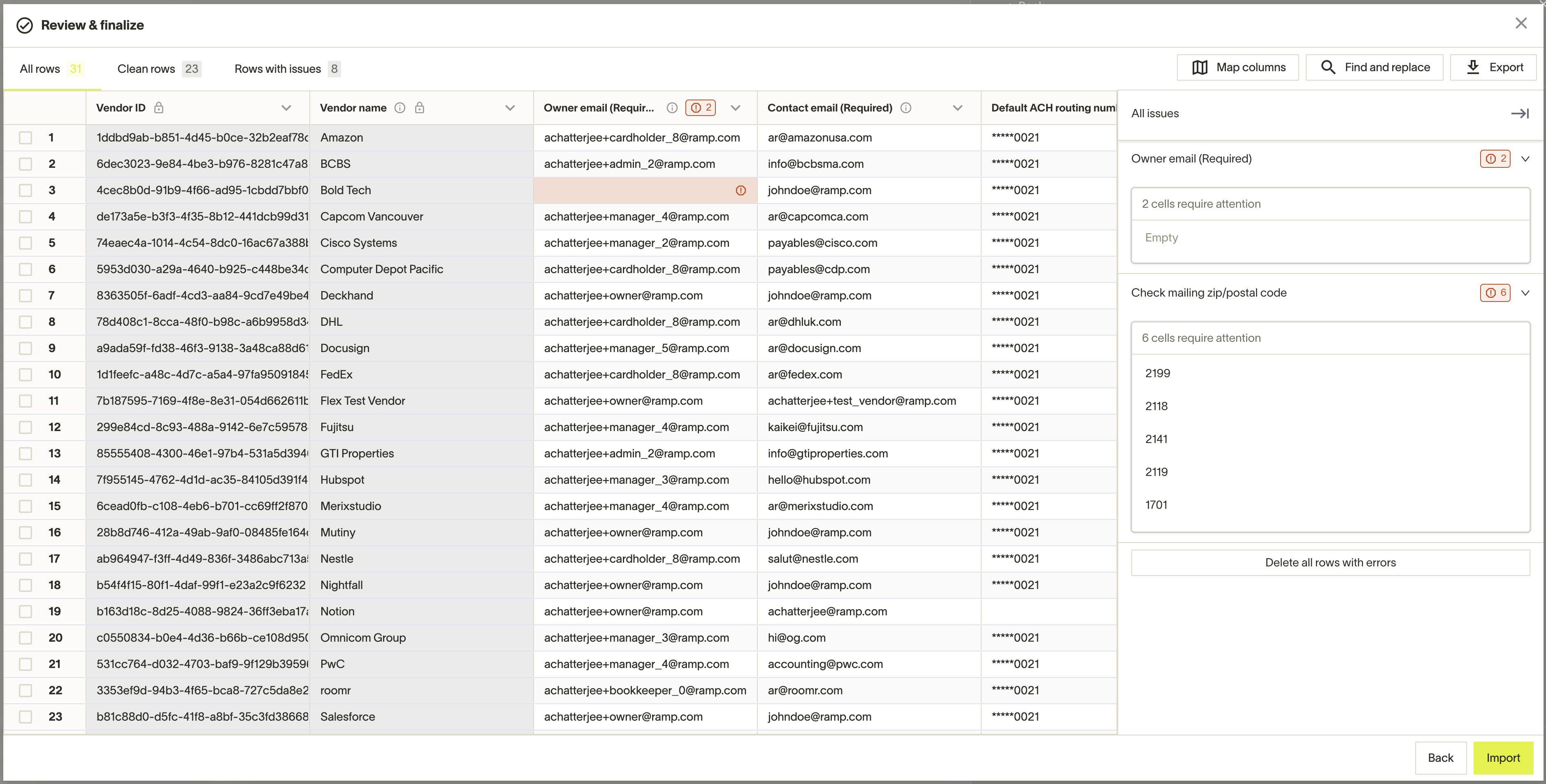
If your ERP is connected, the bulk CSV import will try to map the vendor by name to the ERP and populate the Accounting Vendor field.
Select data to request
You can choose to request payment and tax details in bulk for vendors missing this information. See more on bulk requests here.
- Requests for tax details are sent if any tax field is missing for a vendor.
- Requests for payment details are only sent if all payment fields (ACH, Check address, SWIFT/IBAN) are missing. Vendors with existing payment details are skipped by design to avoid spamming vendors.
Finish import
Once you hit "Import", you'll see the total number of Vendors being processed from the file. Hit "Import" again to finish the import.
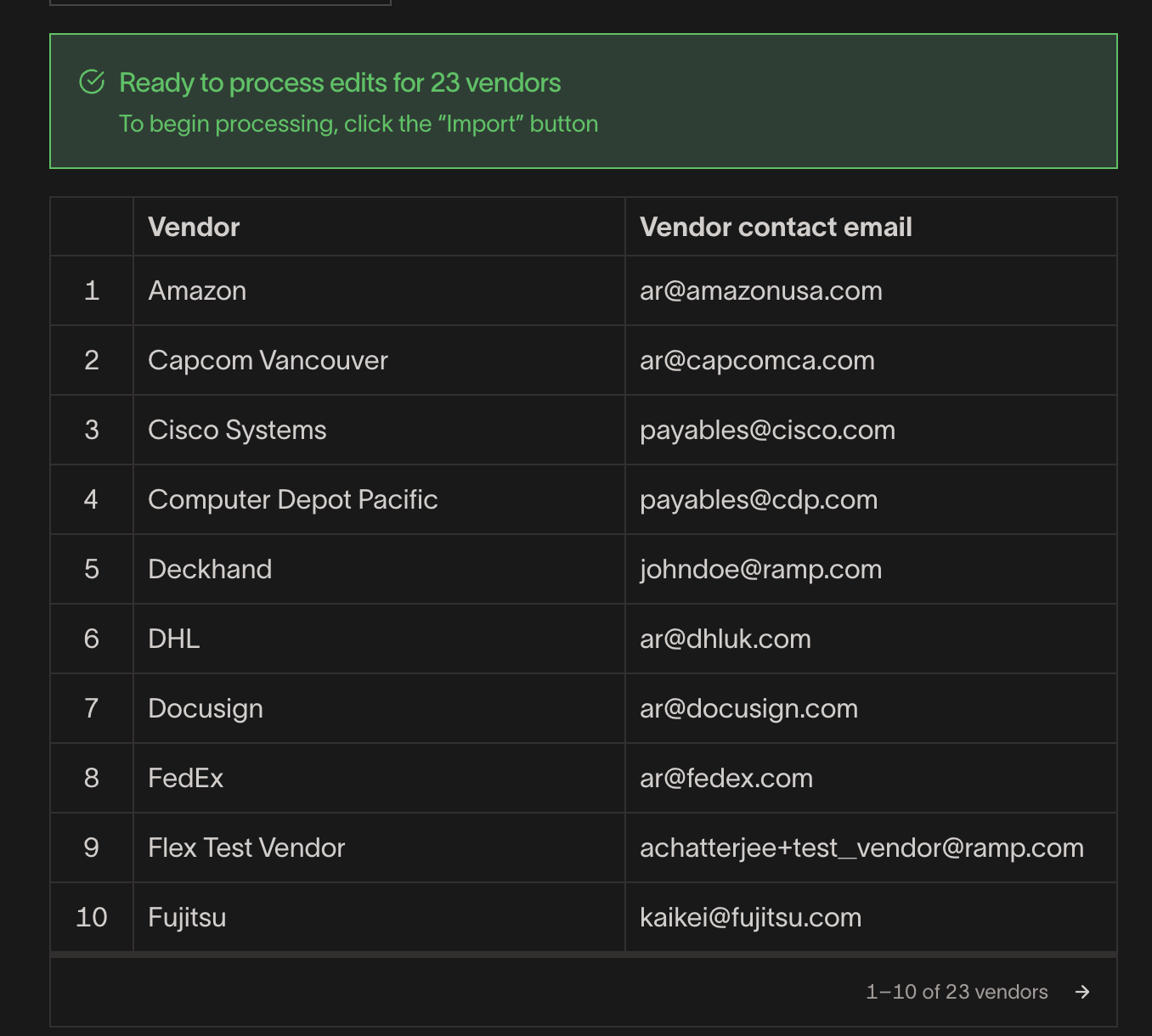
You will receive a code to your email to verify it's you, after which the import will complete. You will see a success message showing the total number of vendors that had edits made to them.
Vendor updates complete
If your company doesn't have Vendor controls on, the change will immediately go through. Ifvendor controls are on for bulk updates, the change will require approval.
If edits to a vendor are pending review, no one other than the vendor owner can make edits again. If they do make edits, the updated edits will be pending review.