Request payment, tax, and other details from vendors
Overview
Ramp can collect vendor payment and tax details, and documents on your behalf, saving you the time of emailing vendors and manually tracking responses. You can request details when creating a vendor, editing a vendor, while creating a bill, or in bulk.
Request details
From a new vendor
- Go to Vendors > New Vendor > enter the vendor's info
- In Payment details and Tax details , choose Request from the vendor or enter details manually
- Note - if the vendor you're adding is on the Vendor Network, you will see the option Use details from Vendor Network
- Click Continue to review the vendor details and see what's being requested > Save vendor
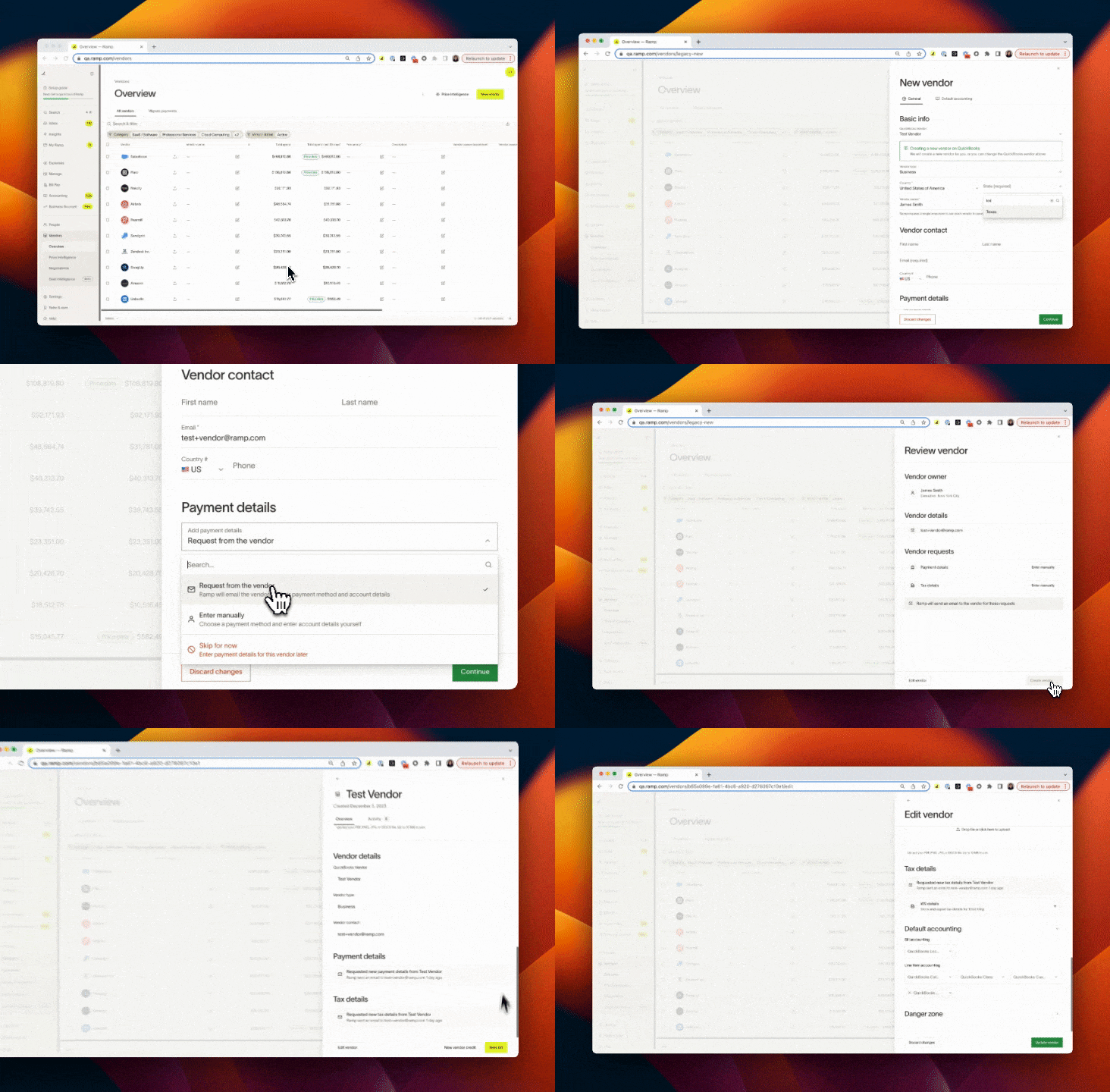
Video demonstrating new vendor creation and asking Ramp to request details from the vendor
Ramp will email from the vendor a secure link to submit their payment and/or tax details from [email protected]. For security reasons, internal employees will not be cc'd on the email. Vendors need to click Submit informationon to share their details, which will be passed to their vendor profile you created.
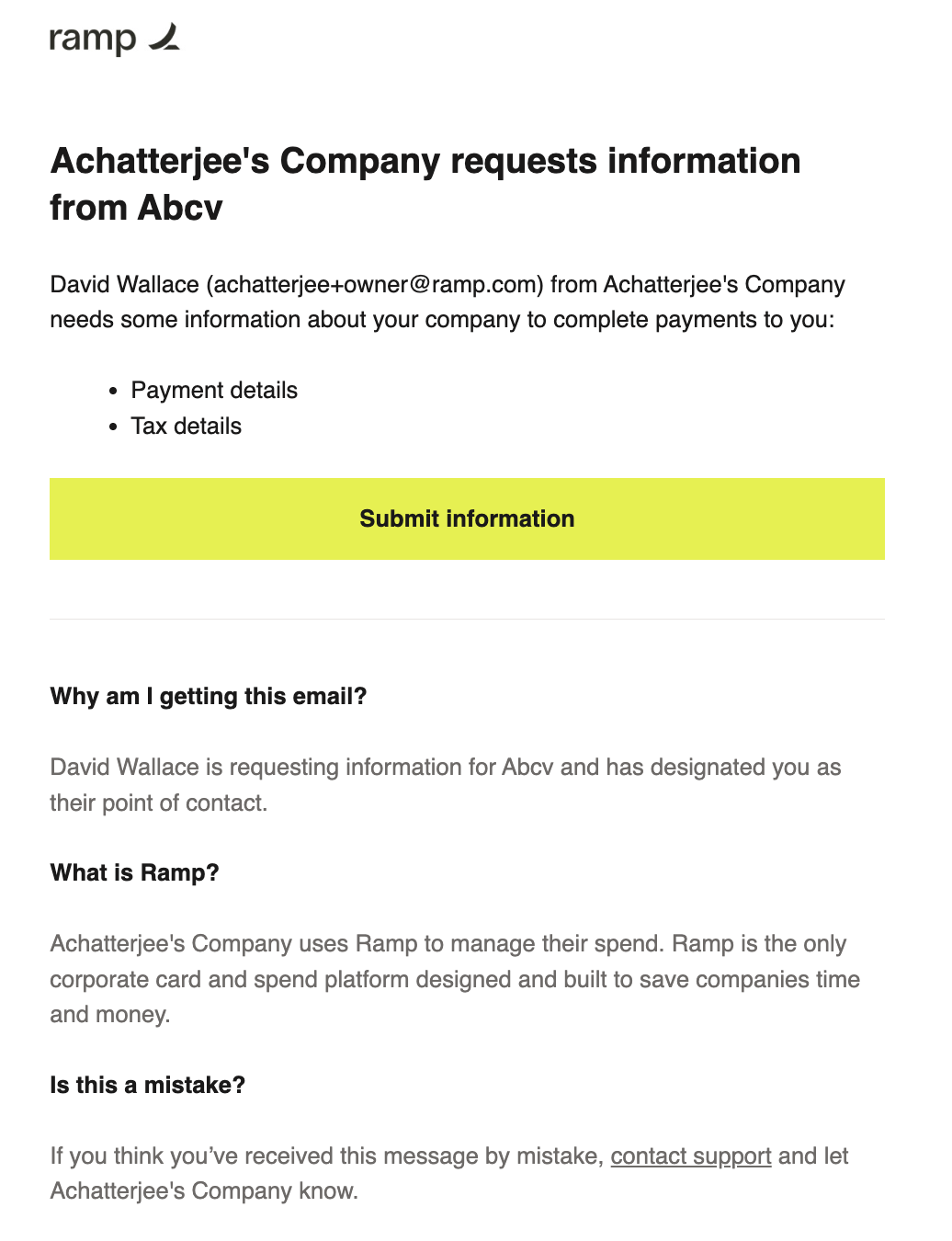
Vendors will receive this email to share their details (learn how to customize this email below)
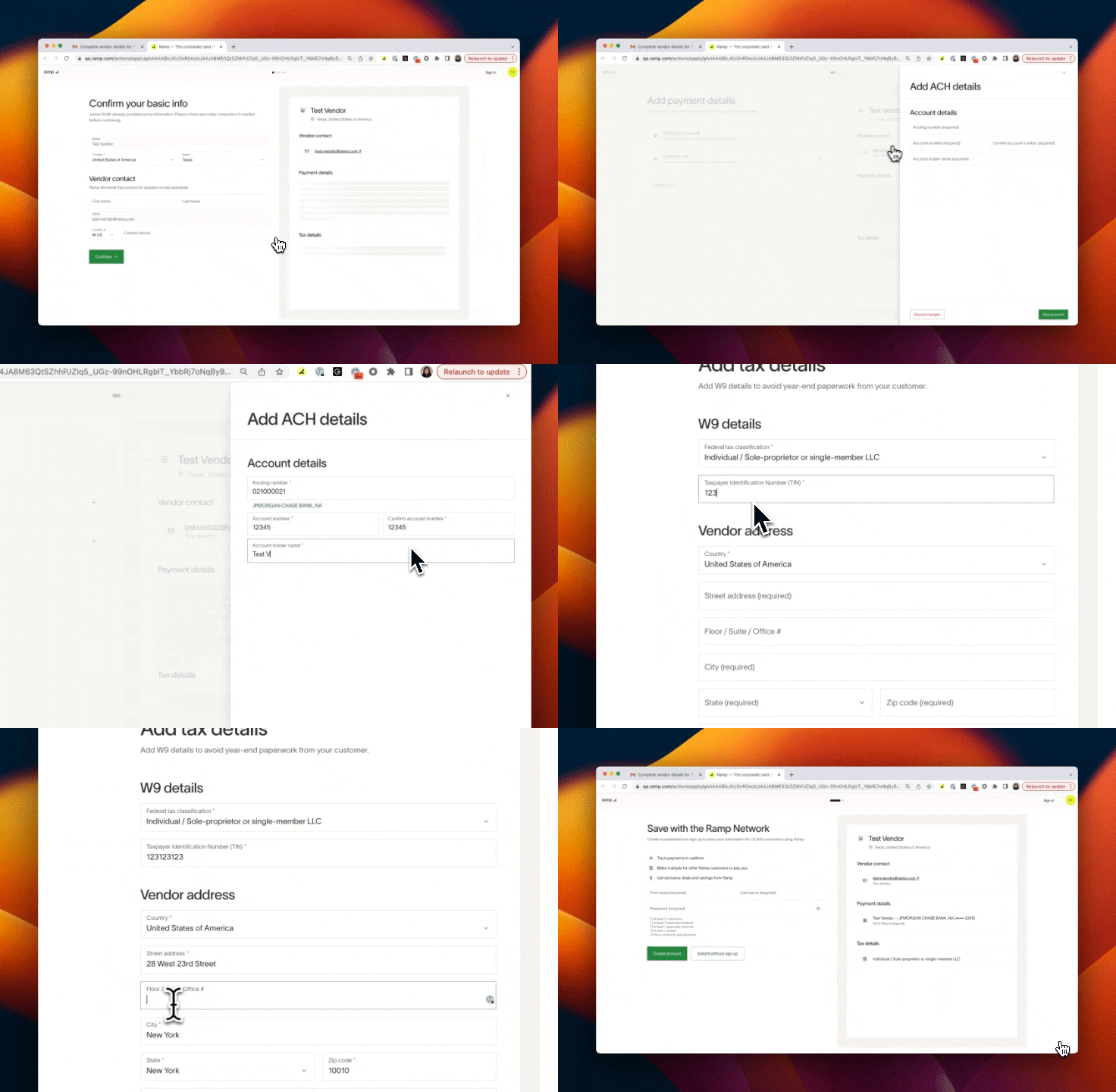
Video of vendor entering their ACH and tax details via a provided email link
Vendors will also have the option to create their own vendor account on Ramp to track their Ramp payments and store their payment details for future use. Learn more about the Ramp Vendor Portal here.
From an existing vendor
You always have the option to request or re-request from existing vendors within your Vendors tab.
- Go to Vendors > Select vendor > Edit vendor > Payment & tax details > Request information. You can request:
- Payment and/or tax details
- Documents (you can add a custom document if there's one not on the list)
- Vendor forms (go to Vendor settings > Vendor onboarding to create a custom form)
- The vendor profile will be updated once a vendor has submitted the information
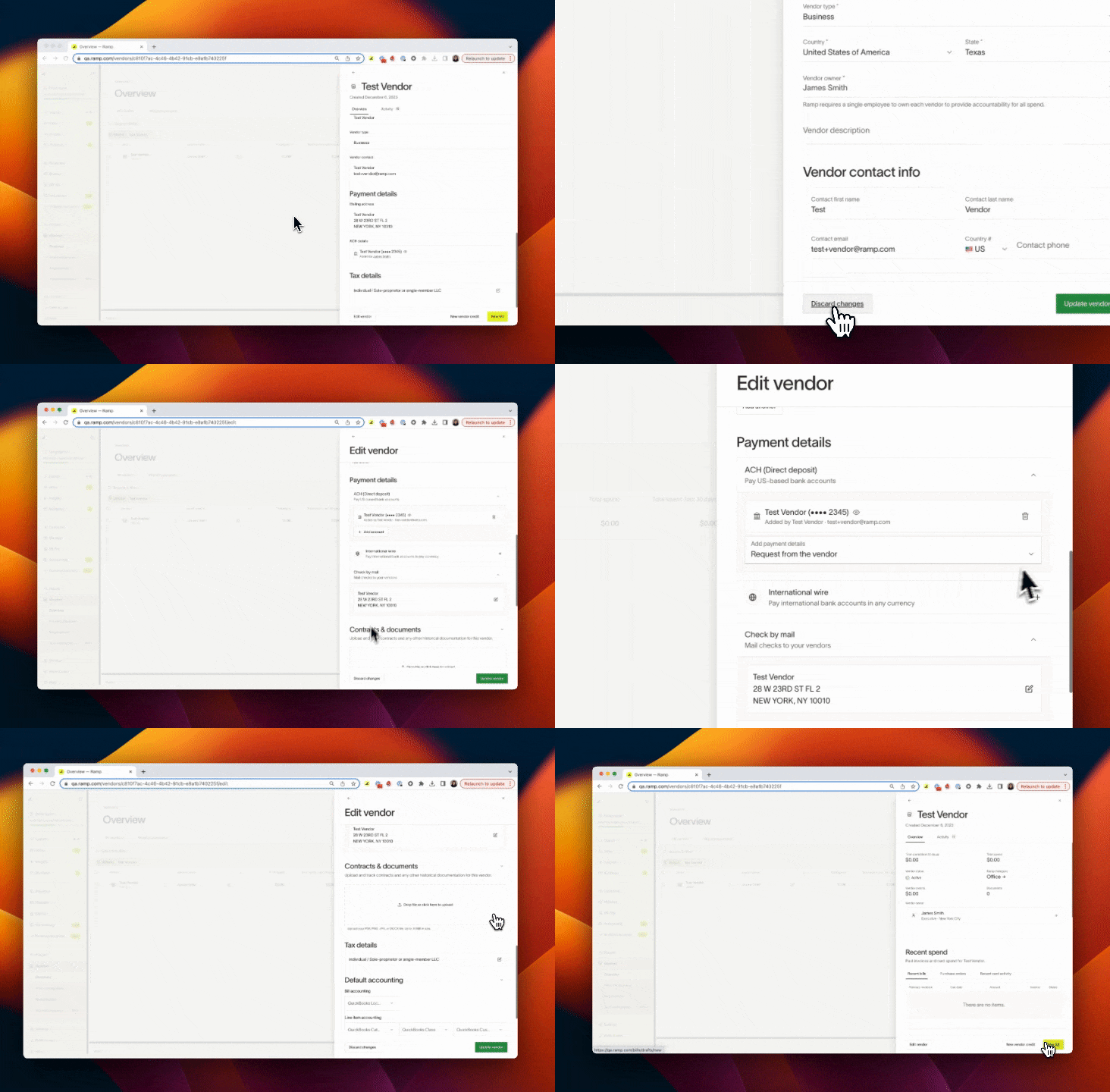
Video of user re-requesting ACH details from their vendor
From a bill
- New vendor: You'll be prompted to create the vendor and can request details during that process. The payment details will default to Request from vendor .
- Existing vendor: In Send payments to select Request from vendor and choose ACH, Check, or International Wire.
Note: In a payment details request from a bill, the vendor's payment details will be locked to whatever currency you request. On a general payment details request, vendors can select any currency.
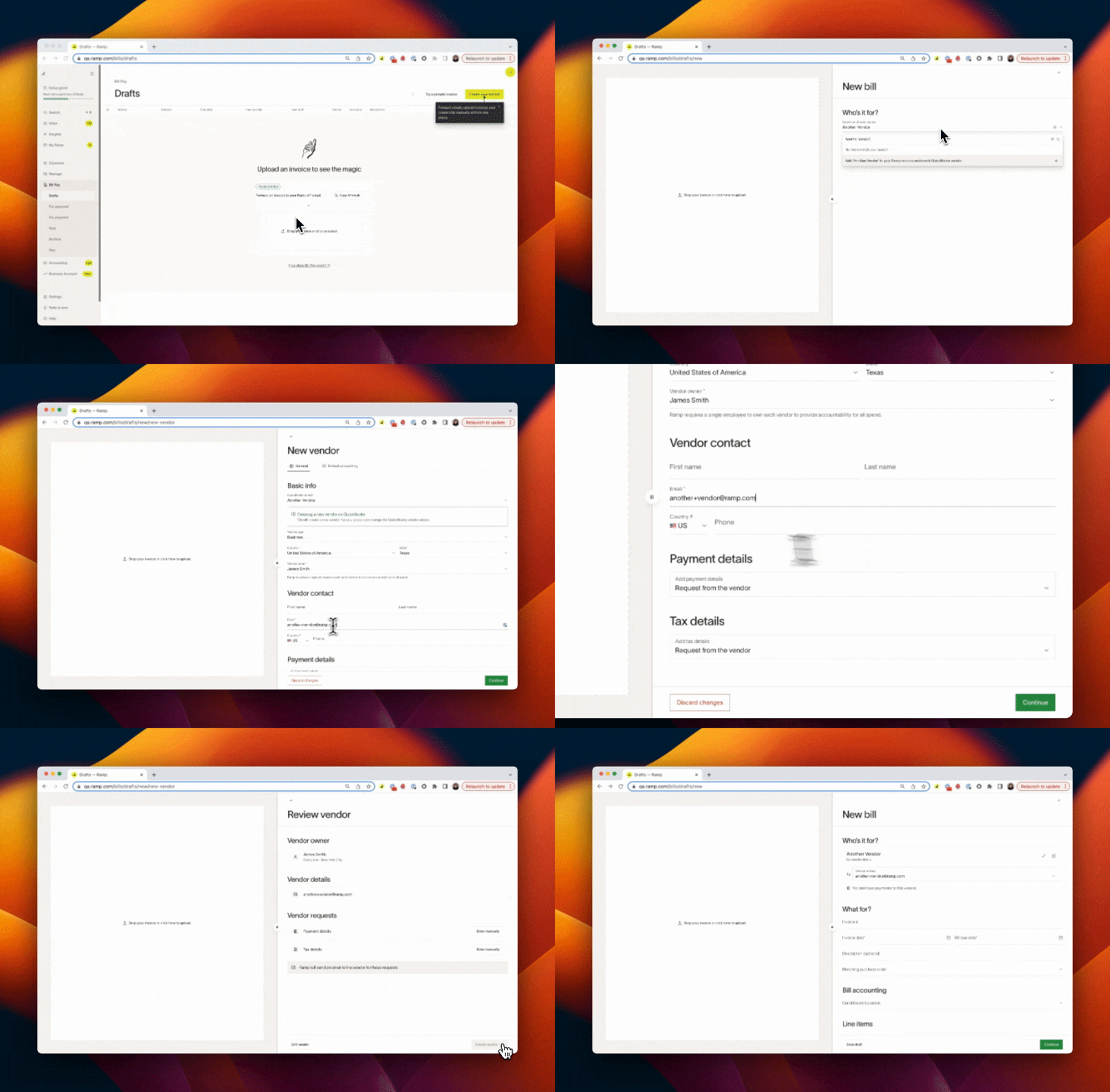
Video of the user requesting vendor details while creating a bill for a new vendor
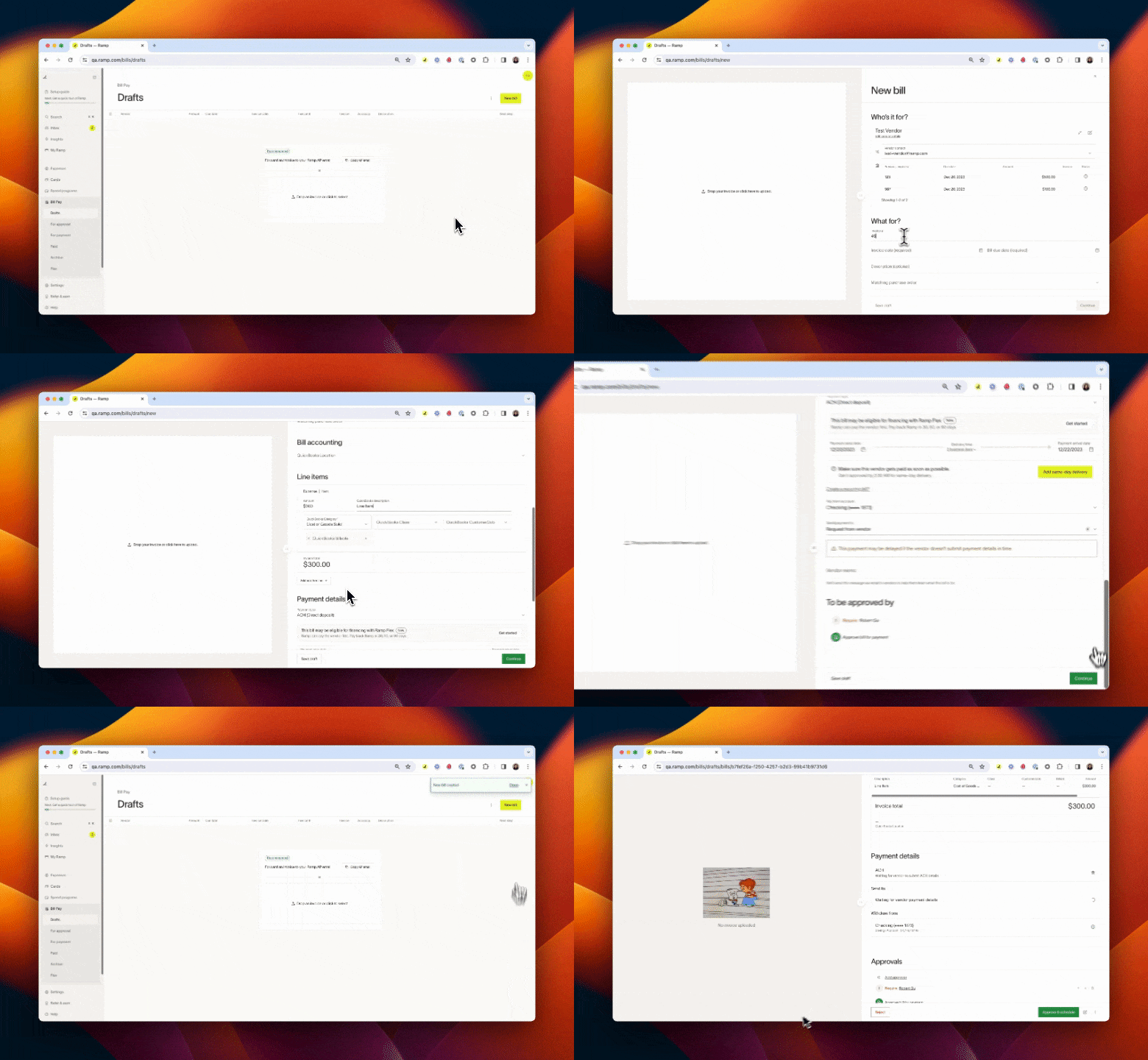
Video of user requesting vendor payment details while creating a bill for an existing vendor
From multiple vendors
You can send vendor requests to multiple contacts by going to the Vendor Profile > Request Information (or Bulk request from vendor table) > Add an email > Select an existing secondary contact or add one.
The default vendor contact will receive an email with the request. If the other email(s) requested have a Vendor Portal account, they will also receive an email to fulfill the request. If the other email(s) don't have a Vendor Portal account, only the default vendor contact will receive an email with the request and can invite them to join their Vendor Portal account. This allows them to fill out the information request.
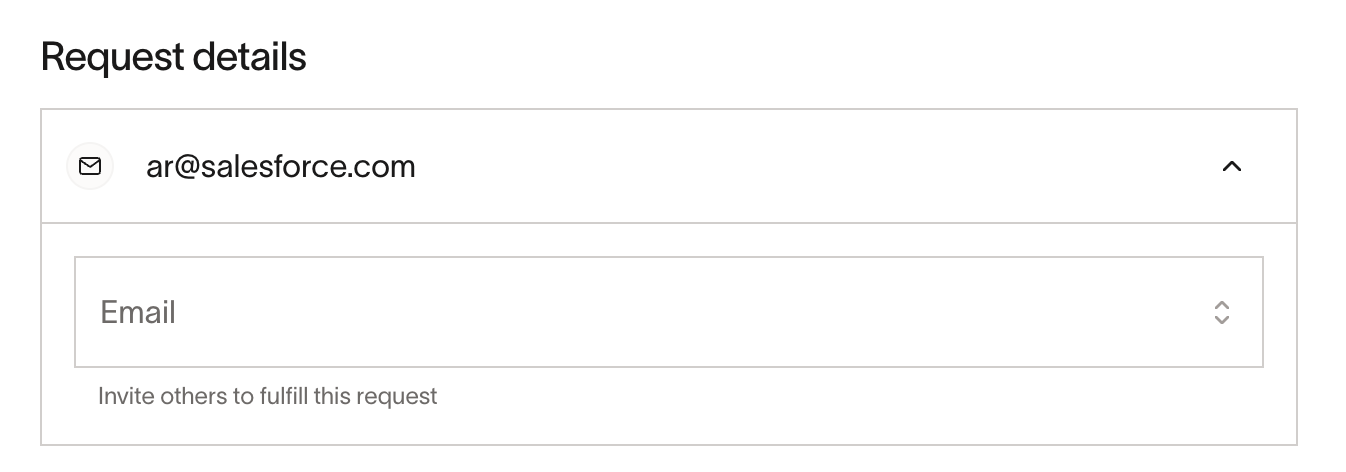
Bulk request details
You can bulk request vendor details from the Vendors table:
- Use the checkboxes to select the vendors you want to request information from (or select all) then click Request information at the bottom right of the table to see the request page
- Vendor contact email is a requirements to populate Vendors selected on the request page
- Select the details to request
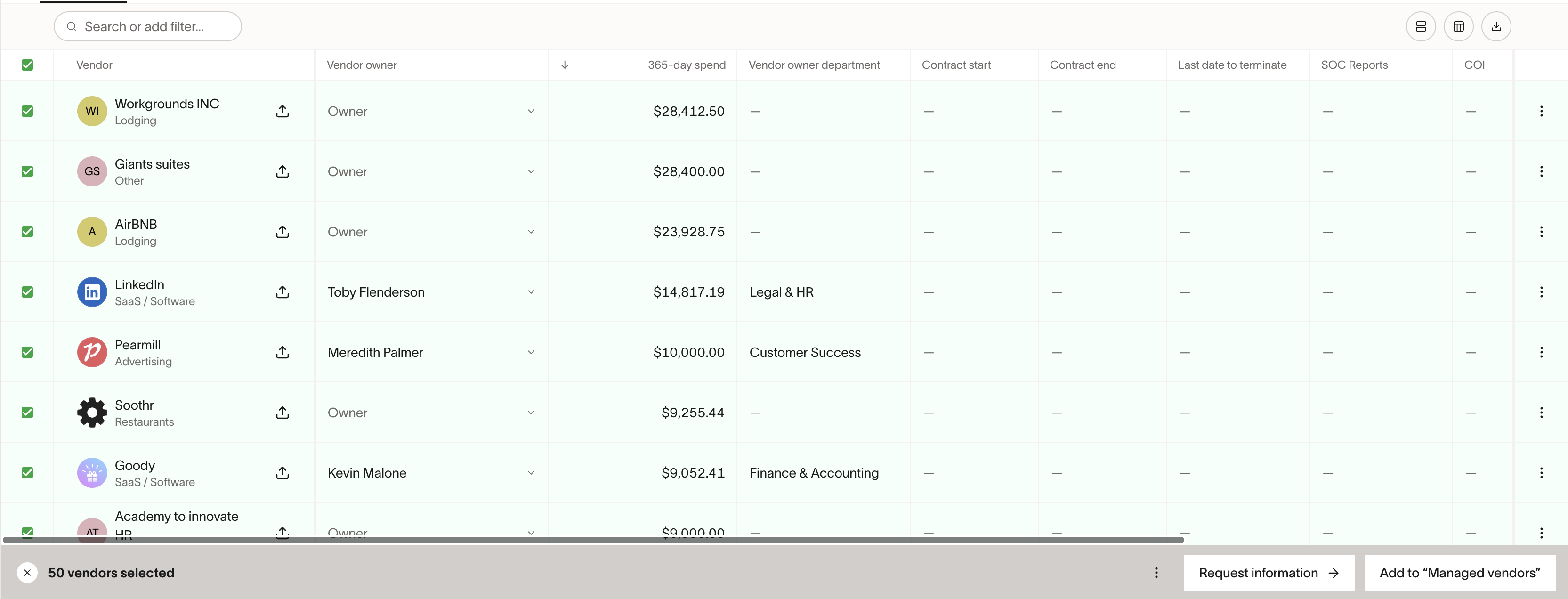
*Note -*you can request details even if there is an outstanding request through the bulk request flow, but not on individual requests.
Manage requests
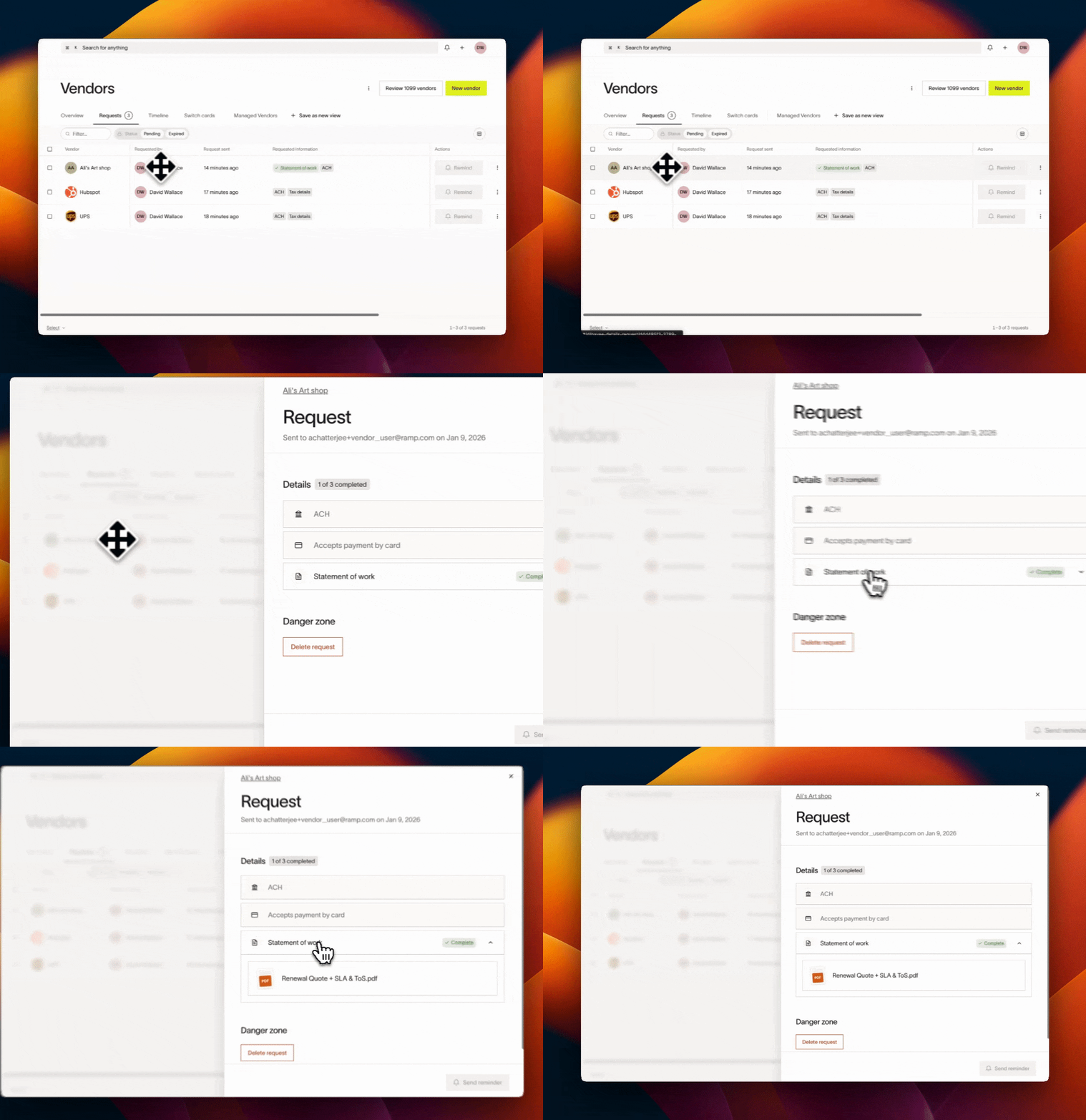
You can filter the Vendors table by 'Information request pending' and select specific items, and track all outstanding requests in the Requests view to have visibility into request statuses. The Requests view becomes available when there is at least one pending request, allowing you to:
- See details collected or missing in the 'Requested information' column
- Click on a vendor to see a breakdown of the requested details and view submitted information
- Delete requests in bulk or individually from the request or vendor profile. Once a request is canceled, the link the vendor receives to enter their details will they can't share details unless a new request is sent
- Send reminders in bulk or individually from the request or vendor profile. Reminders can be sent once per day
- Re-request details for expired requests
Override requests
Payment details
- Adding details on the vendor profile does not cancel requests tied to bills. Once the vendor fulfills the request, those payment details are added to both the bill and vendor profile in addition to anything you manually add.
- Adding details on a bill will cancel profile-level requests. If done, your vendor will hit an expired link and no longer be able to add their payment details.
- Note: Manually adding payment details for one bill will not automatically update all other bills and will not impact requests sent from other bills
Tax details
- Adding details manually cancels out any outstanding requests
- When requesting details from international vendors, please note that international vendors can only provide requests details by submitting a W8 form, and manual input is not supported
Customize request emails
- You can customize each request by adding a message to the request.
- You can also add your company logo to vendor request emails in Vendor Settings > Vendor Onboarding > Upload Company Logo. Make sure the image has a clear background and is square for it to look best. You can delete a logo at anytime after uploading.
- If your business is multi-entity, you can display a specific entity name on emails by toggling on Use entity name in vendor emails from Vendor settings
- Note: Doing so adds the entity name to vendor communications, but will not remove the requester's name and email address from the email copy.
Frequently asked questions
Do vendors need a Ramp Vendor Portal account to input their details?
No, Ramp Vendor Portal accounts are entirely optional for vendors.
What happens if a vendor doesn't input their payment details for a bill in time?
Payment will be delayed until details are added. You can add them manually to proceed.
How long do requests stay active?
Requests expire after 14 days as a security precaution, after which you can re-request payment/tax information from your vendor.
Who gets the request email?
The contact you set for the vendor, or all users in the Vendor Portal account if the vendor has one.
What if my vendor isn't receiving my requests?
Confirm you've sent the request to the right email. Then, ask you vendor to check their spam folder and/or resend the request. Sometimes email security or filtering can cause emails from Ramp to bounce, so your vendor may also need to allowlist [email protected] or ensure this sender isn't blocked.
What happens if a vendor does not submit their tax details?
Missing tax details do not block or delay bill payments. Bills can be scheduled and paid regardless of whether tax details (W-9/W-8) are on file. However, you will need vendor tax details for year-end 1099 filing. You can manage vendor tax details manually if needed.
Are vendor notifications customizable?
Currently, the only customization offered is adding a message to a request and adding your company logo.Vendors will receive notifications for specific events such as when payment or tax details are requested, when a payment is initiated, delivered, or fails.