How to automatically forward receipts to Ramp
Overview
Ramp automatically matches the receipts you send to [email protected] to your transactions. For customers who want to save even more time, you can now set up forwarding rules in your email account that automatically forward receipts to Ramp.
Make sure you first set up receipt forwarding in your Ramp account by going to your profile (top-right corner) and clicking 'My automations' and then 'Receipt forwarding' before completing the steps below.
If you want to forward receipts from your personal email, you can add a personal forwarding email from your profile. For more information: Submitting receipts and memos for your Ramp funds
Here are two options with instructions for Gmail:
Option 1: Use selected email forwarding
- Add [email protected] as a forwarding address in Gmail by clicking here
- Create a filter that captures emails with receipts for your Ramp funds. You can do this by clicking on an example email and selecting ' Filter messages like these' - Gmail instructions can be found here.
- Select Implement a forwarding rule for all emails in that filter to [email protected] . Gmail instructions can be found here .
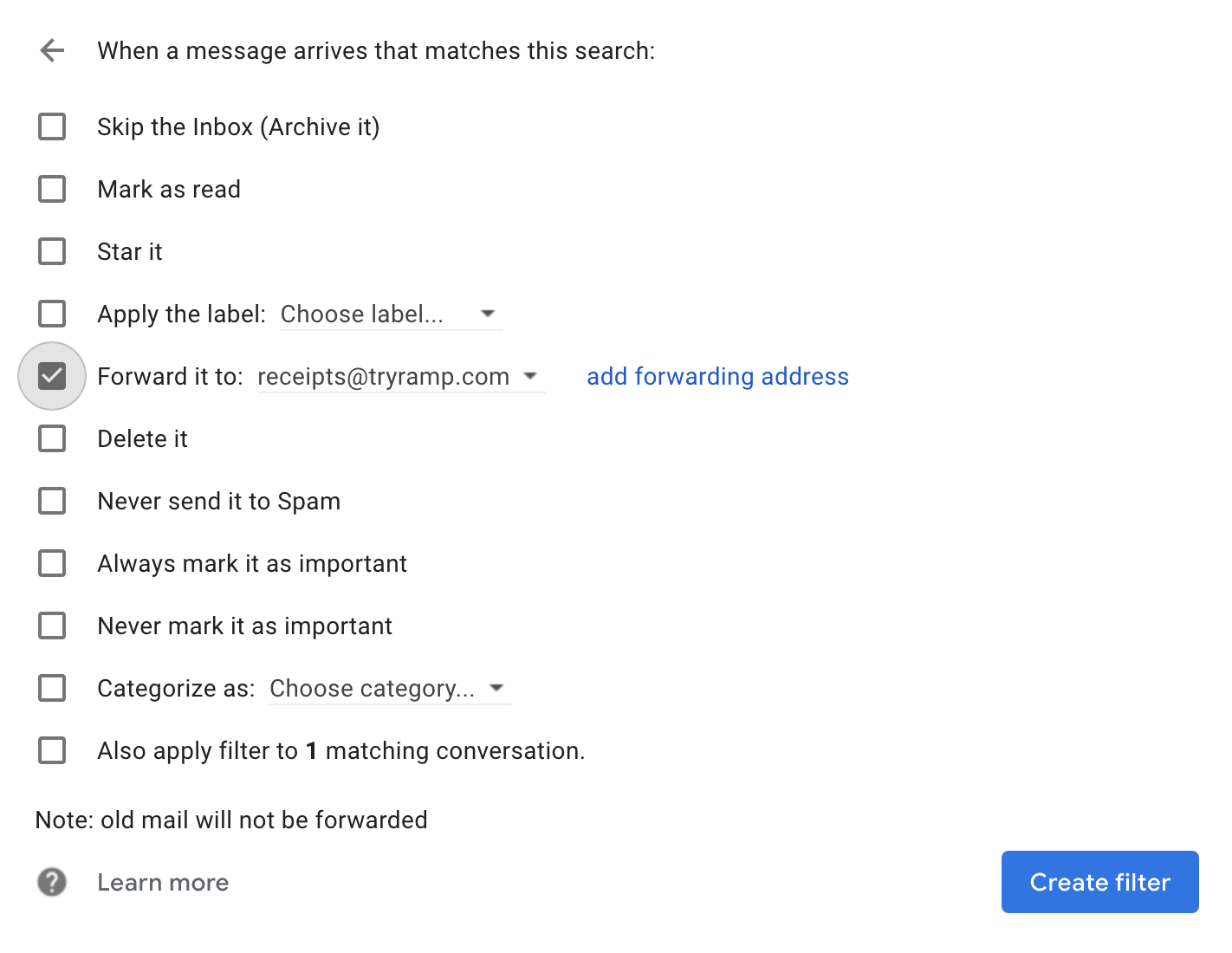
- Afterwards, you should be all set!
Option 2: Use an email alias for receipts
For customers that send receipts to centralized aliases like "[email protected]" , we allow forwarding to Ramp accounts automatically.
- Create the alias (likely contacting your system admin) - e.g. "[email protected]"
- Select this alias as the billing email address for each of the vendors you pay with your Ramp funds
- Add that alias to your Ramp account as an authorized receipt sender—go to 'Settings' > 'Personal Settings' > 'Edit Profile'
- Enter the email address under 'Receipt forwarding.' Note that this centralized alias can be added to only one Ramp account.
- Contact Ramp Support to let them know! In the contact request body, you must include, "I would like to enable receipt matching across all transactions at my company." (By default, receipts will not be considered for matching against all transactions across your company, but we can enable this for you. Enabling this means you only need to add the email to one profile and it will apply to everyone).
- Set up a forwarding rule to automatically send all receipts from your alias to Ramp (details under Option #1 above).
Then you're all set! Receipts will automatically be forwarded, and Ramp will match receipts automatically and send you confirmations. If we don't find a match with your transactions, we'll also search transactions across the company for a match.