Multi-currency purchase orders
Overview
Available on Ramp Plus. See Ramp Plus overview for plan details.
- Create purchase order requests in currencies other than USD
- Match Purchase Orders and Bills that have the same currency
How it works
- When you upload a file, OCR fetches the currency automatically
- All other currencies are converted to USD in Approval Policies and Overbilling protection
- We sync Purchase Orders in their specific currency into your ERP
- If you're using NetSuite OneWorld, Purchase Orders can be imported in their original currency
Step 1
Navigate to Company > Settings > Currencies and click Edit.
Note: If you do not see a Currencies section on the Company Settings page, navigate to Settings > Expense Policy > Additional controls > Local currencies instead.
Select the currencies you would like to support. USD is always included by default and does not need to be selected.
Step 2
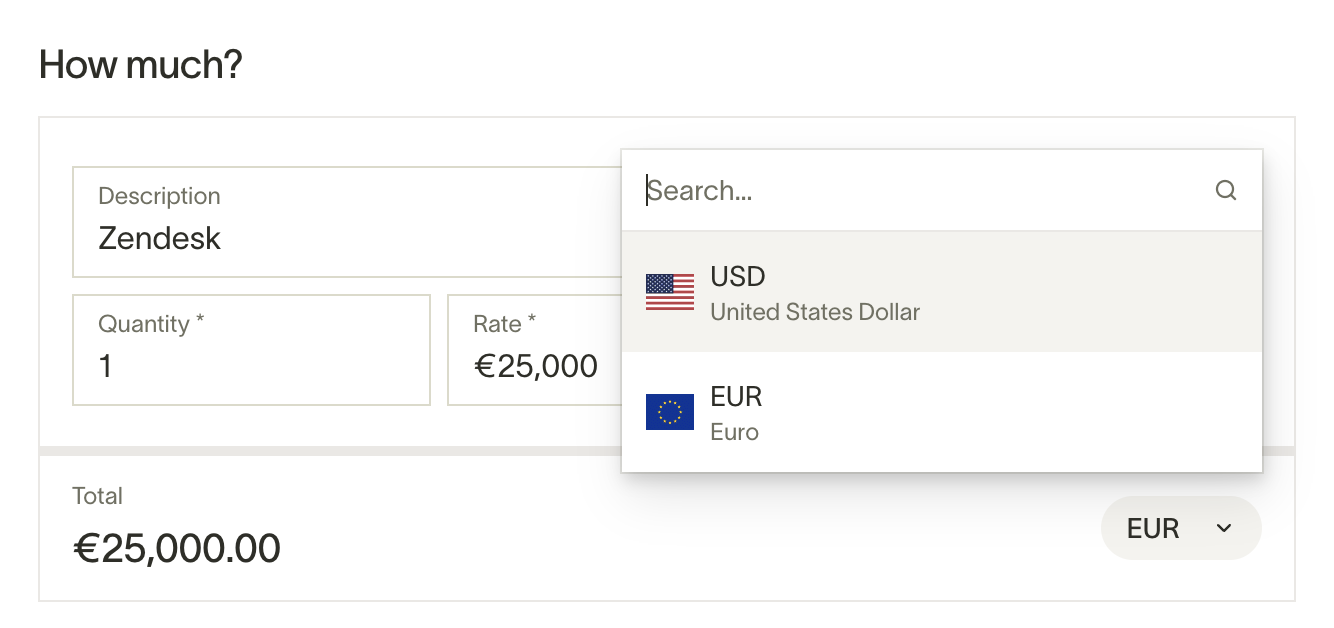
Create a Purchase Order request and select the currency from the dropdown.
Step 3
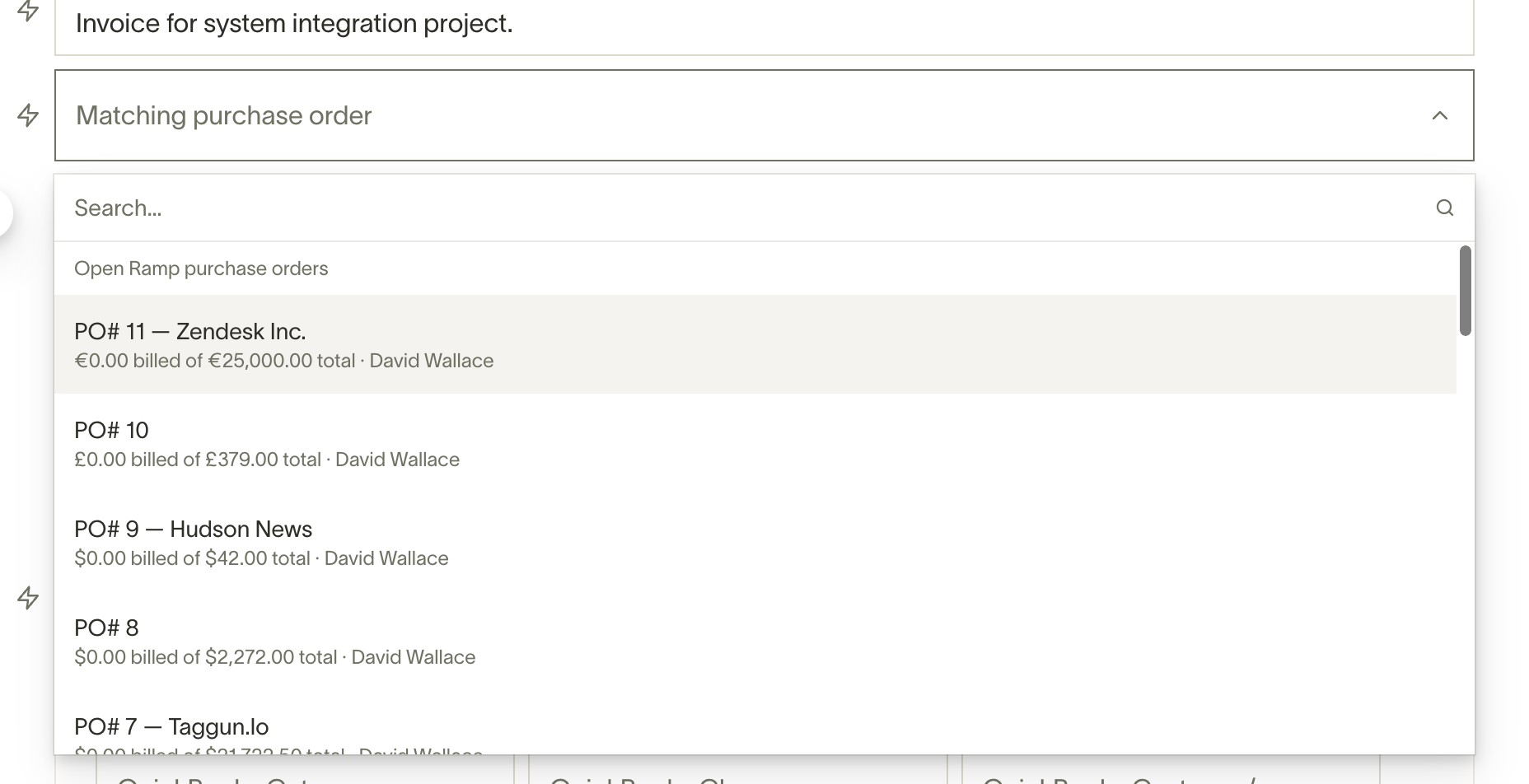
Match Purchase Orders to bills that have the same currency.
Use cases and examples
- Your company opens an office in Canada and is purchasing office equipment. They can create PO's and track all their spend in CAD.
Frequently asked questions
Can items within a PO have different currencies?
No, only one currency is permitted per PO.
Can I enable multi-currency limits and programs for credit cards and reimbursements?
Yes, please read this article.
Can I import POs in different currencies?
Yes, you can import POs with other currencies and the original currency will appear in Ramp.