Uploading invoices and bills on Ramp Bill Pay
Ramp Bill Pay offers customers multiple ways to add and upload invoices and bills within Ramp.
Note that only Admin, Business Owner, and Accounts Payable roles have the ability to view, create, or edit bills.
AP email forwarding
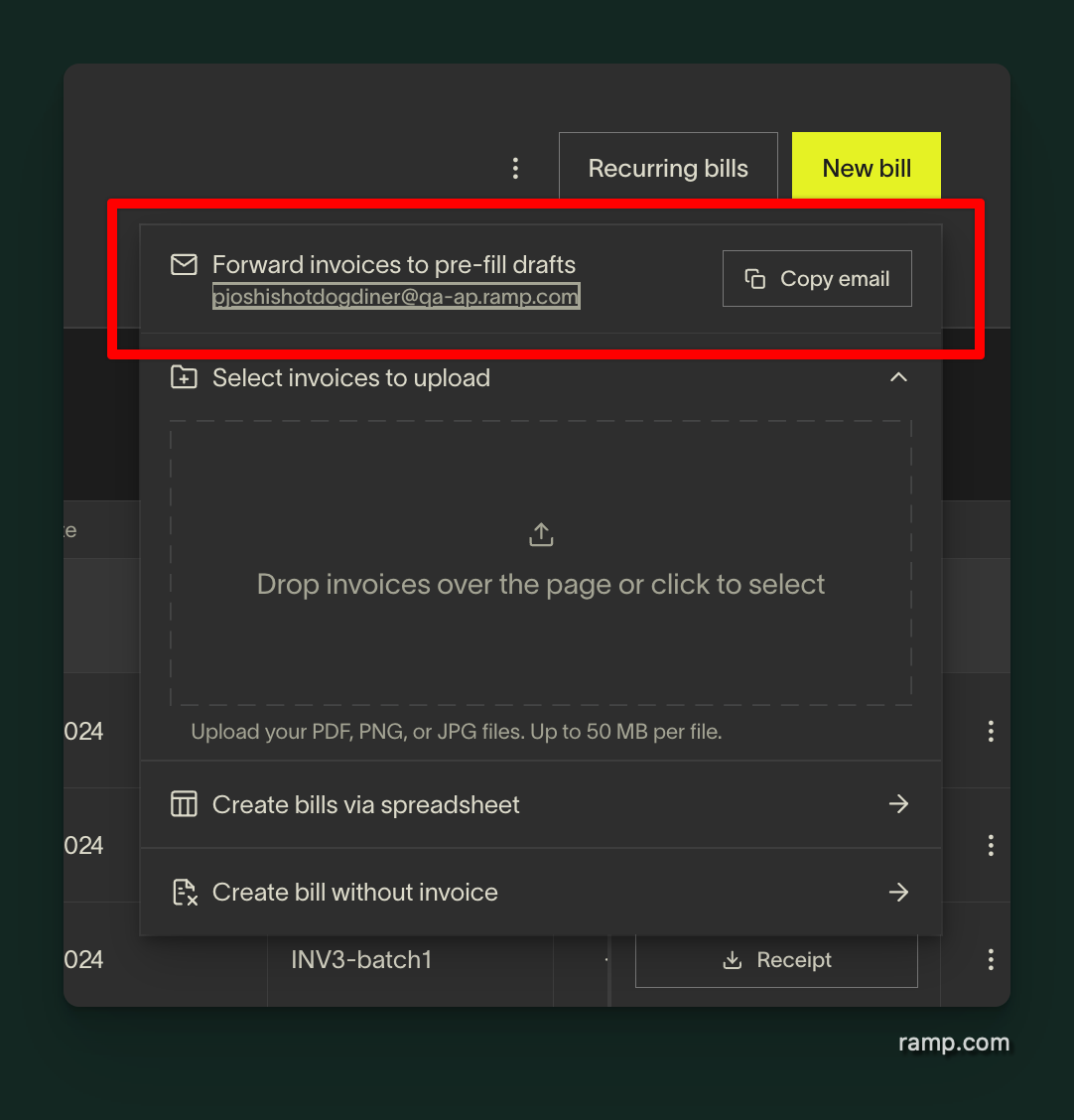
Customers who receive invoices and vendor credits in a managed AP inbox can auto-forward those emails to a Ramp AP address. Ramp reviews supported attachments, creates draft bills for documents classified as invoices, creates draft vendor credits for vendor credit memos, attaches relevant supporting documents to draft bills, and filters out files that are neither invoices nor vendor credits, are not relevant to a draft bill, are exact duplicate files, or cannot be processed. Supported file types include PNG, JPG, JPEG, Excel, CSV, and Word documents, in addition to PDFs. Learn more about Ramp AP forwarding.
If a file you forward to the Ramp AP inbox does not appear in Drafts, review the email summary for the reason Ramp did not process it. You can also upload invoice files manually from Bill Pay > Drafts. For more detail, see Bill Pay AP Email Forwarding.
CSV / spreadsheet upload
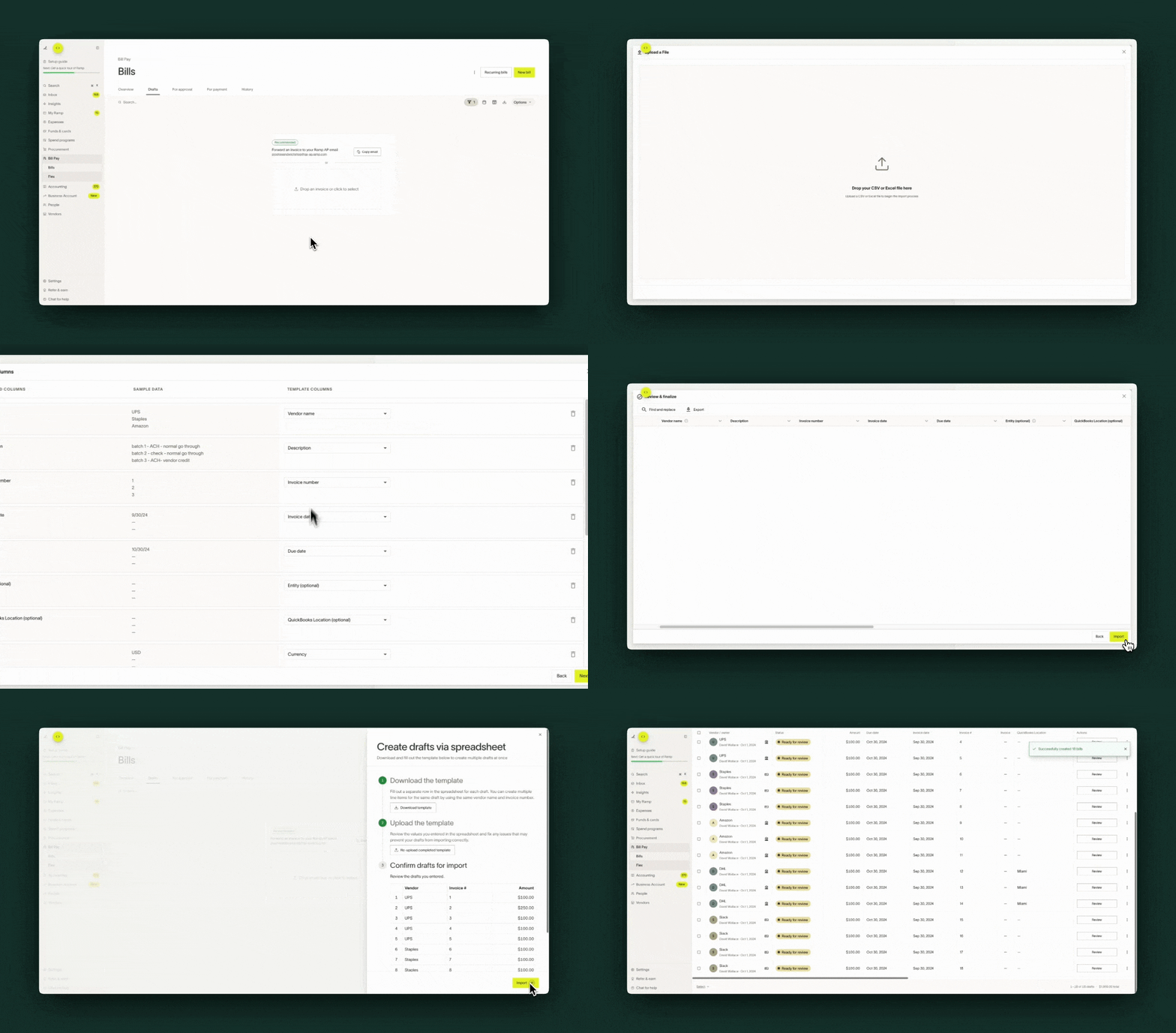
Customers who receive/process invoices via spreadsheet have a means to upload the spreadsheet (CSV or XLSX) within Ramp and create draft bills in bulk. Learn more about uploading bills via spreadsheet.
Drag and drop invoices
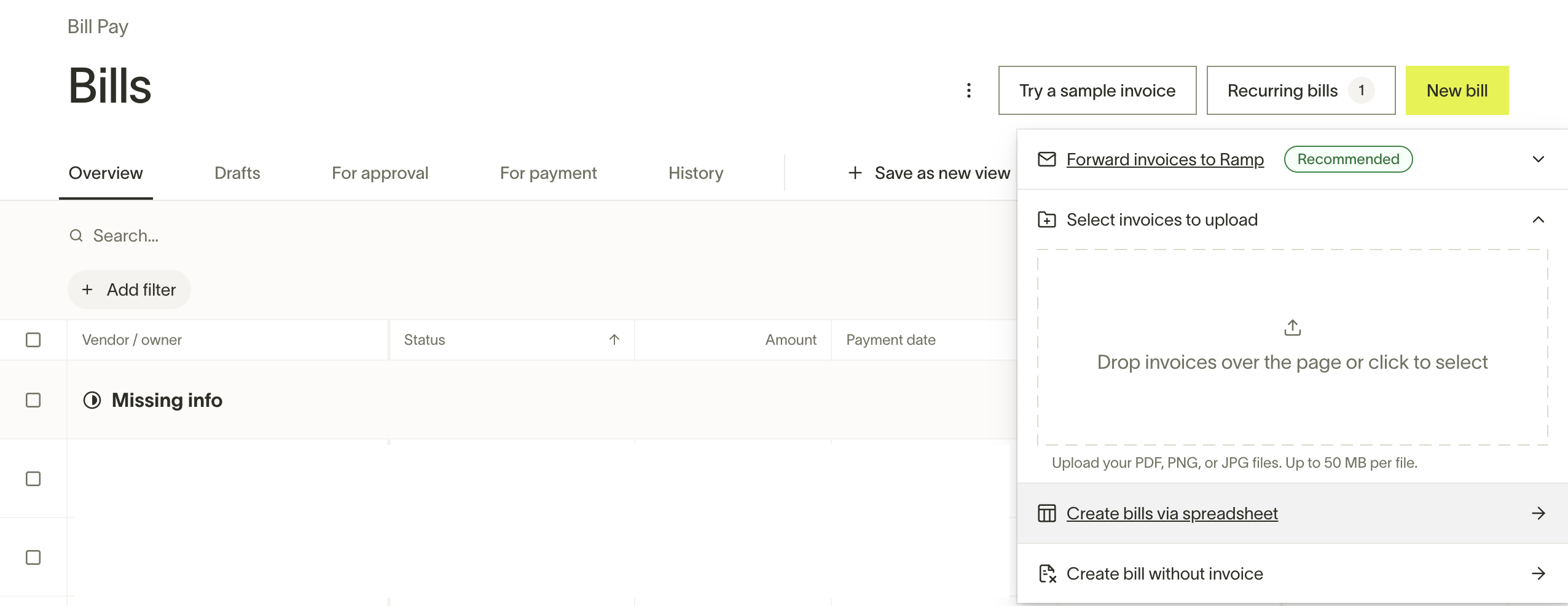
Customers can upload invoices into Ramp by dragging and dropping documents into any tab within Ramp Bill Pay. The invoice will be added to the Drafts tab for review and processing. Supported file types include PDF, PNG, JPG, DOC, DOCX, XLS, and XLSX.
Ramp Bill Pay supports the bulk upload of up to 10 documents at a time. Each file can be up to 50 MB in size.
Uploading XML files to invoices
You can upload XML files directly to the documents section of an invoice (or purchase order) via drag and drop or by clicking the drag and drop area of the bill when you create it. An XML file can only be uploaded to the Documents section. XML cannot be used as the invoice or PO portion of a bill payment or purchase order.
This was added to Bill Pay to comply with Mexican government regulations, which require a structured XML document to be attached to electronic bill payments.
Internal invoice on Vendor Network
Vendors can send an invoice to connected Ramp Bill Pay customers directly from their Vendor Portal account over Vendor Network. Sending an invoice on Ramp eliminates the extra steps of sending an invoice externally, and importing it from outside Ramp. The sent invoice automatically generates a new draft bill with a 'Vendor Network' label for the customer to review and process, and vendors can track progress in their Vendor Portal account. Read more here.
If you want to disable vendors from sending you invoices via the Vendor Network, you can disable this by going to Bill Pay settings > Permissions > toggle off Vendor Network invoices.