Conditional filtering
Overview
Available on Ramp Plus. See Ramp Plus overview for plan details.
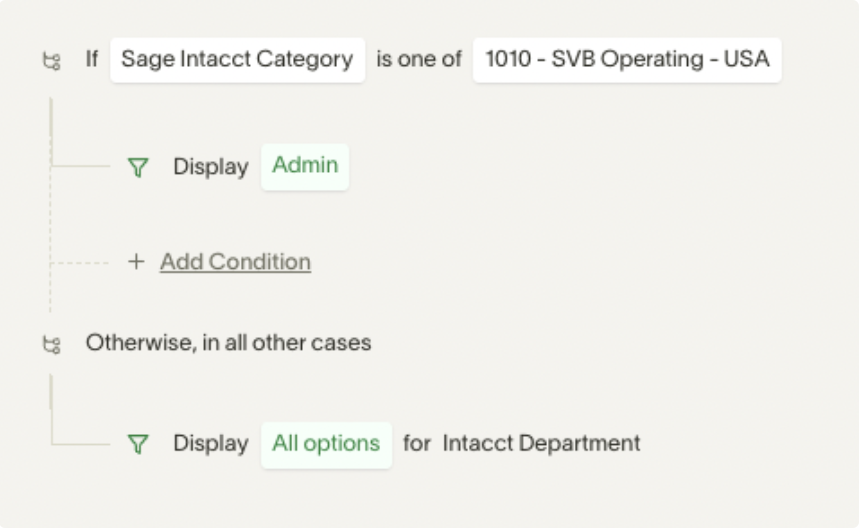
Customers can create rules to change the field options available to users dynamically. The image below illustrates how to accomplish this with conditional filtering.
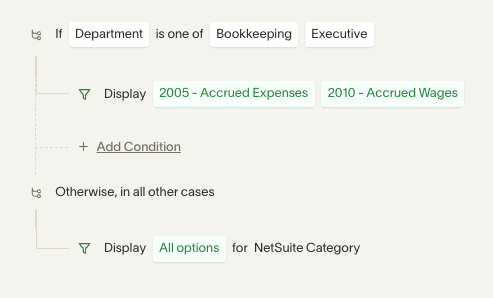
The outcome of this logic is that for transactions or reimbursements where the Department is coded as Bookkeeping or Executive, only the 2005 - Accrued Expenses or 2010- Accrued Wages will be available options to code for the NetSuite Category (GL Account) of the transaction or reimbursement. In addition, if the Department is coded with anything other than Bookkeeping or Executive, then all GL Accounts will be available for the transaction or reimbursement.
Key benefits
-
Streamlined workflow for Accounting roles: By automating the validation of categorizations, Accounting roles can focus on more strategic aspects of their job while gaining confidence in the accuracy of their records.
-
Flexibility and customization: The feature allows customers to manipulate field options, apply global and conditional filtering, and set field requirements based on specific inputs, catering to the unique needs of each organization.
-
Reduced errors and increased efficiency: By providing clear instructions and guardrails for users during the expense categorization process, the feature minimizes the likelihood of errors and speeds up the overall workflow.
How does conditional filtering work?
You can set requirements within each field based on other inputs (e.g., require class if GL Account = X). This helps ensure accurate and compliant expense categorization. Follow these steps:
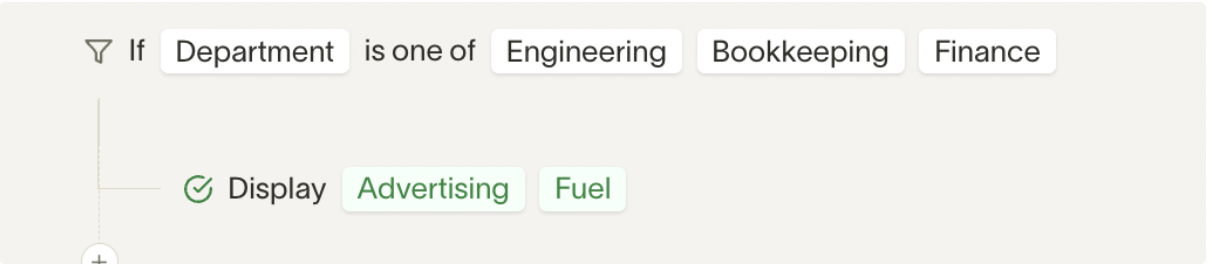
- Create a condition for QuickBooks Category Options: If “Department” is one of “Bookkeeping, Engineering, or Finance.”
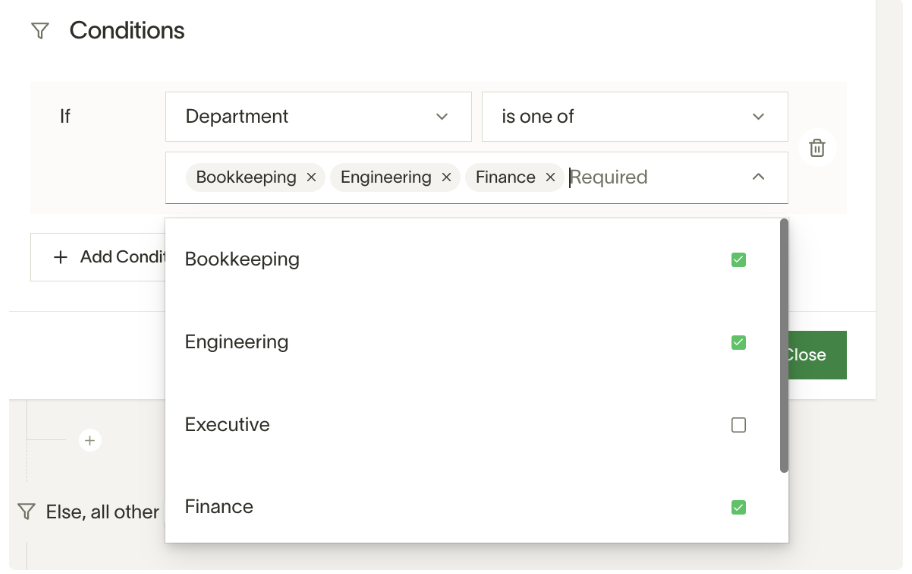
- Filter QuickBooks Category Options based on the condition: Only show “Advertising” and “Fuel” when Department = Bookkeeping, Engineering, or Finance.
We default to "Filter Options" so you will NOT see this screen unless you hit cancel in the next step.
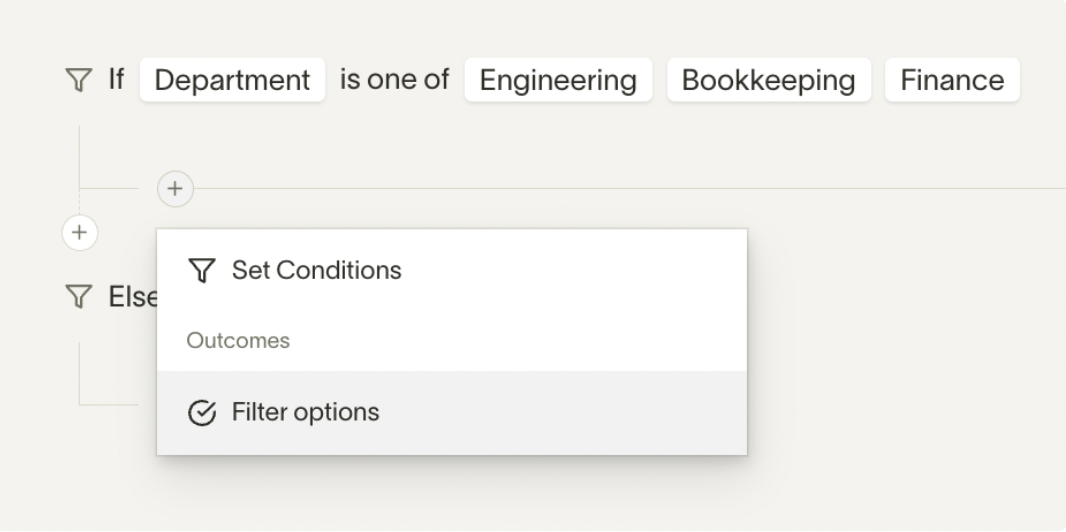
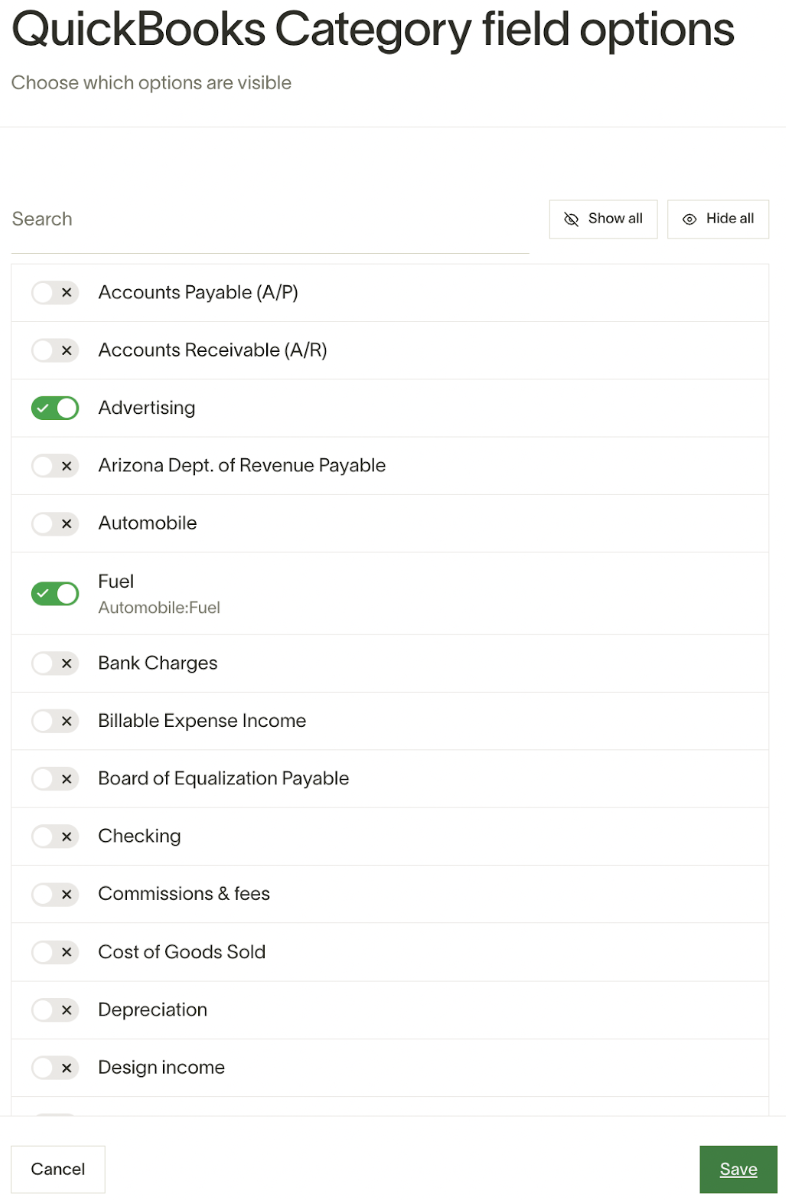
- Click Save.
Now, If the Department is one of Engineering, Bookkeeping, or Finance, Ramp will only display Advertising and Fuel QuickBooks Category Options.
Where can I access conditional filtering?
- Go to Accounting > Settings .
- Choose Accounting fields .
- Click on Edit for the field you want to modify.
- Click Create workflow to use conditional filtering.
Frequently asked questions
How do I conditionally require which fields are entered?
Conditional filtering only applies to field options, it does not apply to fields. We have a workaround to solve it but the feature is not built explicitly for this use case.
Example: If GL Account = X then I want customers to code Class, otherwise, have them code Location.
-
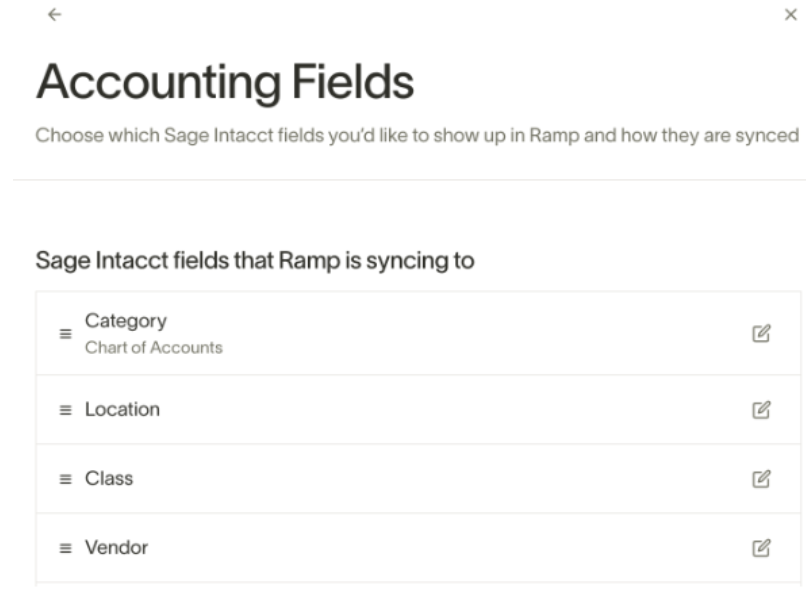
Make sure GL Account is prompted to be coded before Class and Location. To arrange the order grab the icon with 3 lines next to the desired field and drag the field to a different position.
-
Build workflow to show all Classes if GL Account = X
-
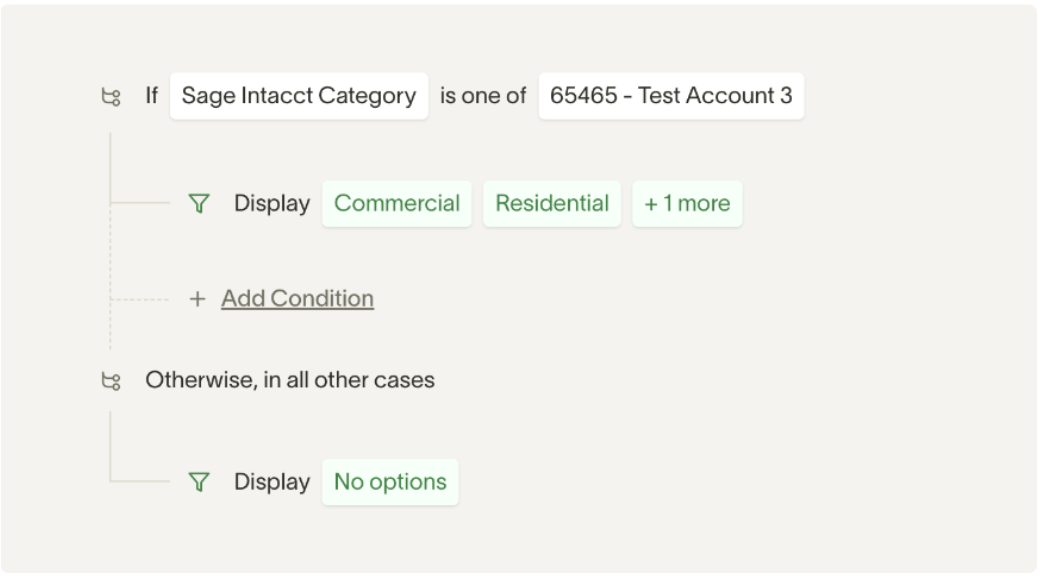
No Classes should show up if GL Account != X.
-
Build workflow to show all Locations if GL Account != X.
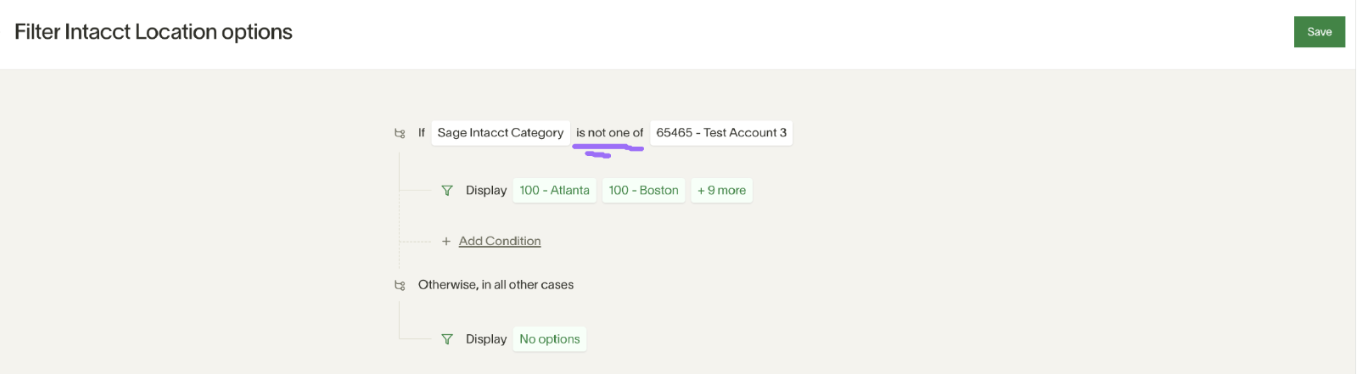
-
In the expense policy, require all 3 fields.
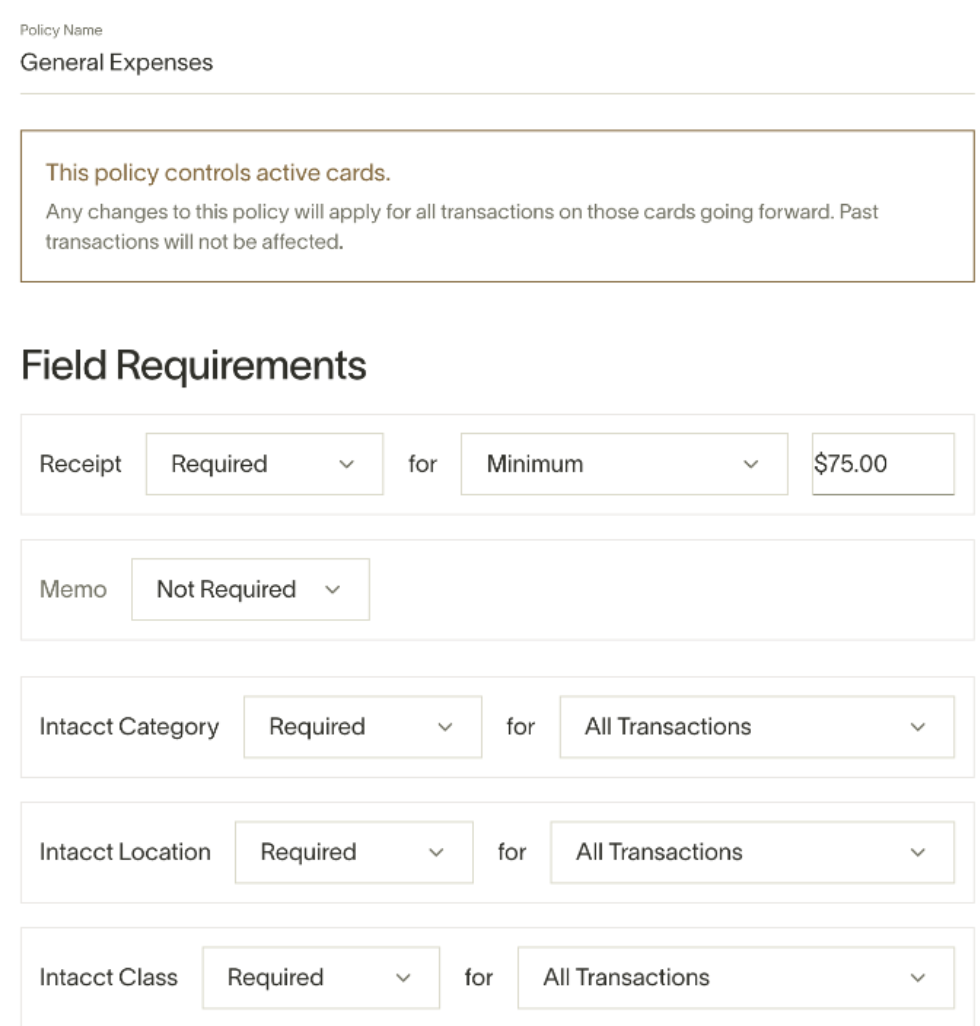
-
Make sure "None" is selectable by employees to fulfill expense policy requirements (default is on so should be good unless explicitly changed.
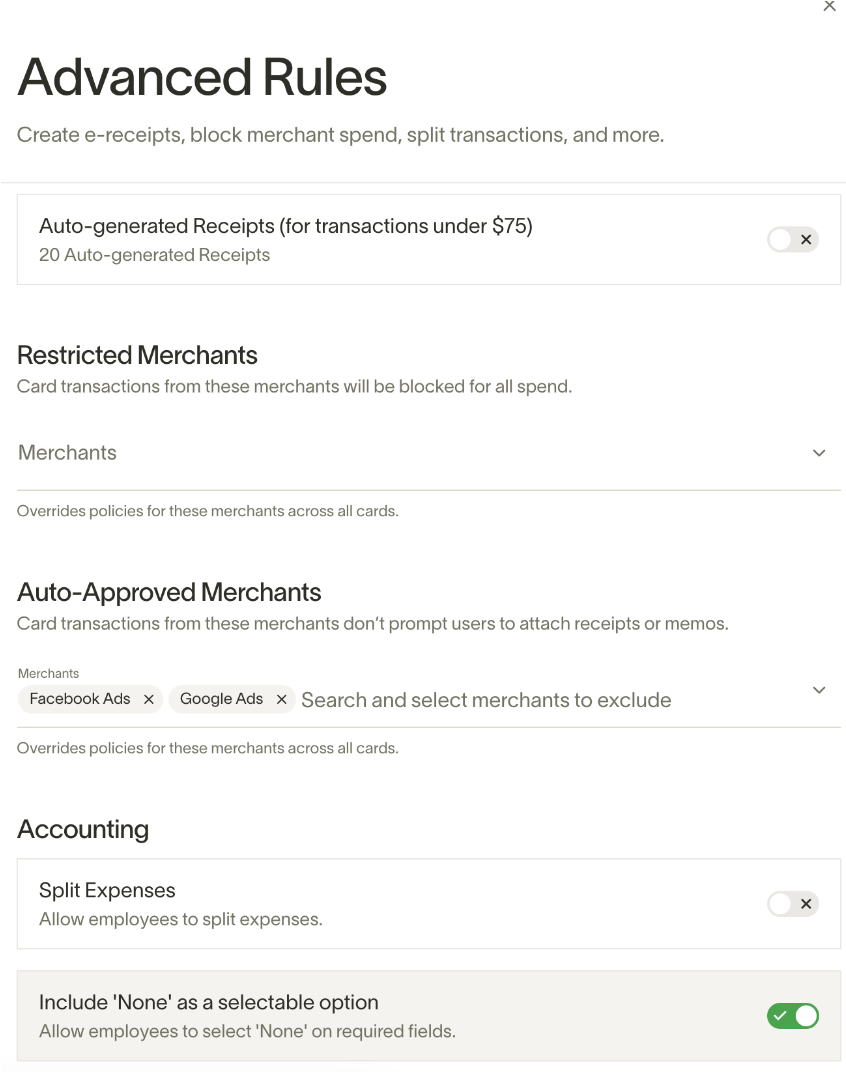
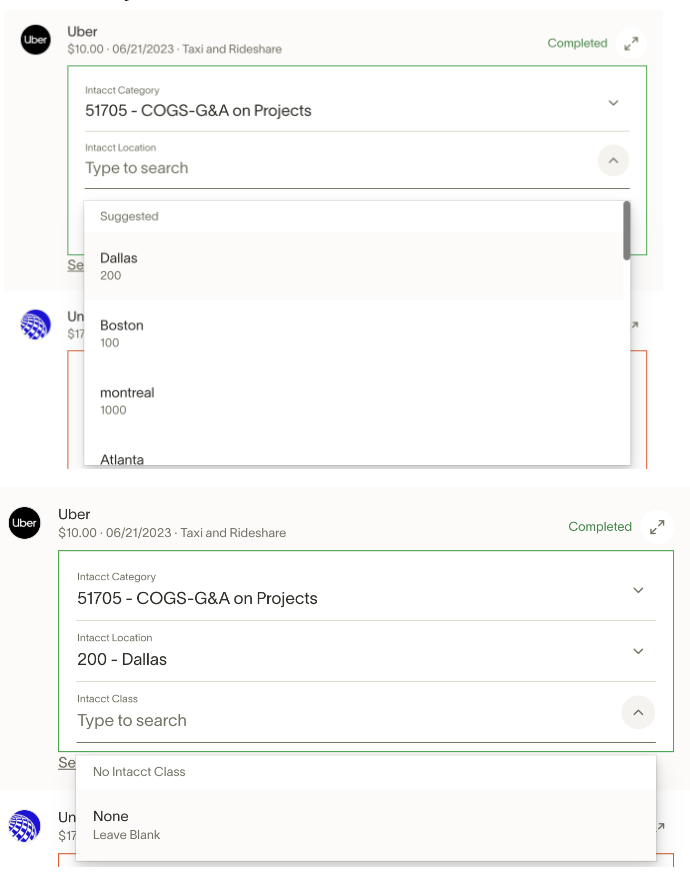
This would look like this for the cardholder (ignore the UX since that may change depending on where it's filled in).
-
If "Test Account" is selected:
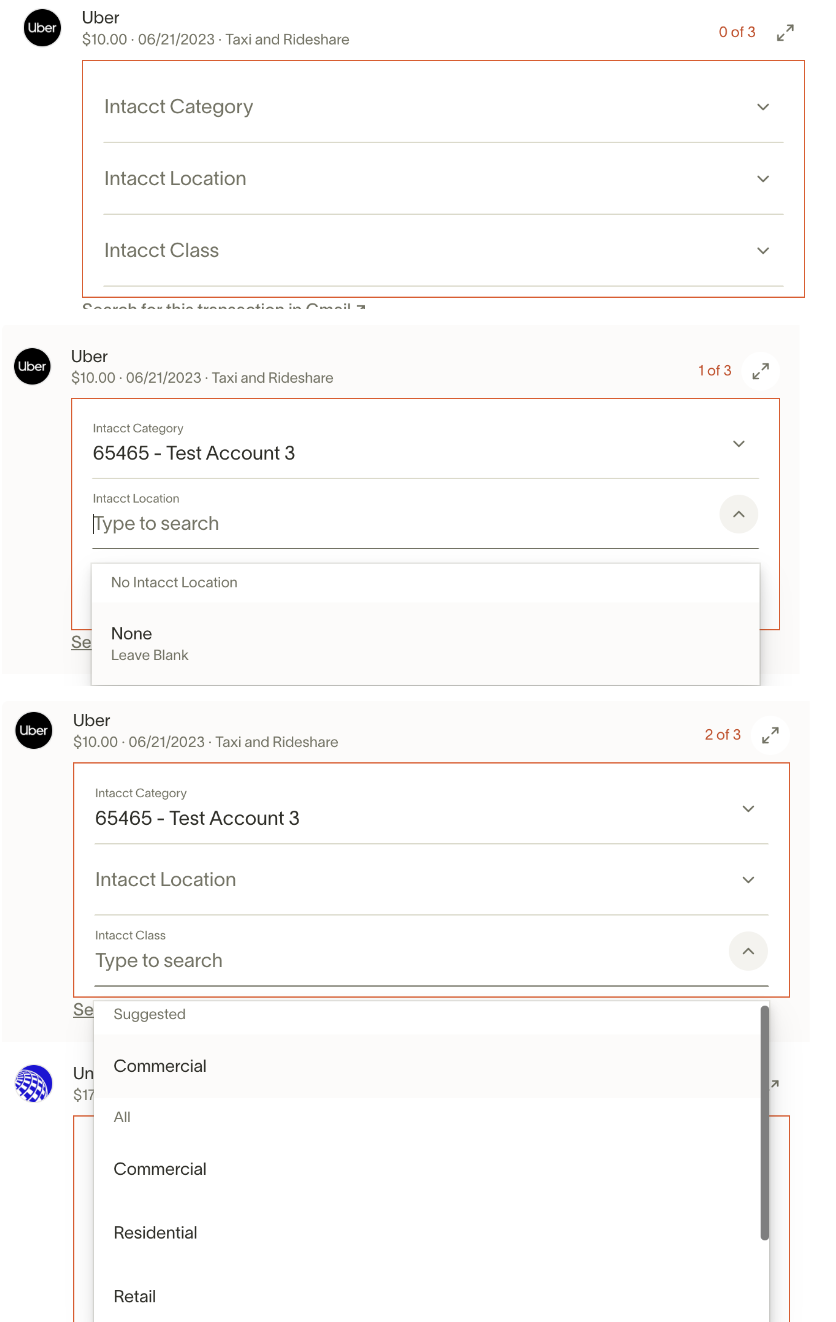
-
If any other account is selected:
How do I auto-code based on inputs?
Conditional filtering does not support auto-coding. In other words, users cannot auto-code a transaction based on specific inputs. However, the workaround would be to display only one option for a field where GL Account = X (i.e., if GL Account = X, then show the Y Department option. Otherwise, show all Department options).
How does the expense categorization work?
The feature allows users to set up validation rules for fields such as category, location, and department, ensuring that only valid combinations are selected for expenses. This helps improve the accuracy of expense categorization and streamlines the workflow for Accounting roles.
Can I reorder fields in the accounting tab and submission policy?
Yes, customers can reorder columns in the accounting tab, which will also affect the order in which they are shown in the submission policy.
What if I have a conditional filtering rule that I need to override occasionally?
Admin and Accounting roles have the ability to "view hidden options" when coding values. This should ensure that you don't sacrifice flexibility by configuring general guidelines.
How do I customize field names and add helper text?
You can rename the field on Ramp and add helper text within each field. This provides a more user-friendly experience for both cardholders and Accounting roles.
What kind of filtering options are available in this feature?
The feature allows you to apply global and conditional filtering to field options. This provides more customization and control over the fields available for expense categorization.
What validation is in place? What happens if someone fills it out of order, violating a workflow?
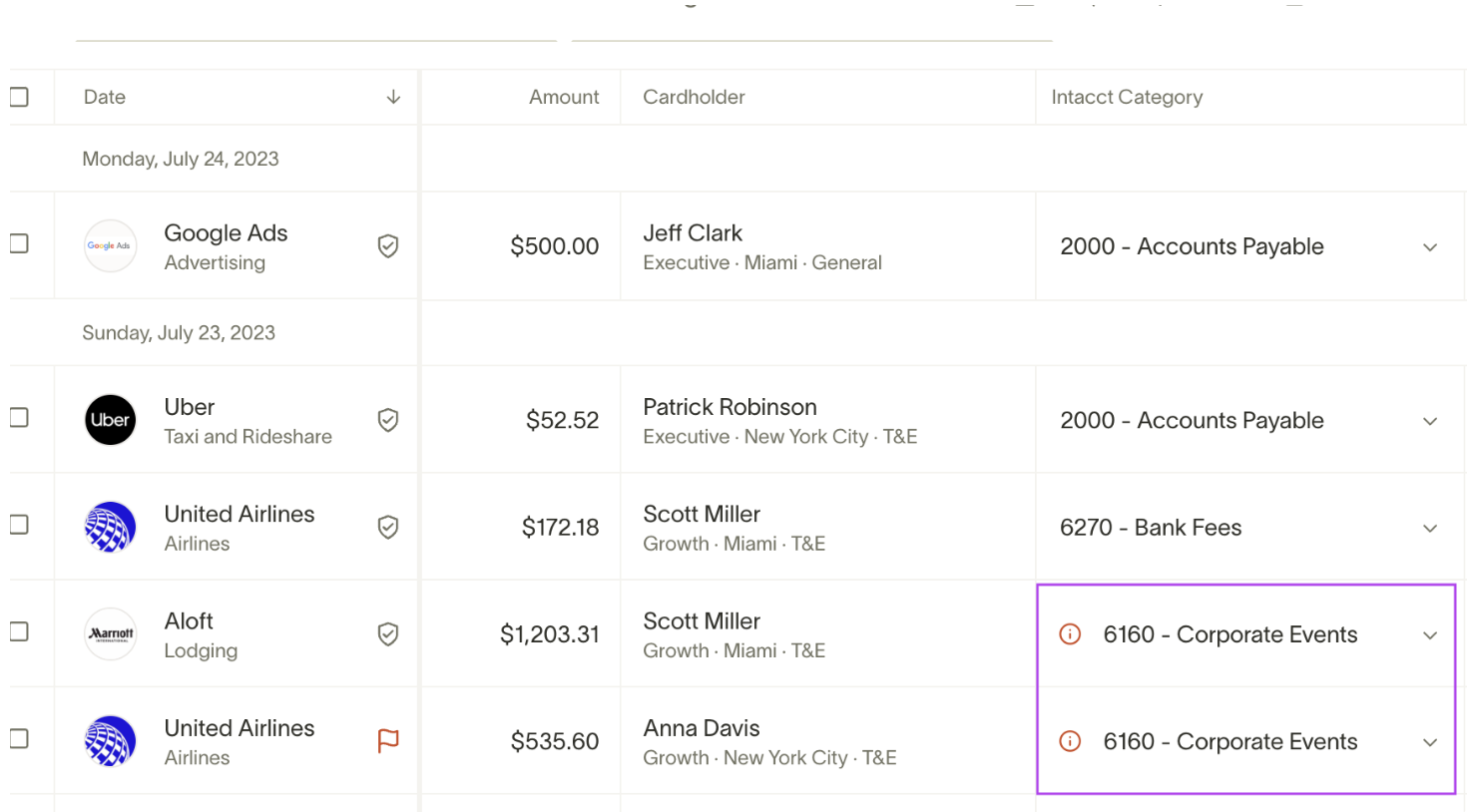
Ramp will flag to a customer that they have coded a transaction that breaks the logic of a conditional workflow. If a customer has broken the logic of a conditional workflow, then they will see the below flag: