Azure OpenAI integration: Connect to AI Spend Management
Overview
Connect Azure to import AI billing usage into AI Spend Management. This guide covers Microsoft Customer Agreement (MCA) and Enterprise Agreement (EA) billing accounts. You create a Microsoft Entra application with a federated credential and read-only billing access; you do not need to create or share a client secret or model API key.
Before you connect Azure
You need permission to manage AI Spend Management provider connections in Ramp. If you cannot manage connections, ask your Ramp Admin to complete the Ramp steps. See Set up AI Spend Management for an overview.
Ask your Azure administrators to help if you cannot complete these prerequisites:
- Permission to create an app registration and manage its federated credentials in Microsoft Entra ID.
- MCA: a billing account owner who can assign Billing account reader to the app.
- EA: an enrollment administrator with write access who can assign EnrollmentReader through Microsoft's billing API.
Subscription Owner or Contributor access alone does not grant these billing-role assignment permissions. For MCA, use the tenant associated with your billing account when creating the app.
Step 1: Copy your Azure audience from Ramp
Start an Azure OpenAI connection from your provider list in Ramp. See Open AI Spend Management and connect providers to get started.
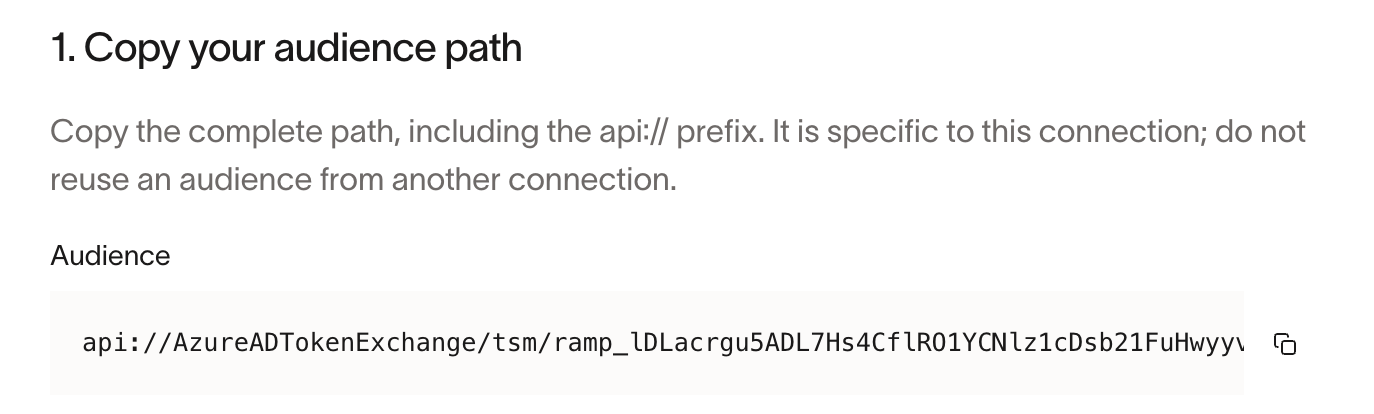
Copy the complete audience path shown in the setup drawer, including the api:// prefix. It has the format api://AzureADTokenExchange/tsm/<audience-id> and is specific to this connection. Keep the drawer open while you configure Azure, and do not reuse an audience from another connection.
Step 2: Create the Microsoft Entra app
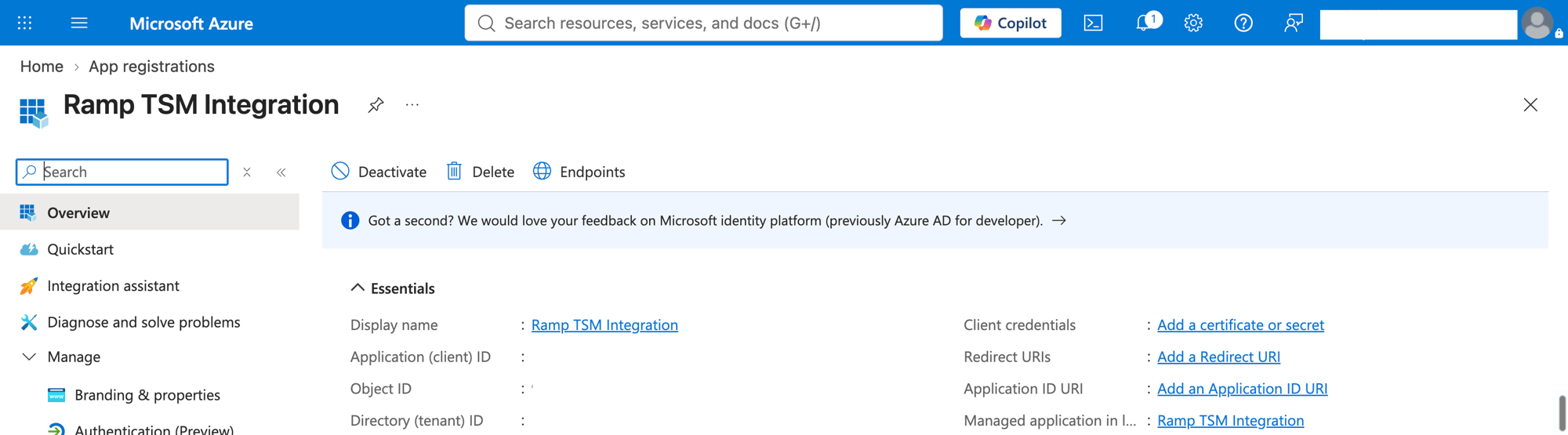
- In the Microsoft Entra admin center, switch to the tenant selected with your billing administrator and open App registrations.
- Create a new registration named Ramp Token Spend for accounts in your organization only (single tenant). No redirect URI is needed for this connection. Select Register.
- From the registered app's Overview, copy the Directory (tenant) ID and Application (client) ID. You will enter these in Ramp in Step 5.
For additional registration instructions, see Microsoft's app registration guide.
Step 3: Add Ramp's federated credential
In your app registration in the Microsoft Entra admin center, select Certificates & secrets, then Federated credentials, then Add credential. Select Other issuer and enter:
- Issuer:
https://a1f3906b-e905-49f6-931b-06b7dc7a1287.tokens.sts.global.api.aws - Subject identifier:
arn:aws:iam::720936371966:role/ramp/customer-access/AzureBillingBroker - Audience: the complete audience path copied from Ramp in Step 1. Replace any default audience with this value.
- Name: a name such as
ramp-token-spend.
Save the credential. The issuer and subject above are the production values for both MCA and EA; only the audience varies by connection. Enter the values exactly, without extra whitespace or trailing slashes. Use a federated credential, not a client secret. See Microsoft's federated credential instructions for help.
Step 4: Grant Azure billing access
Choose the instructions for your agreement type. Both roles grant read-only billing access across the selected billing account or enrollment, including non-AI charges. Ramp retrieves billing reports and retains usage charges categorized as Foundry Models for AI Spend Management. These billing roles do not grant permission to run models or modify Azure workloads.
MCA: Assign Billing account reader
- In the Azure portal, open Cost Management + Billing and select the billing account that pays for your AI usage.
- In Properties, confirm the account type is Microsoft Customer Agreement and copy the full Billing account ID. Do not use a subscription ID or billing profile ID.
- Have a billing account owner open Access control (IAM) for that billing account and select Add.
- Choose Billing account reader, find your Ramp Token Spend application, and add the assignment.
If the app is missing from the role picker, check that you registered it in the billing account's tenant. See Microsoft's MCA billing-role instructions.
EA: Assign EnrollmentReader
EA service-principal roles are assigned through an API and do not appear in the Azure portal's role list.
- In the Azure portal, open Cost Management + Billing, select your EA enrollment, and copy its Billing account ID from Properties.
- In the Microsoft Entra admin center, open Enterprise applications, select Ramp Token Spend, and copy its Object ID. Use this service principal Object ID, not the Object ID under App registrations or the Application (client) ID.
- Have an enrollment administrator with write access open Microsoft's Role Assignments – Put API, select Try it, and sign in.
- Set
billingAccountNameto the EA billing account ID,billingRoleAssignmentNameto a new GUID (for example, generated with PowerShell'sNew-Guid), andapi-versionto2019-10-01-preview. - Enter this request body, replacing the placeholders with your IDs:
{
  "properties": {
    "principalId": "<enterprise-application-object-id>",
    "principalTenantId": "<app-directory-tenant-id>",
    "roleDefinitionId": "/providers/Microsoft.Billing/billingAccounts/<billing-account-id>/billingRoleDefinitions/24f8edb6-1668-4659-b5e2-40bb5f3a7d7e"
  }
}
- Select Run and confirm a
200 OKresponse. Save the returned role assignment ID for future removal.
Keep the EnrollmentReader role identifier exactly as shown. Repeat the billing-role assignment for each EA billing account you connect. See Microsoft's EA service-principal instructions for details.
Step 5: Submit your Azure IDs and verify
Return to the Azure setup drawer in Ramp and enter:
- Connection name: a name to identify this billing account.
- Azure tenant ID: the app's Directory (tenant) ID.
- Azure client ID: the app's Application (client) ID, not its service principal Object ID.
- Azure billing account ID: the billing account ID from Step 4.
- Billing agreement type: Microsoft Customer Agreement (MCA) or Enterprise Agreement (EA).
Select Verify connection. Ramp checks access before connecting. After verification, the drawer shows that Azure is connected while the initial billing import runs; connection success does not mean the import is complete. Use the drawer's status to check progress.
Troubleshoot connecting Azure
- Microsoft Entra access was denied: check the tenant and client IDs, then compare the federated credential against Step 3.
- Azure billing access was denied: confirm the billing account ID and agreement type. Ask your billing administrator to check the account-level assignment in Step 4.
- EA role assignment fails: confirm you used the Object ID from Enterprise applications and the matching tenant ID. The assigning administrator needs enrollment write access.
- Azure is temporarily unavailable: wait a few minutes and retry verification.
To retry in Ramp, re-enter all three Azure IDs and select Retry verification. If verification continues to fail, contact Ramp Support with the error shown. Do not send client secrets or access tokens.