Automatically flag transactions with policy flags
Overview
With policy flags, Ramp becomes the 24/7 policy enforcer, freeing up admins and managers from time-consuming reviews and automatically flagging transactions with warnings or as out-of-policy on their behalf. All admins must do is enter the criteria under which Ramp automatically flags transactions as out-of-policy or add a label to remind cardholders and reviewers to check for possible out-of-policy spending. Admins can choose which reviewers or cardholders receive email notifications for added visibility.
Ramp analyzes transactions in several ways. All Ramp customers can use merchant restrictions, transaction category restrictions, and transaction amounts to locate out-of-policy transactions. Only Ramp Plus customers can use advanced policy flags such as duplicate receipts, itemized receipts, incorrect receipts, and more.
How do I set up policy flags as an Admin?
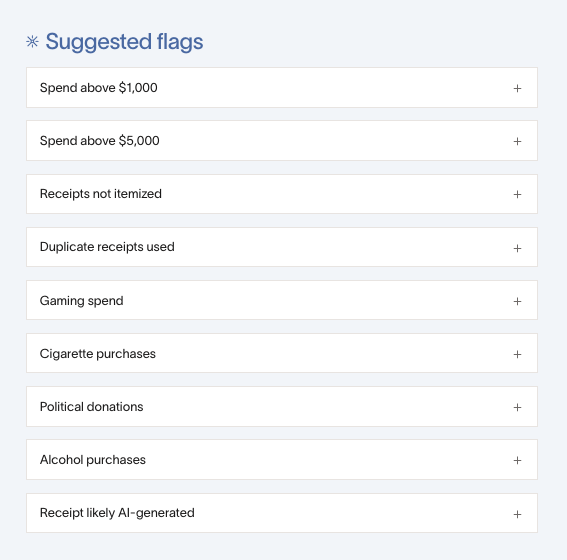
- Go to Policy > Travel & expenses > Additional controls > Flags.
- Click one of the suggested policy flags or click the Create custom flag button to make a custom flag. You can have up to 35 active policy flags.
- Excessive Tipping (Plus) - flag transactions with a tip greater than a certain percentage of the pre-tax amount (from 0%-100% at your discretion).
- Weekend Spend (Plus) - flag weekend or weekday transactions past Friday 11:59 PM (user local time) to Sunday 11:59 PM (user local time).
- Time is recorded at the time of swipe based on the user’s local time zone. For virtual transactions, local time is based on the timezone at the last recorded sign-in. For physical transactions, Ramp records the local time when the transaction is swiped.
- This flag does not offer the ability to customize times.
- Tip : If your company has recurring SaaS spend that may happen over the weekend, consider adding a flag (+ Add) to exclude specific SaaS vendors.
- Itemized Receipt Required (Plus) - flag non-itemized receipts for restaurants, general merchandise, supermarkets, alcohol/bars, and lodging transactions.
- Receipt Doesn’t Match Transaction (Plus) - flag receipts where the receipt doesn't match the transaction based on receipt amount, merchant, and date. Please note that this flag does not apply to reimbursements.
- Receipt Previously Used (Plus) - flags receipts on reimbursement requests that have been previously submitted for another transaction or reimbursement.
- Blocked Items (Plus) - flag blocked categories such as religious contribution, political spending, and tobacco based on the MCC code. Please Note : Ramp automatically blocks a few MCC codes, including those from gambling and dating services. See here for the full list of MCC codes.
- Alcohol (Plus) - Ramp leverages ML to classify the transaction based on receipt line items & the merchant name, e.g. if the line item includes text that indicates alcohol-related items (names, brands, etc.), it will be flagged as alcohol spend.
- Receipt likely AI-generated (Plus) - flag transaction receipts that have metadata indicating the image was generated using AI.
- Merchant restrictions - flag transactions for specific merchants.
- Category restrictions - flag transactions for specific categories.
- Select what happens when a policy flag is triggered. Ramp will label the transaction as either out-of-policy or with a warning. Out-of-policy transactions will not be auto-approved and will require a reason for approval. In contrast, transactions with a warning will still be auto-approved with no action required. If a transaction is flagged as out-of-policy and would have otherwise been automatically approved, the user's manager will be added to the approval workflow. If the user does not have an assigned manager, all admins will be notified and included in the approval workflow.
- Notifications - choose which employees to alert.
- Alerts are sent by email or text message according to each user's notification preferences.
- Please be aware that notifications will be sent to each user separately.
Tips for setup
- Updating or creating a policy flag will affect all future transaction updates (e.g., merchant updates, adding to a trip, attendee splits, and receipt uploads). For example, for a transaction that occurred before the flag was implemented, if a receipt is uploaded, it will still be scanned according to your company’s policy flags and may be flagged as out-of-policy.
- Note : We only allow merchants that the business has already seen for policy flags due to technical limitations.
- By default, each flag applies across the company. If you would like some flags to only apply to certain departments or merchants, you may click “+ Add” beneath the initial configuration and add another statement. The two statements will both apply in the flag (AND function).
- Note : At this time, Ramp does not support creating flags for specific cards. Ramp Plus customers can create flags for specific Spend Programs.
- Remember: policy flags look at MCC codes and definitions to determine if a category or merchant flag is being violated, not the receipt contents directly. Use the Policy Agent if you would like to look at receipt contents as well.
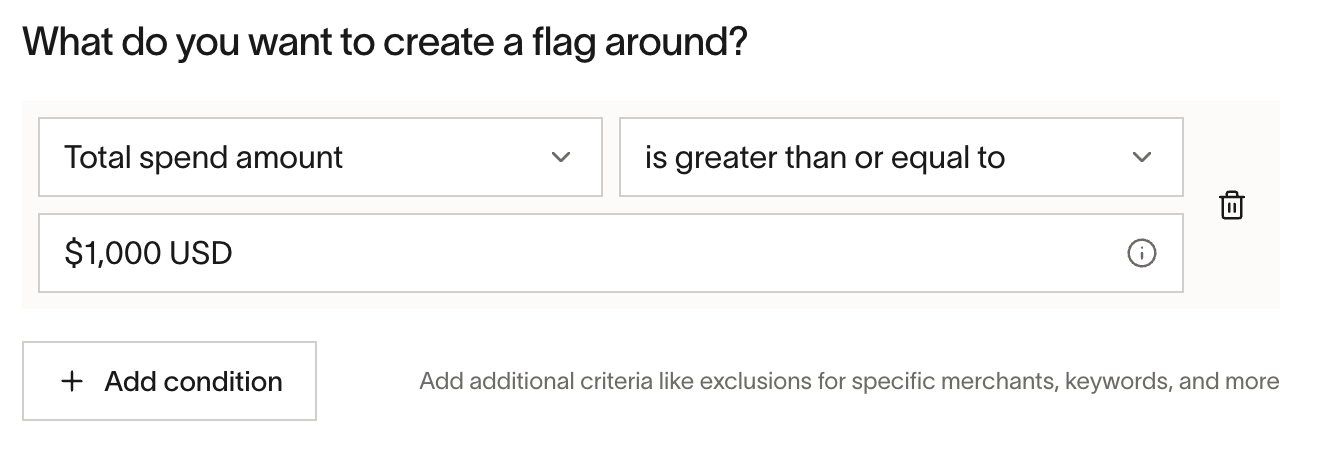
- Depending on the volume of transactions and out-of-policy transactions your company usually sees, the higher the volume, the more the alerts. Please be mindful when setting up email notifications.
How do policy flags appear on transactions?
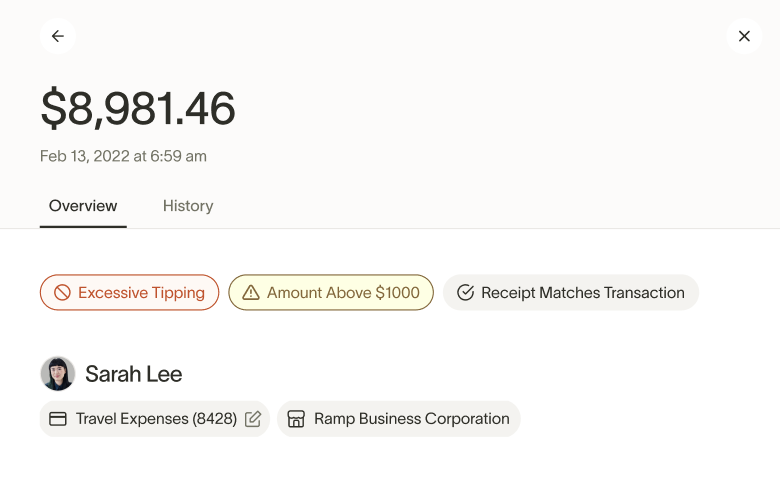
A transaction can have any number of flags from the policy flags. These flags appear in the Summary section at the top of the transaction drawer on the web and in the Details section in the Ramp mobile app. Depending on the policy flag, it may appear 15–30 seconds after the transaction is processed (e.g., weekend spend), or upon receipt upload (e.g., itemized or previously used receipts).
If multiple receipts are uploaded, only one receipt needs to meet the requirements. If a new receipt is uploaded and in policy, the out-of-policy or warning flag will be resolved. If a new receipt is not uploaded and the transaction is approved, the out-of-policy flag or warning will remain.
Available actions for out-of-policy transactions depend on the transaction status and whether you are the cardholder or reviewer. Ramp displays only the actions available to you. Transactions flagged with warnings do not change the available actions.
How do I review transactions?
Review transactions in the following places:
- Home > Overview
- Expenses & travel > Card transactions > Needs review or Flagged
Please see the Transaction reviews article for more information.
MCC codes blocked by Ramp
Ramp automatically declines transactions in the following categories:
- 4829 - Money transfer
- 5966 - Direct marketing/outbound telemarketing merchant
- 6010 – Financial Institutions – Manual Cash Disbursements
- 6011 – Financial Institutions – Automated Cash Disbursements
- 6051 – Non-Financial Institutions – Foreign Currency, Non-Fiat Currency (for example Cryptocurrency), Money Orders (Not Money Transfer), Account Funding (not Stored Value Load), Travelers Cheques, and Debt Repayment
- 6211 – Security brokers/dealers
- 7273 – Dating services
- 7800 – Government-Owned Lotteries (US Region only)
- 7801 – Government Licensed On-Line Casinos (On-Line Gambling) (US Region only)
- 7802 – Government-Licensed Horse/Dog Racing (US Region only)
- 7995 – Betting (lottery tickets, casino gaming chips, off-track better, wagers at race tracks, and games of chance to win prizes of monetary value)
- 9754 – Mastercard: Gambling-Horse, Dog Racing, State Lottery.
Frequently asked questions
Can I restore a dismissed automatic policy flag or policy violation?
No. Ramp does not currently offer a separate restore or undo action after you dismiss an automatic policy flag. If a new receipt is uploaded and is in policy, the flag resolves automatically. Otherwise, the dismissed flag remains dismissed.