ADP integration: Set up HRIS
Overview
Please refer to thisarticle for an overview of our HRIS integration. Then, continue below for set-up instructions regarding ADP.
Instructions
Step 1: Initiate the connection from Ramp
- Navigate to: Settings > Integrations > User management .
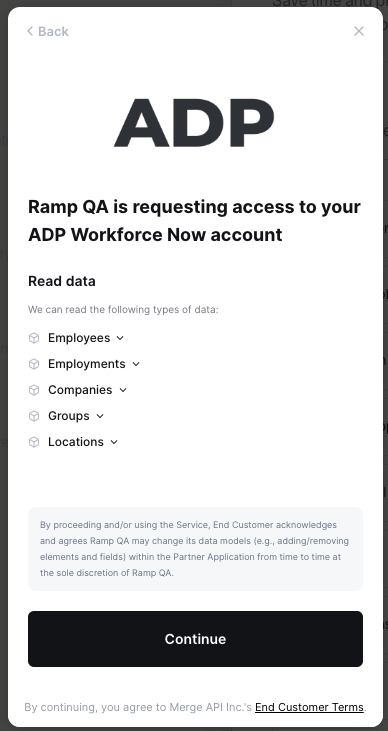
- Select ADP. A popup window will inform you of the data Ramp will access through the ADP connection.
- Click Continue .
- Now, you'll see instructions and a token for you to use to set up the integration. Do not close this window.
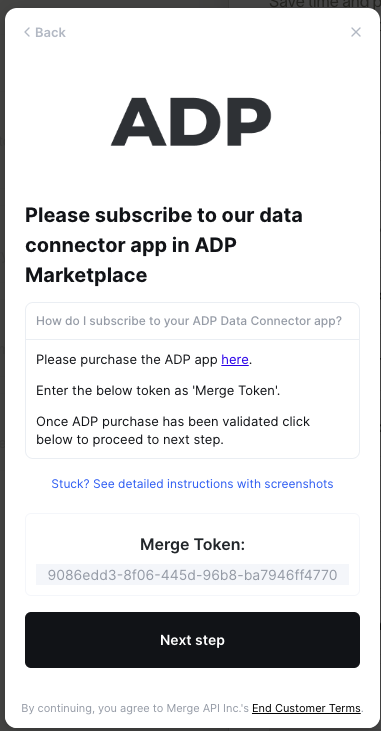
- Click on the provided link to purchase the ADP Ramp application.
- The ADP Marketplace will open in a new tab.
Step 2: Sign in to ADP to purchase the Ramp app and connect your accounts
- Sign in to your ADP WorkForce Now account in the new tab, and you will land on the ADP Marketplace page for the Ramp App.
- Once signed in to ADP, find the Ramp app and click Buy Now .
- From the checkout page, you'll see the message: Ramp Business Corporation requires additional information.
- Click EDIT to enter the Merge Token (see screenshot below)
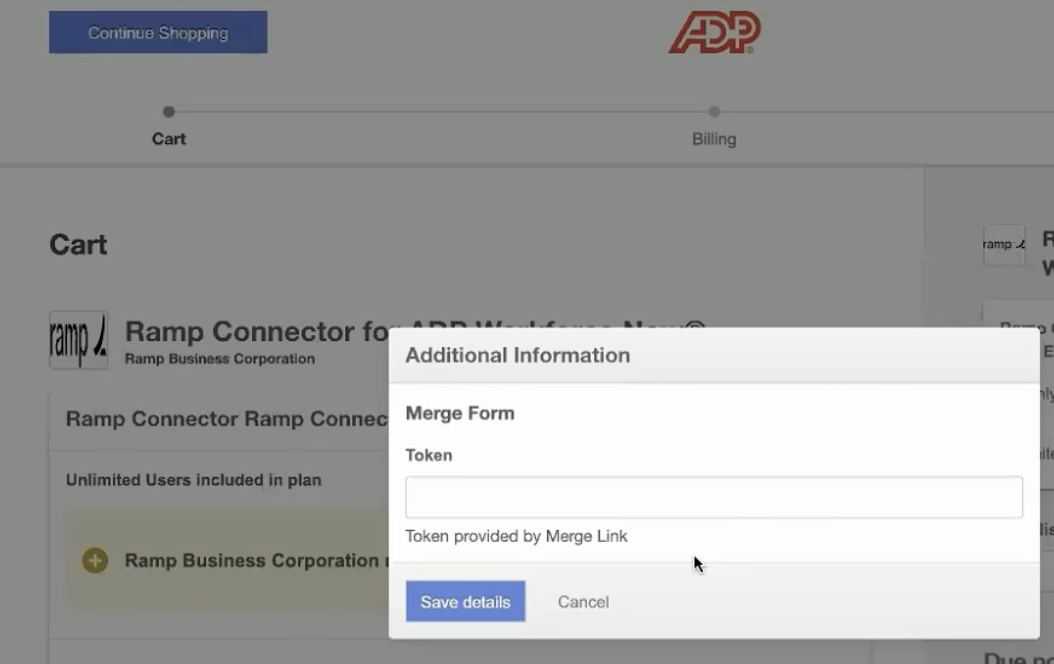
- Enter the Merge Token provided to you from step 1. (You can go back to your Ramp tab to find the token.)
- Finish the ADP Marketplace Subscription flow, and return back to your Ramp account to complete the rest of the linking process.
Step 3: Providing consent
- When you return to your Ramp account, click Next Step on the integration popup window.
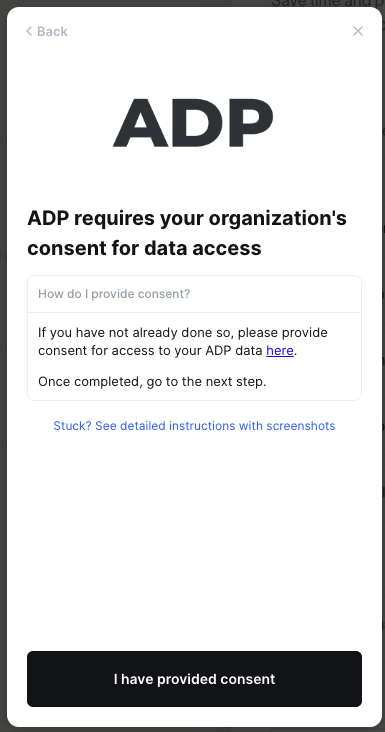
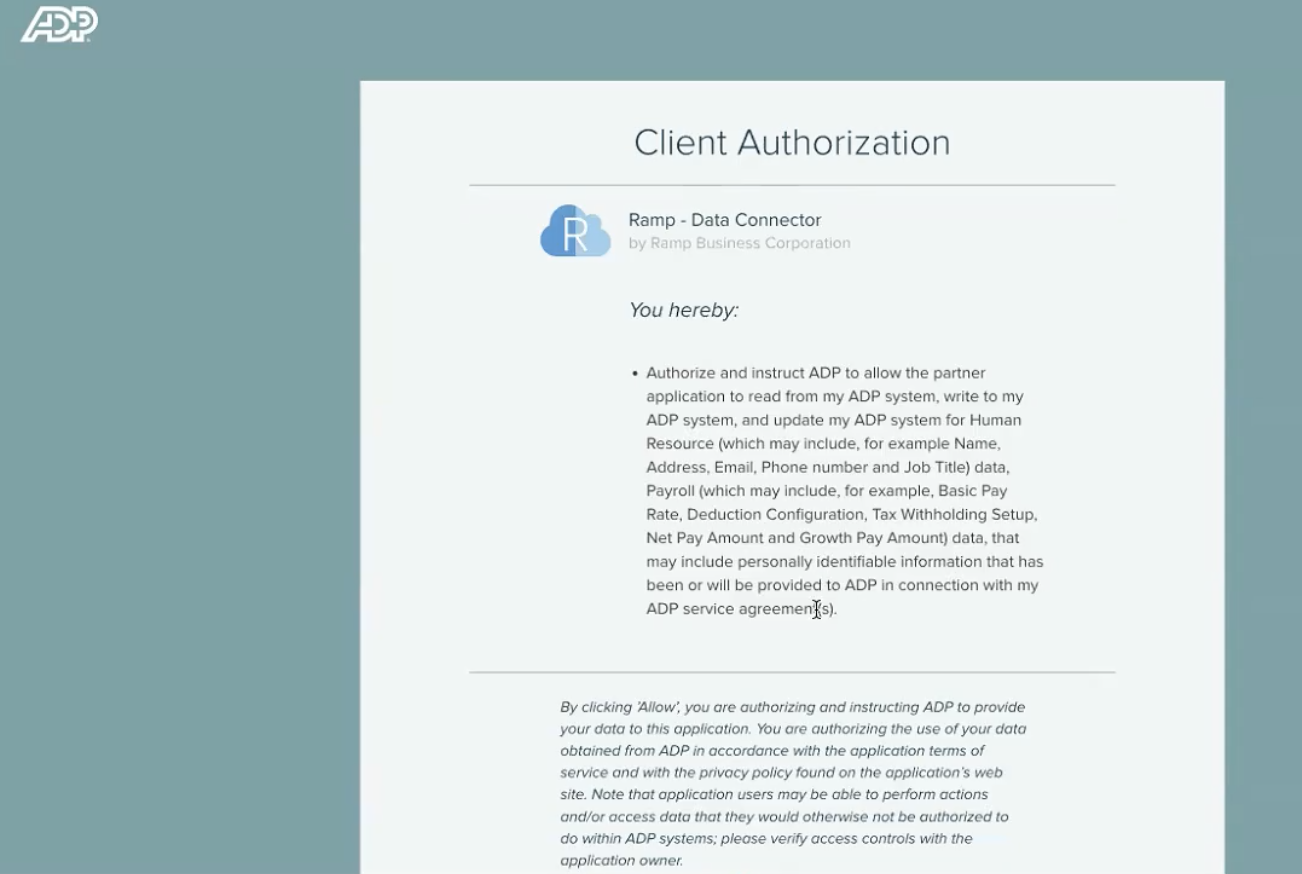
- [Required] You will be prompted to provide consent for Ramp to access your ADP data (see below)
- Click on the link provided to go to ADP's consent page
- Scroll to the bottom and click ALLOW
- Return to your Ramp account and click "I have provided consent"
Step 4: Finalize setup in Ramp
- The integration will automatically begin syncing your data from ADP to Ramp.