Clients: add, invite, and connect
Overview
Partners on the Ramp Advisor Console can add clients in three ways: create an account on their behalf, invite them to create their own account, or connect to an existing Ramp account. You can also add multiple clients at once using a CSV upload.
To get started, sign in to the Console and click Add clients. You will see up to three options:
- Create an account for them — Start a Ramp application on behalf of your client (single or bulk). This also generates a referral.
- Invite them to create an account — Send your client a referral to apply on their own.
- Connect to their account — Request access to a client who already has a Ramp account.
Create an account for a client
- Sign in to the Console and click Add clients.
- Select Create an account for them.
- When prompted "How many clients are you adding?", select One client, Multiple clients, or Multi-entity client.
One client
- Enter the legal business name and website.
- Choose the primary product: (1) Full Ramp suite, (2) Accounts Payable & Accounting, or (3) Accounting.
Full Ramp suite or AP & Accounting
- You'll be prompted to select the role you need access to in this client's account.
- Once you choose a role and click Continue, you'll be prompted to complete the application flow and send it to the client.
- Once you send to review, the client will be prompted to review the information and submit the application, which will then be reviewed by our risk team.
- In the interim, you can go to Pending clients in the Clients page and click the arrow next to Continue application. This will take you into the client's instance and let you start setting up the account and using Stack.
- You can always track progress in the Status field in Pending clients.
For details on referral eligibility and payouts, see Partner status, referrals, and payouts.
Accounting only
- You'll be taken directly into the client's account and can start using Stack.
Multiple clients
After selecting Multiple clients in step 3 above:
Full Ramp suite or AP & Accounting
- Download the provided template spreadsheet.
- Fill in the template with your clients' details, then upload the completed file.
- Review the information and click Import.
- Wait for applications to be created and send to clients for review in bulk from the following screen.
Accounting
- You have two options to add clients to Stack:
- Type their names manually
- Upload a screenshot or CSV with their names
- Hit Continue — we'll create accounts for all of them and you'll be able to start using Stack right away.
Multi-entity clients
After selecting Multi-entity client in step 3 above:
- Add details about parent and sub-entity accounts.
- You can re-use parent information across the sub-entity applications — for example, controlling officers and beneficial owners.
- When ready, click Go to final review, assign a client reviewer, and send to them for review and submission.
Note: The Multi-entity client flow creates a Ramp multi-entity account, but QuickBooks Online cannot support Stack multi-entity bookkeeping within one Ramp account. Multi-entity Stack is available only to eligible accounts using a supported multi-entity accounting setup. Contact your Ramp representative to confirm availability. To onboard a single-entity client to Stack, use the One client or Multiple clients flow above and select Accounting as the primary product.
Invite a client to create their own account
- Sign in to the Console and click Add clients.
- Select Invite them to create an account.
- Enter your client's email and select which roles your firm needs access to.
- Click Invite client.
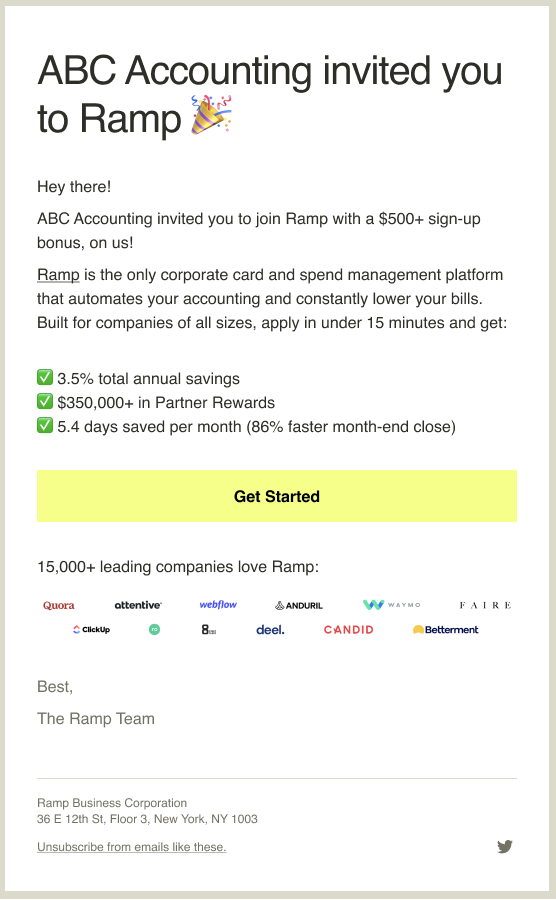
Your client will receive an email inviting them to apply to Ramp. You can track their status in the Pending Clients tab and view all referrals in the Referral Rewards tab.
As your client onboards to Ramp, they will be prompted to connect with your firm. Once they accept, the connection request appears in your Console for you to accept. After connecting, add yourself or assign the relevant staff to the client.
For details on referral eligibility and payouts, see Partner status, referrals, and payouts.
Connect with clients already on Ramp
- Sign in to the Console and click Add clients.
- Select Connect to their account.
- Select which roles your firm needs access to, then enter your client's email.
- Click Invite client.
When the client clicks the link sent via email, they can accept the connection request. You will be notified once the connection request is accepted and can then assign staff to the client.
Referral emails your client receives
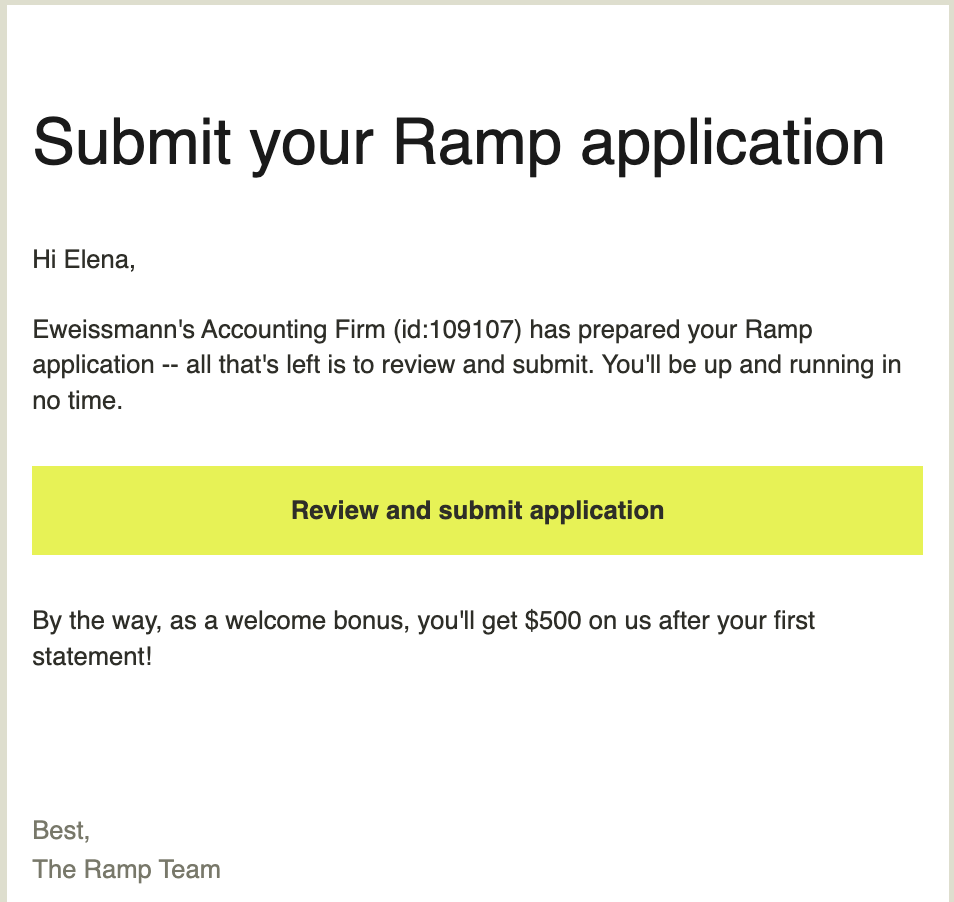
If you prepare your client's application, this is the email they will receive:
If you invite your client to create their own account, this is the email they will receive:
Transfer ownership to your client
If you created the Ramp account as the initial business owner and now need to transfer ownership to your client, follow these steps:
- In the client's Ramp account, go to Company > Settings and update the Business Owner to the appropriate client owner.
- If you have any funds or balances associated with your user, transfer those funds to the client's owner account before you change ownership so there is no disruption to access.
- After ownership is updated, ask your client to invite your firm under People > Accounting firms so you can reconnect as an external accountant instead of the business owner.
Note: Accountant users added via Advisor Console do not count toward your client's paid user seats.
Frequently asked questions
Does creating an application for a client also count as a referral?
Yes. Every time you start an application for a client, this automatically generates a referral. For details on referral eligibility and payouts, see Partner status, referrals, and payouts.
Does the application invite to my client expire?
Yes, the invite will expire after 14 days. Within the Advisor Console, click on the application invite to re-send the invitation or send it to someone else.
What happens if I accidentally send the application invite to the wrong email?
So long as the invitee has not yet accepted the application invite, you can send it to someone else. This will automatically revoke the original application invite. Click on the application invite within your Advisor Console to change the recipient.
Is it okay to fill out an application on my client's behalf?
Yes. For every application you prepare, your client still needs to review it, complete any remaining fields, and click Submit. As part of this, they certify that the information in the application is true and accurate, and that they have authority to act on behalf of their business. Ramp considers the client as the final applicant.