3-Way Match with Ramp Procurement
Overview
3-way match allows you to match bills in Ramp Bill Pay with purchase orders and item receipts. This allows you to get ultimate control over your AP process and ensure that you're not paying for goods that weren't received.
3-way match for purchase orders created in Ramp requires the Procurement add-on. 3-way match for imported purchase orders requires Ramp Plus. See Ramp Plus overview for plan details.
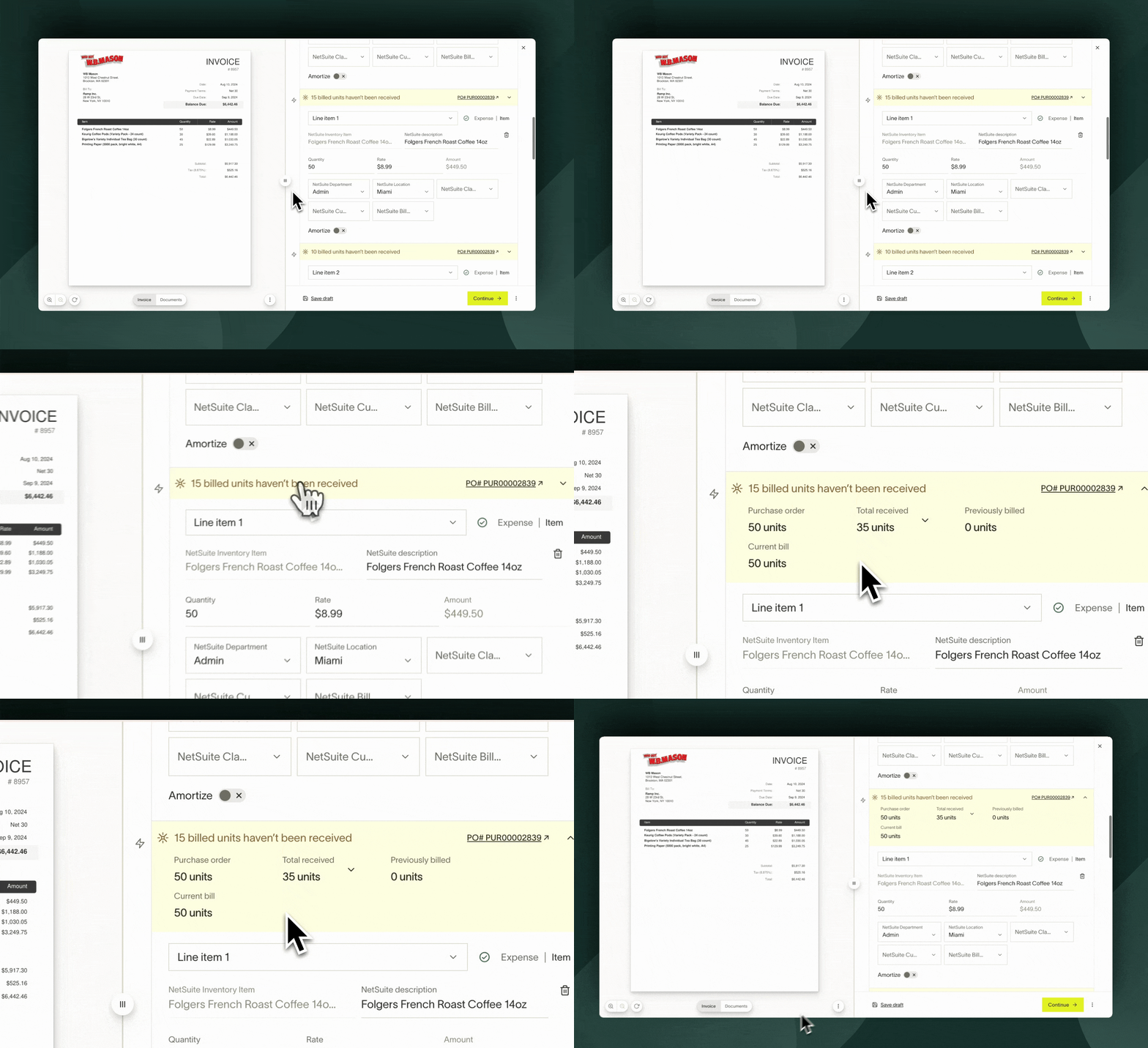
How 3-way match works
Receiving
There are three different ways to 3-way match in Ramp, outlined below. Creating item receipts in Ramp to match against Ramp POs and bills requires the Procurement add-on once 3-way match is enabled. Customers using NetSuite can also import POs and item receipts from NetSuite to 3-way match against bills in Ramp. Sage Intacct import and three-way match are rolling out to eligible businesses; contact your Ramp account team to enable them, and see Sage Intacct integration: Purchase orders and item receipts for setup, prerequisites, and limitations.
Once an item receipt is attached to a purchase order in Ramp, the Purchase orders table shows the PO's receiving status.
Receiving statuses:
- Not received: No item receipt exists for the PO
- Partially received: There are item receipt(s) for the PO but not every line item has been fully received yet
- Note: You can only configure the quantity for Inventory line items (line items with the Inventory Item accounting fields coded) and must be using NetSuite, QBO, Sage Intacct, or Universal CSV. Otherwise, the line item type will be treated as an Expense line item which can only be marked as Received or Not Received. For the Universal CSV workflow, see Partial receiving (Universal CSV).
- Fully received: There are item receipt(s) for the PO and every line item has been fully received
3-way matched bills
Once a bill is matched to a PO with an item receipt(s), you will see the receiving status directly on the bill's line items. If the billed units have been received, you'll see a green All billed units have been received alert.
How to 3-way match with Ramp bills, NetSuite POs, and NetSuite item receipts
Available on Ramp Plus. See Ramp Plus overview for plan details.
With 3-way match enabled, once you match a bill to an imported PO from NetSuite, Ramp will automatically fetch related item receipts from NetSuite for the PO line items. We'll show an alert if the billed units haven't been received. Follow the steps below to set it up.
Enable 3-way match in Bill Pay settings
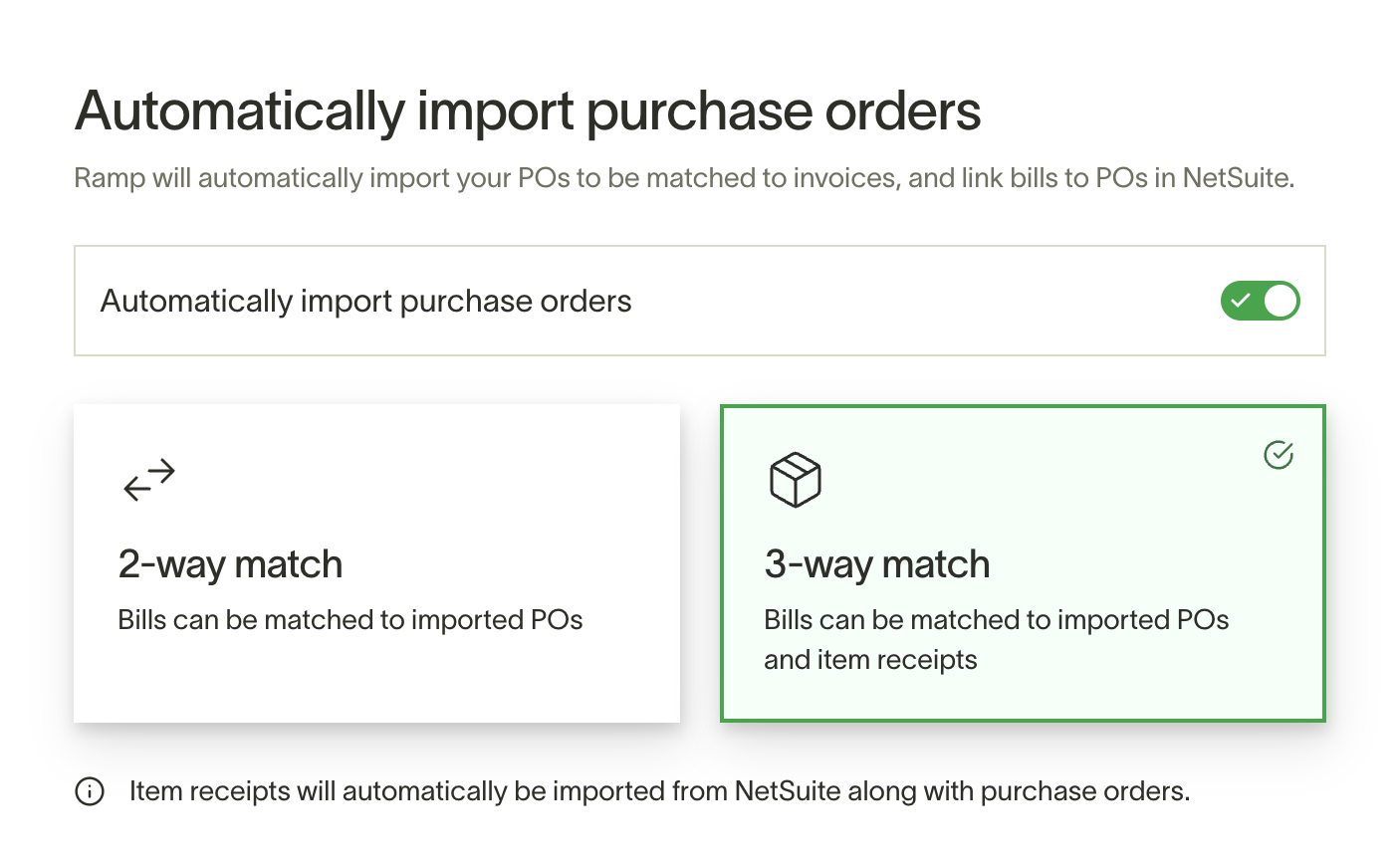
Enable 3-way match in Bill Pay settings, and Ramp will start to pull in item receipts from NetSuite.
Navigate to Bill Pay > Bills > Settings > Importing.
Match bills in Ramp to POs in NetSuite
When you pay bills with Ramp Bill Pay, match bills to purchase orders in NetSuite. Once a PO is selected, Ramp will automatically match the bill line items with PO line items and then pull in item receipts. You can view which billed line items haven't been received and open existing item receipts in NetSuite.
We cannot sync item receipt statuses on POs that have been closed in NetSuite.
How to 3-way match with Ramp bills, Ramp POs, and NetSuite item receipts
If you prefer to receive in NetSuite, Ramp can import NetSuite Item Receipts and 3-way match to Ramp purchase orders and bills.
Note: You must ensure the role that was used to set up integration between Ramp and NetSuite has Item Receipt FULL permission. You can confirm this using the following steps:
- Setup > User/Roles > Manage Roles
- Edit Role used to integrate between NS and RAMP
- Permission > Transactions tab
- Item Receipt > FULL
After you verify the role has the proper permissions, follow the instructions below to continue setting it up.
Enable 3-way match for a specific Spend Program(s)
Edit the Spend Program and select 3-way match for invoice matching in Procurement controls.
Sync a PO to NetSuite
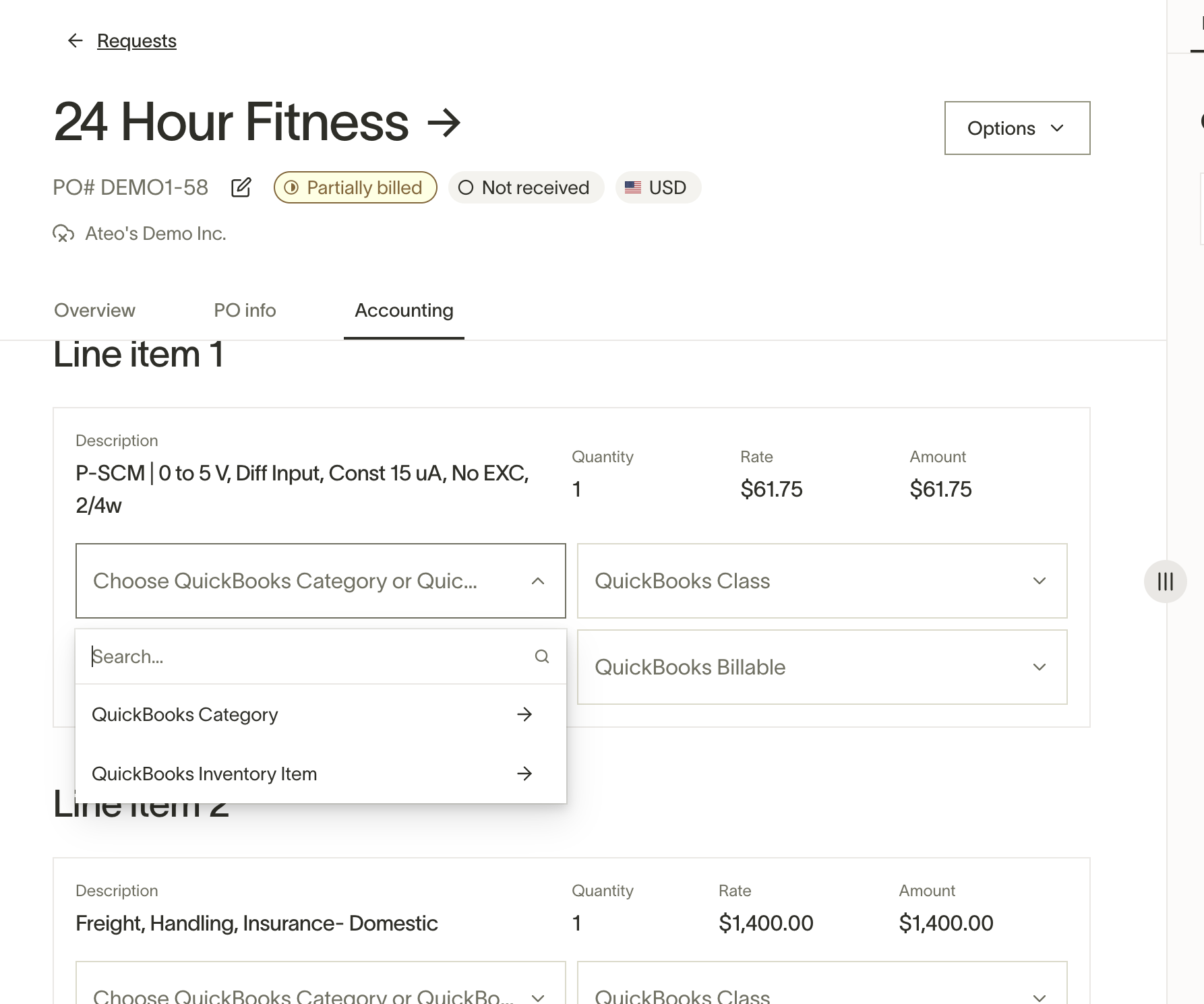
Once a request is approved, you'll see "Not received" for the receiving status. To receive against a PO, fill out the accounting fields on the "Accounting" tab of the PO then sync the PO over to NetSuite.
Create an item receipt in NetSuite to sync to Ramp
After the PO has been synced to NetSuite, you can receive in NetSuite. Create and save an item receipt and it will sync over to Ramp. The receiving status on the PO will update accordingly.
Match bills in Ramp to POs in NetSuite
When you pay bills with Ramp Bill Pay, make sure the correct Ramp PO is matched. Once a PO is selected, Ramp will automatically match the bill line items with PO line items and then pull in NetSuite item receipts. You can view which billed line items haven't been received and open existing item receipts in NetSuite.
How to 3-way match with Ramp bills, Ramp POs, and Ramp item receipts
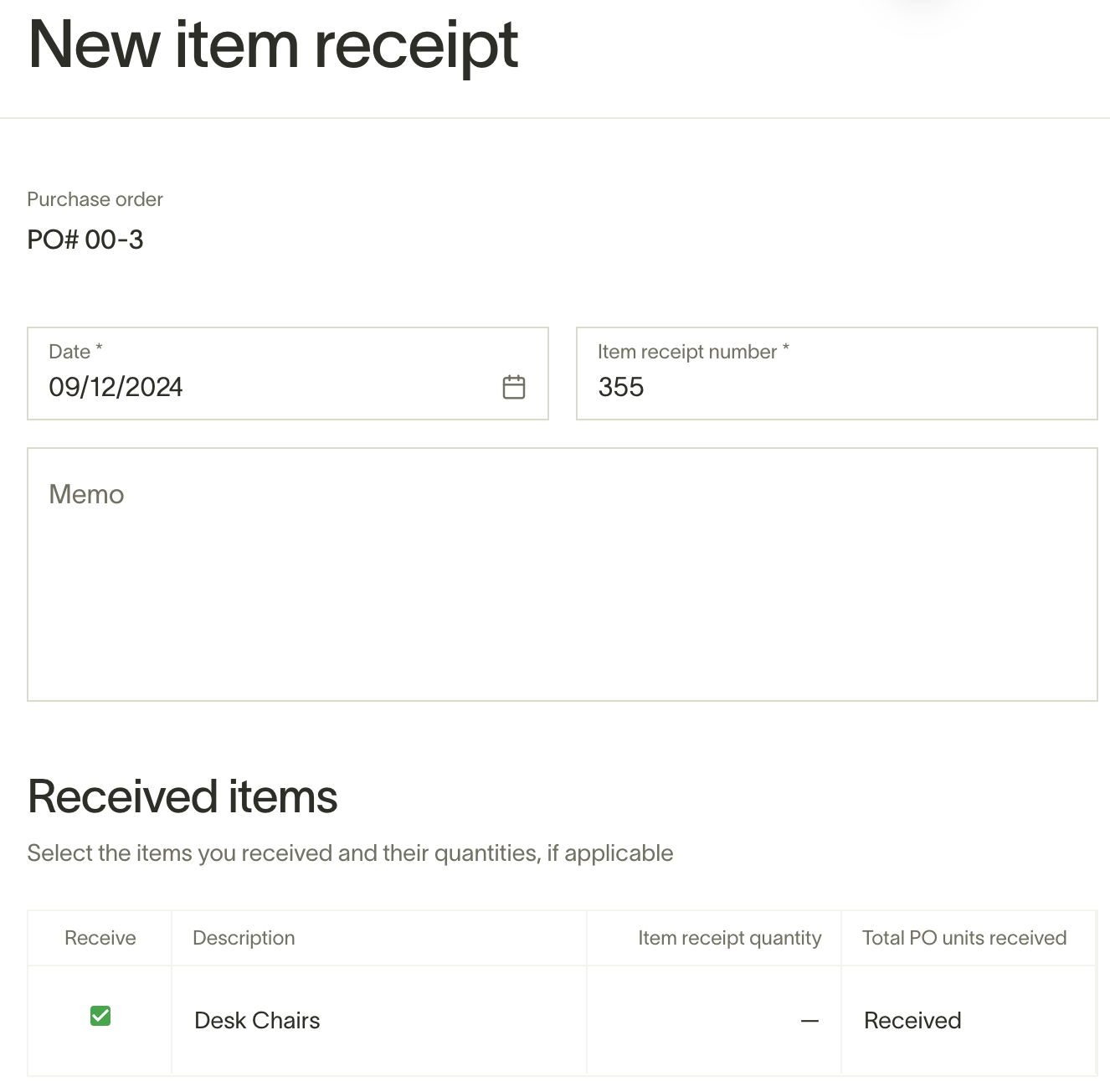
If you create POs in Ramp, you can create Item Receipts directly in Ramp to mark a PO as received. You do not need to have a direct ERP integration to do this. We will update the Received status on a PO accordingly. Follow the steps below to set it up.
Enable 3-way match for a specific Spend Program(s)
Edit the Spend Program and select 3-way match for invoice matching in Procurement controls.
Create an item receipt for a PO
Once 3-way match is enabled in the Spend Program, approved POs show Add receipt. Users with permission to manage purchase order receipts can create item receipts. Created receipts appear in the PO's Item receipts section. When the receipt is complete, the PO's receiving status updates.
View item receipts in Ramp bills
Once a bill is created for a PO, the PO will be automatically matched and you can see if billed items have been received or not directly within the bill. You can also open the item receipt directly from the bill.
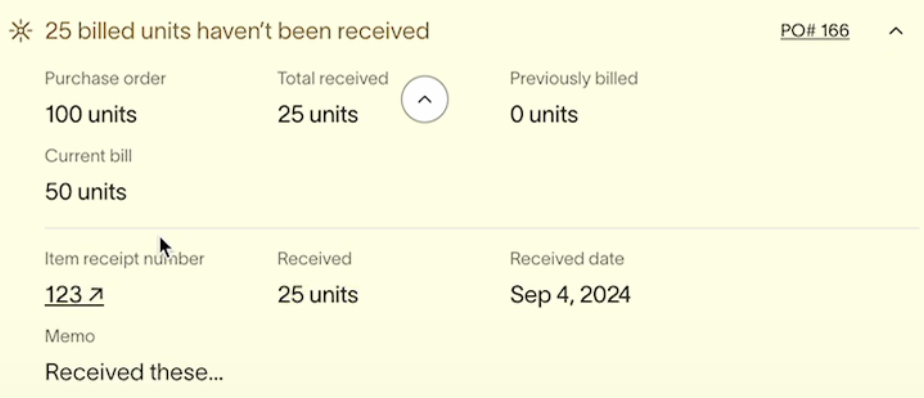
Note: The receiving status is derived from the item receipt's association to a given PO. Item receipts created in Ramp against a PO can be synced to your ERP for NetSuite and Sage Intacct — see Syncing item receipts to NetSuite and Sage Intacct integration: Purchase orders and item receipts. For ERPs where item receipt sync isn't supported (such as QuickBooks), create the item receipts directly in your ERP to reflect receiving status there.
Use cases and examples
- Great for companies issuing purchase orders in NetSuite and creating item receipts.
- Companies using accounting providers that don't support item receipts (i.e. QuickBooks) can now use Ramp to create those item receipts and still perform 3-way match.
- Customers who do not have a direct ERP integration.
Frequently asked questions
How long does it take to enable 3-way match?
If you are importing item receipts from NetSuite, it can take up to an hour to pull in the initial set of receipts depending on how many there are.
How frequently does Ramp import item receipts from NetSuite?
New item receipts are imported daily, and an import refresh also starts when you open Manage spend > Purchase orders.
Can I use 3-way match if I use QBO?
Yes, if you use QBO you will need to use the3rd option. You cannot 3-way match with imported POs from QBO, you will need to do everything in Ramp.
Can I mark items as received in Ramp for imported POs?
You cannot receive in Ramp against an imported PO. The receipt status in Ramp will update based on the status in NetSuite.
If I update my Spend Program from 2-way match to 3-way match, will this apply to Purchase Orders already created?
Yes, you will be able to create item receipts for existing Purchase Orders in that Spend Program.
Can I sync item receipts created in Ramp to my ERP?
Yes, for NetSuite and Sage Intacct. See Syncing item receipts to NetSuite and Sage Intacct integration: Purchase orders and item receipts. Other ERPs (such as QuickBooks) don't support item receipt sync — create item receipts directly in your ERP for those.
How can a PO be marked as partially received?
Admins must enable the Inventory Item fields in Accounting settings. Then, employees can code line items with the Inventory item accounting field. This will allow you to edit the number of items received on an item receipt.
If you are having trouble seeing item receipts populated in Ramp (image attached below), then ensure to check if the "Item Receipts: Full" permission has been granted to the Ramp Accountant user.
Steps to resolve:
- Click "Setup" at the top
- Select "Users/Roles" from the drop-down menu
- Select "Manage Roles"
- Click "Ramp Accountant"
- Look for "Item Receipt" in the Permission column