Vendor Profile Public Sharing
Overview
Vendors can securely share their vendor profile, tax details, and documents with customers. They can control what each recipient sees, track activity, change permissions, revoke access, and extend access after it expires.
What you can share
- Vendor profile: company name and logo, business description, location, contacts, and links
- Tax details: vendor legal name, federal tax classification, tax address, tax forms (W-8/W-9)
- Documents: uploaded documents that appear under Sharing X of Y documents in Share profile, such as contracts and privacy policies
Preview your public profile
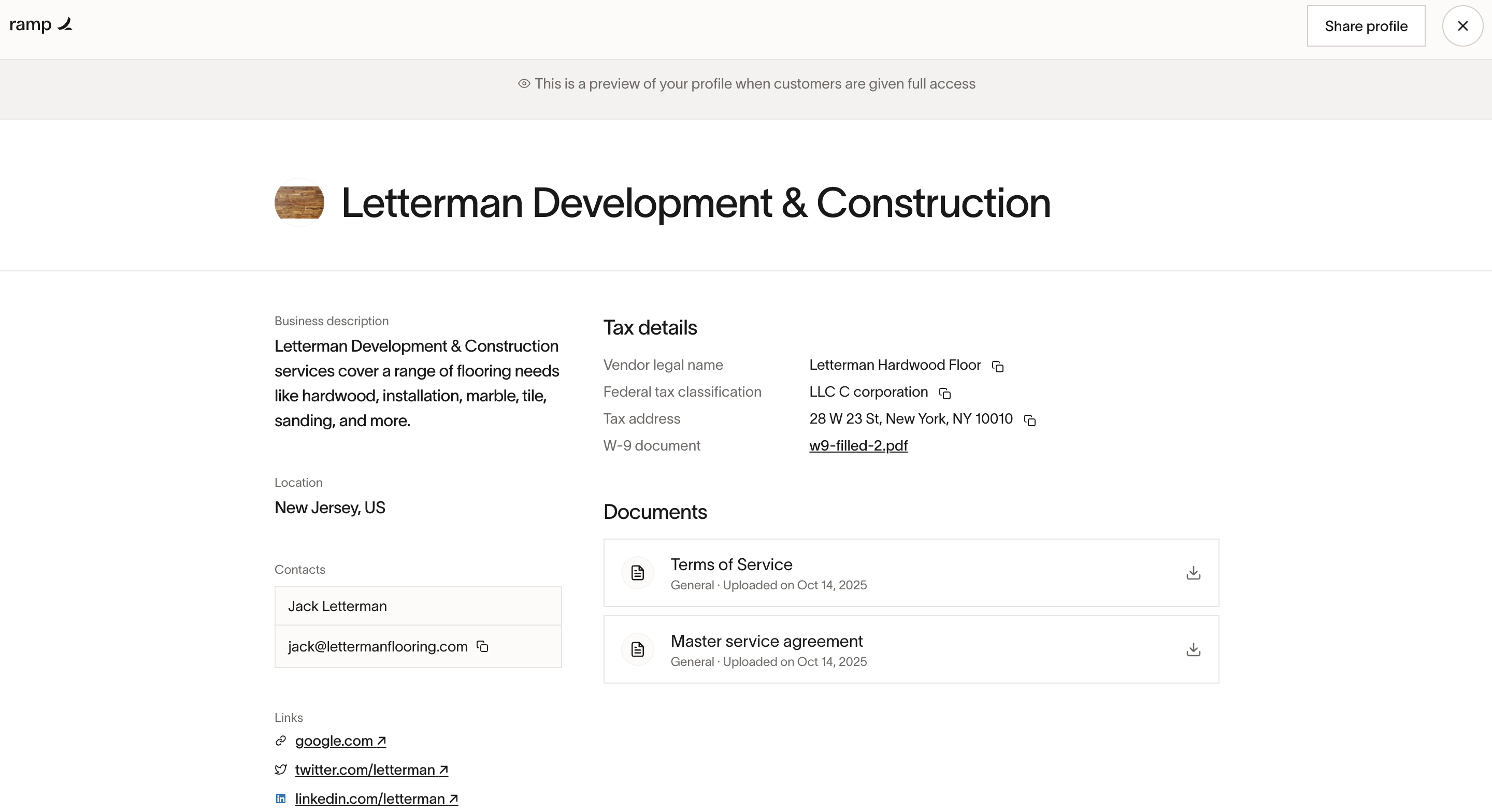
Go to Vendor profile > Preview profile to view the read-only view your customers will receive. You will be able to customize what each customer sees.
Share your profile with a customer
Profile sharing is available after at least one active Ramp customer has paid you through Ramp. If Share profile is not visible, your vendor profile does not yet meet this requirement.
- Open Vendor profile, then click Share profile.
- Select Tax details and any documents you want to share under Sharing X of Y documents. To share a document, upload a supported document to your profile first.
- Enter the customer's email in Email, then click Share. You will see "Invite sent." You can invite only one customer at a time.
- Your customer receives an email with a secure link to view your profile.
Customers with access to your profile can view the items you shared, download shared documents, and see your vendor profile details (business name and description, contacts, links, etc).
Manage access for each customer
- Open Share profile to view Customers with access
- Select a customer to open Manage access. Select or clear tax details and documents, then click Save. The recipient's view updates when they refresh the page.
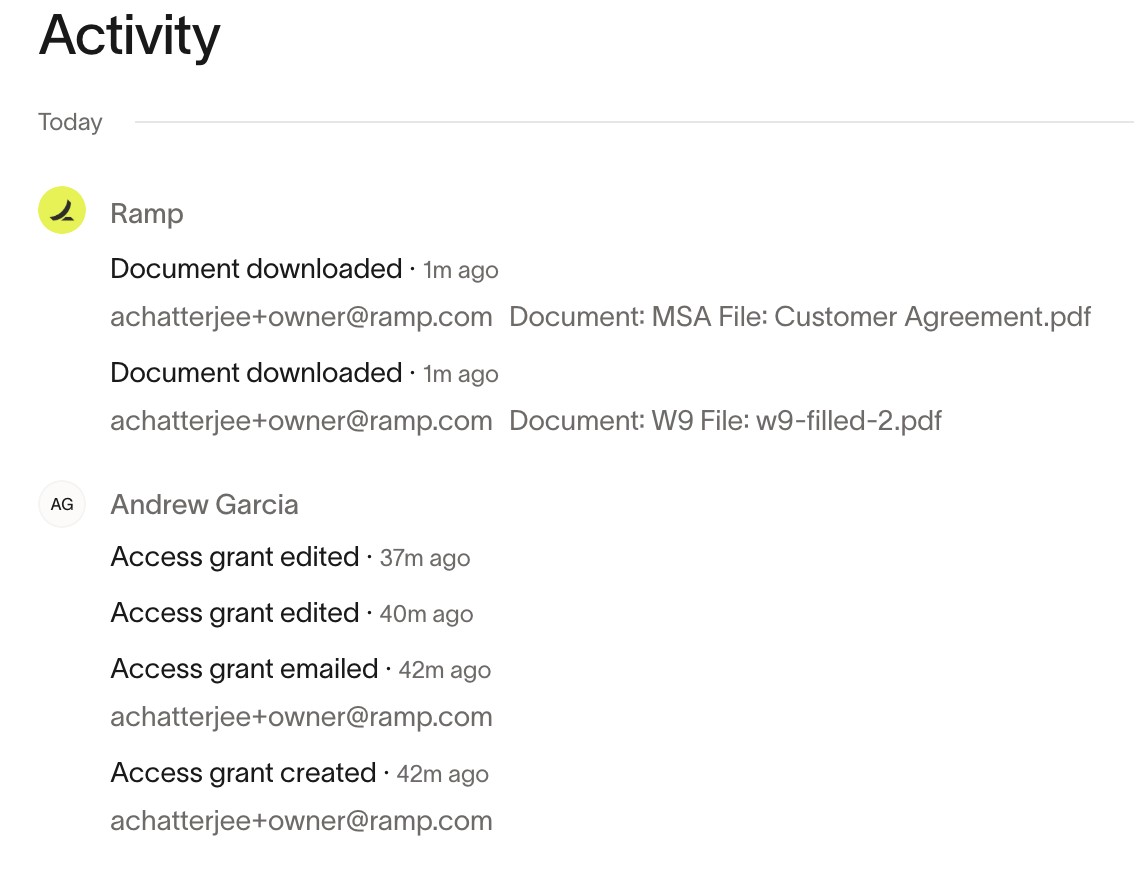
- Review Activity to see a log of when access was created, emailed, and edited, and confirm when a document was downloaded by document and file name
- Click Revoke access and confirm to no longer allow the recipient to view the shared page. They will see a 404 (error) page instead.
Access expiration and requests
Access expires in 30 days by default. When a link expires, the recipient sees a page titled "Your access has expired" and can click Request access. You will receive an email about the request. Open the customer's Manage access page and click Extend access to extend access for another 30 days.
Use cases and best practices
Use cases:
- You repeatedly share the same documents with your customers via email or other manual processes
- You want to store your vendor documents and business details in one place and easily re-share with customers or prospects
Best practices:
- Share only what your customer needs (for example, Tax details and one compliance doc)
- Keep your tax forms current
- Revoke access if you shared the wrong files
- After access expires, use Extend access instead of sending a new invite when a customer needs more time
Troubleshooting
- Recipient sees a 404 page: Access was revoked or the link is invalid. Re-invite the customer.
- Recipient sees the "Your access has expired" page: Open Manage access and click Extend access.
- Recipient cannot see a document: In Manage access, select the document under Sharing X of Y documents and click Save.
- Need to resend an invite: If access expired, open Manage access and click Extend access. Otherwise, revoke access and send a new invite from Share profile.