Use Policy Agent for approvals
Once your agent-facing policy is published, Policy Agent can do more than recommend actions—it can also automatically approve clearly in-policy expenses. This article explains how recommendations work, how to configure Policy Agent in approval workflows, how card-specific rules are enforced, and how existing flags interact with the agent.
For new businesses that keep Ramp’s default expense workflows, Policy Agent can be enabled automatically. Businesses with custom workflows decide where to enable it.
How recommendations work
Policy Agent only recommends actions when an approval workflow does not use its recommendation for automatic approval. For new businesses that keep Ramp’s default expense workflows, Policy Agent may already be enabled for automatic approvals.
Policy Agent produces three recommendation types:
- Approval recommended – The expense clearly complies with your policy.
- Requires review – The agent is uncertain, missing context, or your policy explicitly requires human review.
- Rejection recommended – The agent identifies a clear policy violation.
On the homepage, recommendations appear in separate sections:
- Approval recommended appears under Transactions ready to approve or Reimbursements ready to approve.
- Review recommended appears under Transactions to review or Reimbursements to review.
- Rejection recommended appears under Transactions ready to reject or Reimbursements ready to reject.
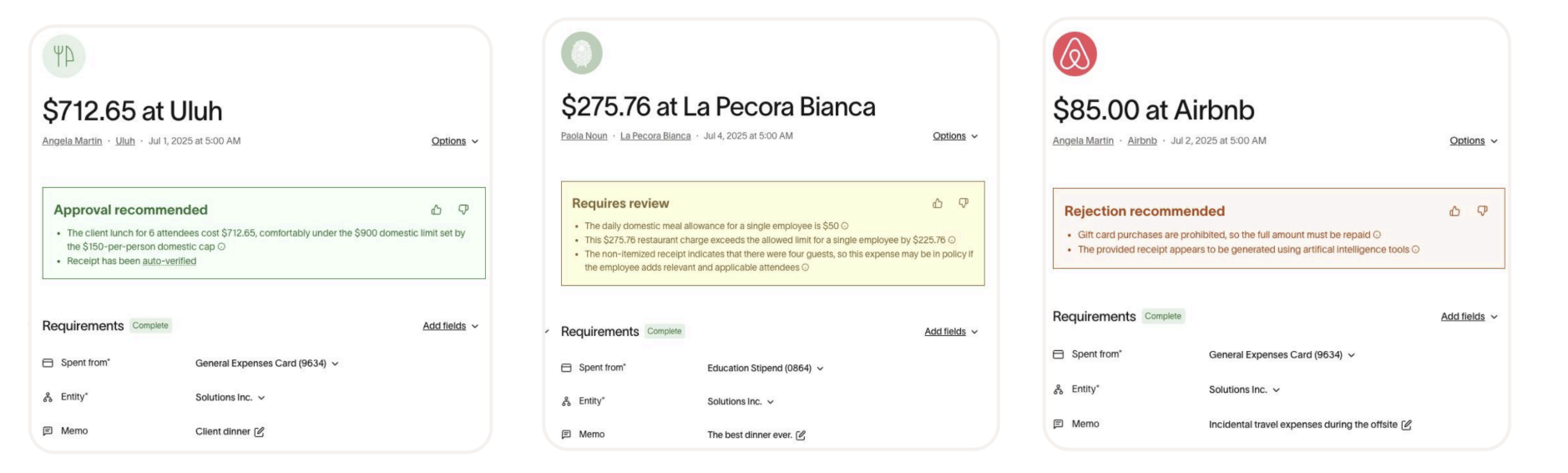
Policy Agent uses full transaction context for these recommendations, including:
- Your agent-facing policy
- Merchant and transaction data
- Receipt OCR, memos, attendees, and trip details
- Custom fields (e.g., department, role, entity, office)
- Card details (card last 4, physical vs virtual, Spend Program)
When policy language is ambiguous, the agent leans conservative and surfaces more decisions as Requires review rather than risking an incorrect automatic approval.
Add Policy Agent to approval workflows
First, check whether Policy Agent is already in an approval workflow. To enable approvals where it is not already configured:
- Go to Policy > Travel & expenses > Additional controls > Expense reviews
- Select an existing approval workflow or create a new one
- Add Policy Agent as a step in the workflow
- Configure when the agent can auto-approve vs. when it should pass decisions to human reviewers
You can place Policy Agent at any step, including:
- As an early filter before managers review
- Between approvers in a multi-step chain
- As a final check to catch violations missed earlier
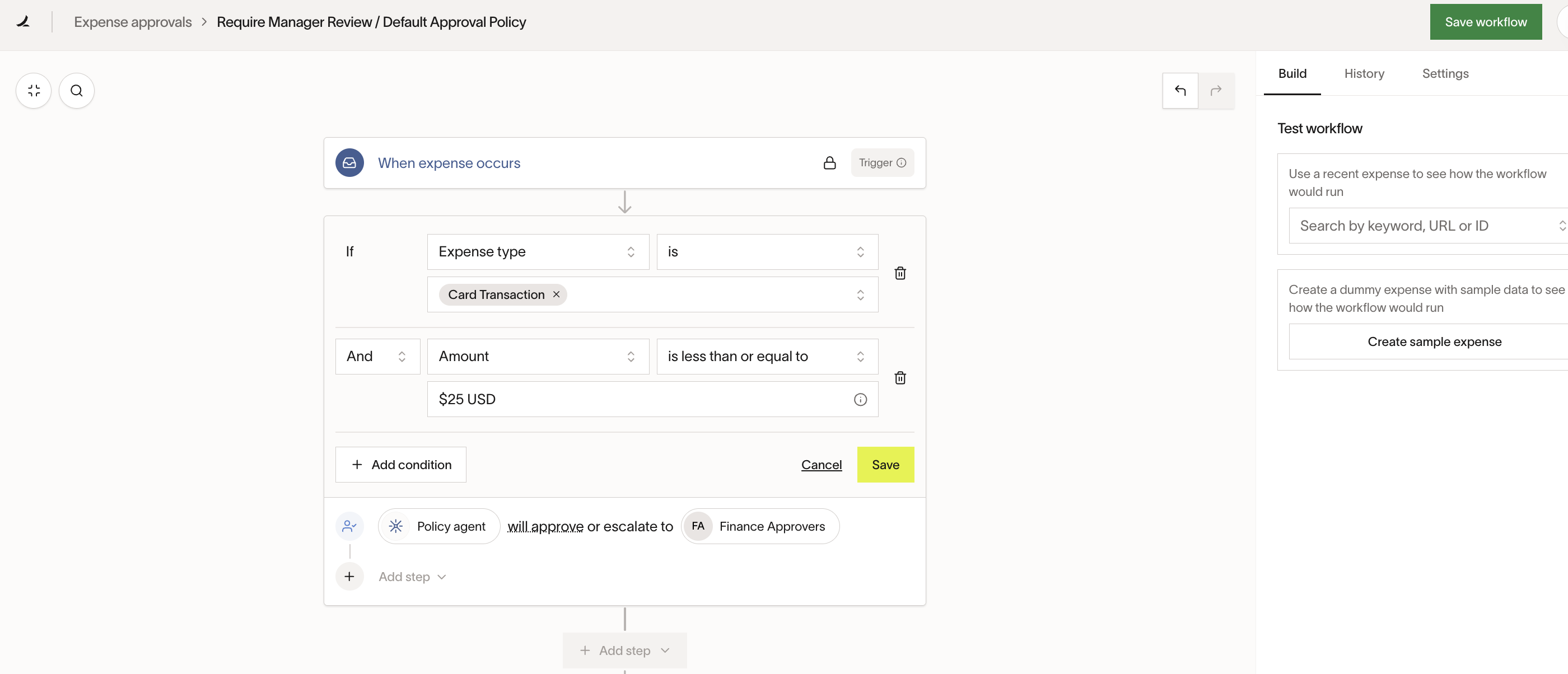
FAQ – How does Policy Agent fit into multi-layered or threshold-based workflows? You can add Policy Agent at any step in your approval workflow. It works with simple or complex chains, including threshold-based and department/entity-based approvals.
Configure auto-approval conditions
You can control when Policy Agent is allowed to automatically approve expenses by editing the approval workflows created by Ramp or your business.
Common configurations in Policy > Travel & expenses > Additional controls > Expense reviews include:
- Auto-approve expenses below a certain amount (e.g., <$1,000)
- Auto-approve expenses for specific Spend Programs
- Auto-approve for certain departments , roles , or entities
- Auto-approve specific merchants or categories that are low risk
- Require human review for all Requires review or Rejection recommended decisions
Any expenses that do not meet your auto-approval conditions:
- Follow the rest of your configured workflow, or
- Go straight to human reviewers, depending on how you structure the steps
FAQ – Can Policy Agent be set to only recommend (not approve) in certain scenarios? Yes. Check your existing approval workflows first because Policy Agent may already be enabled for a new business using Ramp’s default workflows. Edit those workflows so Policy Agent is used only where its recommendation should produce an automatic approval.
Card-specific purchase requirements
You can write rules that restrict certain purchases to specific cards or Spend Programs, and Policy Agent will enforce them based on card context.
How to express card-specific rules
Write the rule in plain English and reference the exact name of the card or program as it appears in Ramp.
Examples:
- “Laptop accessories must be purchased on the
IT Procurementvirtual card. Purchases of laptop accessories on any other card are out-of-policy.” - “Travel bookings must be made on cards in the
Travelprogram. Personal cards or general corporate cards are not allowed.”
You can include entity or department exceptions within the same section, for example:
Note: “For the UK Entity, travel may also be booked on Travel Europe cards.”
How the agent enforces these rules
To enforce these rules, Policy Agent evaluates:
- Card last 4 digits
- Physical vs virtual card
- Associated Spend Program
If your policy states that a purchase type must be made on specific cards or programs, and an expense is made on a different card:
- The agent will mark the expense as Rejection recommended or Requires review , depending on context and how clearly the policy is written.
FAQ – Will the agent flag a purchase made on the wrong card? Yes. If your policy specifies that a purchase type must be made on particular cards or programs, Policy Agent will flag purchases made on other cards as out-of-policy.
FAQ – Do I need workflows or flags to enforce card-specific rules? For assessments, policy text is sufficient. For automatic outcomes, pair your policy with workflows (and, if needed, a small number of deterministic flags) to ensure the right routing.
How reviewers interact with Policy Agent
Even when Policy Agent is enabled for approvals, reviewers always have final authority.
Reviewers can:
- Approve or reject expenses, regardless of the agent’s recommendation
- Override incorrect approvals or rejections
- Request changes or repayment
- Provide thumbs up/down feedback on each agent decision
Each expense has an activity feed that shows:
- Policy Agent’s recommendation (Approval / Requires review / Rejection)
- The agent’s rationale and cited policy text
- Updated assessments after new information is added (e.g., receipt, memo)
- Reviewer overrides
- Thumbs up/down feedback
- Removed assessments
- The policy version used
- Exception decisions
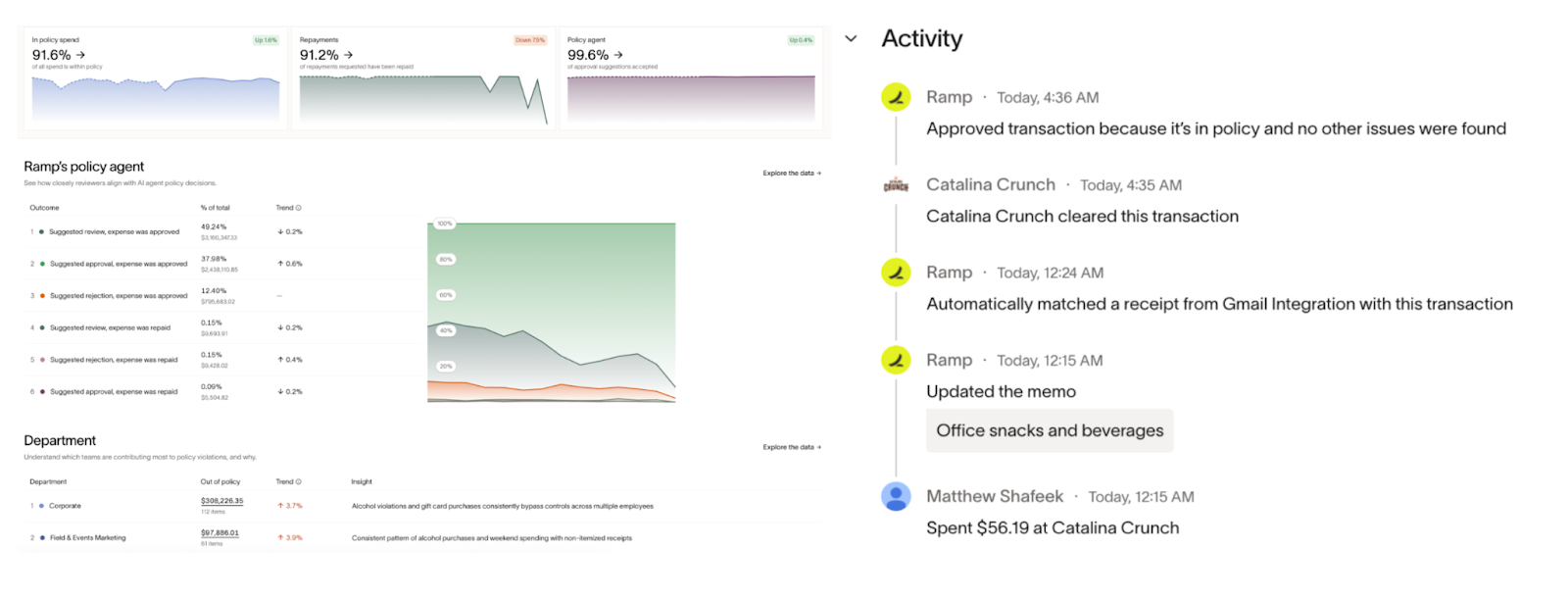
Feedback and overrides appear in the audit log and inform improvements in the system and insights in the policy editor.
Visibility settings
Visibility controls who can see Policy Agent’s assessments—not whether they are generated.
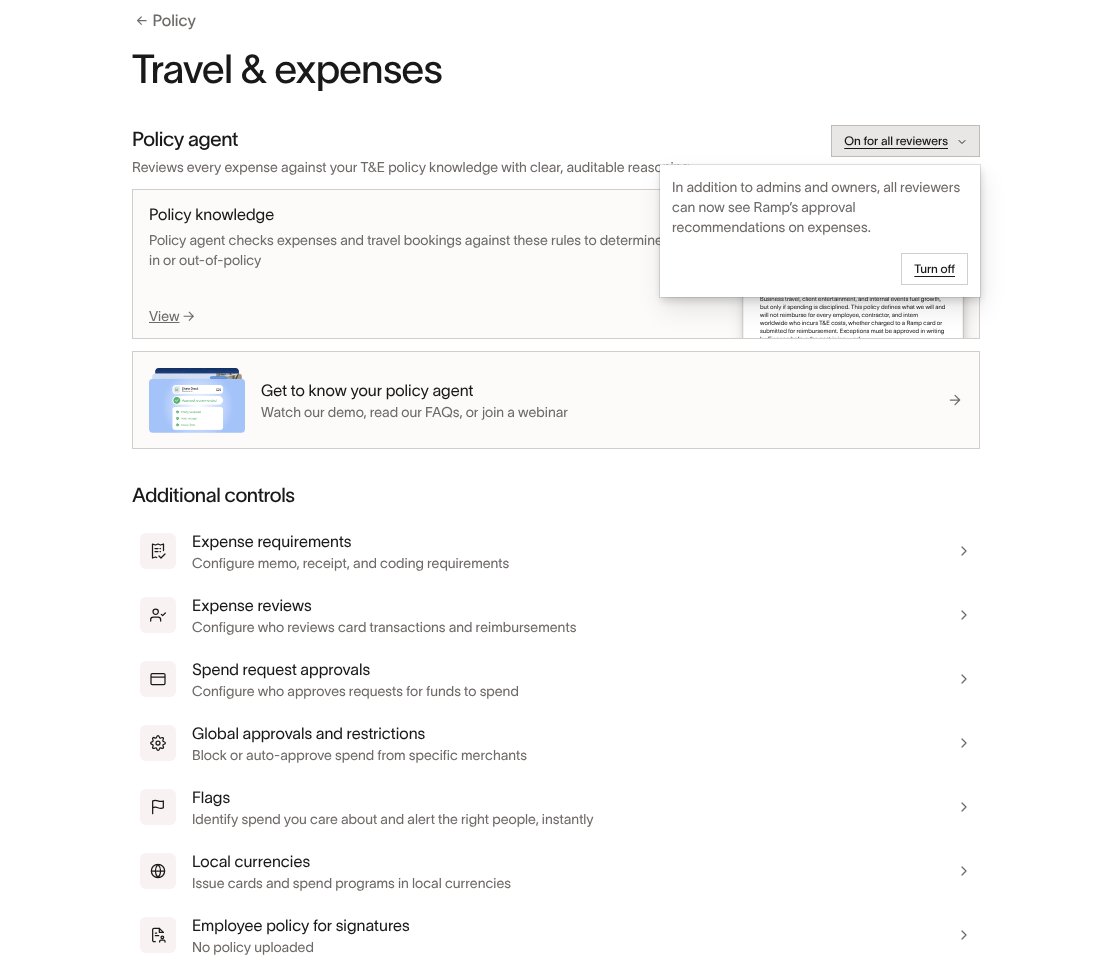
Under Policy > Travel & expenses > Policy agent, use the visibility control to:
- Select Turn on for all reviewers to let all reviewers see approval recommendations.
- Leave all-reviewer visibility off to keep approval recommendations visible to Admins and Owners only.
Employees cannot see Policy Agent assessments.
Only Admins can change this setting. If you cannot access it, ask your Admin to update visibility.
Exclude Policy Agent from specific spend
In some cases, you may want to exclude certain spend from Policy Agent entirely—especially where strict policy enforcement isn’t needed.
When to exclude
Exclusions are useful for:
- P-cards or non–T&E spend where strict enforcement may generate noise
- Intentionally flexible or low-risk programs where agent assessments are not necessary
Levels of exclusion
You can exclude Policy Agent at three levels:
- Expense level
- Remove the agent’s assessment for a single expense
- The agent will not reassess that expense
- The expense is treated as if policy does not apply
- Spend Program level
- Configure certain Spend Programs so the agent does not assess expenses on those programs
- Fund / card level
- Exclude specific funds or cards from Policy Agent assessments
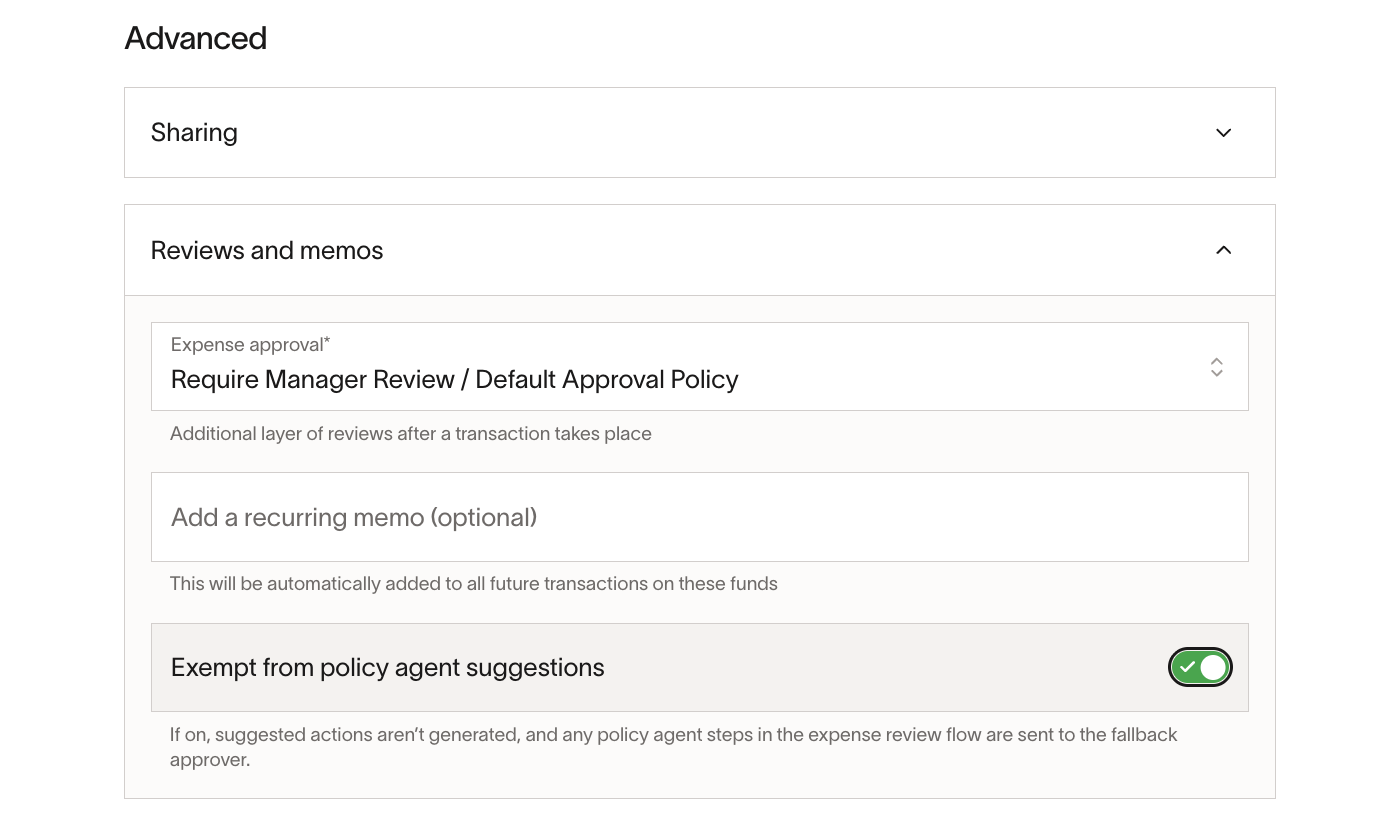
These controls help you keep Policy Agent focused on the spend where enforcement and guidance matter most.
Flags and overrides
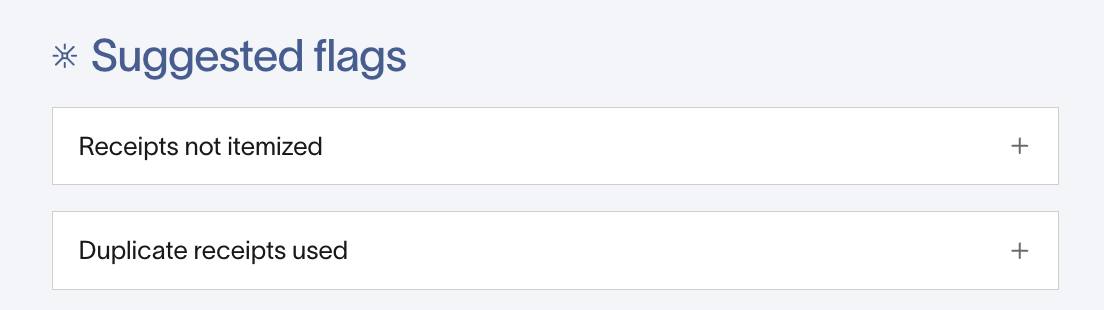
Policy Agent works alongside your existing Ramp settings. Flags are one input Policy Agent considers alongside your written policy and expense context; they do not override applicable policy evaluations.
Flags are deterministic rules that can trigger notifications and be used to filter transactions.
Recommended pattern:
- Move most policy logic into your written policy document , where Policy Agent can interpret nuance.
- Keep a small set of receipt-related flags , such as:
- Duplicate receipt
- AI-generated receipt
- Receipt previously used
For other settings (e.g., spend controls, submission requirements), the main action is to ensure your written policy matches your Ramp configuration, so the agent and deterministic rules are aligned.
Testing before full rollout
Policy Agent runs only in production, but you can test safely before rolling out to all reviewers or changing automatic approval settings.
Recommended testing workflow:
- Publish your agent-facing policy
- Under Policy > Travel & expenses > Policy agent, leave all-reviewer visibility off so approval recommendations remain visible to admins and owners only
- Check whether Policy Agent is already in an approval workflow; if it is, adjust that workflow so test expenses continue to a human reviewer
- Check assessments, citations, and reviewer alignment in:
- The activity feed on expenses
- The Policy report under Insights → Reports → Policy
- Adjust policy language or workflows if needed
- Turn on visibility for all reviewers
- Add or keep Policy Agent in workflows where you want it to auto-approve clearly in-policy spend
FAQ – Is there a way to test Policy Agent with real or sample transactions before going live? Policy Agent only runs in production. Before testing, check whether Policy Agent is already in an approval workflow. If it is, adjust that workflow so test expenses continue to a human reviewer. Visibility controls who can see assessments, not whether automatic approvals occur. Leave all-reviewer visibility off while you validate behavior and iterate on your policy.