Track contract utilization and link card transactions
Overview
The contract detail page shows how much you've spent against a contract. It brings linked purchase orders, bills, and card transactions together in one place, so you can compare what you agreed to pay with what you're actually paying and open any record for more detail. You can also match card transactions directly to a contract, including purchases that don't go through a bill or purchase order.
Note: To view contract-linked spend, your role needs permission to view vendor contracts. To match or unlink card transactions, your role also needs permission to modify vendor contracts. If you don't see these options, ask your Ramp Admin to review your role. See Vendors Custom Role and permissions. If your role has these permissions and you still don't see contract-linked spend, it may not be available for your business yet.
View spend linked to a contract
Open a contract from Contracts to see its linked spend on the contract detail page:
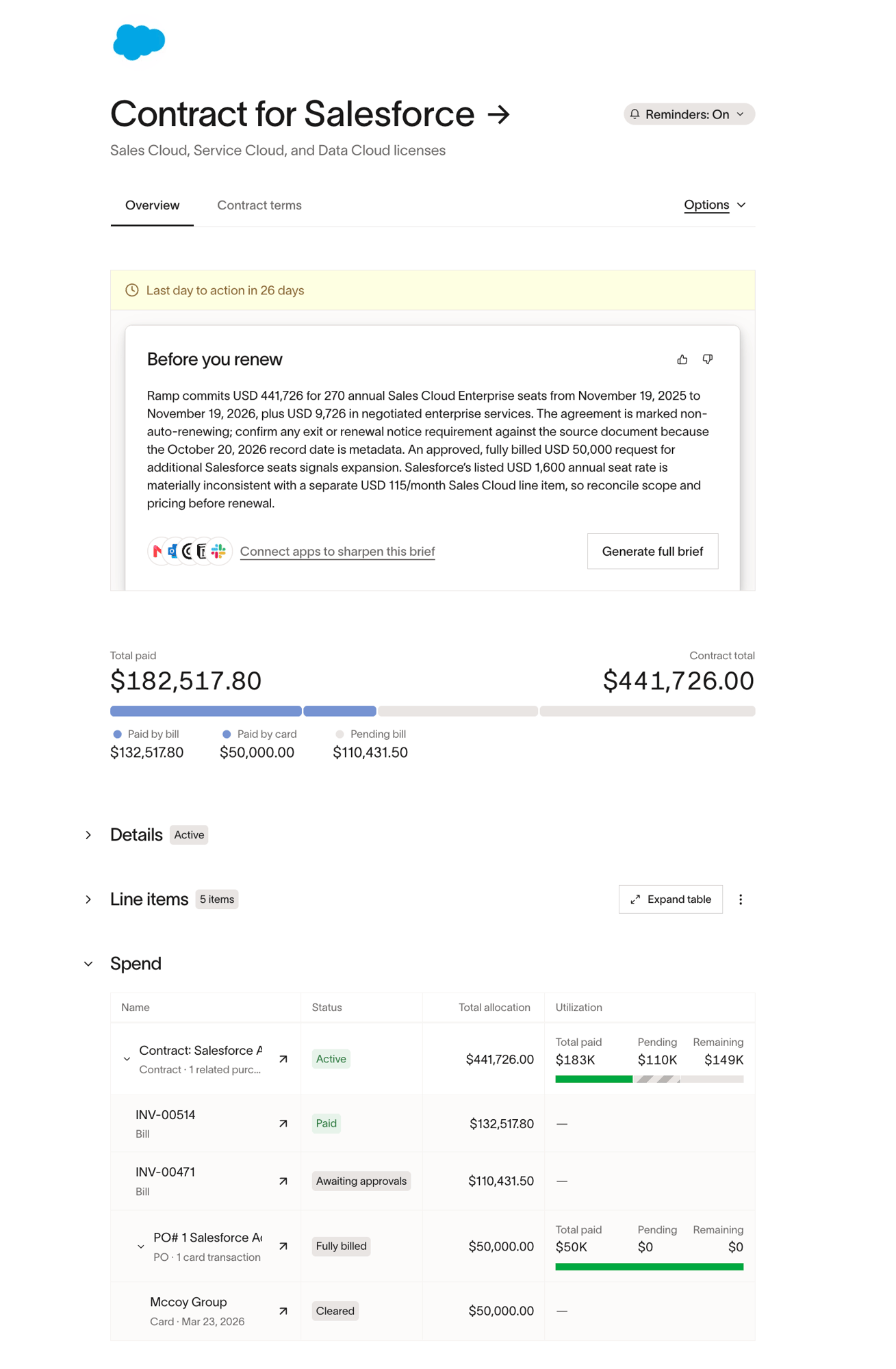
- Utilization — Total paid compared with the Contract total, with a breakdown of Paid by bill, Paid by card, and Pending bill amounts. If the contract has no contract total, Ramp shows the total paid without a progress bar.
- Spend — a table that starts with the contract. Expand the contract to see its linked purchase orders, bills, and card transactions, then expand a purchase order to see the bills and card transactions nested under it.
In the Spend table, selecting a contract or purchase order row expands or collapses it. To open any record, click the arrow icon next to its name. Use these views to compare actual spend with the agreement, investigate potential overbilling, and spot growing spend before a renewal. To act on an upcoming renewal, see Contracts & renewals.
Match a card transaction to a contract from the transaction page
- Open the card transaction.
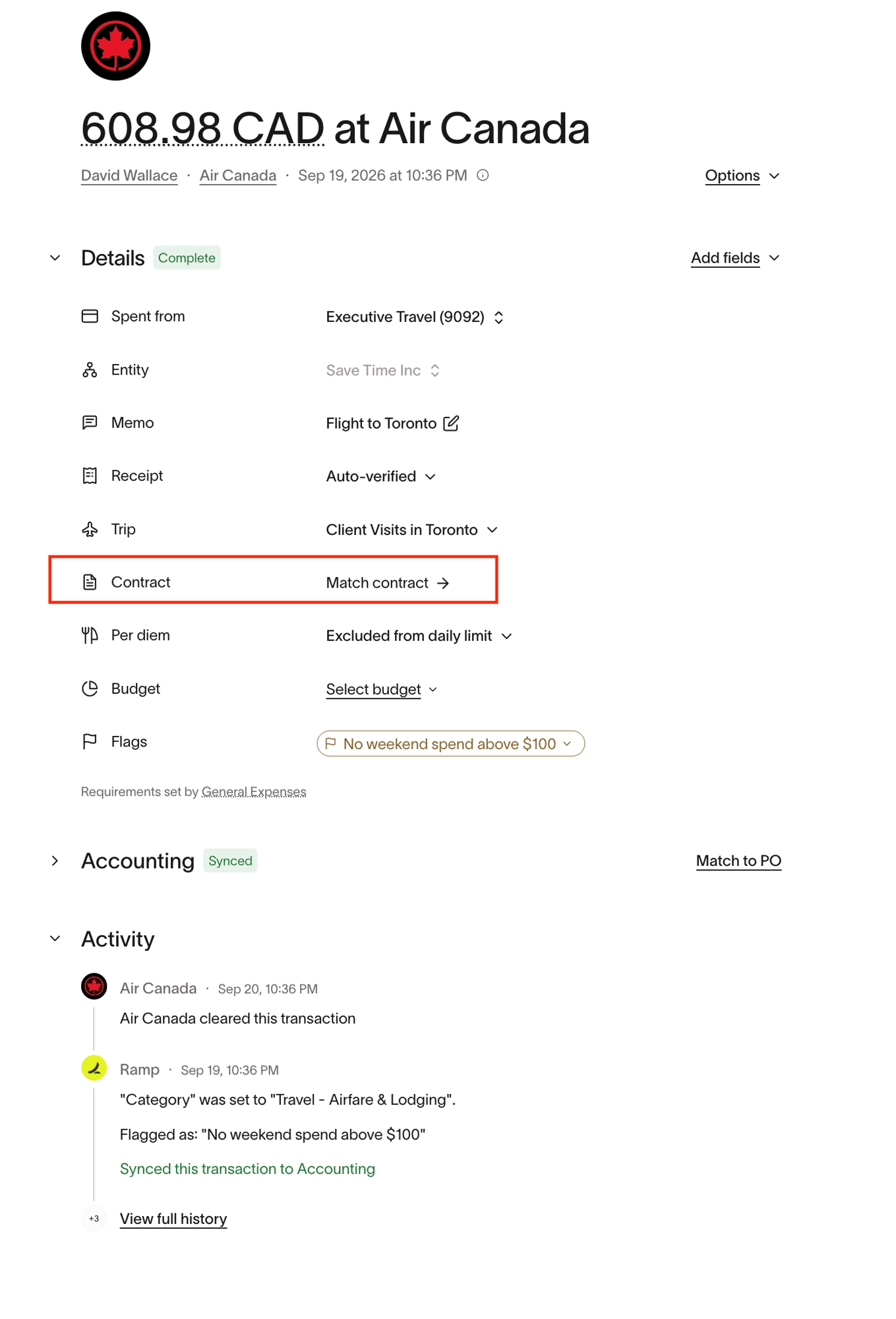
- In the Details section, find the Contract row and click Match contract.
- In the drawer, search or filter to find the contract. You can filter by vendor, contract status, contract total, start date, and end date.
- Select the contract and click Match contract.
After you match the transaction, the Contract row shows View matched contract, which opens the contract detail page. The transaction appears in the contract's Card transactions section and counts toward utilization. Contracts you don't have permission to edit can't be selected.
Match card transactions from the contract detail page
- Open the contract from Contracts.
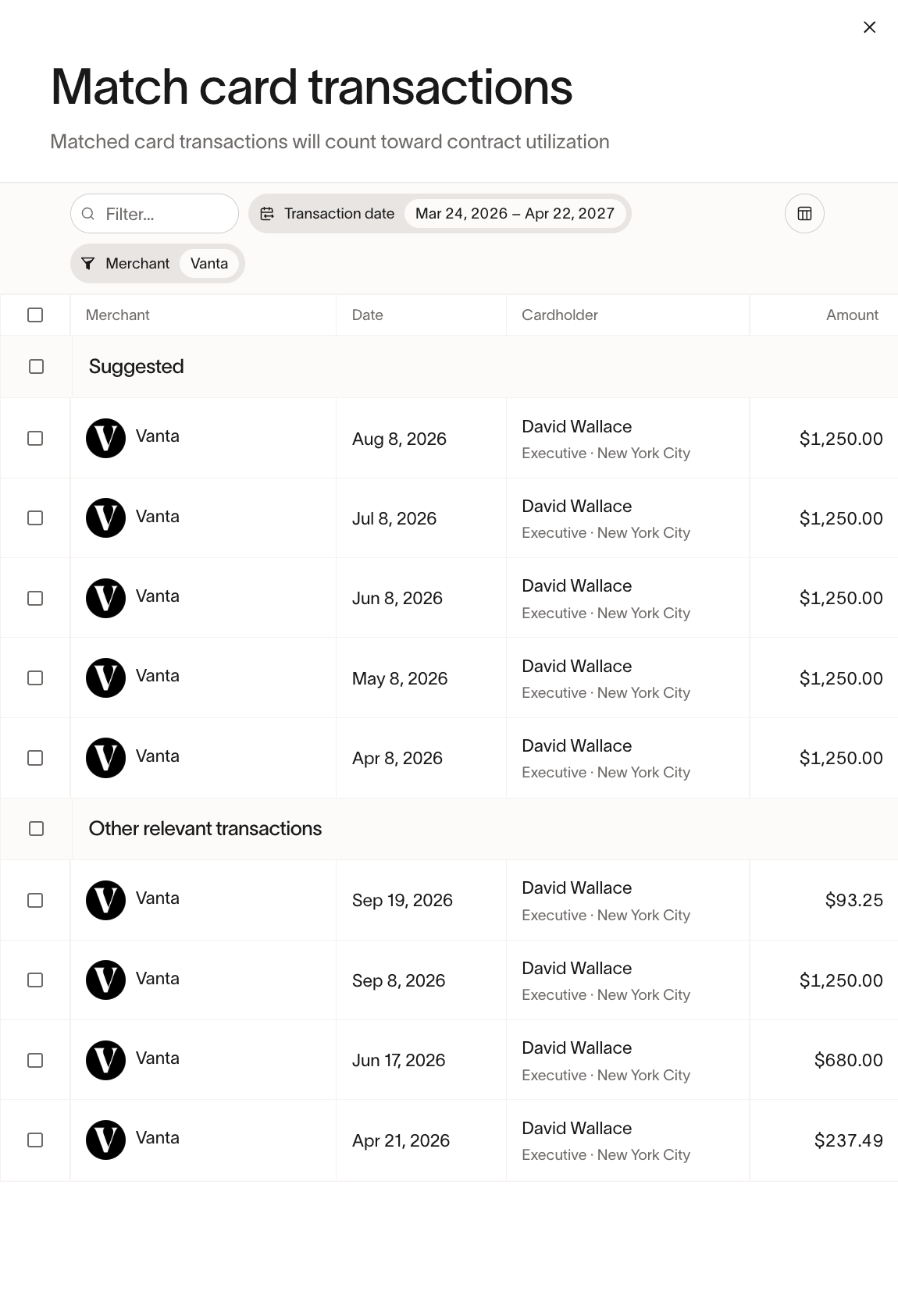
- In the Card transactions section, below the Spend table, click Match card transactions.
- Review the transactions. Ramp pre-filters by the contract's merchants and relevant dates, and groups results into Suggested and Other relevant transactions. Adjust the Merchant or Transaction date filters if needed.
- Select the transactions and click Match transactions.
You can match up to 100 transactions at a time. Matched transactions appear in the Card transactions section and count toward contract utilization. You can't match transactions to an archived contract.
Unlink a card transaction from a contract
In the contract's Card transactions section, click the unlink icon on the transaction's row. The transaction is removed from the contract and no longer counts toward its utilization.
What counts toward contract utilization
Utilization reflects only spend that is linked to the contract:
- Bills and card transactions on purchase orders linked to the contract. The purchase order amount itself doesn't count as spend.
- Bills matched to the contract
- Card transactions matched to the contract
If a purchase order is linked to more than one contract, its spend is excluded from utilization. An info icon next to that purchase order in the Spend table explains the exclusion.
Spend with the same vendor that isn't linked to the contract isn't included. To include a card transaction, match it from the transaction page or from the contract detail page. To link a purchase order, open the contract, click Options > Link purchase orders, select the purchase orders, and click Link. Linking purchase orders requires the Procurement add-on and permission to edit the contract.
Frequently asked questions
Can I link a card transaction that isn't on a bill or purchase order?
Yes. Match it from the transaction page or from the contract detail page.
Where does a card transaction appear after I match it?
In the contract's Card transactions section. See Match a card transaction to a contract from the transaction page.
Does contract utilization flag overbilling automatically?
No. The utilization view shows linked spend against the contract total without flagging differences, so review any gaps yourself.