Docusign integration: Set up
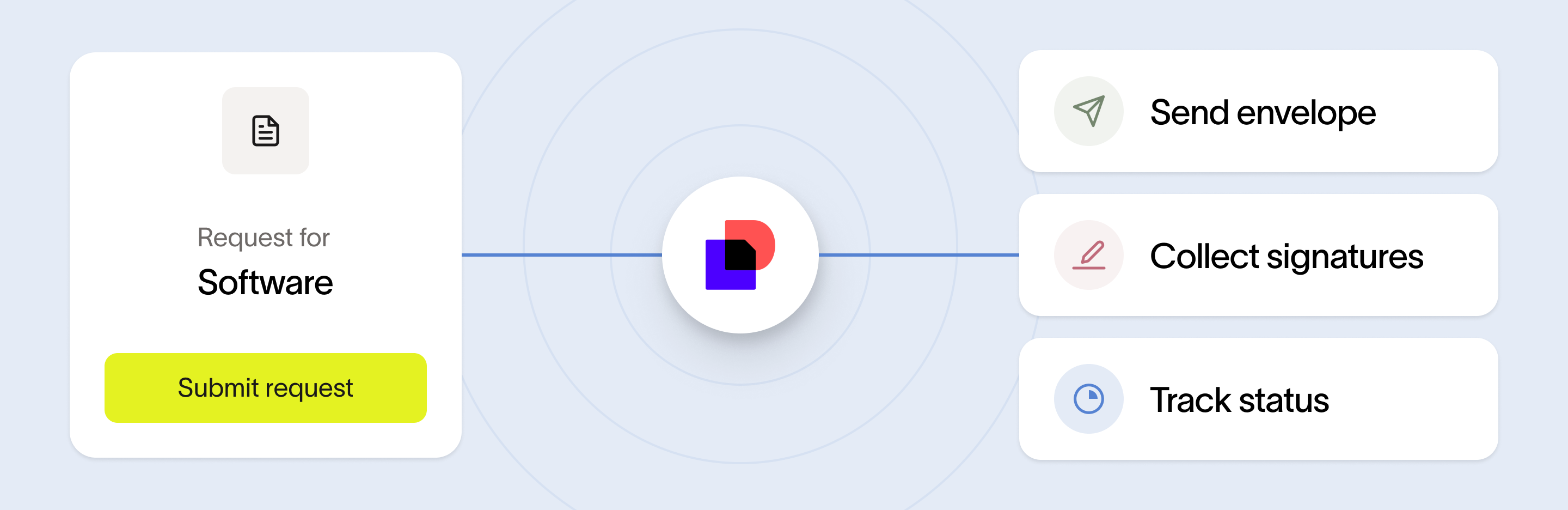
Ramp's Docusign integration enables businesses to connect their Docusign account to Ramp. After connection, add Docusign eSignature steps to workflows and send Docusign envelopes to vendor contacts and internal signers. Ramp will store executed agreements from completed Docusign envelopes onto the intake request and vendor record.
Before you begin:
- You'll need both Ramp Admin and Docusign Admin permissions to set up the integration.
- Have your Docusign integration keys (Admin User ID, API Account ID, and Base URI) ready. These can be generated within your Docusign account under "Apps and Keys": https://apps.docusign.com/admin/apps-and-keys
- Docusign plan: No specific plan is required. All tiers are supported.
Set up the Docusign integration
Step 1: Connect Docusign to Ramp
- Sign in to your Ramp account.
- Go to Company > Integrations.
- Find Docusign and click Connect app.
Step 2: Sign in and authorize Docusign
- Click the prompt to sign in to your Docusign account.
- You'll be redirected to a setup screen in Ramp to enter your Docusign credentials and integration keys.
Step 3: Enter Docusign integration keys
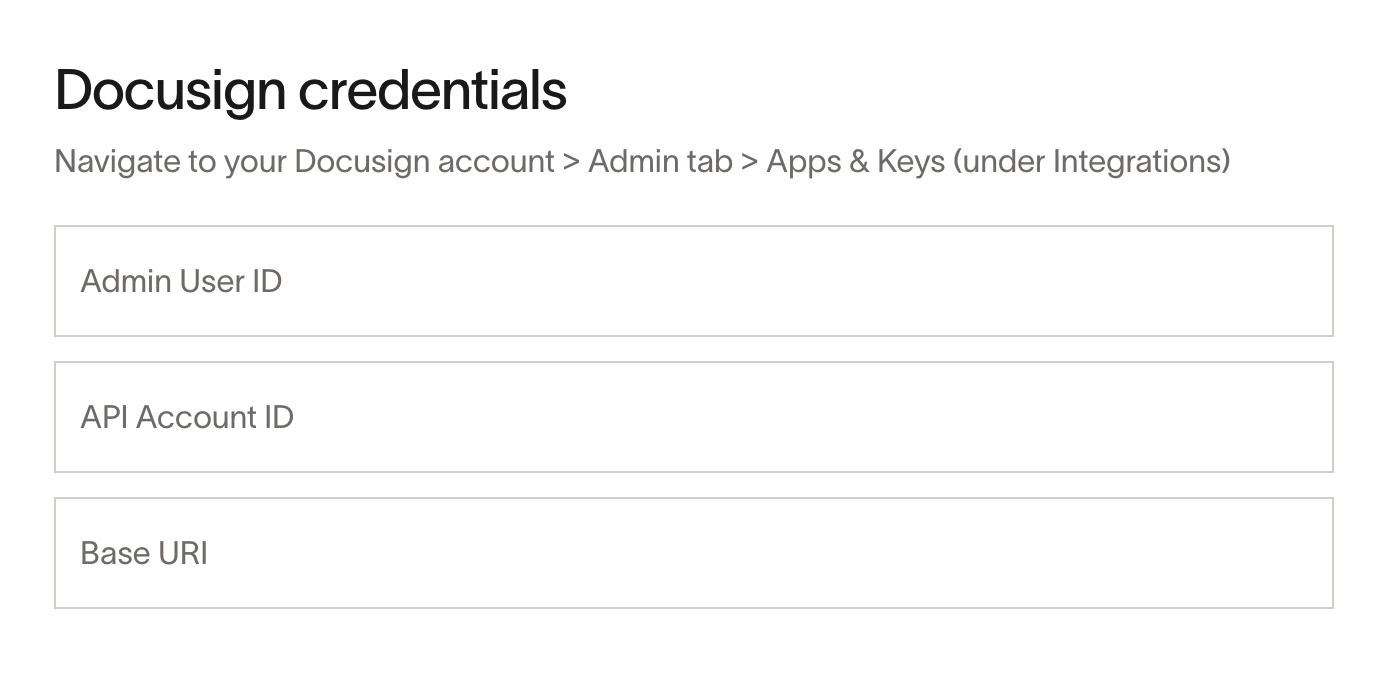
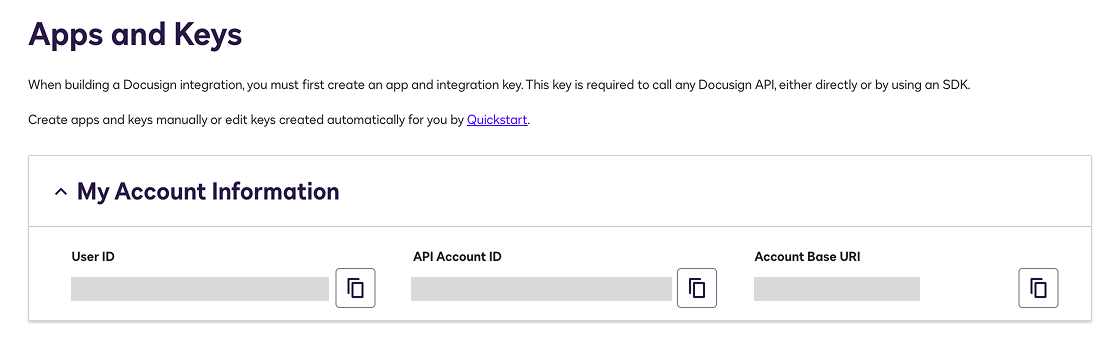
- Go to your Docusign dashboard ( Apps and Keys ).
- Copy your Admin User ID, API Account ID, and Base URI.
- Paste these in the corresponding fields in Ramp’s setup screen.
- Click Submit.
Step 4: Configure Docusign integration on Ramp
- Once connected, you'll see Docusign listed under Connected Integrations in the Integrations tab.
- If you don’t see Docusign immediately, refresh the page.
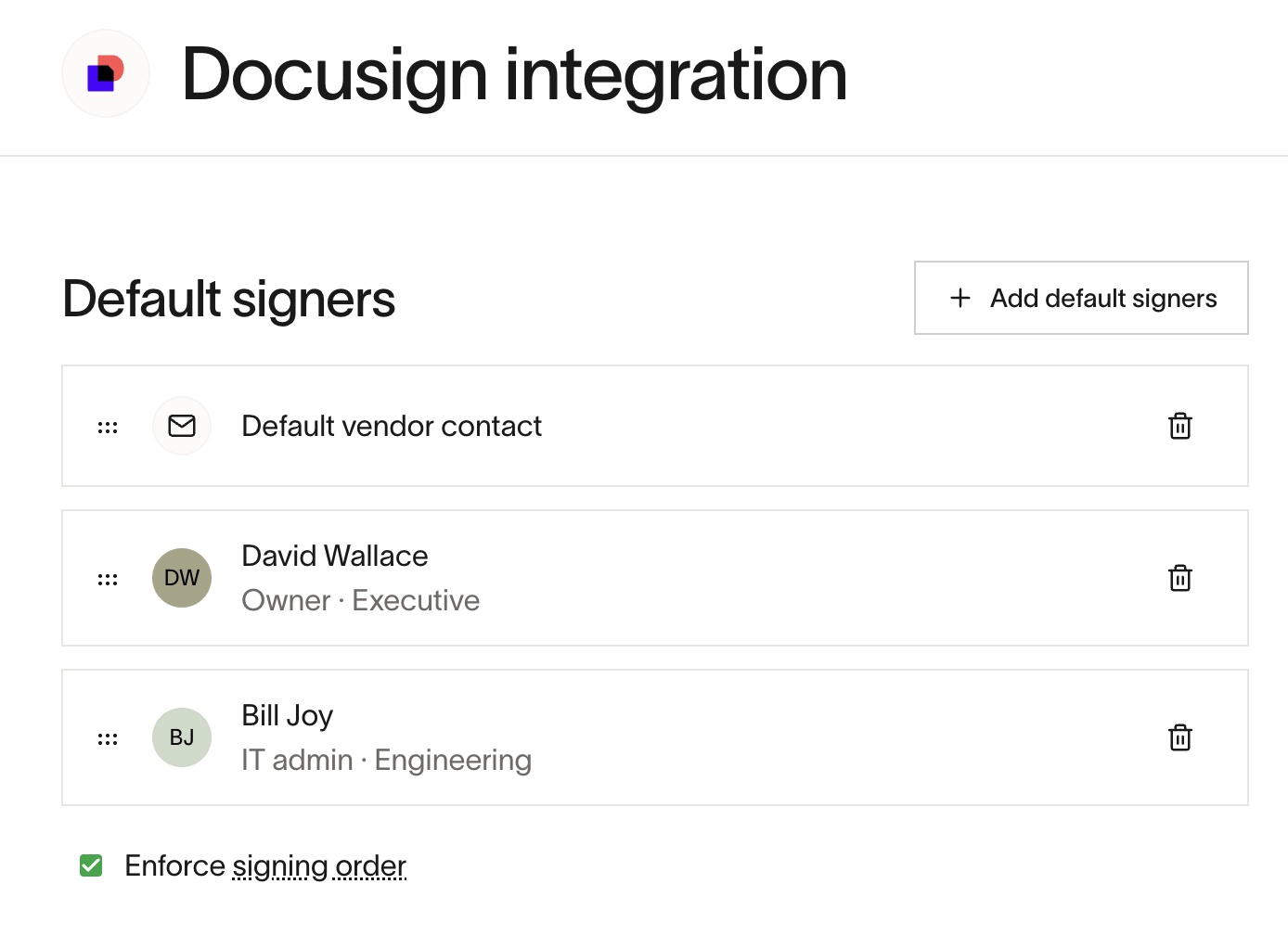
- (Optional) Configure preferences in Ramp, such as default signers and signing order, for your Docusign integration.
- You can assign the vendor contact and internal signers.
Step 5: Add Docusign integration step to your procurement program
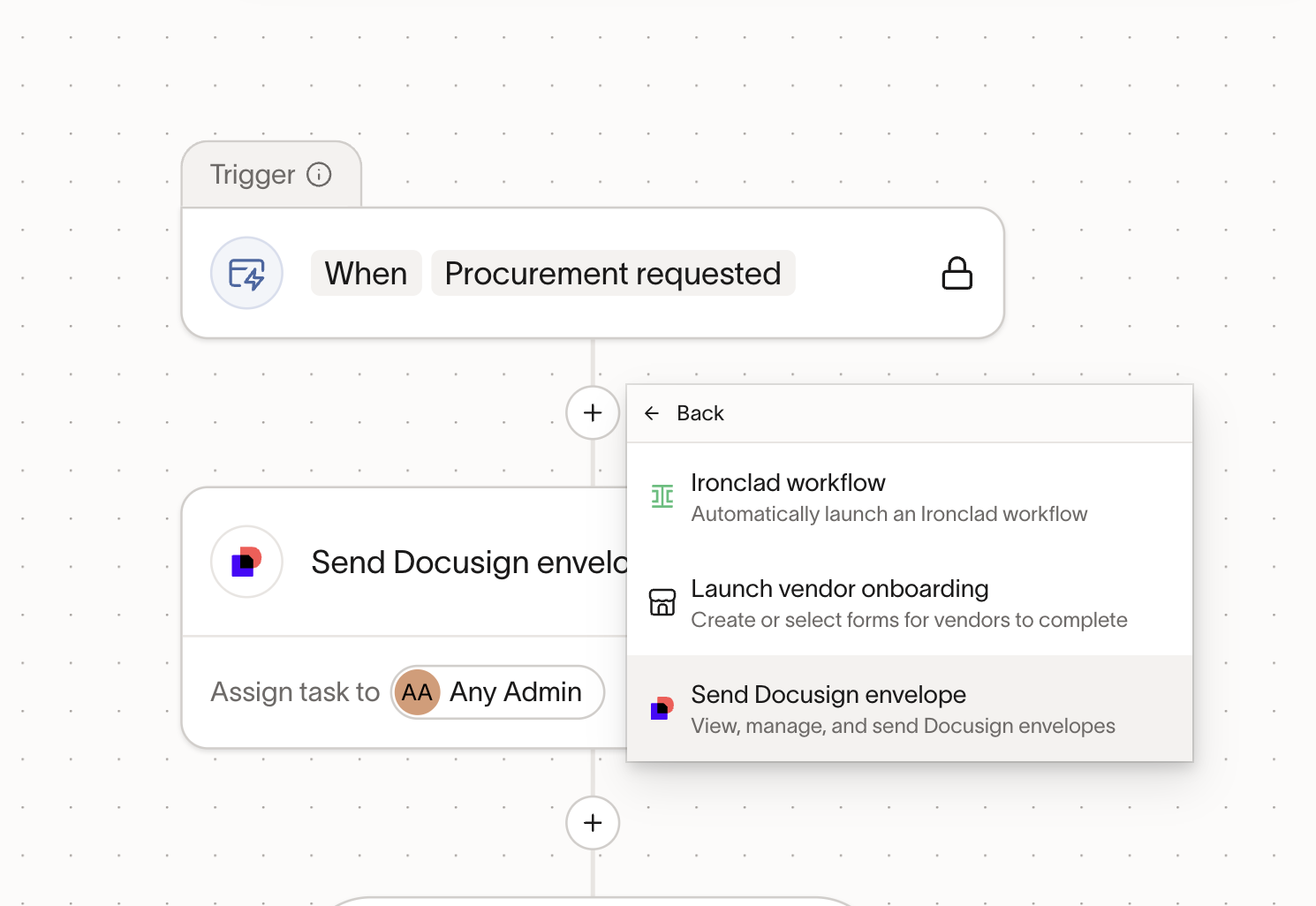
- Create a Spend Program or edit an existing program with the Docusign workflow as a step.
- Note that you’ll need to be on our latest workflow designer ( contact Ramp Support if you need access)
- Click the "+" icon, click into “View more” and then click on “Send Docusign envelope” as the action step
- Assign an owner for the task to review documents and send the Docusign envelope.
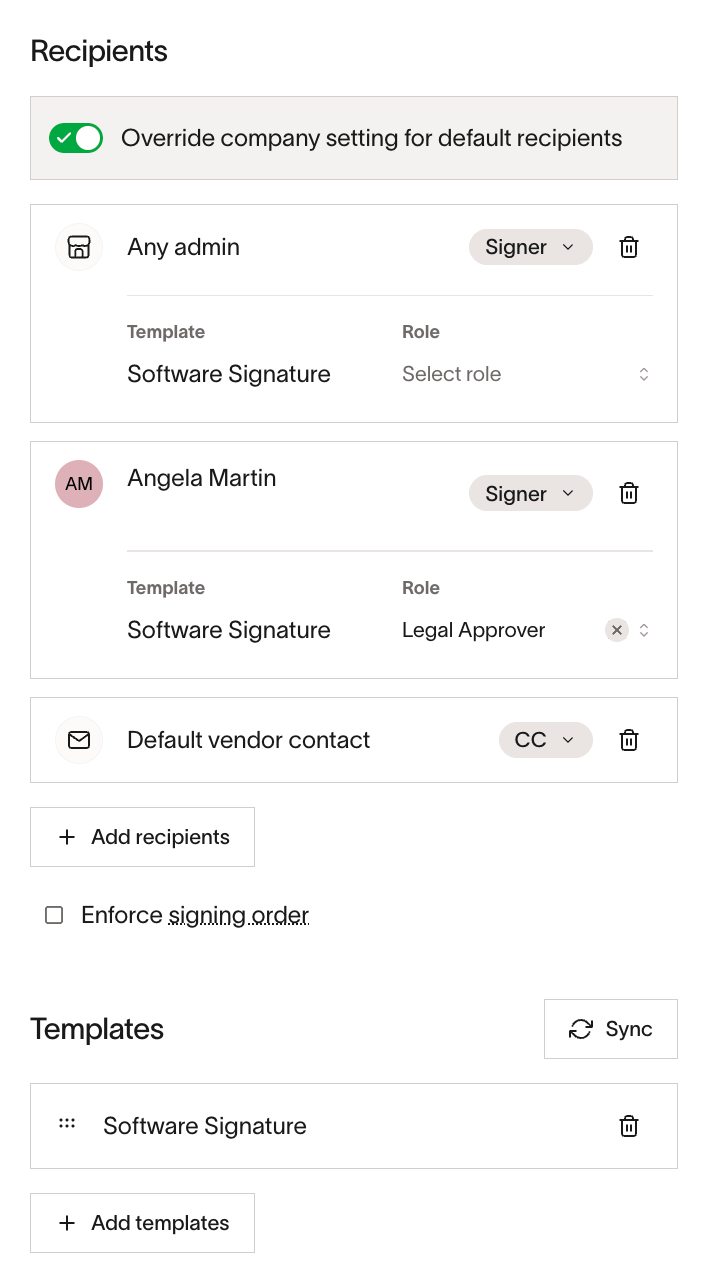
- You can override the default signer list if you want a unique signing order for this specific Docusign action node.
Step 6: Send Docusign envelopes via Ramp
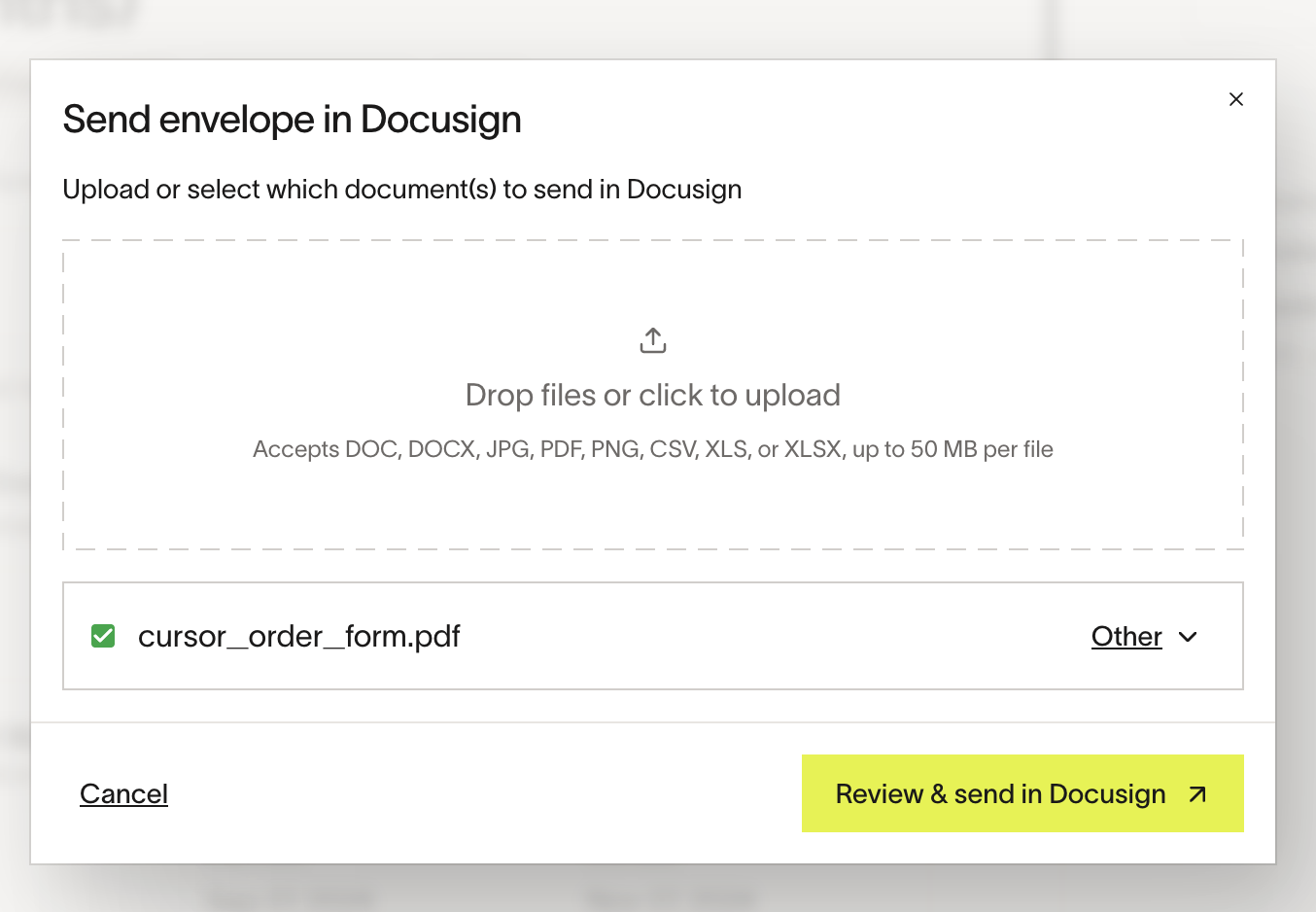
- Initiate a procurement request for the program.
- Once the request gets to the Docusign step, assigned user will be prompted to select documents to send for signature.
- User will be taken to Docusign interface to configure signatures or templates and then send it out to signers (automatically added from the Ramp side).
- Once Docusign envelope is sent out, updates will be automatically added to the Ramp request including who signed at what time.
- Once signatures are complete, the executed agreements will be automatically added to the Ramp request with "Synced from Docusign"
Use Docusign templates from procurement workflows
- When you launch a Docusign envelope from a procurement workflow, you can select a Docusign template as Ramp creates the envelope.
- Templates work alongside your existing Ramp configuration, including default or overridden signers and dynamic signers pulled from the procurement request context.
- This makes one-click envelope launch easier because the envelope can open with your template and signer setup already in place.
Map recipient fields and assign signer roles
Admins can assign Ramp recipients to signer roles and map Ramp fields to data-entry tabs on DocuSign steps. First, connect the DocuSign integration, sync templates into Ramp, and select them on the step.
Assign Ramp recipients to DocuSign signer roles
Ramp reads signer roles from selected templates. Select a signer role for a Ramp recipient so fields route to the correct signer. Carbon copy roles and blank or duplicate role names do not appear. You can assign each signer role to one Ramp recipient and each recipient to one signer role.
Map Ramp fields to DocuSign data-entry tabs
The field mapper groups fields by who owns them:
- Sender prefill contains document-level text fields that the sender fills before sending. Sender-prefill mapping supports text fields only.
- Recipient: <role name> contains data-entry tabs owned by that signer role. Fields without labels are not shown.
When the envelope is sent, Ramp prepopulates each mapped recipient value on the signer assigned to that role.
Ramp supports these recipient tab types:
| Type | Accepted value |
|---|---|
| Text | Free-form text |
| Zip | ZIP or postal code |
| Checkbox | Checked or unchecked |
| Radio | One value from the template's radio-button options |
| List | One value from the template's list options |
| Date | A date, sent as MM/DD/YYYY |
| An email address | |
| Number | A numeric value |
| Numerical | A numeric value |
Signature, formula, calculated, and other action tabs are not mappable. Mapping is optional even when DocuSign marks a field as required. Unmapped or empty fields remain blank for the signer to complete. Radio and list options without values are ignored.
Troubleshoot DocuSign signer role and field mapping
If roles or fields do not appear, confirm that the integration is connected and that each selected template is still synced and available in Ramp. Select a DocuSign template before assigning one of its roles. Carbon copy roles cannot be assigned to Ramp recipients.
If Ramp reports an invalid recipient-tab value while validating the envelope, check that a mapped Radio or List value exactly matches an option defined on the template and that a Date value uses MM/DD/YYYY. Roles without names, duplicate role names, fields without labels, and radio or list options without values do not appear for configuration.
Troubleshooting and support
- If you have any issues connecting or configuring, ensure that your Docusign integration keys are valid and that you have admin permissions in both platforms.
- For further support, contact Ramp Support .
You’re all set. Your Docusign account is now linked to Ramp, so contract approvals and e-signatures are centralized for your procurement team.