Ramp Banking automations
Overview
Ramp Banking automations move money for your Ramp Checking Account based on rules you set. Use automations to keep Checking funded for upcoming spend, move excess cash into an Investment Account, or schedule recurring transfers.
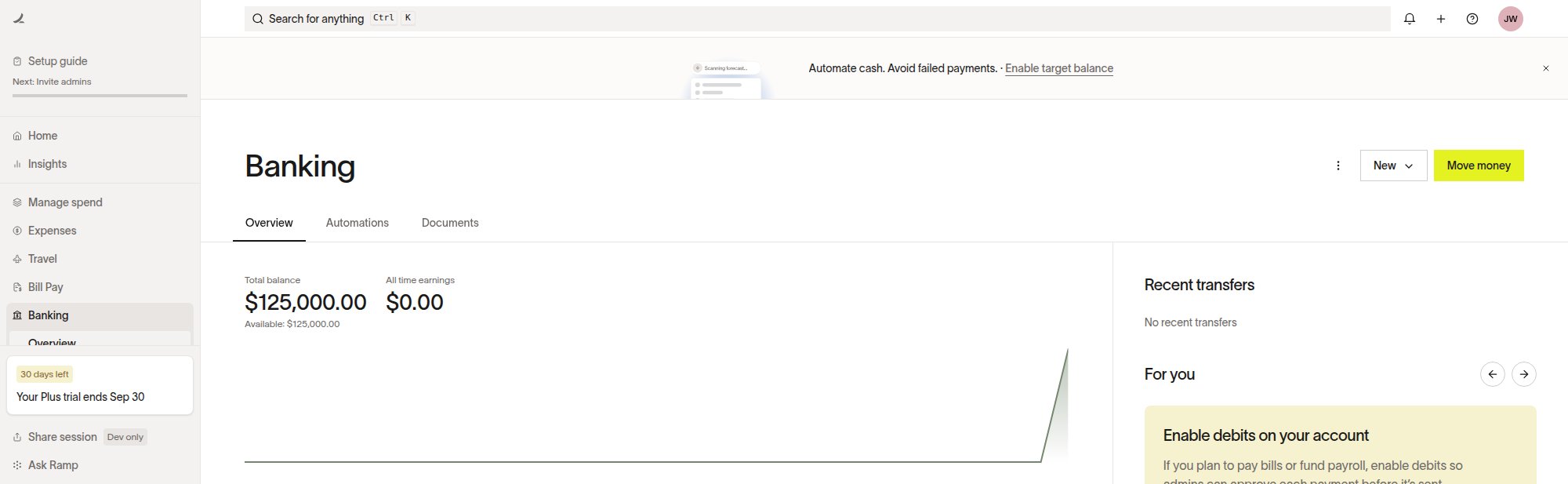
Create an automation from Banking automations, or manage an existing automation from Automations. Open the Automations tab in Banking > Overview. If your Banking menu shows Accounts instead, open the Banking > Accounts page menu and select Automations. The option appears only when your access includes Banking automations.
Note: Ramp Reserve Accounts can't be selected as a source account for Ramp Banking automations because those funds are locked to increase your card limit. Use a regular Ramp Checking Account for automations.
Choose an automation type
Ramp Banking supports three main automation types:
| Automation | Best for | How it works |
|---|---|---|
| Target Balance Automation | Keeping your Ramp Checking Account funded to a target amount | Ramp tops up Checking when a minimum balance or forecasted shortfall trigger applies. |
| Sweep automation | Moving excess cash from Checking to another eligible account | Ramp moves funds above your configured threshold into the account you select. |
| Recurring transfer automation | Moving a fixed amount on a schedule | Ramp transfers the amount you choose on the recurring schedule you set. |
Target Balance Automation can also include sweep behavior when the funding source is an Investment Account. In that setup, Ramp can top up Checking when funds are needed and sweep excess funds back to the Investment Account when projected balances are above your target.
Set up Target Balance Automation
Target Balance Automation helps keep your Ramp Checking Account funded while reducing manual transfers. You choose the target balance, how Ramp decides when to move funds, and where funds should come from.
Target Balance Automation supports two trigger modes:
- Minimum balance: Ramp tops up Checking when the balance falls below the minimum amount you set. This is the simpler, reactive option for maintaining a static balance.
- Forecasted shortfall: Ramp looks ahead at Forecast inputs and moves funds before a projected shortfall. This is the dynamic Target Balance option previously called Cash Manager. See Target Balance Automation with forecasted shortfall for Forecast inputs, timing, and examples.
Funding source options depend on the trigger mode and accounts available to your business. External bank accounts support top-ups into Checking. Managed Portfolios support top-ups, optional sweeps back to the Investment Account, and backup funding from an external bank account.
Ramp has retired Self-Directed Investment Accounts. If you migrated to a Managed Investment Account, Ramp updated your automation funding source during migration. Otherwise, go to Automations and update the automation to use a different funding source.
Use sweep automations
Sweep automations move excess funds from your Ramp Checking Account to another eligible Ramp Checking Account or Investment Account when your source account balance is above the threshold you set.
Sweep can be used in two ways:
- As part of Target Balance Automation: If your Target Balance Automation uses an Investment Account funding source, you can enable sweep so excess Checking funds move back to the Investment Account when projected balances are above target.
- As a separate sweep automation: If you only want to move excess Checking funds to another eligible account, create a standalone sweep automation with its own threshold.
Turning sweep off only stops excess funds from moving back to the Investment Account. It does not stop Target Balance Automation from topping up Checking. To stop all automated transfers for that target balance setup, delete the Target Balance Automation.
Set up recurring transfer automation
Recurring transfer automation moves a fixed amount between selected accounts on the schedule you choose. Use it when your cash movement needs are predictable and do not depend on account balance or Forecast projections.
When creating a recurring transfer automation, choose the transfer amount, source account, destination account, frequency, and start date. Ramp moves the same amount on the schedule unless you edit or delete the automation.
Plan around transfer timing
Automations can only help if funds can settle before the payment or balance need. Actual timing varies by cutoff times, weekends, bank holidays, trading holidays, and available balance.
General lead-time guidance:
- External bank account ACH: about 5 business days.
- Managed Portfolio full withdrawal: about 3 business days.
- Managed Portfolio short-term sleeve or Reserve strategy, when available: about 1 business day.
If a payment is due inside the funding source settlement window, an automation may not be able to cover it in time. For urgent payments, manually fund your Checking Account with a faster method such as wire or RTP where available, or change the payment source.
Understand automation changes and cancellations
Ramp may change, cancel, or skip a scheduled automation action when the facts used to create it change. This can happen after balance changes, Forecast refreshes, payment status changes, custom Forecast line item updates, target balance edits, existing in-flight transfers, or insufficient source funds.
Review your transfer history, Forecast, and scheduled automation context to understand why funds moved or why a planned transfer changed.