QuickBooks Online Sync Error | Invalid account type used | Invalid account type: You need to select a different type of account for this transaction.
Overview
Ramp has received the following error message from your Accounting Provider QuickBooks Online:
Invalid account type used | Invalid account type: You need to select a different type of account for this transaction
Why is this happening?
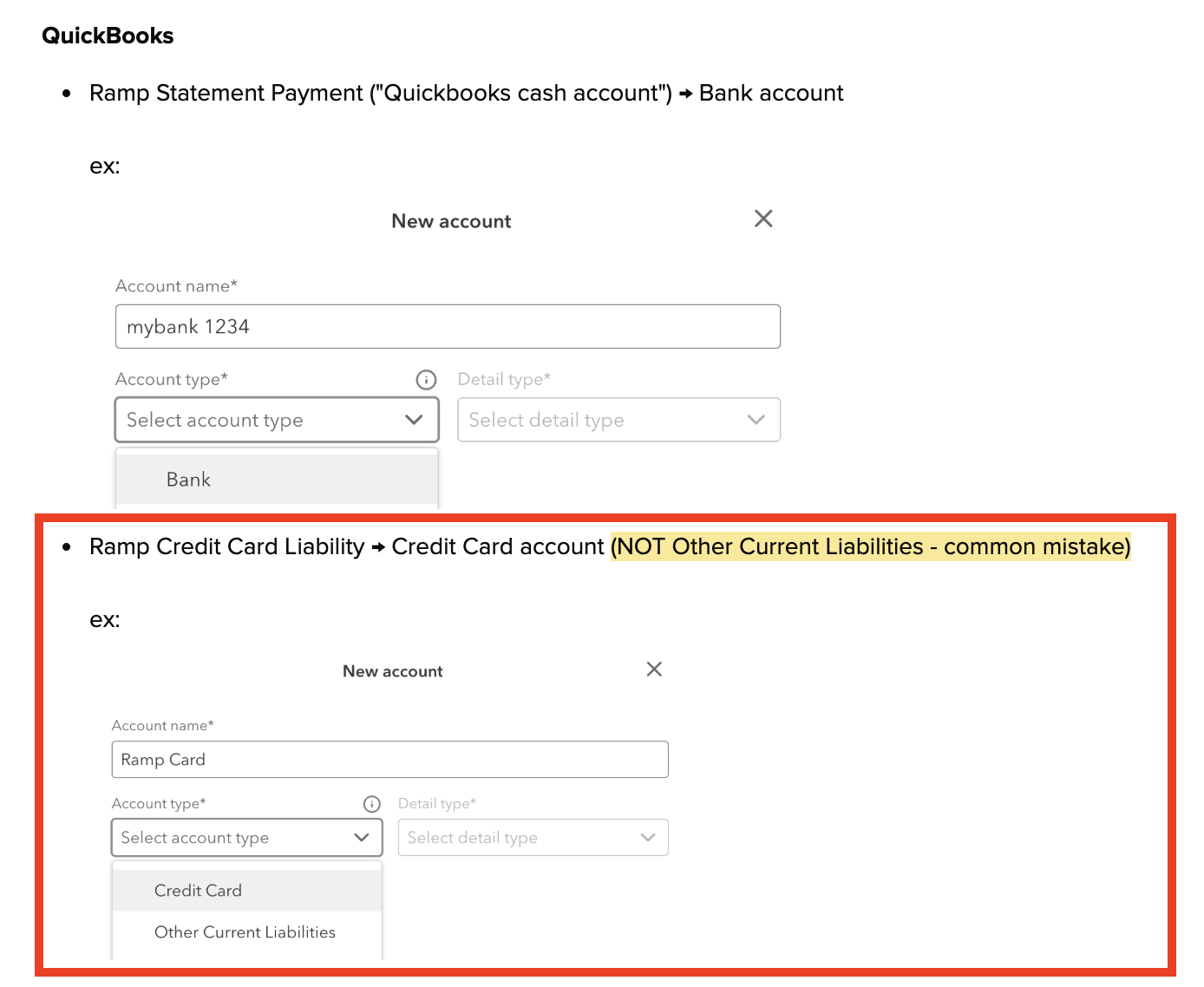
The default account that the Ramp transactions will sync as has to be the account type Credit Card.
NOTE: If you select Other Current Liabilities, this is incorrect and causes the error.
How do I resolve this error?
Please follow these steps to resolve this error from QuickBooks Online:
How to Change an Account Type in QuickBooks Online
Step 1: Sign In to QuickBooks Online
- Access QuickBooks Online by entering your credentials to sign in.
Step 2: Navigate to the Chart of Accounts
- Click on Accounting in the left menu.
- Choose Chart of Accounts from the submenu.
Step 3: Locate Your Existing Account
- Find the account you wish to change by scrolling through the list or using the search function.
- Ensure you have selected the correct account that needs to be updated.
Step 4: Edit Account Details
- Click on the dropdown arrow next to the View register button on the right side of the account you wish to change, and select Edit.
Step 5: Change the Account Type
- In the Account window, click on the Account Type dropdown menu.
- To change the account to a credit card liability account, select Credit Card from the list of available types.
Step 6: Save changes
- After selecting the new account type, review the other details to ensure they are still appropriate (e.g., Name, Description).
- Click Save and Close to update the account details.
Raw error message: Invalid account type used | Invalid account type: You need to select a different type of account for this transaction for your technical team.