Perk integration overview
The Ramp integration with Perk (formerly TravelPerk) offers a streamlined way to sync travel booking data and accounting fields, improving expense visibility and reducing manual entry. This guide explains the benefits, setup steps, and answers common questions.
Benefits of Ramp integration
- Invoice attachment When Ramp matches a Perk invoice to a Ramp transaction, Ramp attaches the invoice PDF to that transaction.
- Sync Up to Two Ramp Accounting Fields
You can select up to two Ramp Accounting Fields (e.g., Cost Center, Department) to sync with Perk. These fields show on the checkout page and are written back into Ramp automatically after booking.
How to set up the Ramp integration
Follow these steps to complete the setup:
Step 1: Enable integration from the Perk platform
Navigate to the integration section in your Perk account and enable Ramp.
Step 2: Connect to Perk from Ramp
A Ramp Business Owner, Business Admin, or IT Admin can complete this step. If you cannot open Ramp's Integrations page, ask one of these users to complete the connection. Open Integrations, select Perk, and click Integrate with Perk. Then sign in with a Perk Admin account and authorize Ramp.
Step 3: Grant read access to Ramp accounting fields
In Perk, allow read access to your Ramp accounting field data. This is required to map fields correctly.
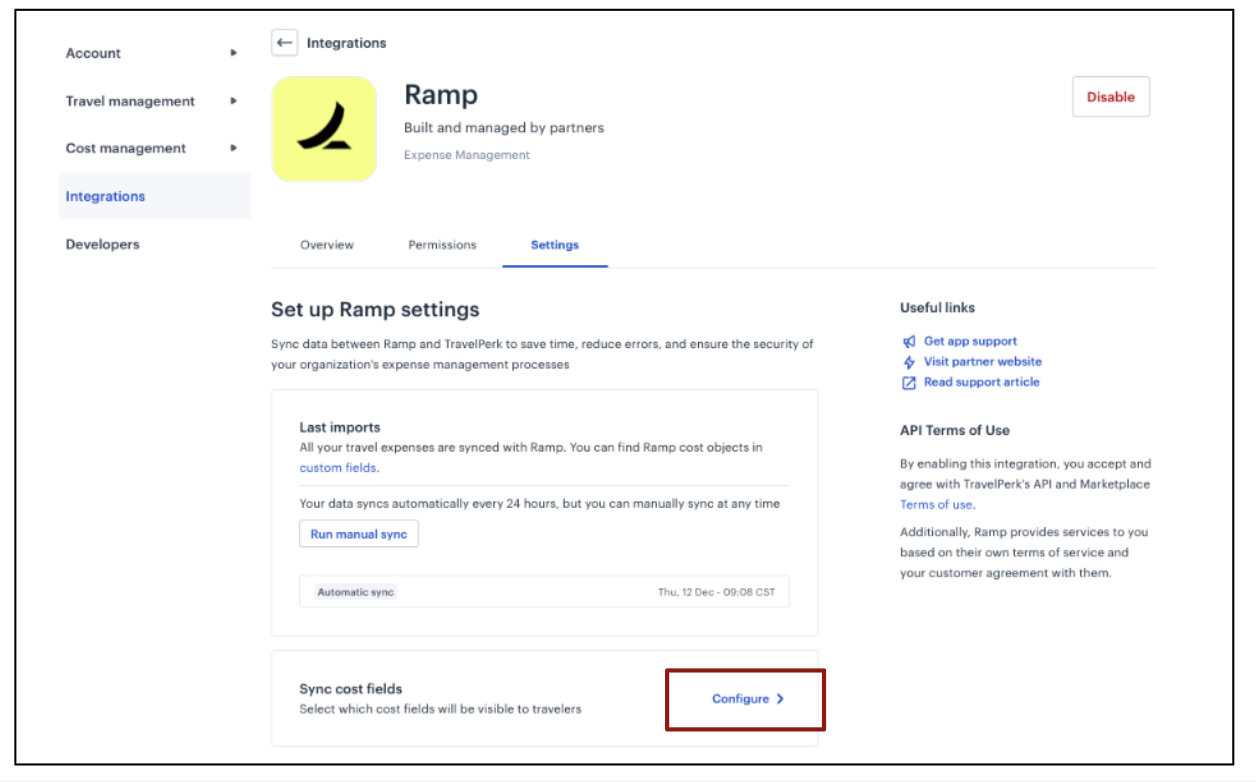
Step 4: Return to Perk to configure fields
Go back to Perk and configure:
-
Up to two fields from Ramp to sync into Perk
-
Whether each field is mandatory or optional for travelers at checkout.
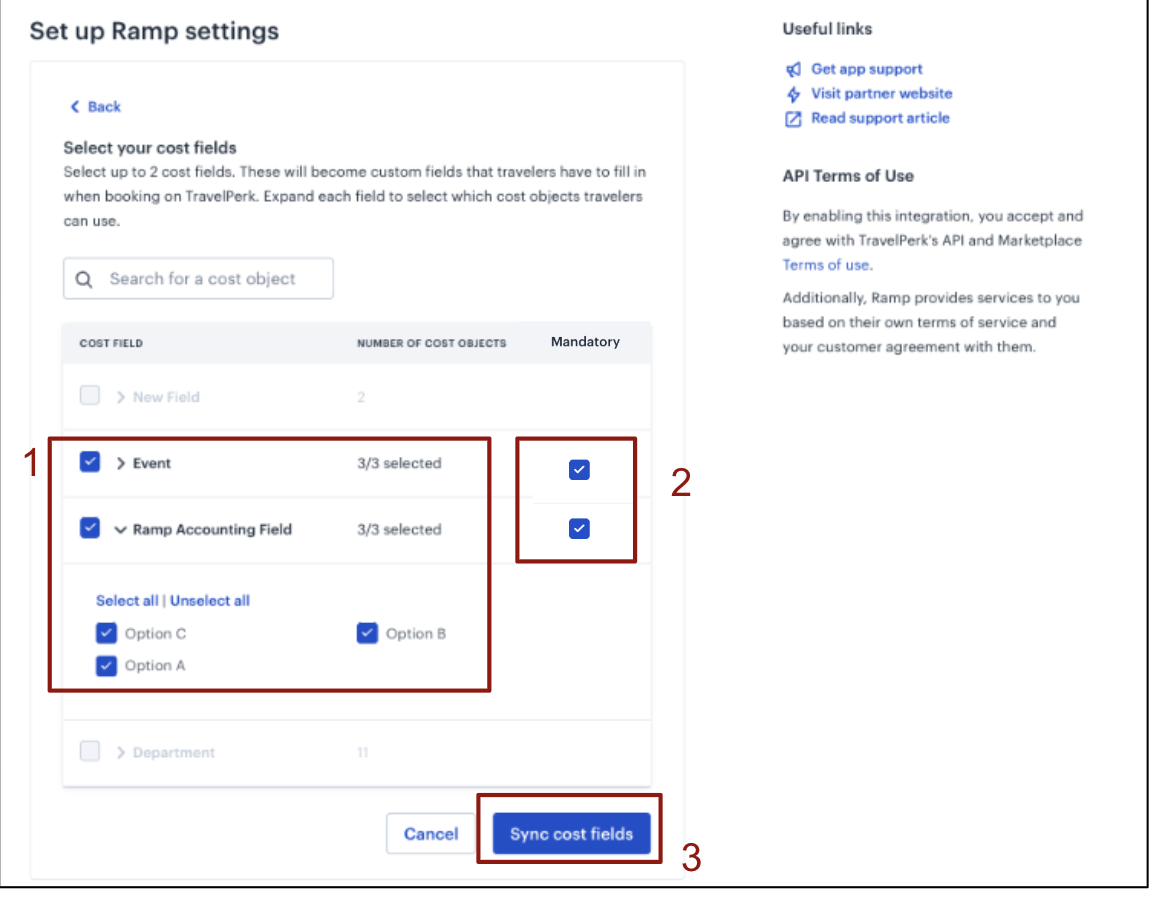
Step 5: Confirm integration
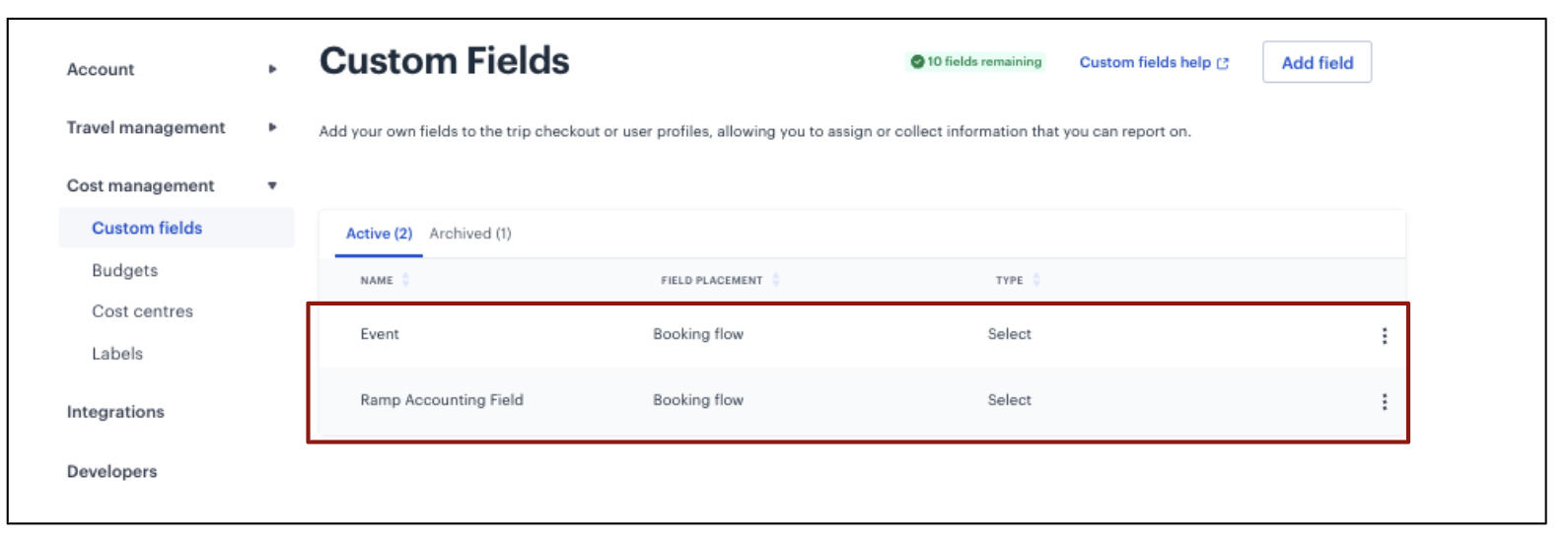
Check the "Custom Fields" section in Perk to confirm that your selections have synced correctly.
Traveler experience
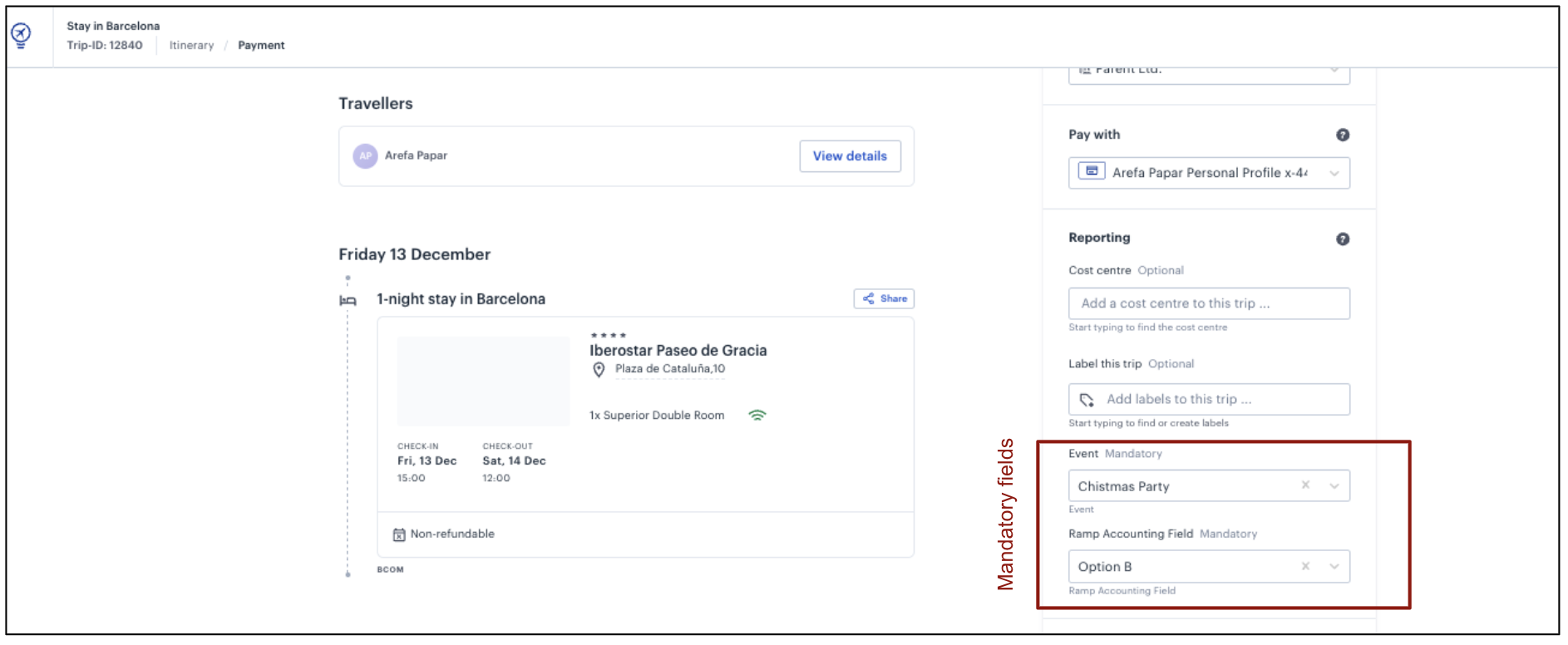
When travelers book a trip in Perk:
-
They will be prompted to select values for the two synced fields (if marked mandatory).
-
These values auto-populate into Ramp, appearing on the related expense line.
Common questions
Can we change the selected fields later?
Yes. Go to Account Settings > Integration > Ramp > Configure in Perk to update your selections. You can only sync up to two fields.
Can we rename fields in Perk?
No. Field names must be updated in Ramp. Changes made in Ramp will sync automatically to Perk, or you can run a manual sync.
Can we map Ramp fields to Perk’s Cost Center or Label?
No. Fields will only map to Perk Custom Fields.
What if a traveler selects the wrong field option?
You can update the field value directly in Ramp after the trip is booked.
What are common synced fields?
Common synced fields include Cost Center, Client Name, Department, and Event. Data typically syncs within 4 hours.
Is auto-categorization available?
No. Auto-categorization is not currently supported in V2. Ramp is gathering feedback for future improvements.
Need help?
For more details, visit Perk’s Ramp Integration Guide.