Pay Bill Pay invoices via Ramp card
Overview
Ramp Bill Pay lets you use both your existing cards and single-use Ramp cards, to pay your bills. This is a great way to take advantage of earning cashback if your vendor accepts Visa.
You can also pay one bill with multiple card payments.
The card option you select determines how the card is delivered and how its transaction is matched.
Types of card payments
You can choose from 4 different card payment types on Ramp, depending on what best aligns with your workflow and vendor relationship.
Auto-pay with card (one-time card)
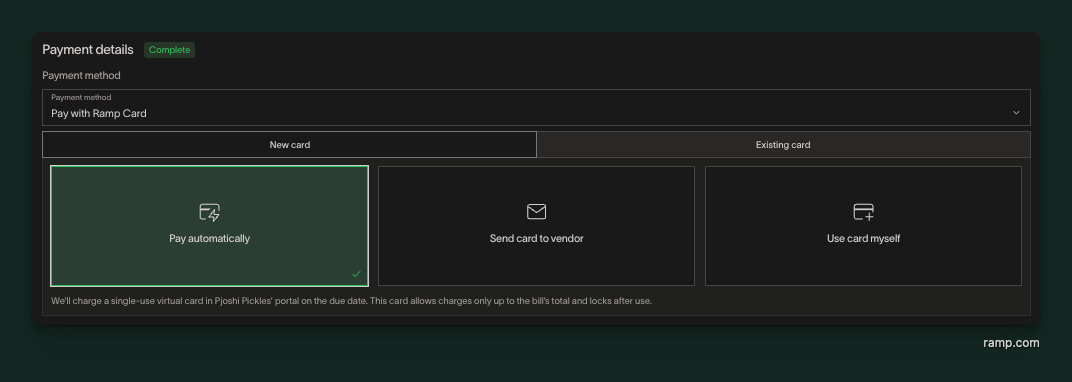
Ramp can enter the card details in the payment portal on or after the scheduled date once the bill and any required payment release approvals are complete.
- Ramp checks the invoice's payment portal while processing the draft. Auto-pay supports eligible USD invoices with fee-free card payments through supported portals, including Intuit QuickBooks and Stripe. Availability varies by business and invoice; review the available card payment options on your bill in Bill Pay. QuickBooks invoices must be USD 100,000 or less.
- To turn this on for your entire business, open Bill Pay payment preferences and enable Automatically pay card-eligible bills. Ramp can then select Pay automatically for eligible new drafts before you save edits or submit them, replacing an initially populated payment method such as ACH.
- If auto-pay is selected, we'll spin up a one-time virtual card set with a limit that matches the invoice amount.
- Ramp can execute the payment on or after its scheduled date once the bill and any required payment release approvals are complete. A card payment awaiting release approval will not execute merely because its scheduled date has arrived.
- The invoice will have a status of 'payment processing' as the transaction is still pending.
- Once the transaction clears, the bill will update to 'paid' and Ramp will automatically match the transaction to the bill.
- Ramp will email you to let you know the bill has been paid. For QuickBooks invoices, Intuit QuickBooks will email the vendor to let them know they have been paid.
Send card to vendor (one-time card)
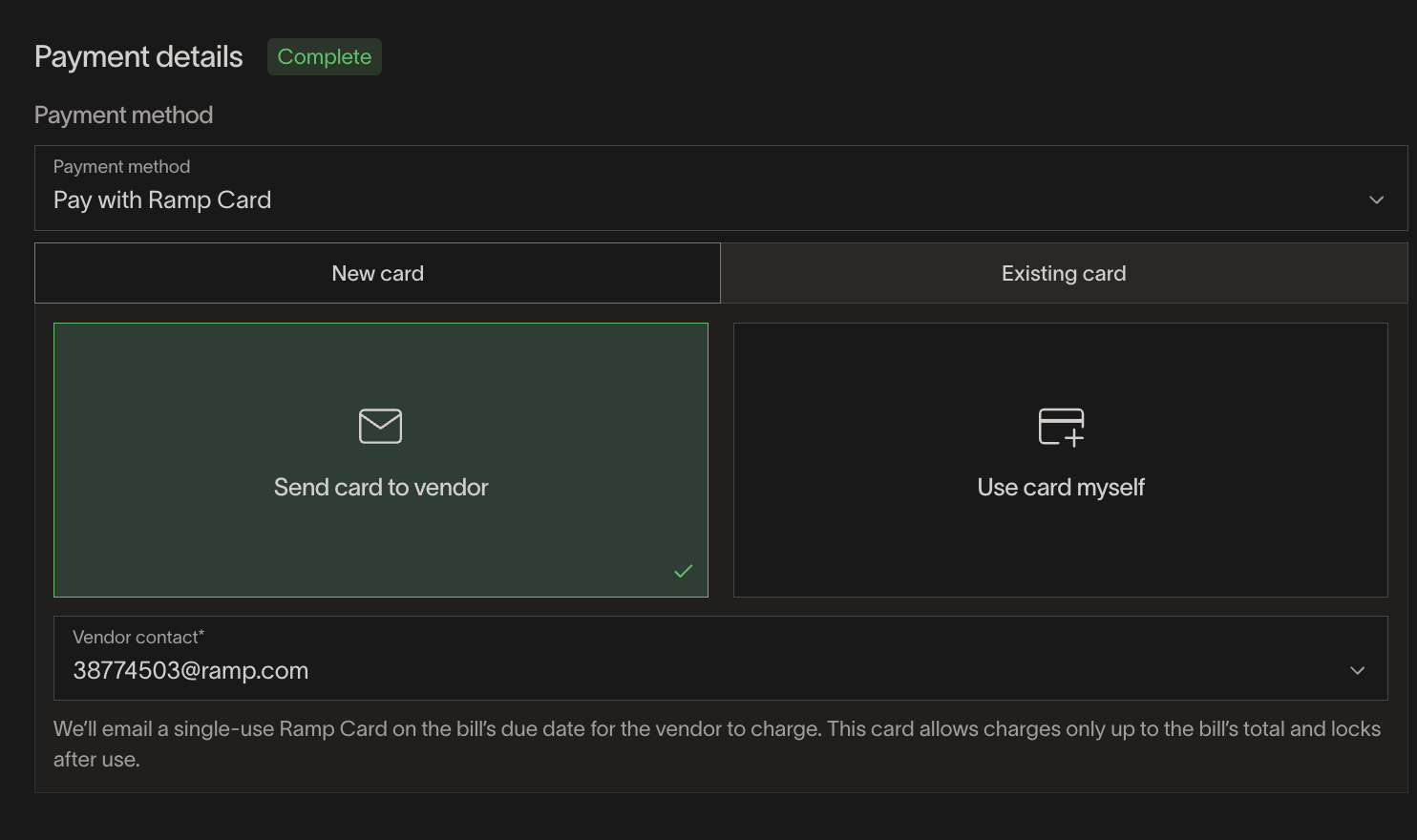
Send card to vendor requires a vendor contact with an email address. If a contact email change requires vendor edit approval, it must be approved before the card can be sent. See Add or update a vendor contact email for the steps.
- Any invoice is eligible for this payment method.
- If selected, we'll spin up a one-time virtual card set with a limit that matches the payment amount. For a bill with a single payment, the payment amount is the bill total; for a bill split into multiple card payments, each single-use card matches its own payment amount.
- Ramp can email the card details securely to the default vendor contact on or after the scheduled date once the bill and any required payment release approvals are complete. Pending release approval prevents card delivery.
- Eligible Send card to vendor bills for the same vendor contact can share one card payment. See Batch payments on Ramp Bill Pay for details.
- Once the card is swiped and the transaction clears, Ramp automatically matches the transaction and marks its payment paid. A bill split into multiple card payments is marked paid once all of its payments are complete.
Use card myself (one-time card)
- Any invoice is eligible for this payment method.
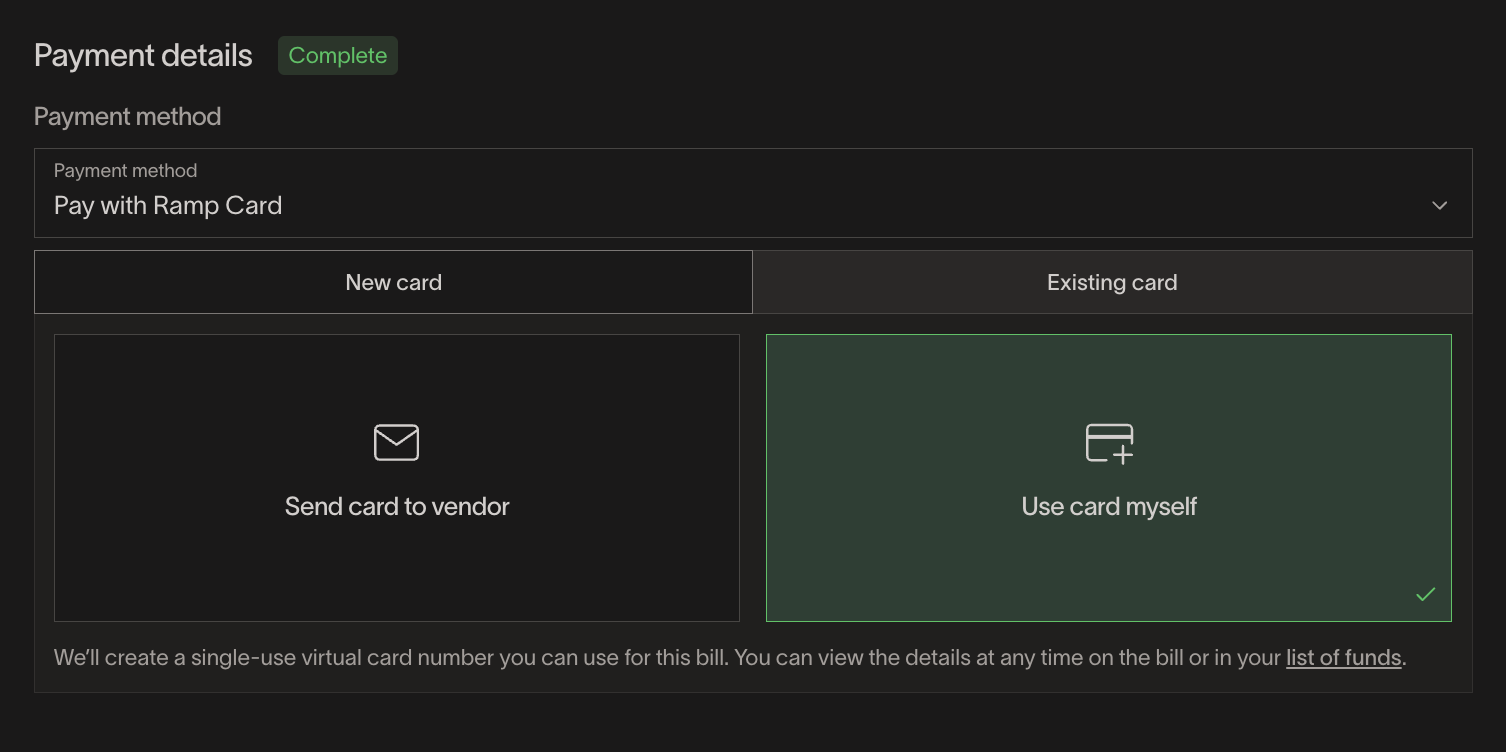
- If selected, we'll spin up a one-time virtual card set with a limit that matches the payment amount. For a bill with a single payment, the payment amount is the bill total; for a bill split into multiple card payments, each single-use card matches its own payment amount.
- Once the bill and any required payment release approvals are complete, you can manually apply the card details to the vendor's payment portal or share the card details with the vendor.
- Once the card is swiped and the transaction clears, Ramp automatically matches the transaction and marks its payment paid. A bill split into multiple card payments is marked paid once all of its payments are complete.
Use card myself (existing card)
- Any invoice is eligible for this payment method.
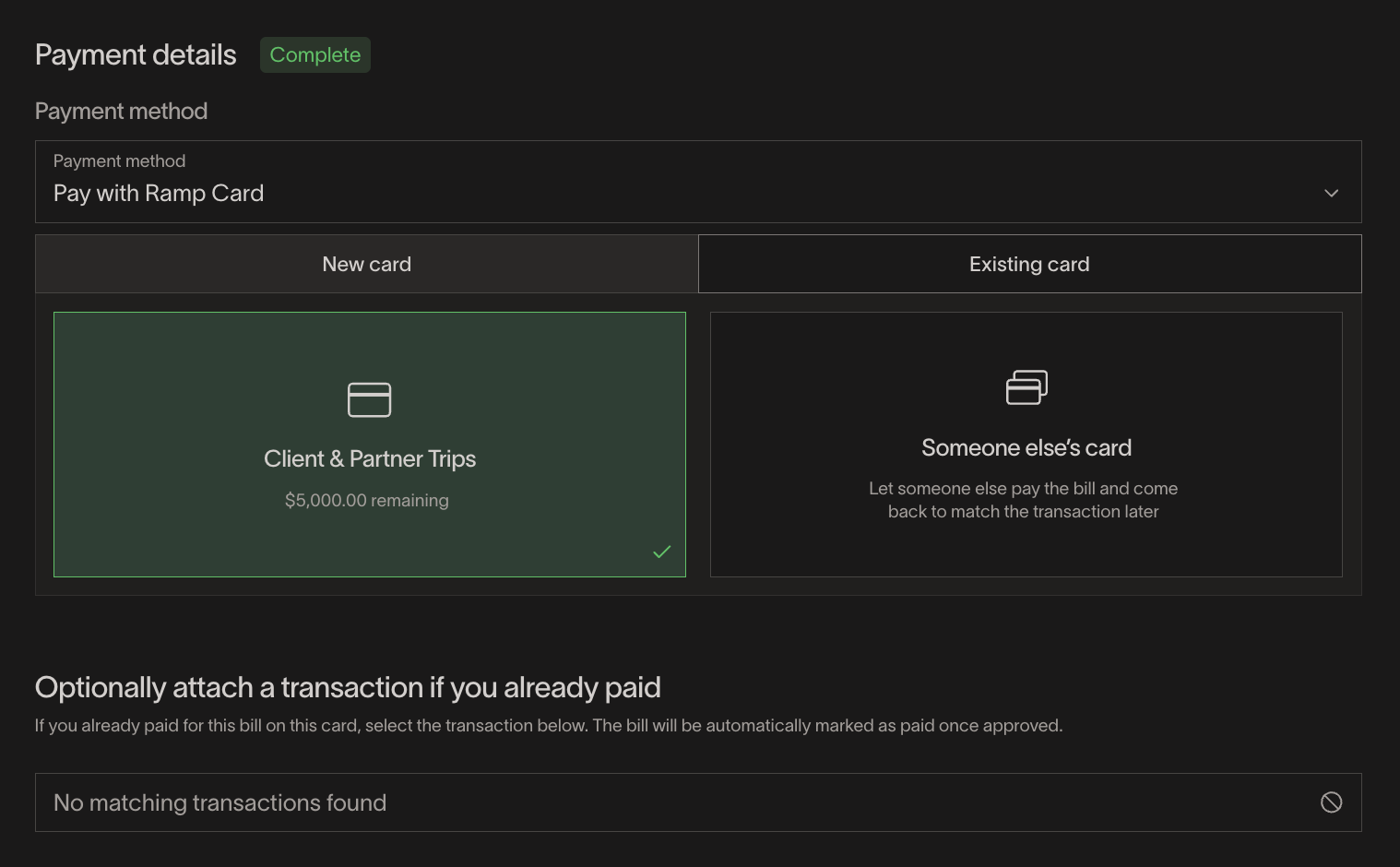
- You can choose to either select a specific card that you typically use to pay that vendor, or if you don't have access to the card that will be used for payment, select the option 'someone else's card.' See How transactions get matched to bills for how the card selection affects matching.
- If you choose a specific card and the transaction has already been made, you can optionally pre-match the transaction to the payment. Once the bill and any required payment release approvals are complete, we'll finalize the match and mark that payment paid. A bill split into multiple payments is marked paid once all of its payments are complete.
- Otherwise, you may choose to pay your vendor through their payment process at any point.
- Please note that you'll have to contact your vendor and/or enter the card details on the vendor’s payment portal yourself. Ramp isn't able to send card details for existing Ramp cards directly to the vendor at this time.
- Once the transaction has cleared and the bill and any required payment release approvals are complete, you'll be able to match the transaction to its payment, which marks that payment paid. A bill split into multiple payments is marked paid once all of its payments are complete.
- Ramp also looks for matching cleared transactions automatically, see How transactions get matched to bills.
Turn off automatic card selection
To stop Ramp from automatically selecting card for new bills, turn off Automatically pay card-eligible bills in Bill Pay payment preferences. This setting applies to your entire business, not individual vendors. If you cannot access the setting, ask an Admin to change it.
Turning the setting off does not change bills already set to card. To use another payment method on an existing bill, open the bill in Bill Pay, select Edit, and change Payment method, if the bill and its payment details are still editable.
One-time card vs existing card
Below is a breakdown of how these card types are different. Generally we recommend using one-time cards to pay bills, as these are more secure than existing cards.
- Existing Ramp card -
- Cards that have already been created and exist independent of Ramp Bill Pay.
- These limits are set outside of Bill Pay and are independent of the bill limits.
- Single-use Ramp card -
- Cards created in relation to a specific bill.
- Unique virtual card generated once bill approvals and any required payment release approvals are complete.
- The card limit is set to the exact payment amount, and over-amount swipes are declined. By default, if the card is swiped for less than the payment amount, Ramp keeps the cleared amount and creates a separate payment for the remainder; your business can require exact-amount swipes instead. See Auto-splitting single-use card payments. For a bill with multiple card payments, each single-use card is tied to one payment.
- After a successful swipe that completes the payment, the card locks automatically. Additional swipe attempts will be declined.
Locking single-use cards
Single-use cards will auto-lock in the following conditions:
- After the first successful swipe — Once the card is charged and the transaction clears, the card locks immediately and cannot be used again.
- Time-based auto-lock — If the card is not swiped, it will auto-lock after a set period:
- If card delivery is enabled, the single-use card will auto-lock 14 days after initial email delivery.
- If card delivery is not enabled, the single-use card will auto-lock 21 days after bill approval.
Note: A declined swipe does not lock the card. If a vendor swipes for the wrong amount and the transaction is declined, they can retry for the correct amount.
You may also manually lock the card by navigating to the 3 dots menu on the bill and clicking the Cancel Delivery option or by locating the card in the Cards tab and clicking the Lock button.
How transactions get matched to bills
Existing Ramp cards
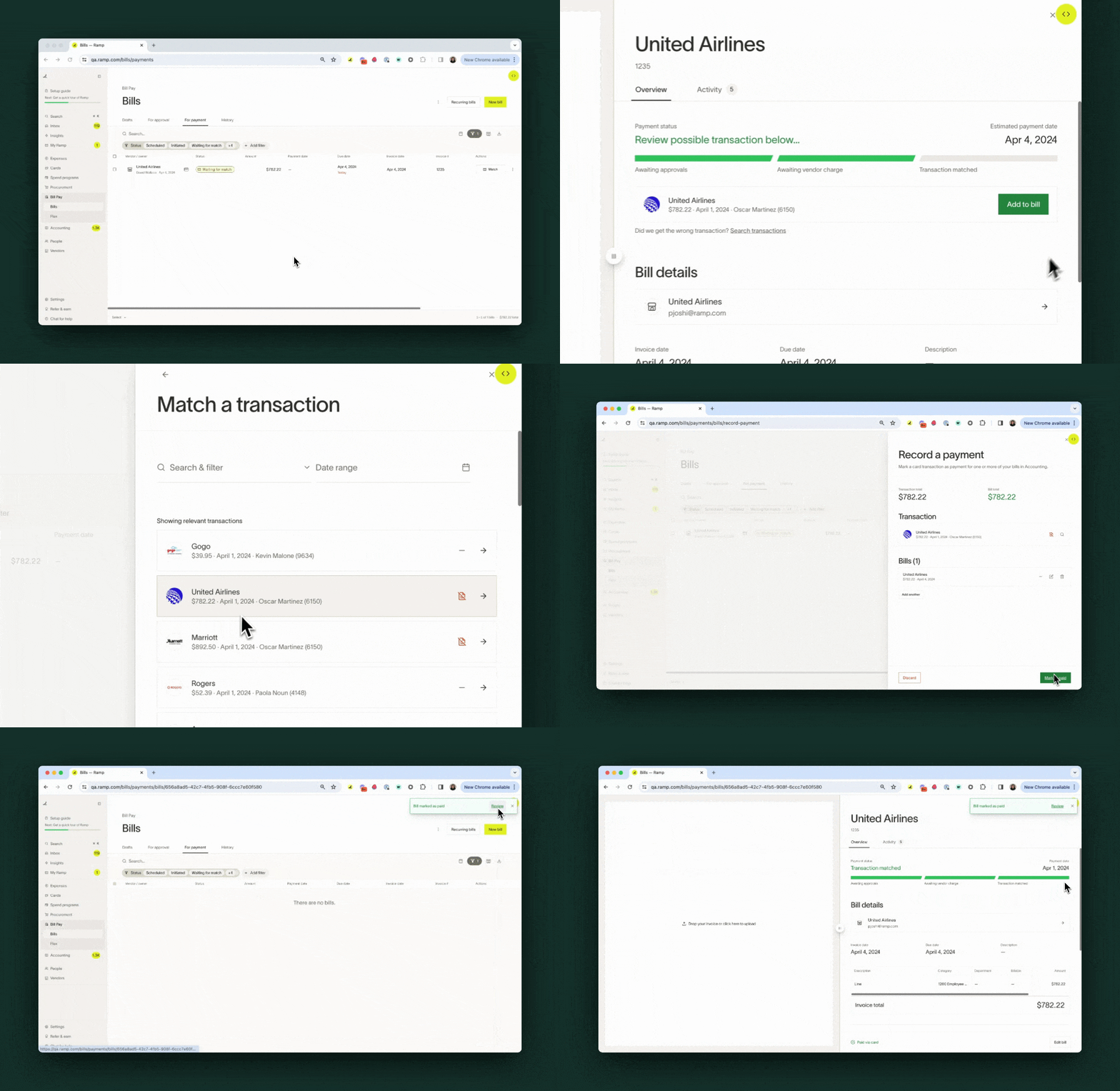
Ramp will automatically match transactions to bills paid by existing Ramp cards for you! Upon a transaction clearing or a payment approval, Ramp will search for eligible matching counterparts and automatically perform the match, marking the bill as paid.
Ramp searches for transaction matches by comparing the amounts, vendor/merchant similarity, date similarity, entity, receipt, invoice numbers, and more. If you've explicitly indicated a card to pay with on the bill, then Ramp will only match to transactions on that card's spend allocation.
If Ramp does not automatically match the transaction and payment together, you can manually match it yourself. On the bill overview or payments drawer you will find a Match transaction button to locate the desired transaction and match it to the bill or bills (we support matching a single card transaction to many bills).
For a payment to be eligible to match, it's bill must be fully approved. For a transaction to be eligible to match, it must meet the following conditions:
- The transaction has cleared and is no longer in a pending status
- The transaction hasn't synced over to the accounting provider as a card transaction
- For the transaction to be matched and synced over as a bill payment, it can't be synced as a card transaction
- The transaction amount is equal to the payment(s) summed amount
- For example, if there is a $100 USD transaction, you may match it to one $100 USD bill or to two $50 USD bills
Once the transaction is matched, Ramp marks the bill as paid in both Ramp and your accounting provider. For a bill split into multiple payments, only the matched payment is marked paid, and the bill is marked paid once all of its payments are complete.
Please note: The transaction will also be marked as approved, and missing required items will be dismissed. Learn more about match card transaction syncing below.
Single-use Ramp cards
After the vendor uses the single-use card, Ramp automatically matches the transaction to its payment once the transaction clears. When the transaction amount equals the payment amount in the bill's original currency, Ramp marks that payment as paid, and the bill is marked paid once all of its payments are complete. For a bill with a single payment, the payment amount is the bill total.
If the bill and card transaction show different converted amounts, the difference alone does not prevent automatic matching. Do not change the bill amount or match the transaction manually solely because the converted amounts differ.
Remove a matched card transaction from a bill
For a paid bill matched to an existing Ramp card transaction, a user with permission to modify bills can remove the match from Bill Pay > History:
- Open the paid bill and select Remove transaction from the bill actions or the matched transaction menu.
- In the Remove matched transaction? confirmation, click Remove transaction.
Ramp unlinks the card transaction without deleting it and marks the bill as unpaid. This action is not available for one-time card payments or bills with multiple payments.
If the card payment synced to your accounting provider and Ramp supports voiding payments for that connection, the confirmation states that Ramp will also void the payment in your accounting provider. Otherwise, reverse the payment in your accounting provider manually.
How accounting works for card bill payments
- For both existing Ramp cards and single-use Ramp cards, once your transaction is matched, Ramp will mark the matched payment as paid and sync over the card transaction as a bill payment. For a bill with a single payment, this marks the bill paid; a bill split into multiple payments is marked paid once all of its payments are complete.
- Note that this means the transaction is no longer recorded the same way as a typical card transaction.
- Instead of increasing the total balance of your credit card liability account directly, the AP liability is shifted to the credit card liability account automatically, and the next payment toward your statement balance reconciles this.
- For customers using Ramp for Multi-Entity, it's important to ensure the transaction entity matches the entity on the bill(s) when you confirm the match.
- Any adjustments or additional journal entries would need to be handled manually in your accounting provider.
Pay one bill with multiple card payments
You can pay a single bill with more than one Ramp card payment. Ramp tracks each card payment separately — including its amount, card option, payment date, release, transaction match, and status — and the bill stays open until every payment is complete. Splitting a bill into multiple payments is part of partial payments, which is in Beta; opt in from What's new.
Each card payment independently uses one card option: Send card to vendor or Use card myself (single-use cards), or an existing card (One of my cards or Someone else's card). Pay automatically is not available for partial payments. See Types of card payments for a full description of each option.
To set up multiple card payments, choose to pay with a Ramp card and select the card option for the first payment, then select Split payment and Add split to add more. For each payment, enter an Amount (or Percentage) and set its card option and payment date. Every amount must be greater than zero, and the sum of payments must match the invoice total. You can create up to 20 payments on one bill, and card limits, available balance, and card controls apply to each card payment.
Match transactions to card payments
Ramp matches each cleared transaction to one card payment. For a single-use card, Ramp matches automatically when the card and payment amount match. For an existing card, you can optionally attach a transaction while configuring the payment if you already paid the vendor, or select Match transaction after it clears and choose a transaction for the same amount; Ramp may also surface Matching transaction found for you to Add to bill. A transaction that does not match any payment appears on the bill as an unmatched transaction for you to resolve. For matching requirements and accounting behavior, see How transactions get matched to bills.
Limitations
- Automatic card payments (Pay automatically) do not support partial payments.
- Bills with partial payments must be matched separately and cannot be included in a batch payment, which combines multiple bills into one transaction. See Batch payments on Ramp Bill Pay.
Auto-splitting single-use card payments
If a single-use card is swiped for an amount that is less than its payment amount, Ramp splits the payment automatically:
- Ramp matches the transaction to the existing payment and creates a separate payment for the remainder.
- This applies only to single-use cards (Send card to vendor and Use card myself). Existing-card and automatic card payments are never split this way.
- Transactions for more than the payment amount are declined.
To require exact-amount transactions instead, see Require exact single-use card transaction amounts.
Require exact single-use card transaction amounts
To require single-use card swipes to match the exact payment amount, turn on Enforce exact single-use card transaction amounts in Bill Pay payment preferences.
- When enabled, transactions made for less than the payment amount are declined.
Frequently asked questions
Can I pay a vendor from an SMS or text-to-pay link?
Ramp does not support automatically starting or completing a Bill Pay card payment from an SMS or text-to-pay link.
If the text link opens the vendor's payment portal, you can still choose one of the manual options in this article and enter the card details yourself: one-time card or existing card. For other supported card-payment options, see Auto-pay with card or Send card to vendor.
When should I use a single-use credit card versus an existing Ramp card?
We recommend using a single-use card if you're concerned that the vendor will overcharge or if the vendor relationship is a one-off. An existing card should be used for recurring charges to a vendor.
Is there a maximum amount that can be charged on the single-use or existing card?
Your maximum amount payable by either card product will depend on your limit and current balance as well as the global limit of 200K for single use cards. Because these are card payments, the amount spent will be added to your current balance. For more information, read Card limits and Spend Programs.
For single-use Ramp card delivery, which vendor email does Ramp send the card details to?
Ramp will email the single-use card details to the default vendor contact you have on file for the given vendor.
For single-use Ramp card delivery, are there reminder emails sent to the vendor email?
Yes. Ramp sends the vendor contact reminder emails 1, 2, 4, and 7 days after the invoice's scheduled payment date. Reminders continue only while the bill is still open and unpaid, and the last reminder is sent on day 7. They stop once the bill is marked paid — which happens after the card is swiped and the transaction clears — or if the card delivery is canceled.
Can the amount of a single-use card be changed after it has been created?
The single-use card limit is tied to its payment amount and cannot be edited directly on the card. To change the card limit, change that payment's amount:
- Edit the bill and update the payment amount. For a bill with a single payment, this is the bill total; for a bill split into multiple card payments, update the specific payment.
- Once the updated amount is approved, that payment's card limit automatically adjusts to match.
This is available as long as the card for that payment has not yet been swiped.
What if my vendor needs to charge a variable or unpredictable amount?
Single-use cards decline over-amount swipes, so they are not suited for charges that can exceed the payment amount (for example, hotel event overages). For these cases, use the Existing Ramp Card payment method instead, which is not subject to the single-swipe or exact-amount restrictions. Under-amount swipes on a single-use card are handled by default — see Auto-splitting single-use card payments.
Can I pay one bill with multiple card payments?
Yes. Each card payment independently uses its own card payment method, amount, and date, and you can mix a single-use card and an existing card on one bill. See Pay one bill with multiple card payments.
Can I pay a bill automatically with card and split it into partial payments?
No. Automatic card payments (Pay automatically) do not support partial payments.
Can I pay international bills by card?
Yes. Ramp will now create cards for international invoices in the currency on the invoice.