NetSuite integration: Set up bill payment trace IDs
Overview
When a Ramp bill payment syncs to NetSuite, you can automatically write the payment identifier — such as an ACH trace ID or a check number — to the NetSuite vendor payment record. This is handled by a NetSuite SuiteBundle script (Bundle ID: 552760) that calls the Ramp Developer API to retrieve the identifier and set it on a vendor payment field.
This guide covers how to install the bundle, connect it to Ramp's API, and configure the script deployment.
Note: You need Administrator access in both NetSuite and Ramp to complete this setup.
Install the bundle in NetSuite
- Sign in to NetSuite with the Administrator role.
- Go to Customization > SuiteBundler > Search & Install Bundles.
- In the Keywords field, search for Bundle ID
552760.

- Open the bundle and click Install.
Create a Ramp Developer API app
The bundle authenticates with the Ramp Developer API to retrieve payment identifiers. You need to create an API app in Ramp and configure its credentials.
- Sign in to Ramp as an Admin.
- From your Developer settings, create a new app:
- App Name:
NS - Ramp Bill API - App Description:
This enables NetSuite to pull Bill Payment Check Number or ACH for Invoices.
- App Name:
- Click Save, then open the app you just created.
- Under Grant types, add both of the following (they may already exist):
- Authorization Code
- Client Credentials
- Under Scopes, click Configure allowed scopes, check
bills:read, and click Set. - Copy the Client ID and Client secret — you need them in the next step.
For more on the Ramp Developer API, see Ramp Developer API overview and the Ramp Developer API documentation.
Configure the script deployment in NetSuite
- Sign in to NetSuite with the Administrator role.
- Go to Customization > Scripting > Scripts.
- Click Filters and set From Bundle to
552760. - Click View on the script Ramp - Pull Bill Trace ID.

- Go to the Deployments tab and verify:
- There is a deployment on Vendor Payment.
- The deployment status is Deployed and Released.
- Open the deployment and click Edit.
- Verify the following settings:
- Available to: All Roles and All Employees
- Execute as Role: Administrator
- Go to the Parameters tab and set:
- Ramp Client ID: paste the Client ID from your Ramp API app.
- Ramp Client Secret: paste the Client secret from your Ramp API app.
- Ramp API Base: set based on your environment:
- Production:
https://api.ramp.com/developer/v1/ - Demo (testing only):
https://demo-api.ramp.com/developer/v1/
- Production:
- Payment Field to Set: choose the vendor payment field where the identifier should appear. The default value is
tranid, which is the Check # field.

- Click Save.
Set up automatic retries for missing identifiers
If a trace ID is not yet available when a bill payment syncs, the script sets the TRACE ID NOT FOUND flag to True on that vendor payment. You can retrigger the script manually by editing and saving the vendor payment record, or deploy the included Map/Reduce retrigger script to retry automatically on a schedule.
Deploy the retrigger script
- Go to Customization > Scripting > Scripts.
- Click Filters and set From Bundle to
552760. - Click View on Ramp - Retrigger Pull Bill Trace ID.
- Go to the Deployments tab and click the deployment Ramp - Retrigger Pull Bill Trace ID.
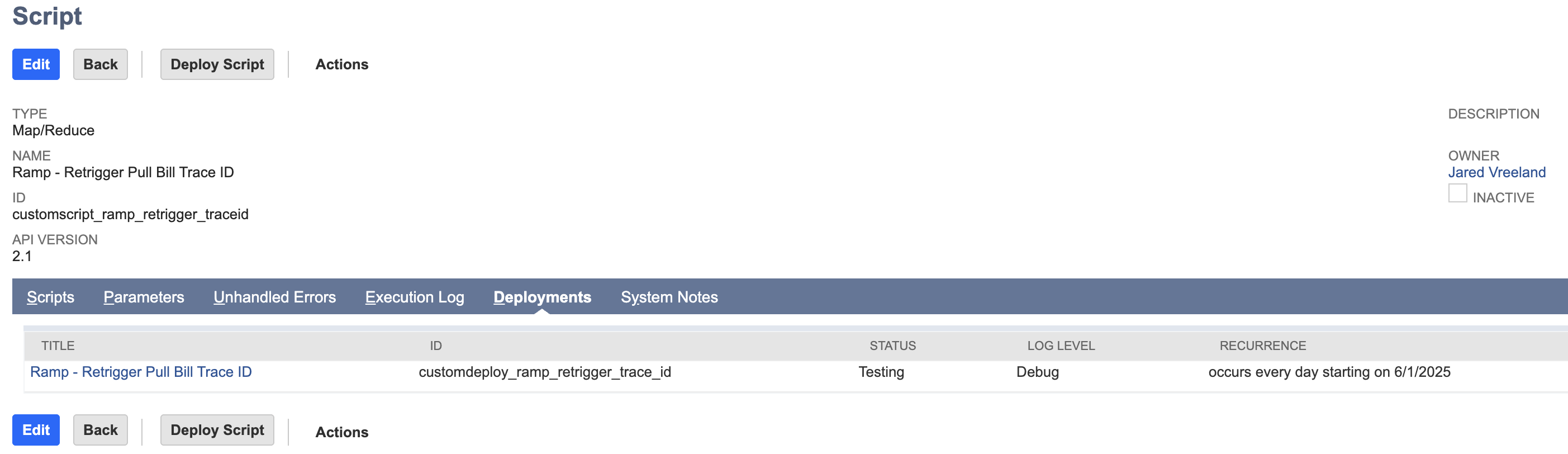
- Click Edit.
- Under Schedule, choose your preferred frequency (the default is Hourly).
- Set Status to Scheduled.
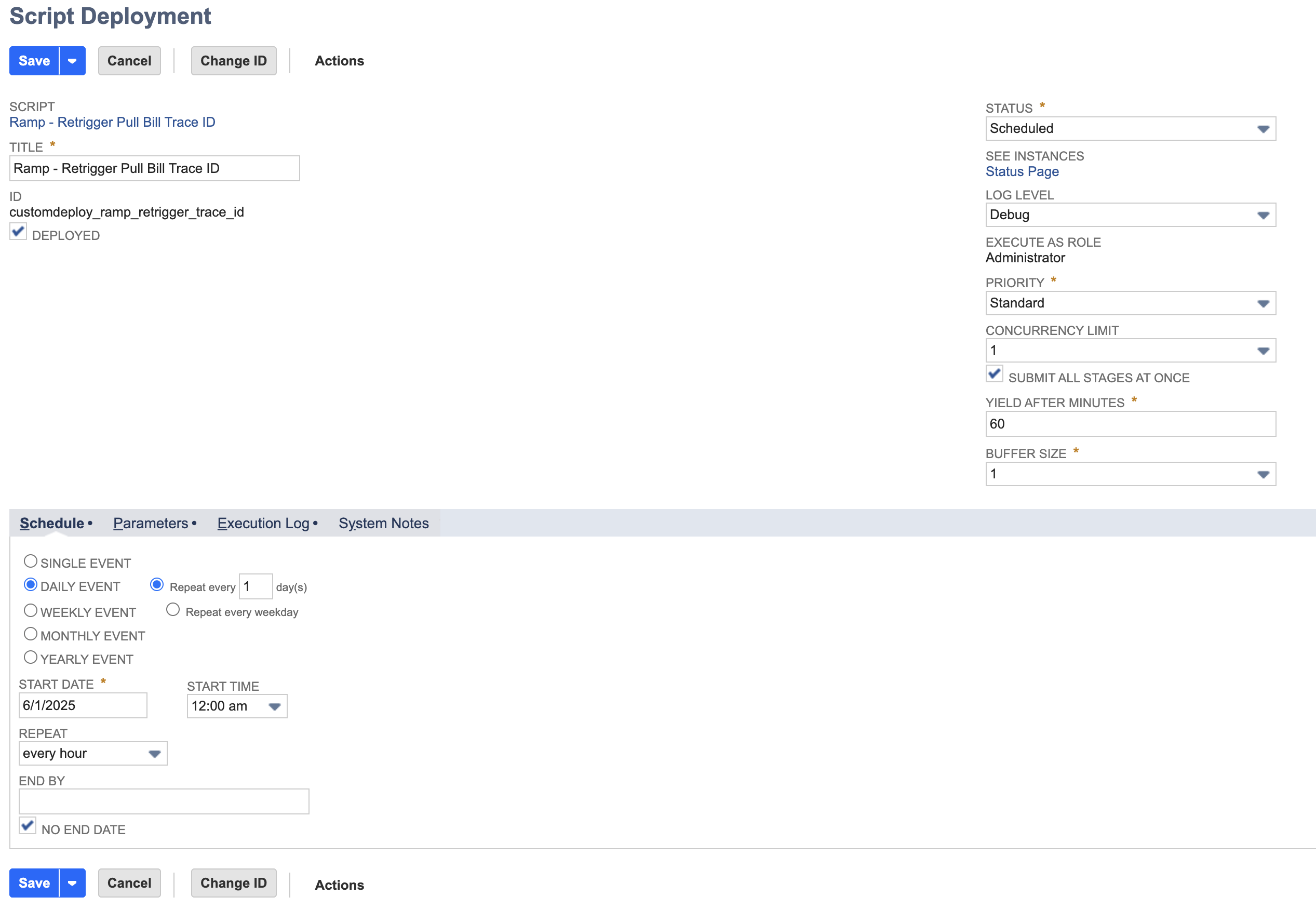
- Click Save.
The retrigger script searches for vendor payments where all of the following are true:
- TRACE ID NOT FOUND is
True ramp_receipt_urlcontainsbill- Transaction type is Vendor Payment
- Mainline is
True
Tip: Set the Created After Date script parameter to limit the search to payments created after a specific date. If left empty, the script queries all matching vendor payments.
Troubleshoot the retrigger script
If the retrigger script runs but does not update the payment identifier:
- Go to Customization > Scripting > Script Deployment.
- Click Filters and set From Bundle to
552760. - Click Edit on the deployment for Ramp - Pull Bill Trace ID.
- Go to the Context Filtering tab.
- Select Map/Reduce (keep all other existing options selected).
- Click Save.
- Retrigger the Ramp - Retrigger Pull Bill Trace ID script.
Test the deployment
- Open a bill payment in NetSuite that has already synced from Ramp.
- Click Edit, then click Save (no changes needed — saving retriggers the script).
- Verify that the selected payment field was updated with the trace ID or check number.
Note: If the identifier does not appear, it may not be associated with the payment yet in Ramp. Check the script execution logs to confirm whether a trace ID was returned. If not, try editing and resaving the payment again later.

If you continue to have issues with the deployment, contact Ramp Support. Include screenshots of your script deployment, parameters, and any error logs.