Microsoft Dynamics Business Central | Troubleshooting "Missing Permissions" error on the enable Entra Card page
Overview
A common error you may receive during our Microsoft Dynamics BC setup flow is the Missing Permissions error on the Enable Entra Card step. This typically means you have deleted the Ramp entra card, which is necessary for the integration.
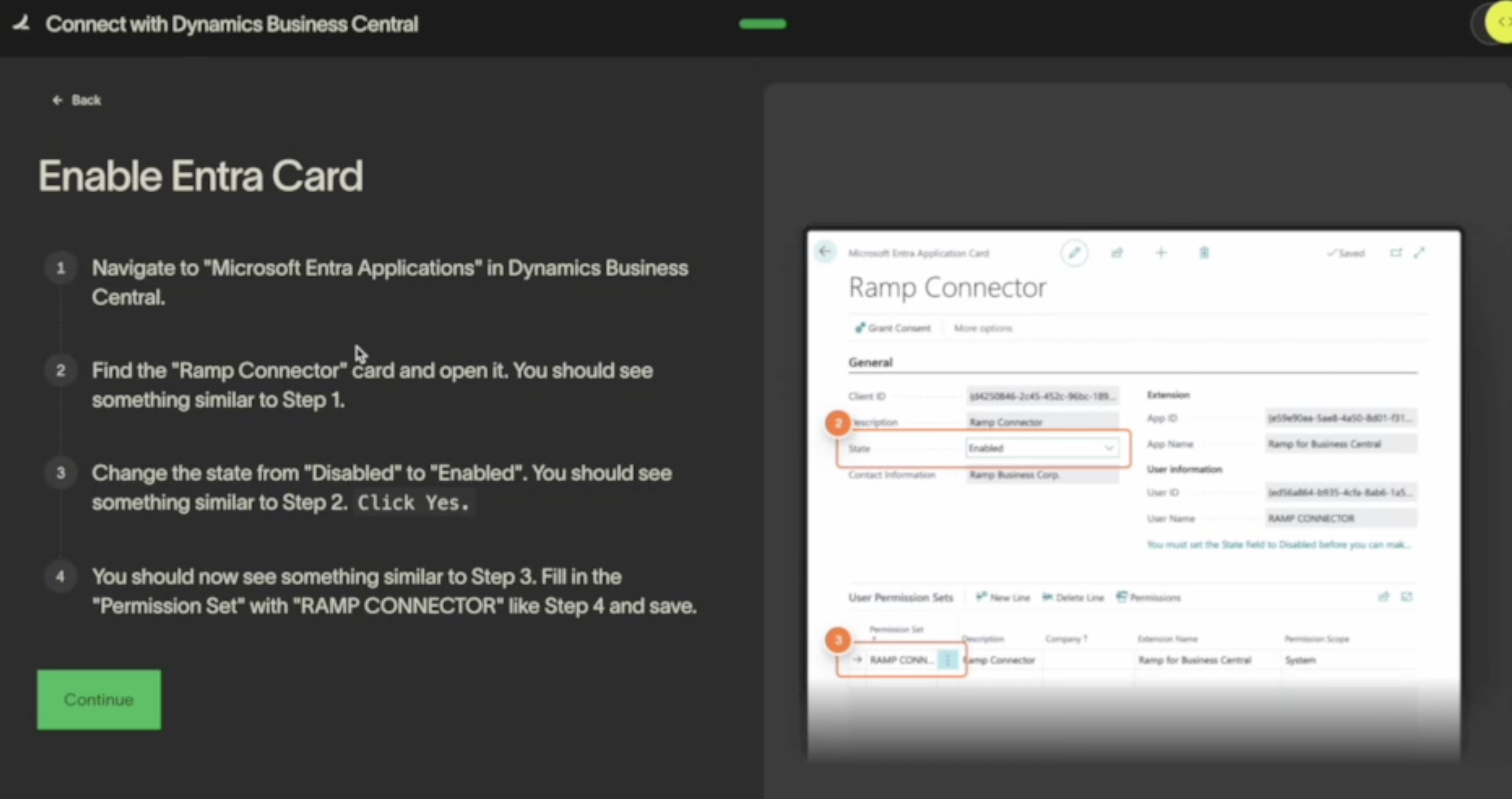
How do I fix this?
Please follow the instructions below to create a new entra card and proceed with the setup flow.
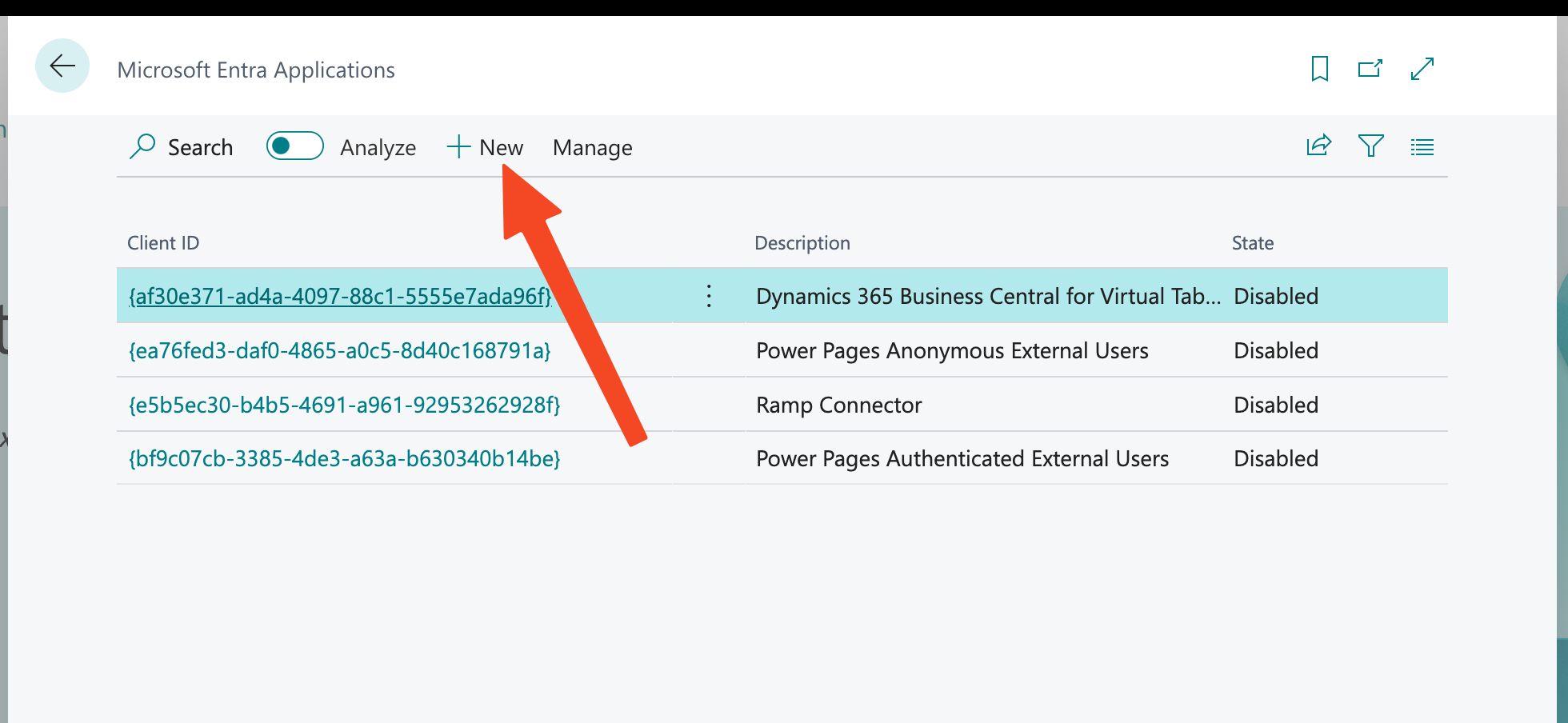
Step 1: Navigate to the Entra Card page in Business Central.
Step 2: Click New to create an Entra card.
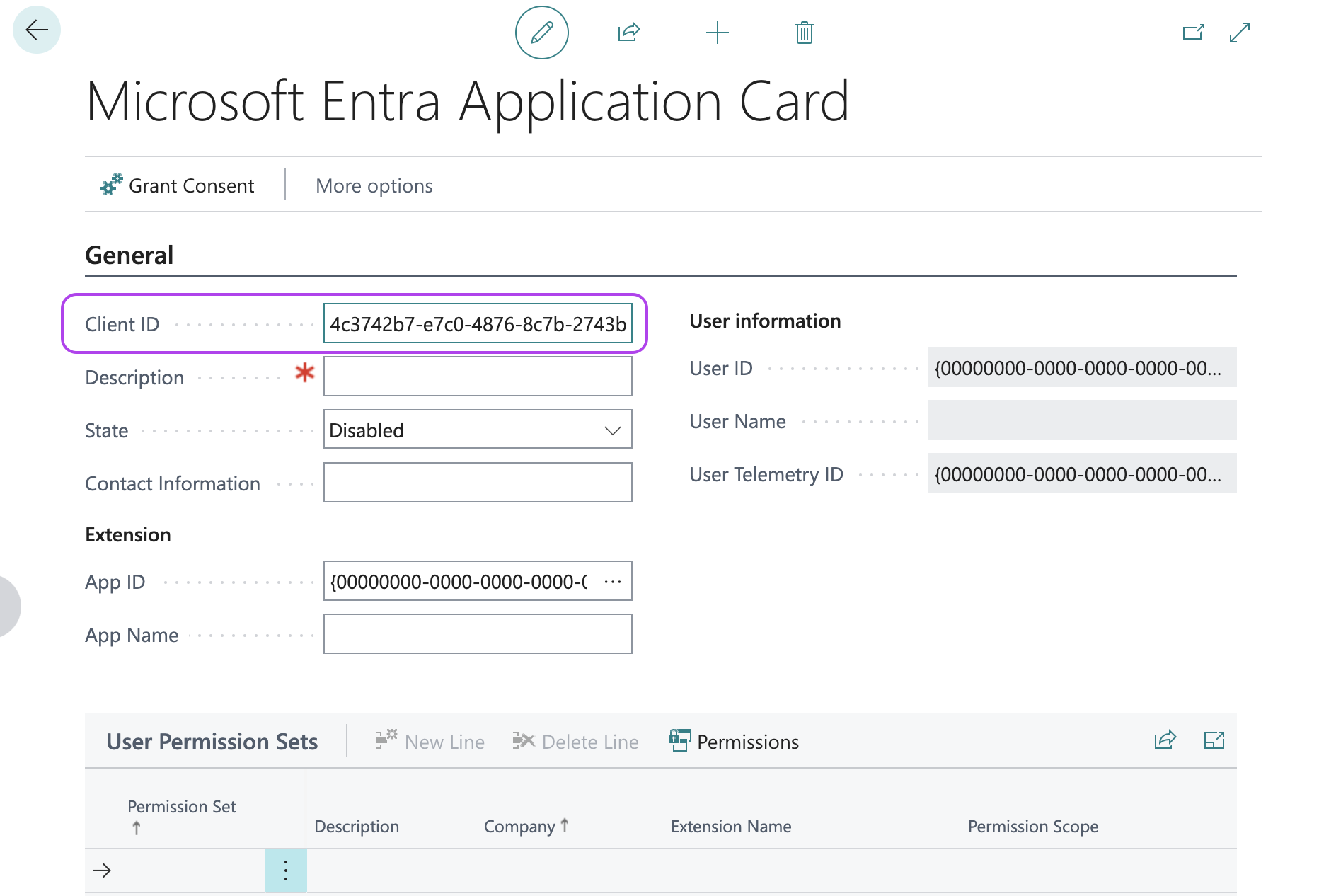
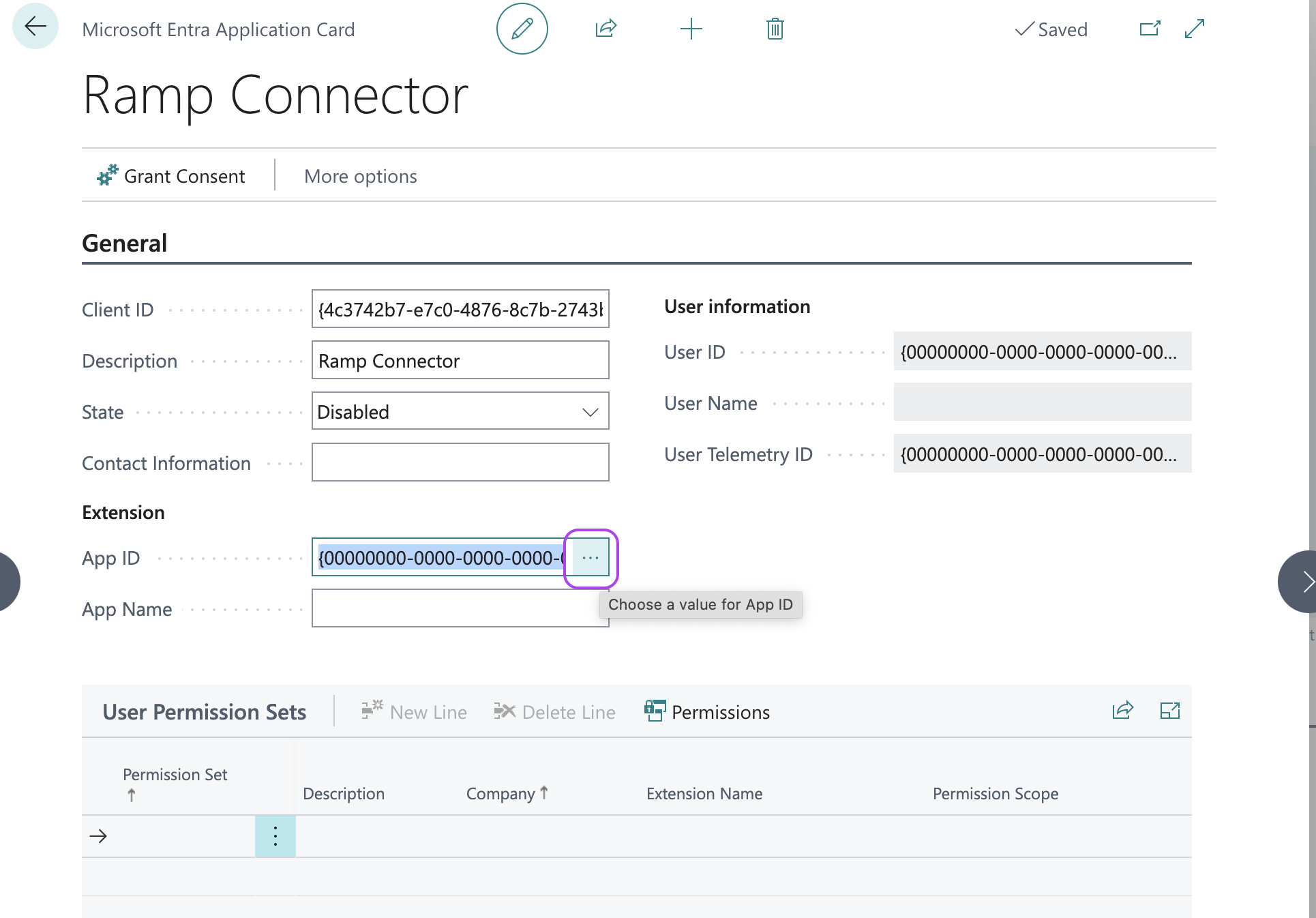
Step 3: Copy & Past this Client ID: 4c3742b7-e7c0-4876-8c7b-2743b2e073c1
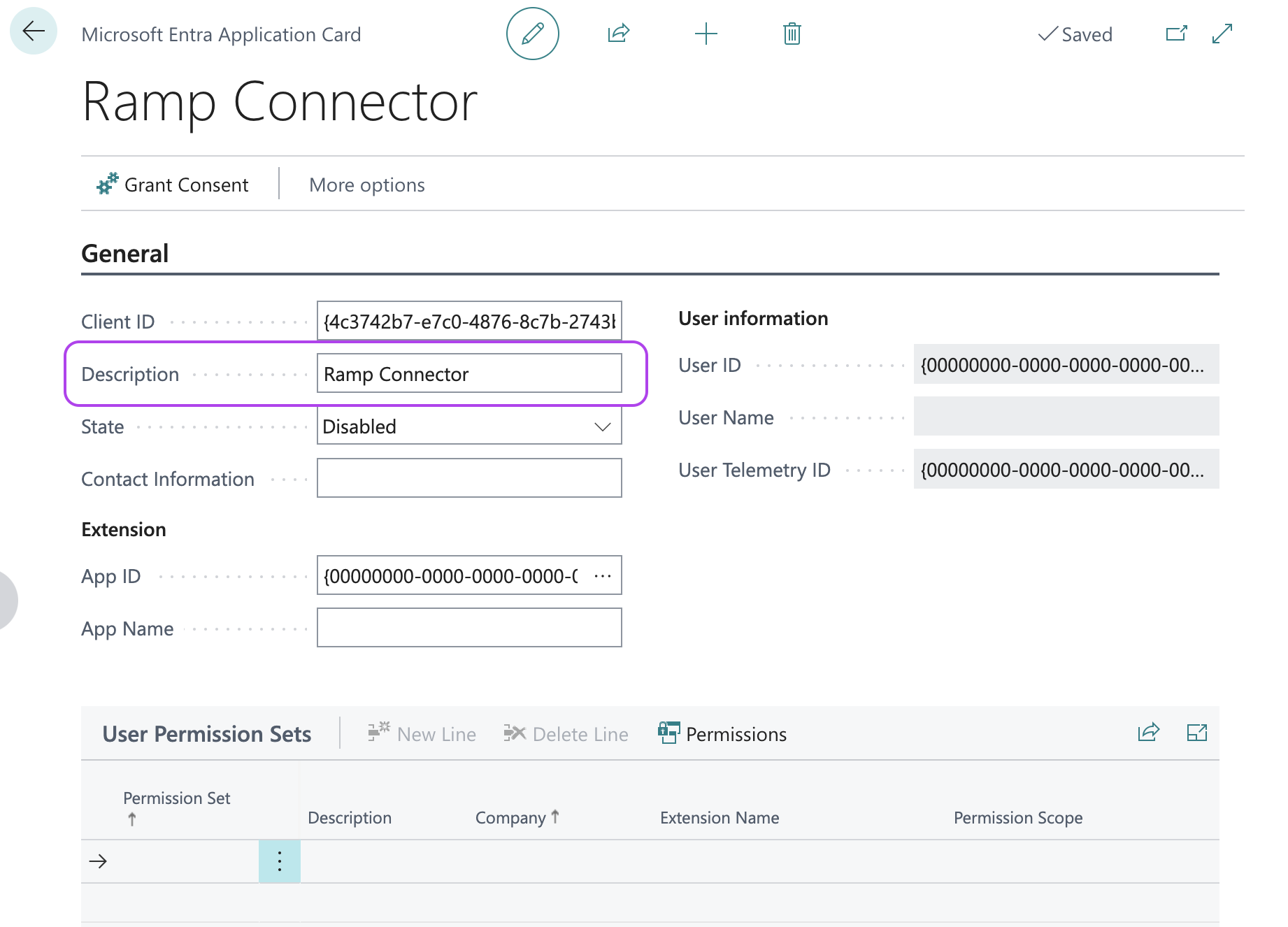
Step 4: Enter "Ramp Connector" into the Description
Step 5: Select the 3 dots next to App ID field
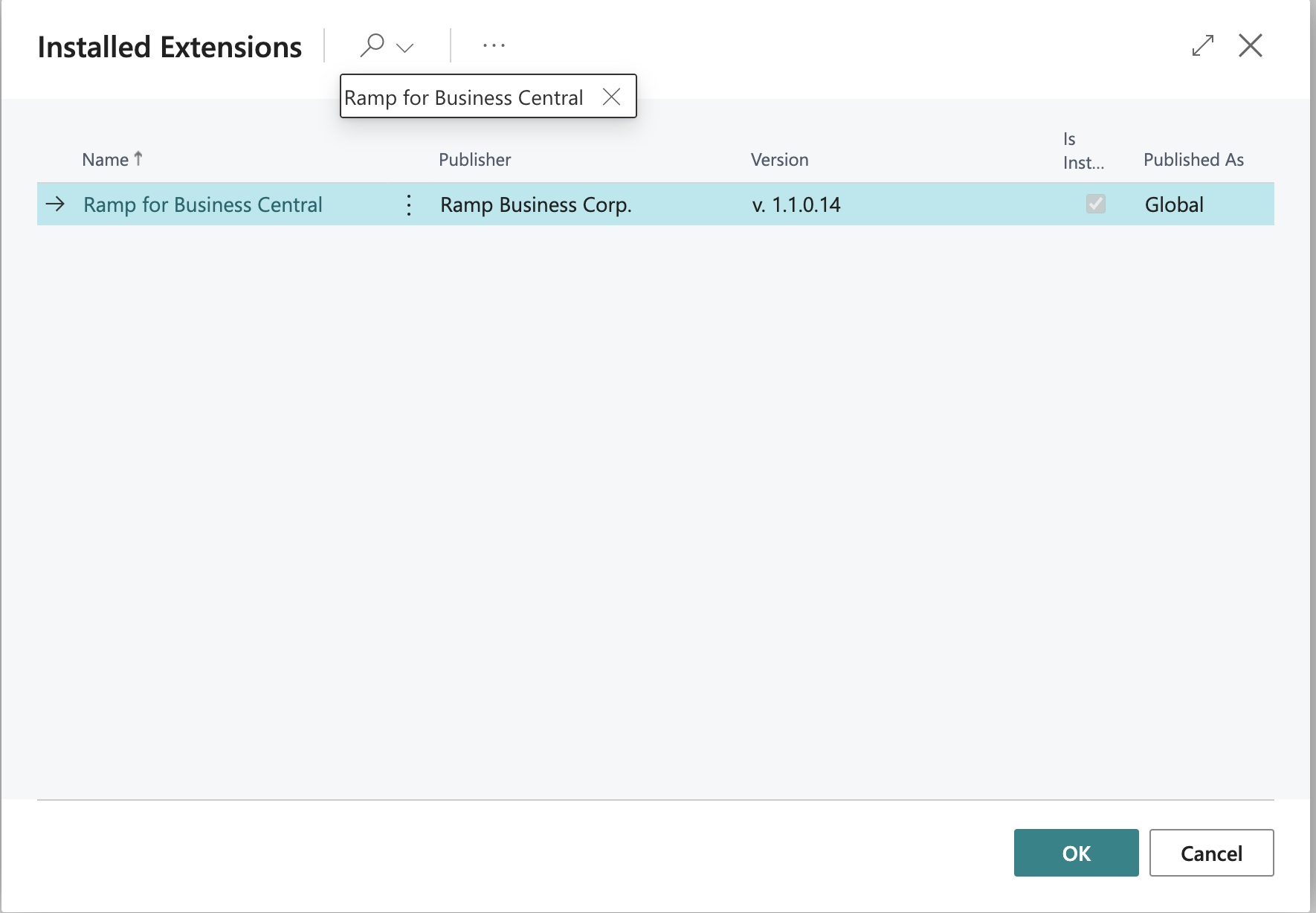
Step 6: Search for "Ramp for Business Central" in the list and select it
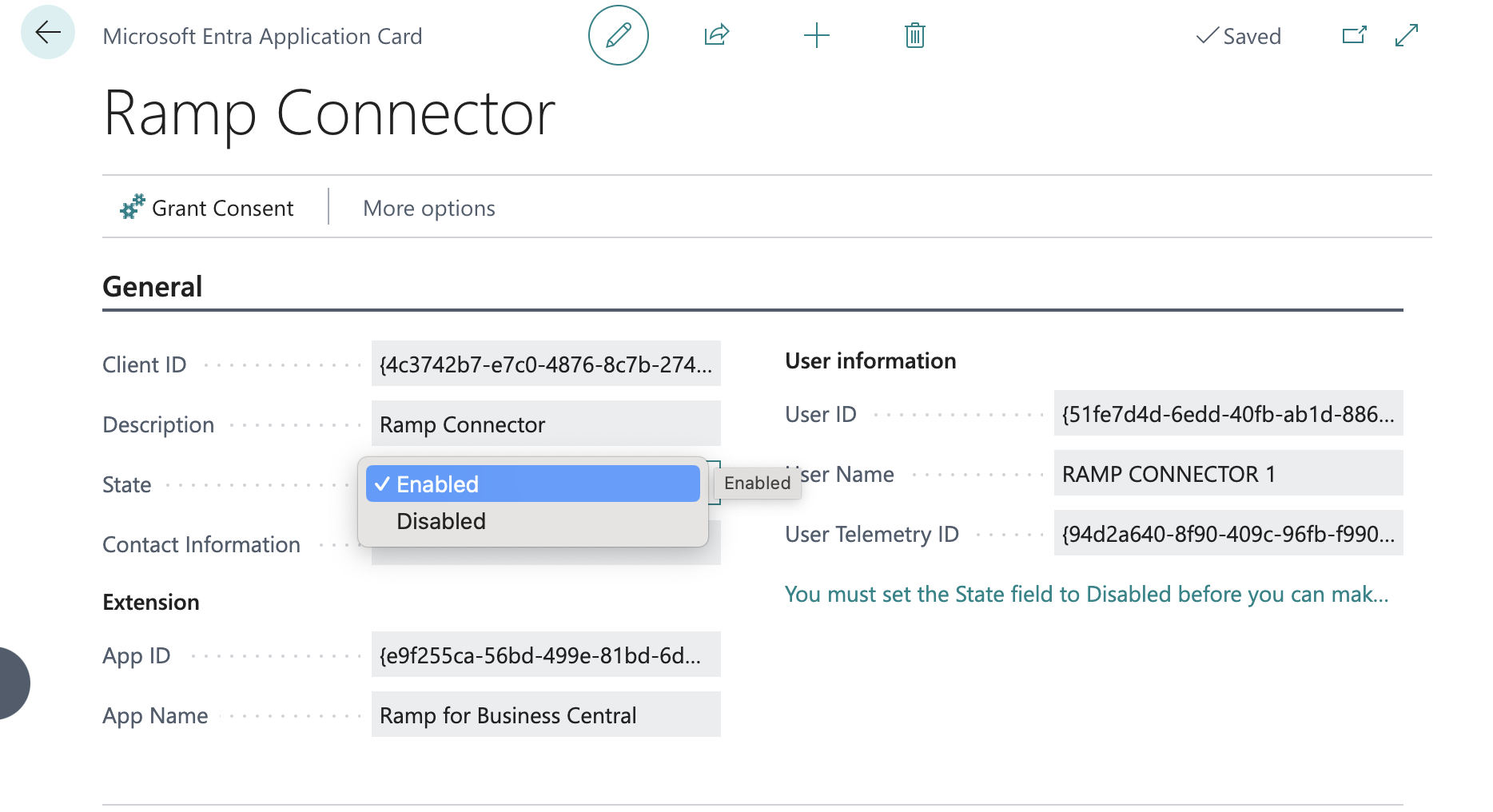
Step 7: Change the state from Disabled to Enabled
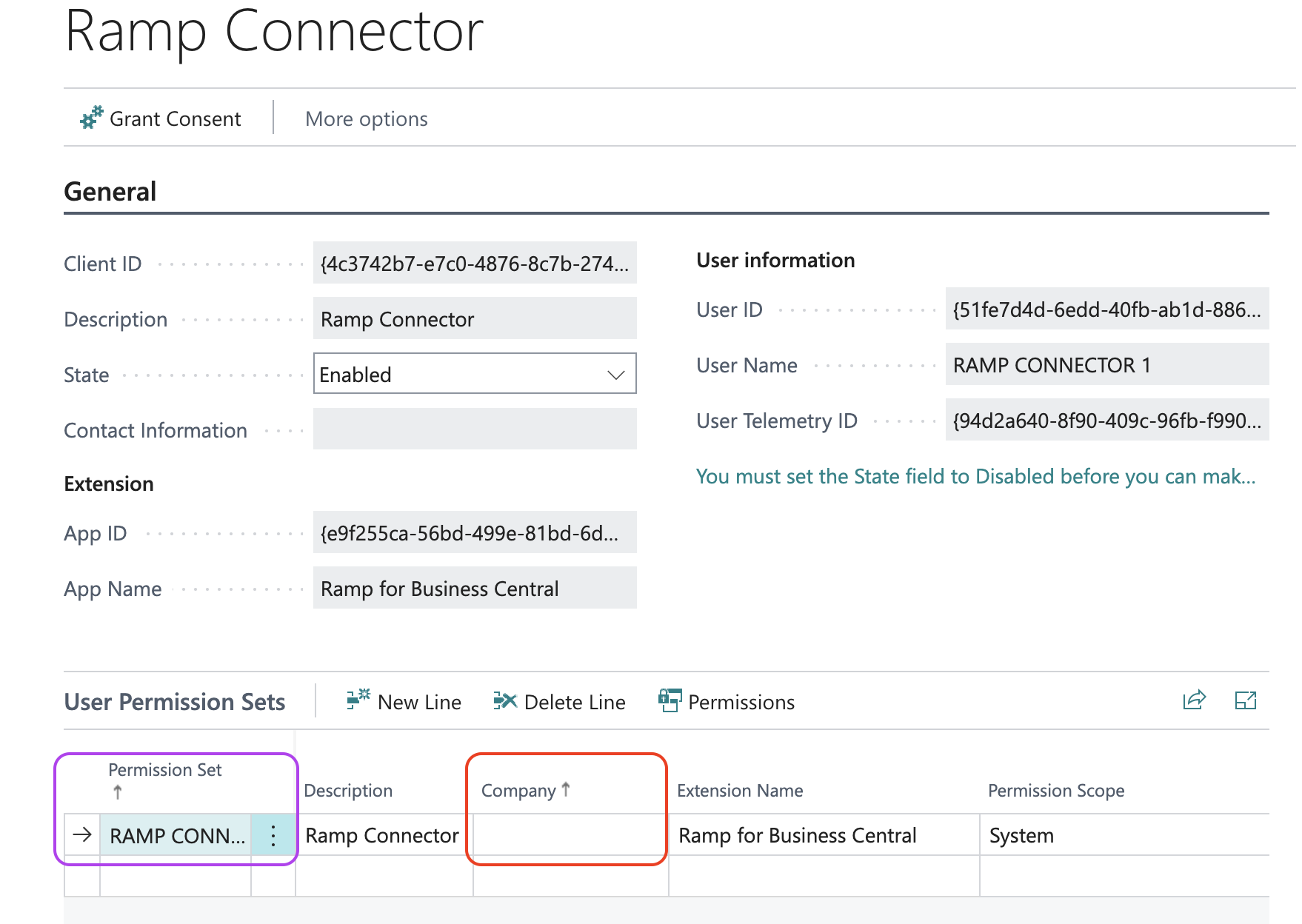
Step 8: In the Permission set field type "RAMP CONNECTOR" and ensure the Company field is left blank
Step 9: Return to Ramp and complete the setup flow.