Managing login controls in Ramp
Note: This article primarily applies to Ramp Administrators. Cardholders may find other articles in the Getting started section to be more applicable.
Overview
At Ramp, we care about making security a core part of the user experience. To that end, we make it very easy for Admins and IT admins to set sign-in controls to ensure that users are only signing in to Ramp using approved sign-in methods.
Setting sign-in controls
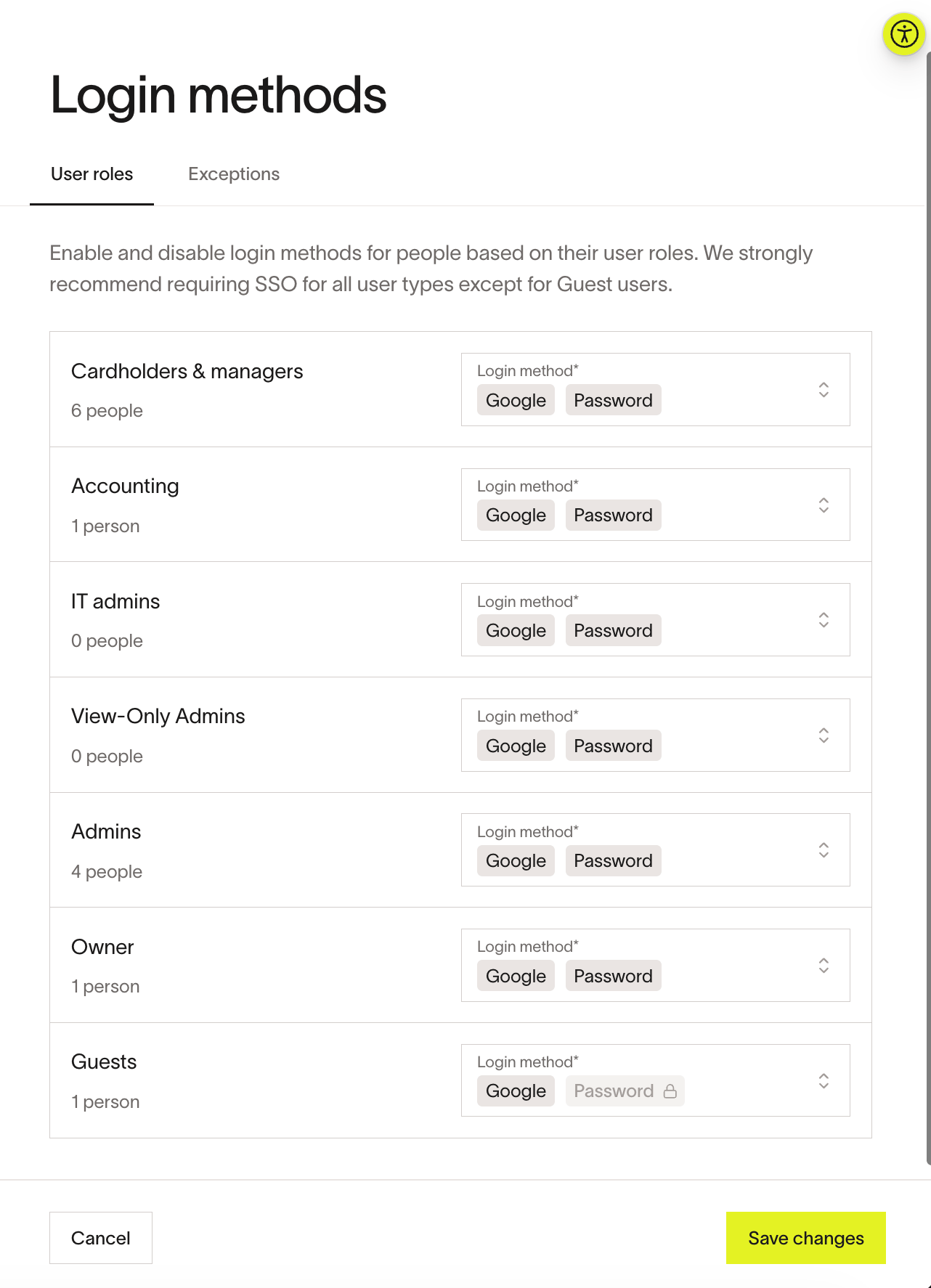
You can enable and disable sign-in methods for your employees based on their user roles by clicking Login methods. We strongly recommend requiring SSO for all user types except for Guest users. Guest users will always be allowed to sign in with email and password. You can enable other methods for Guests, but password sign-in cannot be disabled.
Once you have enabled multiple sign-in options, you can remove a method by clicking the x to the righthand side of the pill. Note that every user role must have at least one sign-in method enabled. The example below shows each role (Cardholders & managers, Accounting, IT admins, View-Only Admins, Admins, Owner, and Guests) with the available sign-in methods configured.
Creating an exception list
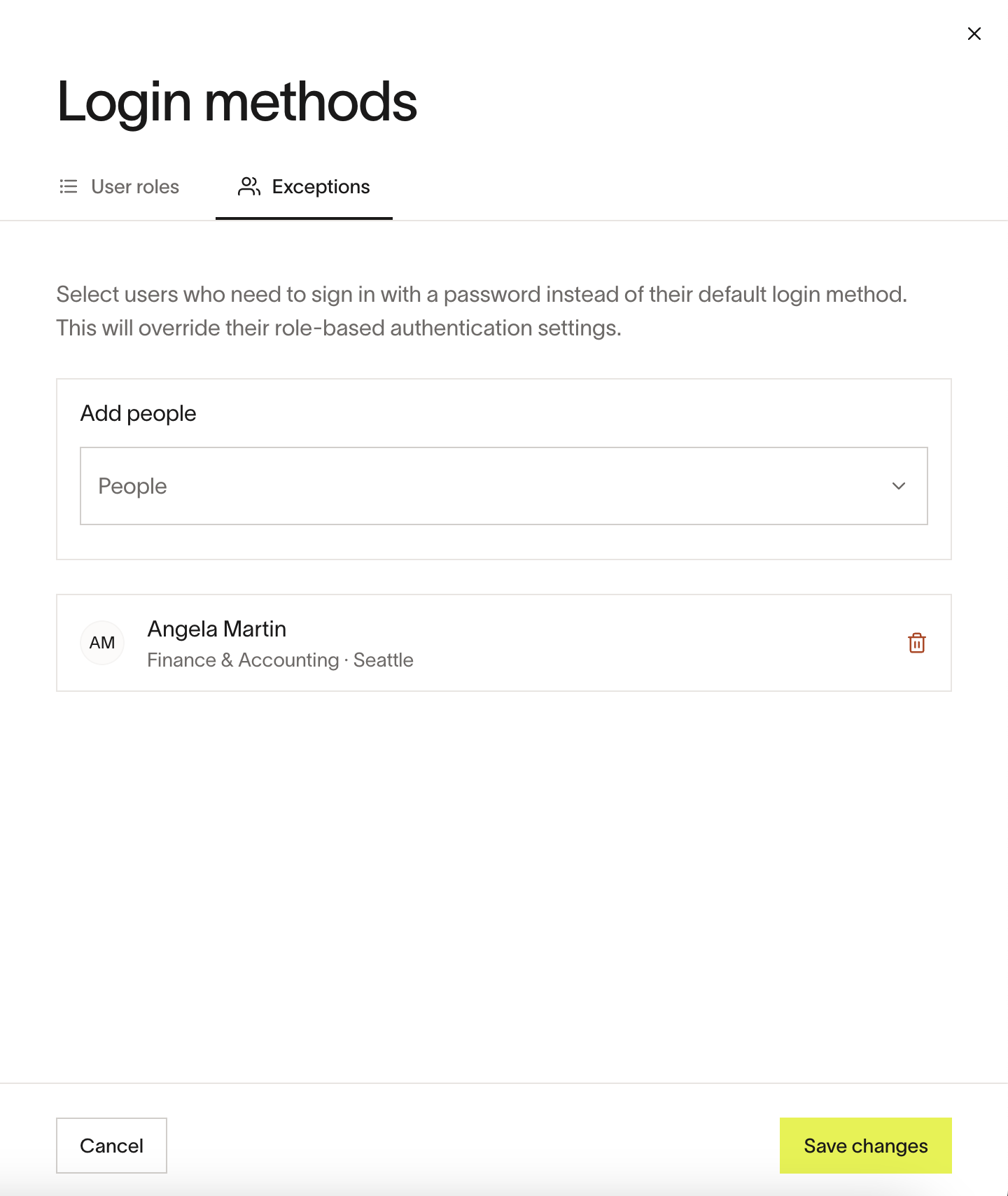
There may be certain individual users who should retain access to password, even if their role has password removed as an approved sign-in. Now you can easily add individual names in an exception list on the second tab of the sign-in control panel. This could be useful for higher-importance individuals, or external users who might not have access to your company's single sign-on (SSO) protocol.