Microsoft Dynamics Business Central integration: Update the Ramp extension
Overview
Updating the Ramp extension in Business Central requires a manual process. This article contains a step-by-step guide for accomplishing this.
This process will ensure you have the latest and greatest features that the extension offers.
How to update:
Step 1: Open Business Central
Sign in to your Business Central environment.
Step 2: Locate the AppSource page:
- Option 1: In the Business Central search bar, type "Microsoft AppSource Apps" and select the related link.
- Option 2: Go to the "Extension Management" page and then navigate to the "Microsoft AppSource Apps" page.
Step 3: Uninstall the Ramp extension
-
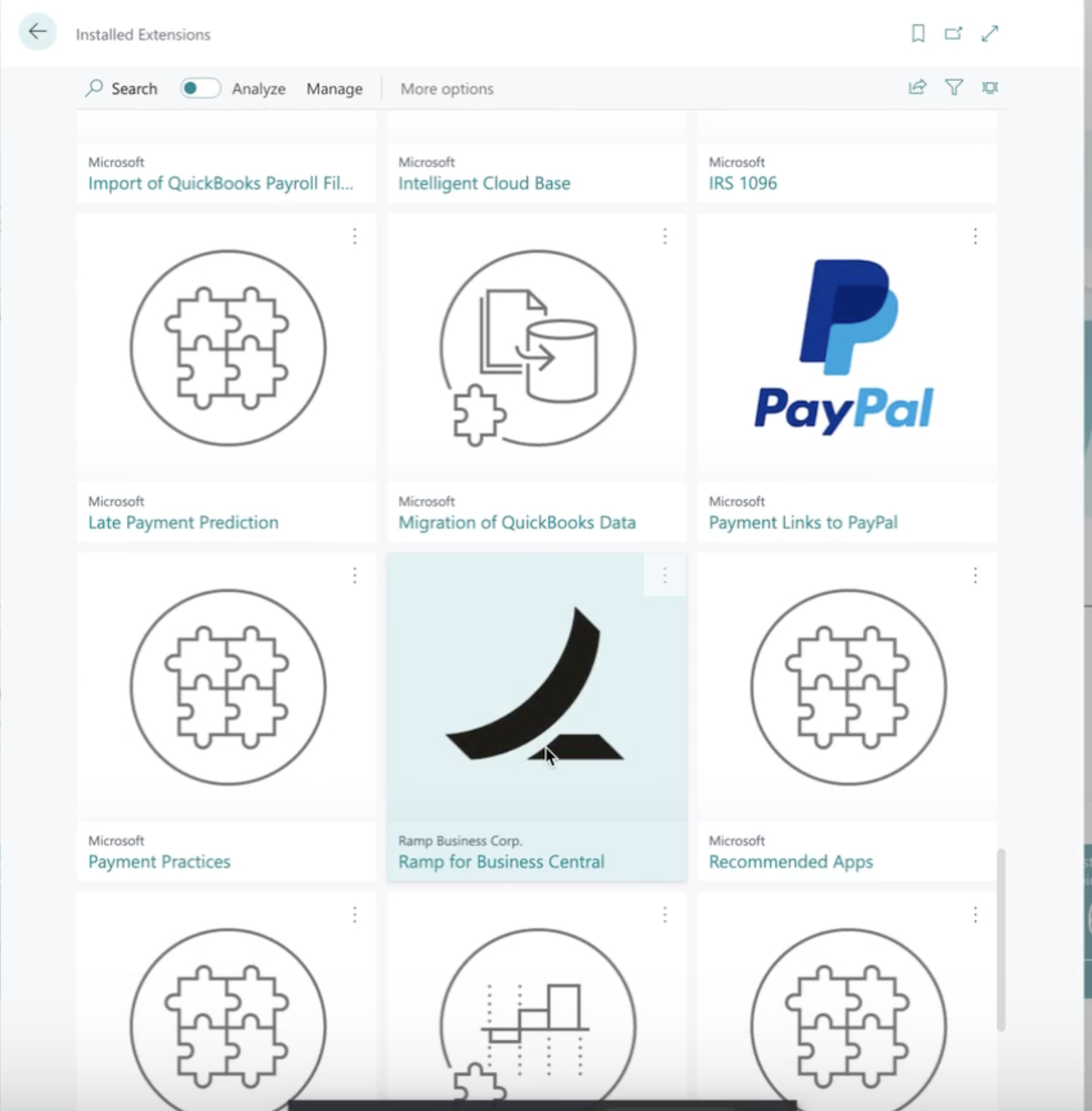
Locate the Ramp for Business Central extension.
-
Click Uninstall .
-
Ensure the Delete Extension Data option is unchecked.
-
Confirm by clicking Uninstall .
Step 3: Reinstall the Ramp extension
-
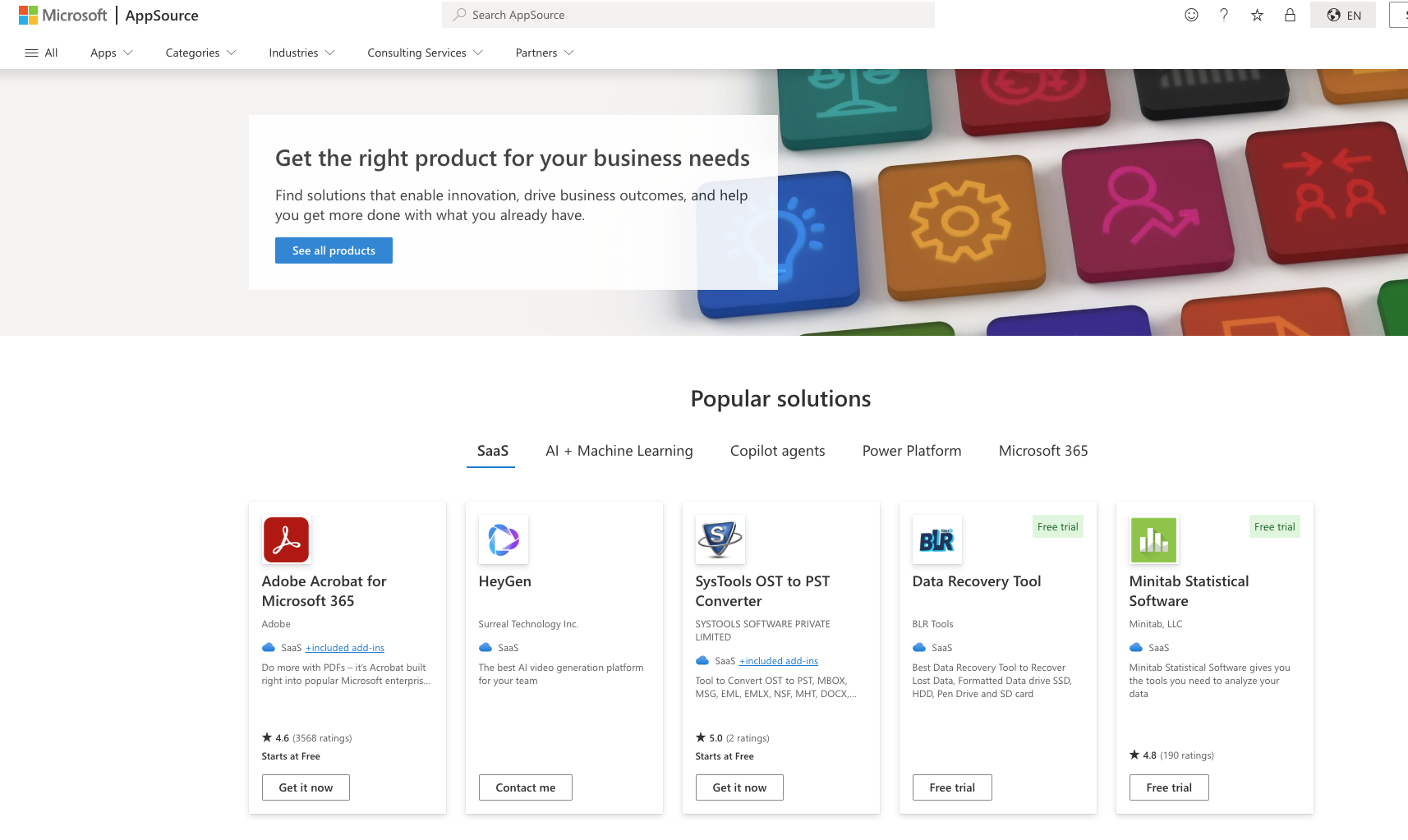
Go to the AppSource Marketplace .
-
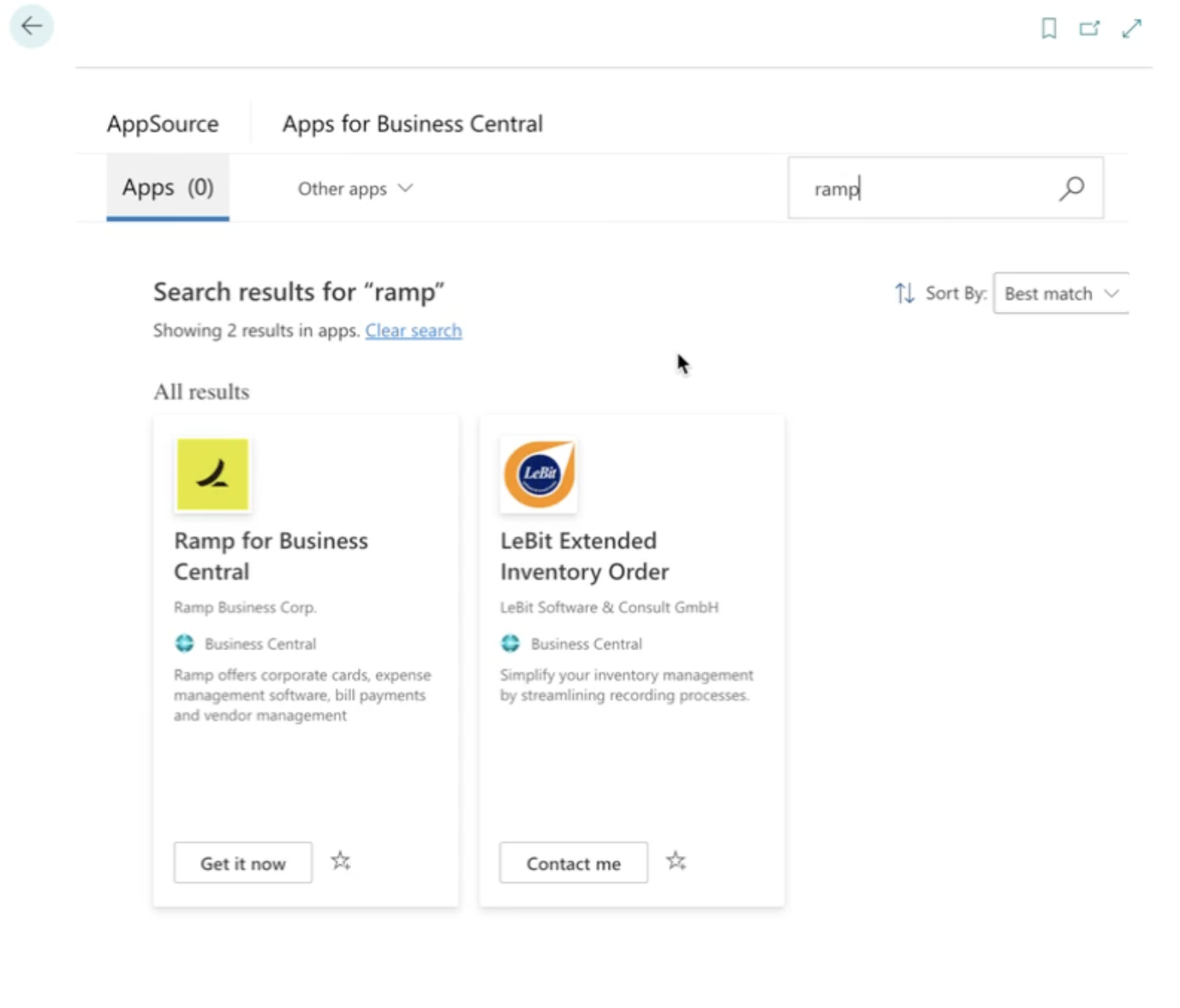
Search for Ramp .
-
Click Get it now .
-
Click Install .
Step 4: Finalize installation
- Wait for the installation to complete.
- When a pop-up appears, click the X button to close it. You've already granted admin consent, so no further action is needed.
Your Ramp extension is now updated and ready for use.