Acumatica integration: Create a default vendor for cash purchases
Overview
You may experience issues with automatically creating a default Ramp vendor for Cash Purchases in Acumatica. This is typically due to non-standard required fields on vendors in your Acumatica instance. This article details the solution to this problem.
Step-by-Step instructions
Follow these steps to manually create a default vendor in Acumatica:
- Open Acumatica: Sign in to your Acumatica account to begin the process.
- Navigate to Vendor Creation: Search for the Vendors page and create a new record.
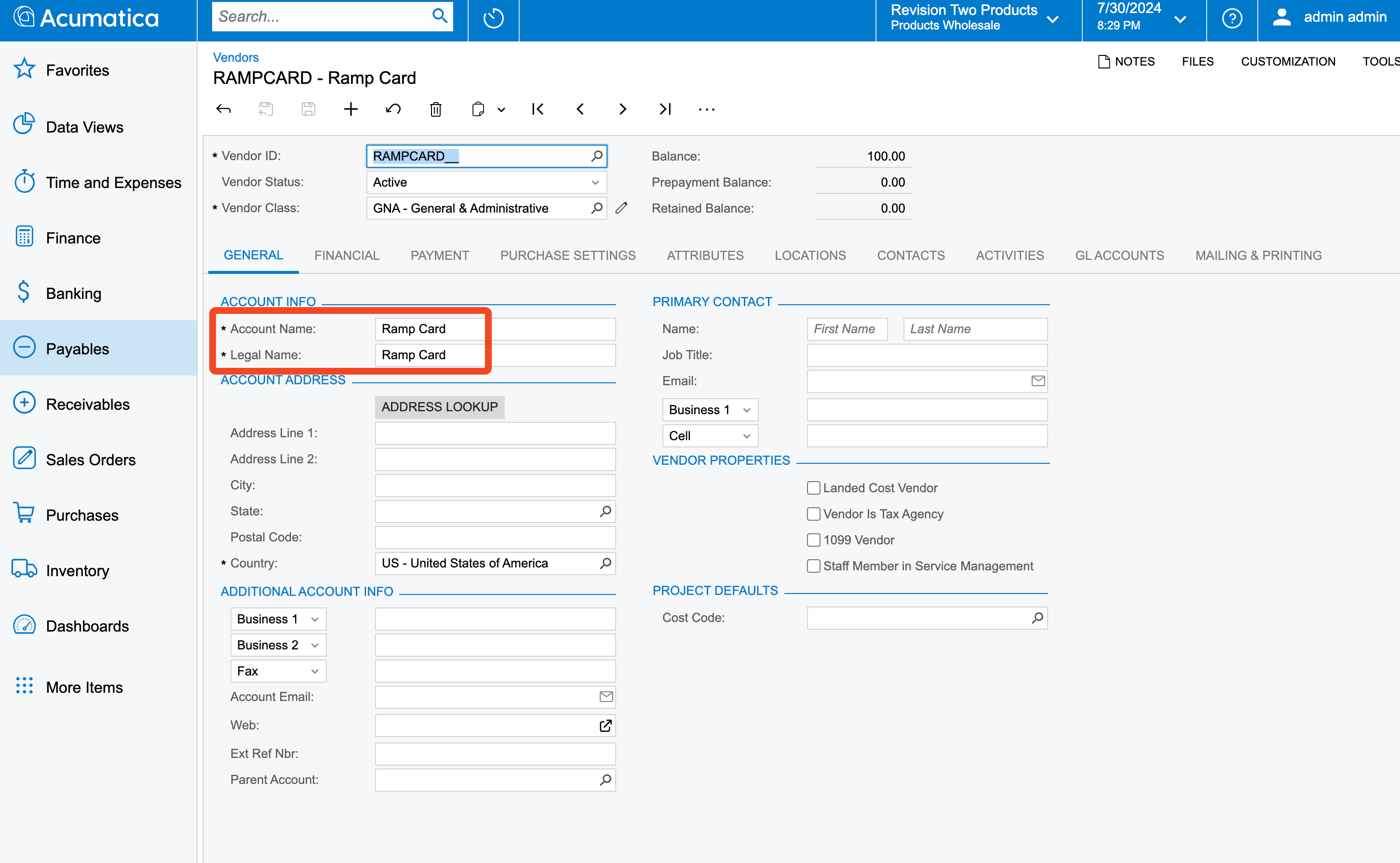
- Enter Vendor Information:
-
Account Name: Enter "Ramp Card".
-
Vendor Name: Enter "Ramp Card".
-
Vendor ID: Choose a Vendor ID that fits your existing numbering conventions.
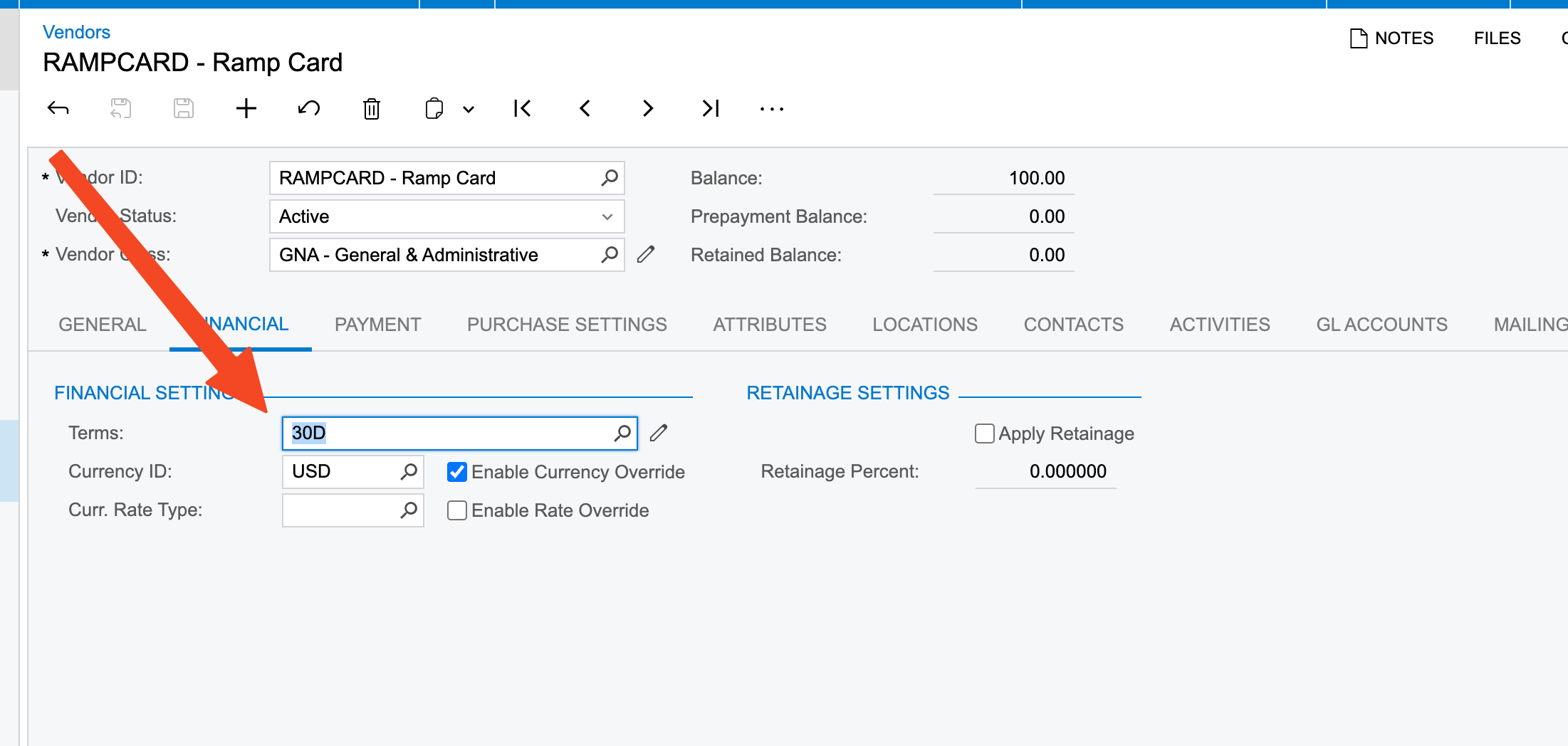
- Set Payment Terms:
-
Navigate to the financial tab.
-
Ensure that payment terms are set for this vendor.
- Save the Vendor:
- Once all the necessary fields are filled, save the new vendor.
- Retry Sync:
- After saving the vendor, retry syncing with Ramp to ensure the changes take effect.
By following these steps, you can manually create a default vendor to resolve issues with Ramp Cash Purchases in Acumatica. If you encounter any further issues, please reach out for additional support.